Duplicate Shopify Variants Without CSV Errors or SEO Damage
Compare Shopify admin, CSV, and GraphQL methods for copying variants, avoid common CSV mistakes, and protect SEO when publishing bulk product changes.

Duplicate Shopify Variants Without CSV Errors or SEO Damage

For a one-off change, use the Shopify admin duplicate action. For adding one new option across many variants, use bulk duplicate. For copying variants between products or editing many at once, export and re-import a CSV. For large-scale or automated work, use GraphQL’s productVariantsBulkCreate or productSet. Keep the 2,048 variant limit in mind before you start.
TL;DR:
- After duplicating a single variant, change at least one option value and review its SKU, images, and inventory locations before saving.
- Bulk duplication suits a new shared option across existing variants; choose which prices, SKUs, inventory, and images to copy, and Shopify skips existing combinations.
- CSV works across products, but blank fields can erase existing data, while changing option values replaces variant IDs and may disrupt connected apps.
- Shopify limits each product to 2,048 variants and large stores to 10,000 new CSV or API variants per rolling 24 hours, so batch imports.
- Use the API for repeatable or high volume work; both mutations require write_products permission, and productSet avoids an unwanted default variant during product creation.
Table of Contents
- Quick methods overview: admin, CSV, and API
- Step-by-step: duplicate a single variant in the Shopify admin
- Step-by-step: duplicate multiple variants in bulk using the admin
- Copy variant sets across products using CSV export → edit → import
- Programmatic options: GraphQL productVariantsBulkCreate and productSet
- Troubleshooting: validation errors, duplicate options and variant limits
- EcomEye perspective: variant URLs, SEO risk and safe bulk publishing
- Author’s brief perspective: pick the least risky route first
- How EcomEye can help with bulk, SEO-safe variant copying
- FAQ
- Sources
Quick methods overview: admin, CSV, and API
Each method suits a different scale of job.
- Admin duplicate: fastest for a single variant; good for one-off colour or size additions.
- Bulk admin duplicate: select several variants and add one new option value across all of them at once, such as a new colour across existing sizes.
- CSV export and import: the right tool for copying variant structures across products or editing many rows outside the admin interface.
- GraphQL mutations: built for automation, large catalogues and apps that need to create or update variants programmatically.
The trade-off runs in the same direction as the scale. Admin actions are safest because Shopify enforces the rules for you, but they do not scale past a handful of changes. CSV is powerful but forgiving of mistakes in the wrong way: a blank column or an edited option value can quietly delete data. The API gives you the most control and the highest ceiling, but it demands correct permissions and careful error handling.
Step-by-step: duplicate a single variant in the Shopify admin
Duplicating a variant in the admin is the quickest way to create a near-identical version of an existing one.
- Go to Products, open the product, and find the variant you want to copy in the Variants section.
- Select the variant, then choose Duplicate from the action menu.
- Change at least one option value (size, colour or material) before saving. Shopify requires this because it will not let you save an exact duplicate of an existing combination.
- Review the copied fields: price, weight and description usually carry over correctly, but double-check images, inventory locations and SKU, since these often need a fresh value for the new variant.
- Save, then confirm the new variant appears correctly on the storefront.
Most fields copy cleanly, but SKUs are the one place people forget to update, which then causes stock-tracking confusion later.
Pro Tip: Duplicate on a test product first and settle on a consistent SKU pattern (for example, PRODUCT-COLOUR-SIZE) before touching your live catalogue.
Step-by-step: duplicate multiple variants in bulk using the admin
When you need to add the same new option value across several existing variants, for example a new colour across every size you already sell, the bulk duplicate flow saves a lot of repetitive clicking.
- Open the product and select the variants you want to duplicate using the checkboxes in the Variants list.
- Launch the bulk Duplicate action from the menu above the list.
- Choose which attributes to copy: price, SKU, inventory and images can each be included or left out depending on whether the new variants should start from the same values.
- Set the new option value (the colour, material or edition name) that applies to the whole batch.
- Save and review the new rows; Shopify will skip any combination that would duplicate one that already exists, so you will not end up with two identical variants.
This flow works well for seasonal colour drops or limited editions where the size and price structure stays the same and only one attribute changes.
Copy variant sets across products using CSV export → edit → import
CSV is the right tool when you need to copy a whole variant structure onto a different product, or make changes to many variants at once outside the admin screen.
Start by exporting the product CSV from Products → Export. Each variant appears as its own row, with Option1, Option2 and Option3 columns carrying the variant’s values and the rest of the row carrying price, SKU, inventory and image data.
To copy a variant set onto another product, duplicate the relevant rows, change the handle to match the target product, and re-import. If you want the import to update an existing product rather than create a new one, select Overwrite products with matching handles during the import step.
A few cautions matter more than the mechanics:
- Any non-required column left blank in your CSV will overwrite and delete the existing data in that field, not leave it untouched.
- Changing an Option1, Option2 or Option3 value deletes the existing variant and creates a new one with a new ID, which can break any system relying on the old ID.
- Large stores face an import limit in addition to the per-product variant cap.
Shopify caps stores at 2,048 variants per product, and large stores may be limited to creating no more than 10,000 new variants via CSV or API within a rolling 24-hour window, so very large catalogue changes need to be batched rather than pushed through in one file.
Test with a small import of two or three products first, and keep a backup of your original CSV before you touch anything.
Programmatic options: GraphQL productVariantsBulkCreate and productSet
For automated or high-volume variant creation, the Admin GraphQL API is built for the job.
productVariantsBulkCreateadds many variants to an existing product in a single call, and supports attaching media and metafields to each variant as part of the same operation.productSetdefines a product and its full variant state atomically, which avoids the race conditions that can occur when a product is created and its variants are added as separate steps.- Both mutations require
write_productspermission on the API token or app. - Creating a product through the API automatically generates a default variant, which is a common source of confusion;
productSetis generally the safer choice when you want full control over the final variant list from the start. - Batch large jobs into smaller calls rather than one enormous request, to stay comfortably inside rate and import limits.
Reach for the API when you are building a repeatable process or syncing from another system; reach for CSV when the task is a one-off edit across a manageable number of products.
Troubleshooting: validation errors, duplicate options and variant limits
Most variant errors come down to a small number of causes.
- “Options are not unique”: two variants share identical option values. Check your CSV for duplicate option rows and make sure every combination is distinct before re-importing.
- Variant IDs changing unexpectedly: editing Option1, Option2 or Option3 columns in a CSV deletes and recreates variant IDs, which breaks third-party app mappings that rely on stable IDs. Plan the change, map which IDs will shift, and test on a single product first.
- Hitting the variant limit: the 2,048 variants per product cap and the 24-hour import ceiling for large stores both mean very large changes need to be exported and applied in batches rather than all at once.
- Unexpected default variants from the API: creating a product through the API generates a default variant automatically; prefer
productSetfor atomic creation so you are not cleaning up an unwanted default afterwards.
EcomEye perspective: variant URLs, SEO risk and safe bulk publishing
Shopify generates ?variant= query strings and collection-scoped product paths for every product, and canonical tags generally consolidate these correctly back to one indexable URL. The common failure point is theme-level, not platform-level: a wrong og:url tag or internal links pointing at a parameterised URL can surface duplicate paths in Search Console even when canonical handling itself is working.
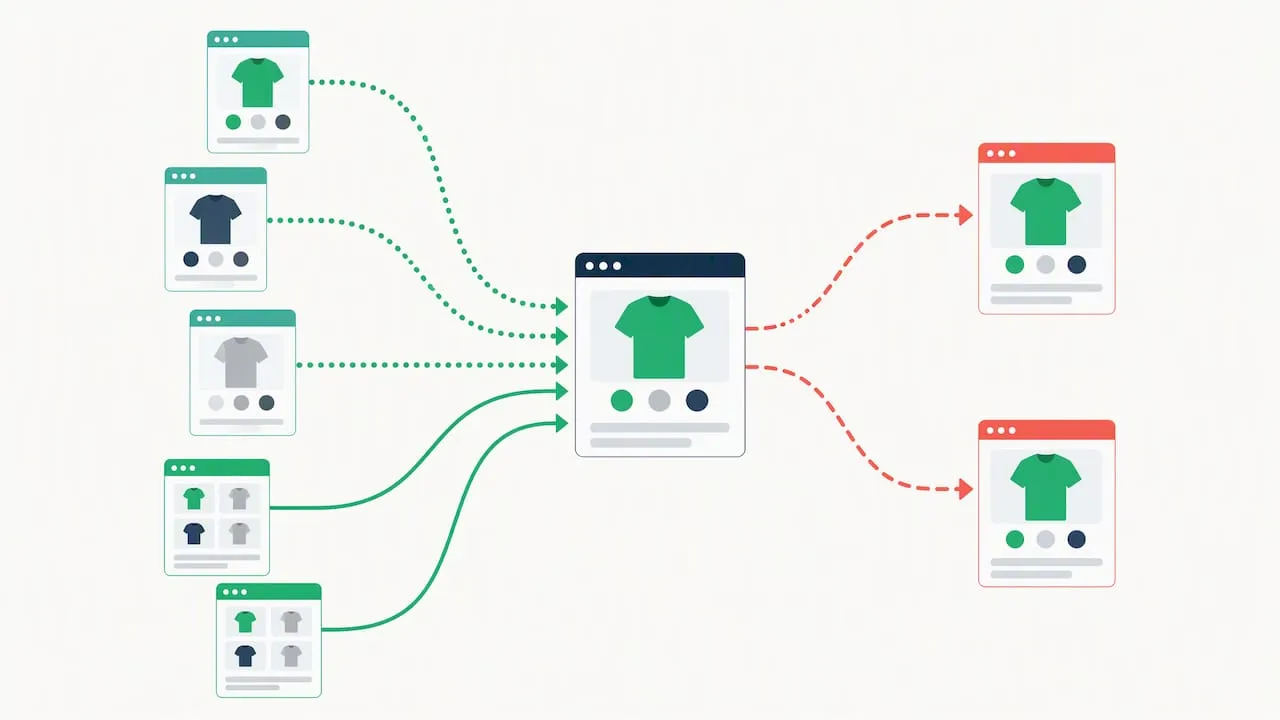
Bulk-duplicating variants without unique product content compounds this risk, since near-identical titles and descriptions across many pages make the duplication problem worse, not just the URLs. This is where generating distinct, SEO-ready copy for each product earns its keep as catalogues grow.
Pro Tip: Before a large variant rollout, crawl your site to check your duplicate URL count and confirm which variants feed into Google Merchant Centre.
Author’s brief perspective: pick the least risky route first
Start with the admin or a small CSV test before touching your whole catalogue. Bring in a developer or move to the API once the process needs to repeat or scale. Back up your data first, and preserve variant IDs if any app depends on them.
— Koen
How EcomEye can help with bulk, SEO-safe variant copying
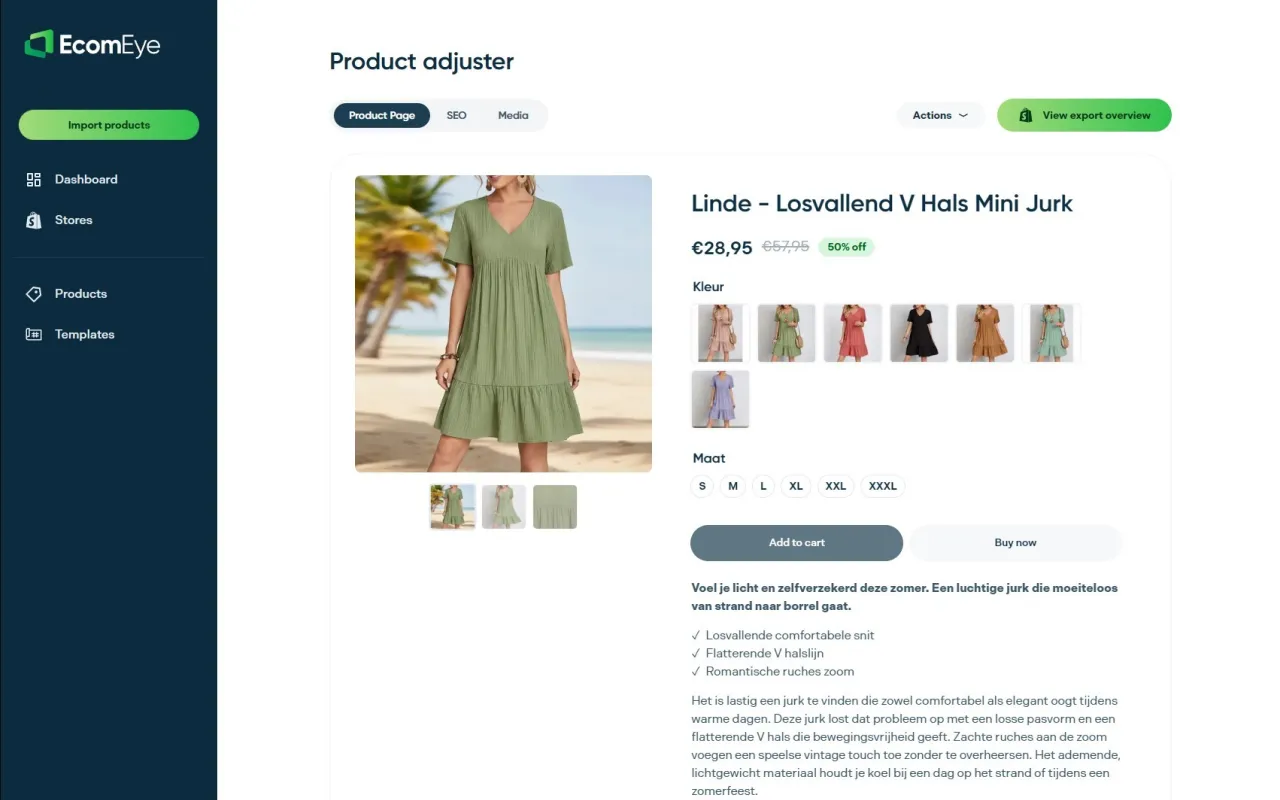
We built our platform to generate unique, SEO-optimised product pages in bulk, which matters once you are duplicating variants across dozens or hundreds of listings and risk repeating the same thin content across every one. Each page gets its own title, description and AI-generated images, so copied variant structures do not end up sharing duplicate copy. Try a small batch on the Try-out plan at €39 per month, or move to Scaler at €99 per month once you are ready to publish at volume.
FAQ
How do I duplicate a variant in Shopify without creating an exact copy?
Shopify will not let you save a duplicated variant with identical option values to an existing one. Change at least one option, such as size or colour, before saving the duplicate.
Can I copy variants from one product to another using CSV?
Yes. Export the product CSV, duplicate the variant rows, change the handle to the target product, and re-import using the overwrite option for matching handles if you are updating an existing listing.
What causes the “options are not unique” error?
This happens when two variants share identical option values, usually from a duplicate row in a CSV import. Check your file for repeated combinations and make each one distinct before re-importing.
How many variants can one Shopify product have?
A single product is capped at 2,048 variants, and very large stores may face an additional limit on new variants created via CSV or API within 24 hours. Plan bulk imports in batches if you are near either limit.
Does duplicating variants hurt my store’s SEO?
Duplicating the variant structure itself is not a problem since Shopify’s canonical tags normally consolidate the resulting URLs. The real risk comes from publishing near-identical titles and descriptions across many pages, which is where generating unique content for each listing helps.
Sources
Ready to boost your product pages?
Generate high-converting, SEO-optimized product pages in bulk using AI automation used by e-commerce experts.
No credit card required