Import Shopify Products From URLs Without Duplicate Content
Compare URL import apps, CSV uploads, and Shopify APIs, then avoid broken images, inaccurate listings, and duplicate content with a safe workflow for scaling.

Import Shopify Products From URLs Without Duplicate Content

The fastest way to bring products into Shopify is through a URL-capable import app, with CSV upload for precise control and the Shopify API for automated or large-scale feeds. Apps suit non-technical owners who want speed, CSV suits anyone who needs exact field control, and the API suits scheduled or bulk workflows. Whichever route you pick, images must sit on a public URL and your CSV must match Shopify’s expected format and UTF-8 encoding, or the import will fail silently or partially.
TL;DR:
- Import app users should map Title, Body (HTML), Vendor, Price, SKU, and Image Src carefully, create drafts, then inspect images, variants, and prices before publishing.
- CSV files need Shopify’s exact headers and UTF-8 encoding, while every image URL must be public; inventory CSV imports have a 15 MB limit.
- For recurring feeds or catalogs in the thousands, API scripts avoid manual uploads but require authentication and must handle rate limits and pagination.
- Copied supplier text and photos can raise duplicate content and copyright risks; test a small batch, review Merchant Center, and verify handles before publishing.
Table of Contents
- At a glance: which method to pick
- Step-by-step: import from a product or store URL using an import app
- Step-by-step: prepare and import a Shopify-compatible CSV
- Programmatic imports: using Shopify APIs or scripts to pull product data
- Troubleshooting and common pitfalls: images, handles and encoding
- EcomEye example: one-click export and unique content generation for bulk imports
- How AI-generated product content avoids duplicate content penalties
- Integrating an AI SaaS tool with Shopify for bulk importing
- Copyright safety when importing from competitor URLs
- Multi-language product pages and managing translations in Shopify
- Keeping imported product data accurate and unique over time
- Author checklist: how I would pilot a 20 to 30 product import
- Try EcomEye: speed up bulk imports and avoid duplicate content issues
- FAQ
- Sources
- Shopify help and developer docs used in this article
At a glance: which method to pick
The right method depends on how many products you’re moving, your comfort with spreadsheets or code, and whether you need unique content rather than copied listings. A single supplier page or two favours an import app; a few hundred products with custom fields favours CSV; a recurring feed from a supplier or marketplace favours the API.
- Import apps are quickest to start but give you less control over field mapping and rarely generate unique SEO copy.
- CSV uploads give full control over every column, including price, SKU and image source, but demand careful formatting.
- API imports suit developers who need scheduled syncing or thousands of products, though they require authentication and code.
Ask yourself three questions before starting: how many products, how often will this repeat, and do you need original content rather than a copy of someone else’s listing. The answers point you to the right method before you touch Shopify admin.
Step-by-step: import from a product or store URL using an import app
Most bulk import apps let you paste a shop or product URL, preview the items found, then map each field to a Shopify column before publishing.
- Paste the source shop or product URL into the importer and let it scan for products.
- Review the preview list and deselect anything you don’t want, such as out-of-stock variants.
- Map each source field to Shopify’s expected columns: Title, Body (HTML), Vendor, Price, SKU and Image Src are the ones that most commonly get mismatched.
- Set the import to create products as drafts rather than publishing them immediately.
- Open a sample of the imported drafts, check that images loaded and that pricing and variants are correct, then publish in small batches.
Field mapping is where most imports go wrong: a description field pointing at the wrong column produces blank listings, and an Image Src pointed at a thumbnail instead of the full-size file gives you a grainy product photo. If you’re moving an entire store rather than a handful of products, the Store Migration app for Shopify offers a guided path for pulling product and customer data from supported platforms in one pass.
Pro Tip: Always import as draft first. A batch of 500 live products with broken images is far harder to fix than 500 drafts.
Step-by-step: prepare and import a Shopify-compatible CSV
CSV import gives you the most control, but Shopify is strict about formatting. Getting the header row and encoding right the first time avoids a frustrating cycle of failed uploads.
- Start from Shopify’s own product CSV template, or export a sample CSV from your existing store, so your headers match exactly what the importer expects.
- Fill in the required columns: for new products, Title is the only mandatory field; for updating existing products, the Handle must match the product you’re editing.
- Include Image Src for any product photos, and double-check that each image URL resolves publicly in a browser.
- Save the file as UTF-8 before uploading, since Shopify’s import documentation confirms this encoding is required for special characters to display correctly.
- Tick “Overwrite products with matching handles” only when you intend to replace live data, and test this option on two or three products before running it against your full catalogue.
Inventory CSVs carry a 15 MB file size limit, according to Shopify’s inventory import guidance, which also explains that the import process produces a validation summary and an email listing any rows that failed. If you’re used to marketplace tools, platforms such as Ruit’s CSV and Excel import feature show a similar pattern of mapping spreadsheet columns to marketplace fields, which is worth knowing if you cross-list on eBay or other channels alongside Shopify.
Programmatic imports: using Shopify APIs or scripts to pull product data
For recurring feeds or catalogues running into the thousands, a script against Shopify’s Admin API is usually the better route than repeated manual CSV uploads.
- Fetch the source page or feed, then parse out title, description, price, SKU and image URLs into a structured format.
- Create each product through the Admin API, then upload media separately. Shopify’s Storefront API product documentation shows the product object fields and media connections used for both retrieving and creating listings.
- Host your images on a publicly accessible CDN or storage bucket first, since the API, like the CSV importer, can only fetch media from a URL it can reach without authentication.
- Watch for rate limits and pagination when pulling from a large feed. A script that ignores throttling will get blocked partway through a run.
If you don’t have development resources in-house, hiring a developer for a one-off script or using an integration platform is usually faster than building API handling from scratch, particularly when authentication and error handling are involved.
Troubleshooting and common pitfalls: images, handles and encoding
Most failed imports trace back to one of three causes, and each is checkable before you commit to a bulk run.
- Handles are the unique identifier Shopify uses to match rows to products, so an incorrect handle during an overwrite can replace a live listing you didn’t mean to touch. A guide on stopping duplicate Shopify handles walks through a preflight check for this exact problem.
- UTF-8 encoding mismatches and header row typos are the two most common reasons a CSV import fails outright rather than partially.
Pro Tip: Before any bulk publish, load five random image URLs in a private browser tab, check handle uniqueness in a spreadsheet, and read one full product listing end to end.
EcomEye example: one-click export and unique content generation for bulk imports
We built a tool around the part of this process that import apps and CSVs don’t solve: unique, SEO-ready content at scale. Rather than mapping fields one by one, we let you paste in links from AliExpress, Amazon, Temu or a competitor’s Shopify store, and we generate original titles, descriptions and AI product images for each one. Once the content is ready, the tool exports the full batch to the Shopify store in a single click, with no manual rewriting and no copyright exposure from reused supplier text or photos. This route suits store owners scaling past a handful of SKUs who also want to avoid Google Merchant Center disapprovals tied to duplicate content. We’d recommend testing with a small batch first and checking how the generated listings appear in your Merchant Center feed before pushing a full catalogue through.
How AI-generated product content avoids duplicate content penalties
Search engines rank pages on distinct, original content, and a product page copied word for word from a supplier or competitor site gives Google nothing new to index. When hundreds of stores sell the same AliExpress item with the identical manufacturer description, Google has no reason to rank any one of them highly, and Merchant Center can flag the listing as duplicate or low-quality.
AI-generated product copy sidesteps this by producing a fresh title and description for each store, even when every store is importing the same underlying product. The content covers the same features and specifications a shopper needs, written in different phrasing and structure each time, which gives each listing its own indexable page rather than a mirror of a dozen competitors. Pairing unique text with AI-generated product images, rather than reused supplier photos, removes a second common source of duplication, since reverse image search and Merchant Center’s image checks can also flag repeated photos across stores.
The practical effect is fewer Merchant Center disapprovals and a better shot at ranking a product page on its own merits rather than losing out to the dozens of other stores selling the identical item with identical wording. This matters most for anyone running a dropshipping catalogue built from AliExpress or similar sources, where duplicate listings are the default outcome unless something intervenes.
Integrating an AI SaaS tool with Shopify for bulk importing
Connecting an AI SaaS tool to your store follows a consistent pattern regardless of where your source products come from.
First, gather the product URLs you want to import, whether from AliExpress, Amazon, Temu or a competitor’s Shopify store, and paste them into the tool in bulk rather than one at a time. Second, let the tool generate unique titles, descriptions and AI images for each product. This step replaces the manual rewriting that would otherwise be needed to avoid duplicate content. Third, review the generated listings in a preview or draft state, checking that pricing, variants and categories have carried across correctly. Fourth, export the finished batch to Shopify in one click, which creates the products directly in your store without a separate CSV step.
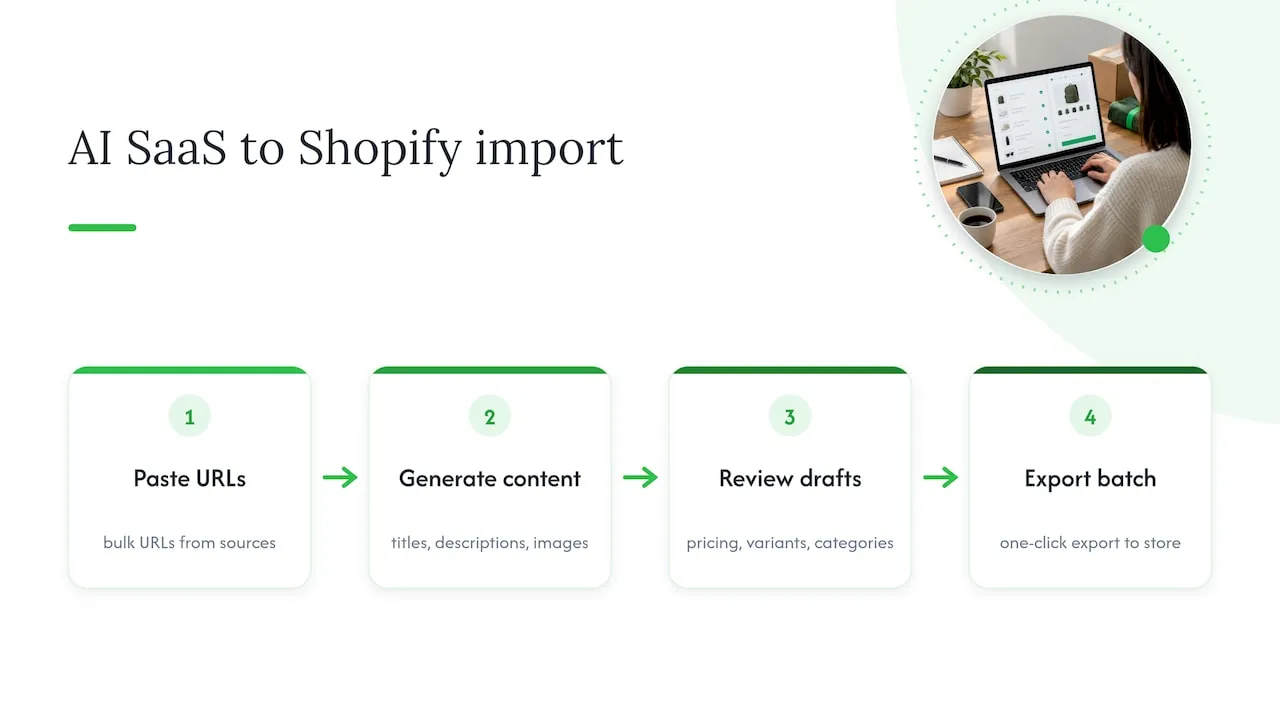
From there, the workflow folds back into standard Shopify practice: check the products as drafts, confirm images have loaded and handles are unique, then publish in batches rather than all at once. For a store adding new SKUs weekly, repeating this cycle on small, regular batches tends to catch problems faster than one large import every few months. The appeal of this approach over manual CSV work is that the content generation and the Shopify export happen in the same pass, rather than as two separate jobs with a spreadsheet in between.
Copyright safety when importing from competitor URLs
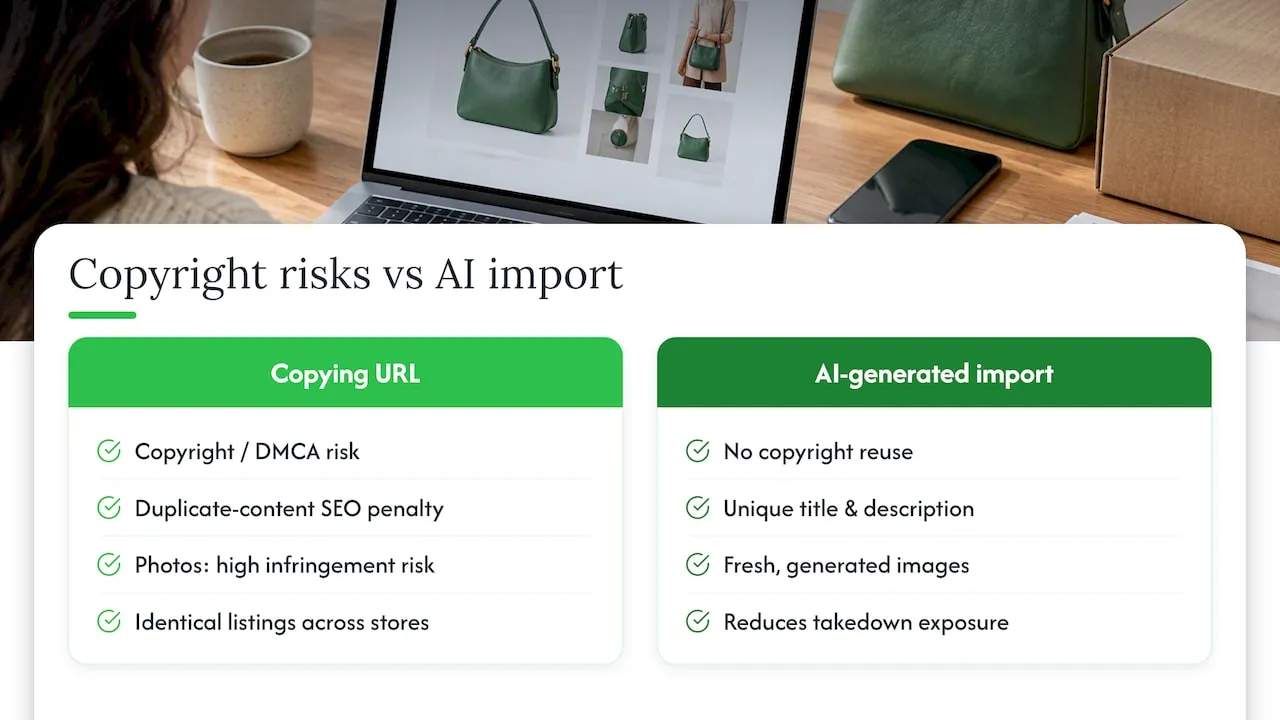
Pulling a product listing wholesale from a competitor’s Shopify store or a supplier page raises two separate risks: copied text can trigger a copyright or DMCA complaint from whoever owns the original wording or photos, and even without a formal complaint, Google treats a copied page as duplicate content that rarely ranks.
Product photos are the sharper risk, since many suppliers and competitors use studio images they either commissioned or licensed, and reusing them without permission is a more direct infringement than reusing a short product description. Text descriptions sit in a greyer area legally, but duplicate text still carries the SEO penalty even when it carries no legal one.
AI-generated content addresses both problems at the source. Because the title, description and images are generated fresh for each import rather than copied from the source URL, there’s no original file or original wording being reused, which removes the copyright question entirely rather than managing around it. It also means every store using the same generation process on the same source product ends up with a genuinely different listing, not a template with swapped-out logos. For anyone building a catalogue from supplier or competitor links at volume, this is the difference between a store that risks a takedown notice and one that doesn’t carry that exposure at all. A guide to importing competitor products into Shopify safely covers this pattern in more detail.
Multi-language product pages and managing translations in Shopify
Selling into more than one language market usually means either manually translating every product page or paying for a translation service per listing, both of which get expensive fast once your catalogue grows past a small size.
Shopify’s own translation tools let you store multiple language versions of a product page within the same store, switching the displayed language based on the shopper’s locale. The structure is there natively, but populating it with accurate, well-written copy in each language is the part that takes time when done by hand.
An AI generation workflow can produce the product title, description and SEO metadata directly in multiple languages at the point of import, rather than generating English copy first and translating it afterwards as a separate step. This avoids the stiff, literal phrasing that pure machine translation sometimes produces, since the content is generated for that language rather than converted into it. For a store expanding into a second or third market, generating listings natively in each target language at import time removes a translation backlog before it builds up, and keeps the SEO-relevant phrasing idiomatic rather than translated word for word.
Keeping imported product data accurate and unique over time
Importing a product well is only the first part of the job. Supplier prices change, stock runs out, and search engines periodically reassess pages that haven’t been touched in months, so a listing that ranked well at launch can drift if nothing updates it.
A few habits keep imported catalogues in good shape. Re-check supplier pricing and stock levels on a set schedule rather than only when a customer complains about an out-of-stock order. Refresh product descriptions periodically rather than leaving the original import copy untouched indefinitely, since search engines tend to favour pages that show signs of being maintained. Watch for duplicate handles creeping in when re-importing updated data from the same supplier, since an accidental overwrite can silently replace a listing’s content with an older or incorrect version.
If you’re running imports through an AI content tool, regenerating descriptions periodically for your best-selling products, rather than only at the original import, helps keep the wording distinct from competitors who may have imported the same source product after you did. Treating the import as a one-off task rather than an ongoing process is the most common reason catalogues that started out clean slowly accumulate duplicate-content and stale-listing problems over a year or two.
Author checklist: how I would pilot a 20 to 30 product import
Before publishing anything at scale, I’d import as drafts, check the SEO fields and images manually, and review the Google Merchant feed if the store uses one. I’d confirm every handle and SKU is unique, test how inventory and variants behave on a couple of products, then publish in small batches while watching analytics and Merchant Center reports for anything unusual.
— Koen
Try EcomEye: speed up bulk imports and avoid duplicate content issues
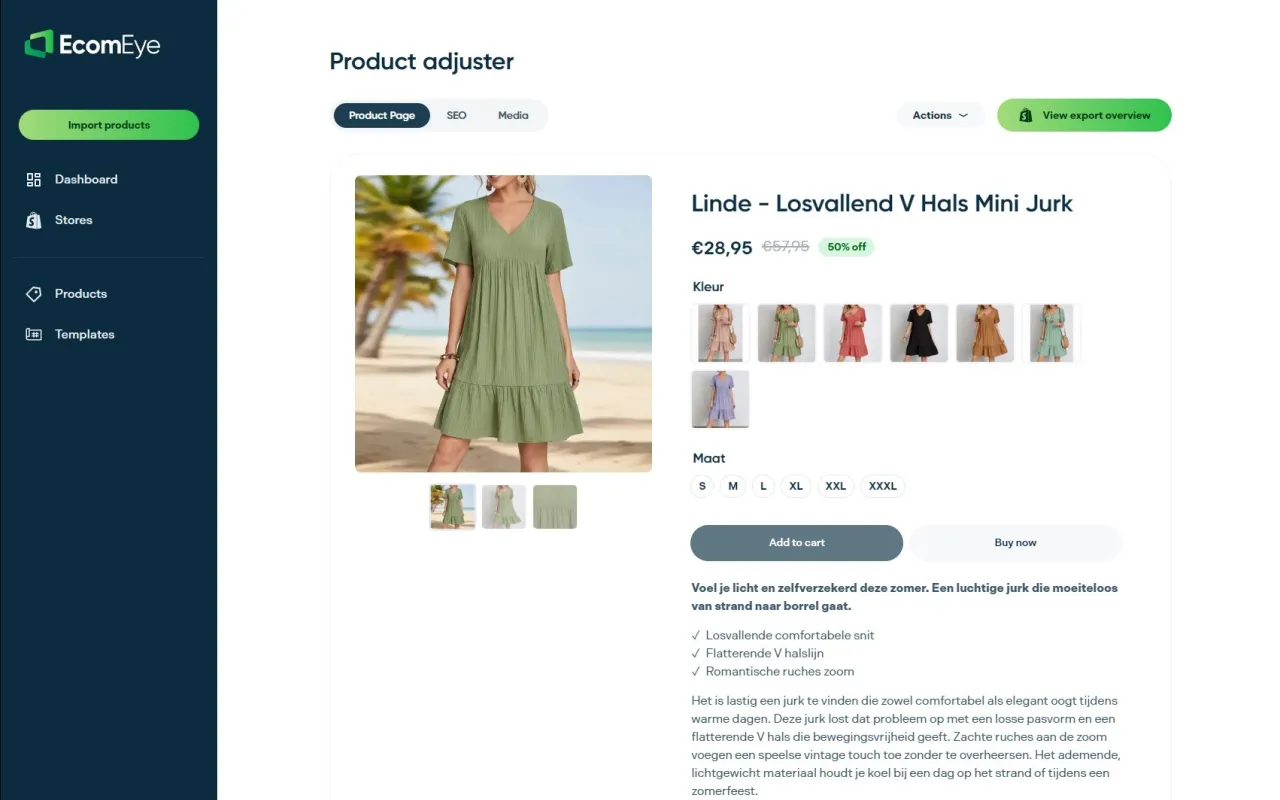
If you’ve read this far, you already know the hard part of importing products isn’t pasting a URL, it’s making sure what lands in Shopify is unique enough to rank and clean enough to pass Merchant Center. Some tools address this gap by generating original titles, descriptions and AI images for each product before exporting the whole batch to Shopify.
| Plan | Price | Best for |
|---|---|---|
| Try-out | €39 per month | Testing a small batch before scaling |
| Scaler | €99 per month | Ongoing bulk imports across a growing catalogue |
Our AI product description generator and AI product image generator handle the content side automatically, so nothing you publish is a copy of the page you imported from.
Pro Tip: Run your first import on the Try-out plan with 20 to 30 products before committing a full catalogue, so you can check the generated copy and images against your own standards first.
A platform offering copyright-safe, bulk-generated product content is one practical way to close the gap between importing fast and importing something Google will actually rank, which matters more the larger your catalogue gets.
FAQ
How do I import products from any website to Shopify?
Paste the product or store URL into a bulk import app, or export the data as a CSV matching Shopify’s required headers and upload it through Products > Import. For larger or recurring feeds, pulling data through Shopify’s Admin API is the more reliable long-term option.
How do I change the URL handle for a product in Shopify?
Open the product in Shopify admin, go to the “Search engine listing” section, and edit the URL handle field directly, then save. Changing a handle that’s already indexed by Google can affect that page’s search ranking, so it’s worth doing deliberately rather than casually.
How do I copy a Shopify product URL link?
Open the product in Shopify admin, scroll to the “Search engine listing preview” section, and copy the full URL shown there, or copy it directly from your storefront’s address bar while viewing the live product page.
Does Kim Kardashian use Shopify?
This isn’t something we’re able to confirm from the sources behind this guide, and it isn’t relevant to importing products into Shopify. For platform-specific questions like this, Shopify’s own Help Centre is the better place to check.
Sources
- Solutions to common product CSV import problems
- Import inventory from a CSV file
- Importing products with a CSV file
- Product object and queries — Storefront API
Shopify help and developer docs used in this article
Ready to boost your product pages?
Generate high-converting, SEO-optimized product pages in bulk using AI automation used by e-commerce experts.
No credit card required