Colour Name Standardisation in Shopify: A Practical Guide
Standardise colour names across Shopify variants and swatches: build one master list, map supplier labels, fix swatch errors and bulk-edit without losing options.

Colour Name Standardisation in Shopify: A Practical Guide

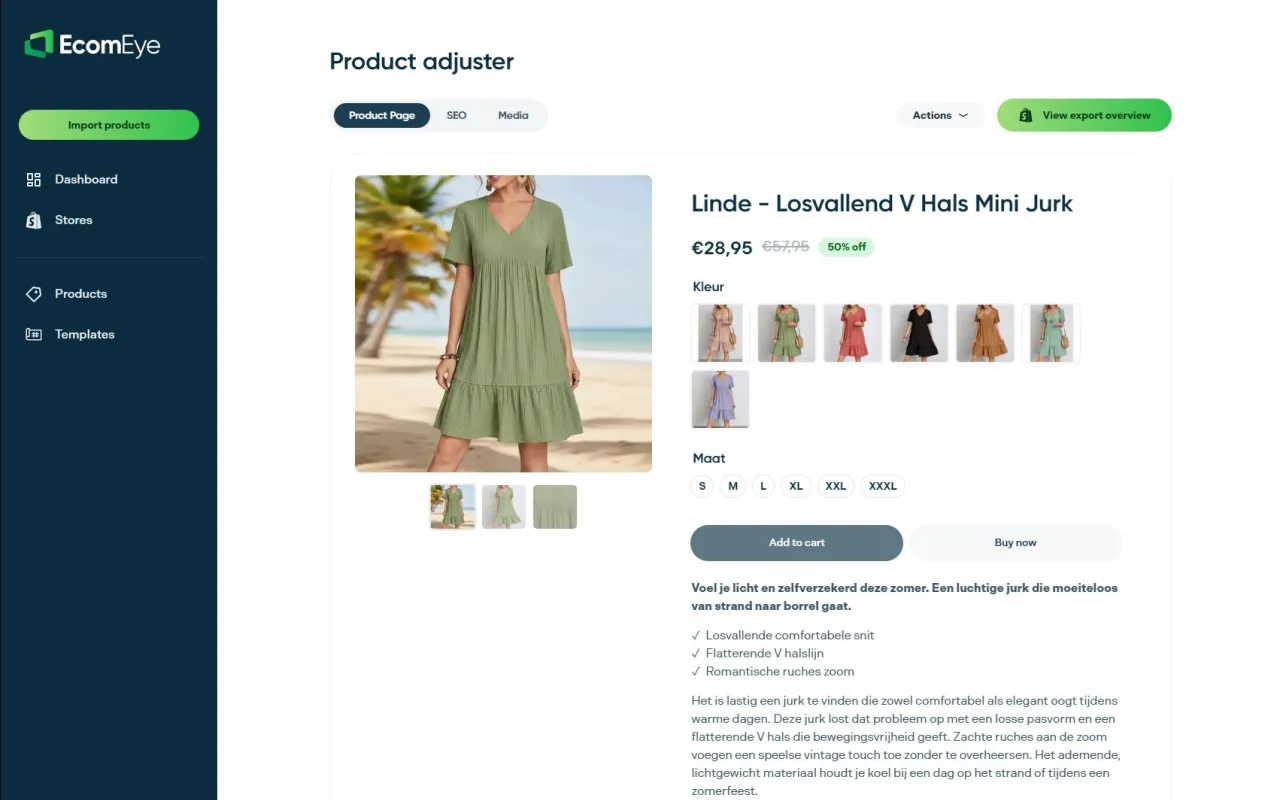
Colour name standardisation means every product in your store uses one agreed name for each colour, so “wine”, “merlot” and “burgundy” do not appear as three separate options. For dropshippers importing from several suppliers, the fix is a short master colour list, a mapping from supplier labels to that list, and a clean import so the names are right before they reach Shopify. We built Ecom-eye to generate and bulk-edit product pages with variant management, so the colour names are consistent from the first import.
TL;DR
- Pick one shopper-facing name per colour family and map every supplier synonym to it.
- Keep the supplier’s original name in a separate field, such as a tag or private metafield, so reordering stays traceable.
- Swatches only display when the option name, the colour entry and any image filename match exactly what the theme expects.
- Link your Colour option to Shopify’s Color category metafield, so one rename updates every product that uses it.
- Fix names before import: cleaning thousands of variants afterwards is slower and riskier.
Table of Contents
- Why colour names drift in a dropshipping catalogue
- Step 1: Audit the names you already have
- Step 2: Build your master colour list
- Step 3: Keep the supplier’s name somewhere safe
- Step 4: Connect colours to Shopify’s Color metafield
- Step 5: Make swatches display correctly
- Step 6: Bulk-standardise without losing distinct options
- When you have hundreds of shades
- A worked example
- Where we fit in
- Our perspective
- FAQ
- Sources
Why colour names drift in a dropshipping catalogue
A supplier file rarely agrees with the next one. One lists “Navy”, another “Dark Blue”, a third “Navy Blue (Deep)”. Shopify treats each string as a different value, so your filters split, your swatches break and your Merchant Center feed carries inconsistent attributes. A fashion-data guide advises treating colour as a controlled value rather than free text: one approved list, plain names customers understand, and extra descriptors such as “heather” or “washed” kept in a separate attribute.
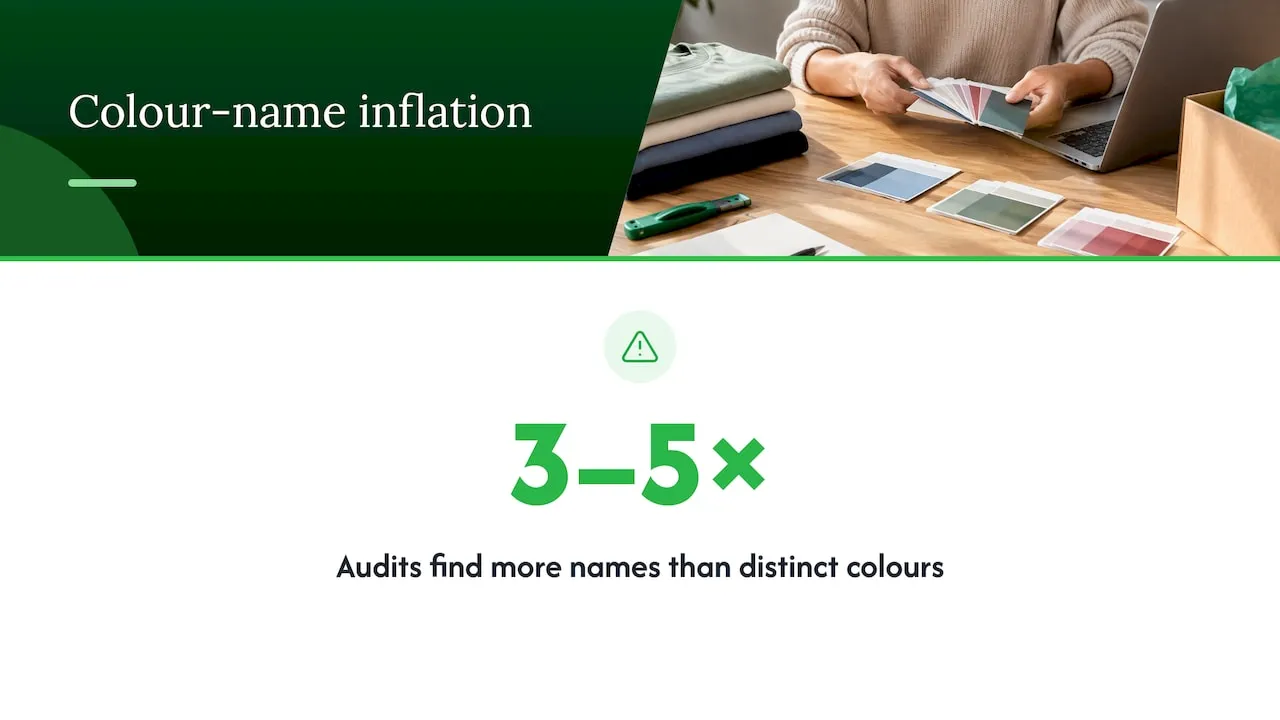
The scale is usually bigger than owners expect. An apparel colour-standardisation guide reports that audits typically find three to five times more colour names than distinct colours. A catalogue of 40 true colours can easily carry 150 labels.
Step 1: Audit the names you already have
Export your products and list every unique value in the Colour option, sorted by how many products use it. A product-data guide gives a useful yardstick: if you have around 47 unique values and the top 10 cover 80% of products, the job is manageable. Around 200 values with no dominant entries is a bigger project and deserves a proper mapping table.
Two things to watch while auditing:
- Misspellings and casing (“Gray”, “grey”, “GREY”).
- Compound names that hide two attributes, such as “Heather Grey” or “Black/White”.
If the supplier data is the root cause, our guide on how to normalise supplier data for Shopify before you import covers the wider clean-up.
Step 2: Build your master colour list
Choose the term buyers actually search for, not the biggest supplier’s term. A product-data normalisation guide gives the model: “Anthracite”, “anth grey” and “Dark grey (RAL 7016)” all normalise to one value, with the technical code kept in a separate attribute.
Practical rules for a dropshipping store:
- Keep it short. A data-quality guide suggests a controlled vocabulary of around 24 standard colours such as Red, Blue, Green, Black and White. Fashion catalogues with deeper ranges may need 30 to 60 master colours.
- One name per family. For instance, Burgundy can absorb wine, merlot, port, oxblood and bordeaux, while Rust covers terracotta, brick, clay and spice, as one vendor-colour guide shows.
- Do not over-merge. Genuinely different shades should stay separate, or customers will receive something they did not expect.
- Name an owner. One person approves new values, so the list does not fragment again.
Plain names or creative names?
A UK retail colour specialist notes that names carry marketing weight, but simple names like “dark red” are understood by every customer, while exotic ones such as chartreuse or verdigris are not. For a dropshipping store selling to a broad US audience, plain names in the variant selector are the safer default. Creative names can live in the product copy.
Step 3: Keep the supplier’s name somewhere safe
Standardising the customer-facing name does not mean deleting the original. Store the supplier’s label in a tag such as vendor-color:merlot, a private metafield or the SKU, so that reordering and support stay tied to the supplier’s own listing. Another guide recommends keeping supplier naming and customer-facing naming in separate fields, with a log of any name changes.
This is especially useful in dropshipping, where a supplier may rename a colour between batches. Two similar names are not automatically the same product.
Step 4: Connect colours to Shopify’s Color metafield
Shopify’s own system is the cleanest long-term answer. According to the Shopify Help Center, when a variant option is connected to a colour category metafield, you can rename an entry once (for example black to graphite) and every product connected to it updates. Colour entries can also display as swatches on product pages.
Behind the scenes, each colour is a reusable metaobject with a label, hex value and optional image, and a custom colour can be linked to a standard base colour so it still matches storefront filters. Existing variants can be migrated, and Shopify’s help pages on adding variants say option names can then be updated in one place under Content > Metaobjects. The same page lists the limits: up to 3 options and up to 2,048 variants per product.
If you edit in CSV, note two mechanics from a category metafields guide: the linked column takes product.metafields.shopify. plus the attribute key, and the option value uses the entry’s handle rather than its display name. Variant metafields are not carried in product CSVs and are edited in the bulk editor.
For how variant limits interact with search visibility, see our piece on 2,048 variants, Shopify SEO and bulk workflow.
Step 5: Make swatches display correctly
Most swatch problems are naming problems. Shopify’s developer documentation explains that the swatch object outputs a hex code, an RGB string or an image path for themes to render. Older or custom themes work differently, and the rules are strict:
- Option name. One theme’s documentation says swatches display automatically when the option is named Color, Colour, Farbe or Couleur. Another allows other option names to be enabled in theme settings.
- Exact match. Default swatch colours need the variant name to match the theme’s colour list exactly.
- Image swatches. Several themes want PNG files with a lowercase, hyphenated filename: “Heather grey” becomes heather-grey.png, and JPG files will not display.
- Hex format. One swatch app’s CSV rules require full six-digit hex codes with a leading #; shorthand like #000 is rejected.
A white chip instead of a colour
If a swatch shows as a blank white chip, the colour entry has no value behind it. Add a hex code or an image to that entry and make sure the name matches the admin exactly. Setting it once updates it everywhere.
Two vendors, same swatch name
When variants share a name, the theme treats them as the same value, with the same swatch and linked image. Each variant therefore needs a unique name: Forest Green, Mint Green, Green Leather and Matte Green instead of four rows saying “Green”.
Step 6: Bulk-standardise without losing distinct options
Once the mapping exists, apply it in bulk. A variant bulk editor’s documentation describes filtering variants by option name, selecting them and entering the standard value. The catch is that every variant must keep a unique combination of option values. If “Dark Blue / M” and “Navy / M” both become “Navy / M” on the same product, you have created a duplicate that will fail or overwrite.
A safe routine:
- Export a backup of the products first.
- Apply the mapping to one product type and check for collisions.
- Review ambiguous cases by eye before merging.
- Roll out to the rest and re-check swatches.
Our guides on safe bulk find and replace and duplicating variants without CSV errors go deeper on collision handling.
When you have hundreds of shades
For large ranges, names alone stop working. The same textile specialist writes that when hundreds of colour standards are in use, names quickly become ineffective, and the safest identification is a unique reference number alongside each name. In Shopify terms, that is a SKU segment or an internal code that never changes, while the display name can be edited freely.
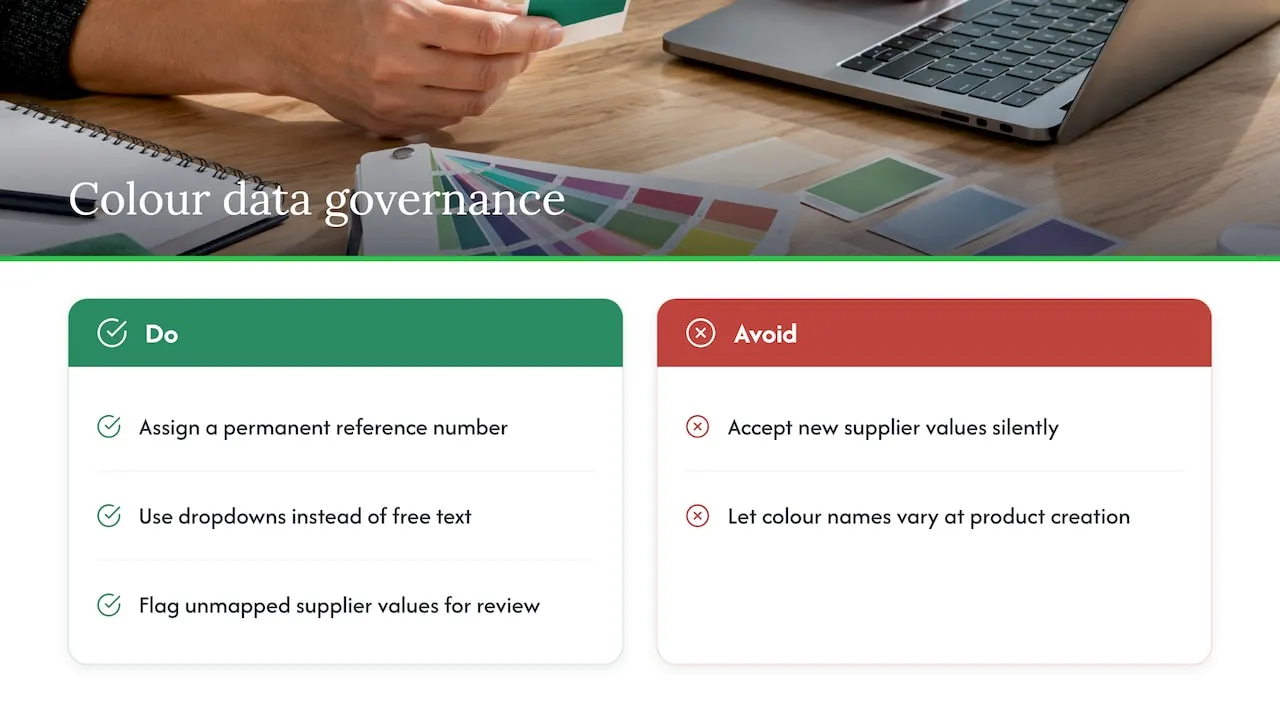
A second lesson is governance. Standardising once without controlled input at product creation is a one-time fix that degrades as new products reintroduce variants. Dropdowns beat free text, and a new unmapped supplier value should be flagged for review, not accepted silently.
Colour consistency also supports your feed. Mismatched variant attributes are a common reason for Merchant Center warnings; see our guide to fixing Merchant Center variant and availability mismatches.
A worked example
Suppose you import a hoodie from two suppliers. Supplier A lists “Wine”, “Navy”, “Heather Grey”. Supplier B lists “Merlot”, “Dark Blue”, “Gray (Light)”.
| Supplier label | Master name | Kept internally as |
|---|---|---|
| Wine | Burgundy | vendor-color:wine |
| Merlot | Burgundy | vendor-color:merlot |
| Navy | Navy | vendor-color:navy |
| Dark Blue | Navy | vendor-color:dark-blue |
| Heather Grey | Heather Grey (or Grey with a separate finish attribute) | vendor-color:heather-grey |
| Gray (Light) | Light Grey | vendor-color:gray-light |
After mapping, the product has three colour options, each with one swatch, and the filter shows three entries instead of six. If both suppliers’ Burgundy are the same shade, merge them. If you are unsure, keep them apart until you have checked.
Where we fit in
Colour mapping is one of the chores that make bulk listing slow. Ecom-eye imports product data from AliExpress, Amazon, Temu or competitor Shopify links, generates unique titles, descriptions and images, offers built-in template and bulk editing, includes variant management and exports to Shopify in one click. Standardising names at that stage means you are not repairing them after launch.
The Try-out plan is €39 per month and Scaler is €99 per month, both on the pricing page. If your listings also need fresh copy, the AI product description generator handles that in the same workflow.
Our perspective
Most colour problems we see described in store catalogues are not design problems, they are import problems. The names arrive messy, and every later fix costs more than the first one.
Our view is simple: decide your master list before the bulk import, treat the supplier’s name as data you keep and the shopper’s name as copy you control, and let the tool do the repetitive mapping. Ecom-eye is built for exactly that kind of bulk listing, with variant management and bulk editing in one place, so scaling to hundreds of products does not mean hundreds of manual renames.
A clean catalogue is also a unique one. When titles, descriptions and variant names are consistent and generated for your store alone, you are building pages that search engines can read clearly.
Koen
FAQ
Should I use “Color” or “Colour” as the option name?
Use whichever your theme expects. Many themes recognise both spellings, and some also recognise Farbe or Couleur. Check your theme’s documentation, because a different name may stop swatches appearing unless you enable it in theme settings.
Can I rename a colour once and update every product?
Yes, if the variant option is connected to Shopify’s Color category metafield. Renaming the entry, for example from black to graphite, updates every product linked to it, according to the Shopify Help Center.
How many colours should my master list have?
There is no fixed number. A general retail list can work with about 24 basic colours, while apparel ranges often use 30 to 60 master colours. Start from your audit: the top ten values usually cover most products.
Why do my swatches show the wrong colour or none at all?
The usual causes are a name that does not match the theme’s list, a colour entry with no hex or image, or an image filename that is not lowercase, hyphenated and PNG. Fix the entry once and check that the name matches the admin exactly.
Sources
- Shopify Help Center: category metafields
- Shopify Help Center: adding variants
- Shopify Partners: swatches for themes
- Product data normalisation guide
- Vendor colour names guide
- Apparel colour standardisation guide
- Supplier and ecommerce colour-name differences
- Fashion variant analytics guide
- Attribute standardisation guide
- Value normalisation guide
- Colour specification and visual approval methods
- Stylescape swatch documentation
- Archer Themes swatches
- Archetype colour swatch setup
- Swatch CSV import rules
- Shopify colour swatches by theme
- Category metafields CSV guide
- Swatch troubleshooting
- Variant option value bulk editing