Shopify Bulk Find and Replace: Safe Ways to Do It
Shopify has no one-click find and replace. Learn the safe routes for text, variants and images: bulk editor, CSV, API and AI regeneration, with checks.

Shopify Bulk Find and Replace: Safe Ways to Do It

To find and replace text across many Shopify products, you have three realistic routes: the built-in bulk editor for field-level changes, a CSV export you edit in a spreadsheet and re-upload, or the Admin API for developers. Which one is right depends on what you are changing (a word in 400 descriptions, a price column, a vendor name, a set of images) and how much damage a mistake could do. This guide walks through each route, the traps in each, and the point where find and replace stops being the right tool and regenerating the content is.
TL;DR
- For field values such as price, SKU and compare-at price, use Shopify’s built-in bulk editor. For swapping words inside long text, a CSV round trip through a spreadsheet is the usual route.
- Always keep an untouched export before you upload anything. Never sort a product CSV, and never change the URL Handle column.
- Images are not text: replacing them in bulk means re-linking or re-uploading files, so plan it as a separate job.
- If you are rewriting supplier or competitor copy rather than fixing a typo, find and replace leaves you with the same duplicate content. Regenerate it instead.
- Test on a small batch first, then run the full catalogue.
Table of Contents
- What “find and replace” means in Shopify
- Route 1: the built-in bulk editor
- Route 2: CSV export, spreadsheet find and replace, re-import
- Route 3: the Admin API, for developers
- Variants: where bulk edits get fiddly
- Images are a different job
- Check before you publish
- When find and replace is the wrong tool
- Perspective: why we don’t patch copy, we regenerate it
- Regenerate instead of patching
- A decision guide
- FAQ
- Sources
What “find and replace” means in Shopify
The phrase covers four different jobs, and mixing them up is how stores end up with broken listings:
- Changing a value in a field, such as setting a new vendor name, tag or compare-at price on 200 products.
- Swapping a word or phrase inside long text, such as replacing “Printify” or an old brand name in every description.
- Changing variant data, such as option names, SKUs or variant prices.
- Replacing images, such as swapping 4000 px photos for resized ones or new variant shots.
Shopify’s bulk editor handles the first and third jobs well. You select products, click “Bulk edit”, pick the columns you need and change values in a grid, including price, SKU and compare-at price. The second job, changing words inside descriptions, is where merchants usually move to a spreadsheet. The fourth job is its own problem, covered further down.
Route 1: the built-in bulk editor
The bulk editor is the safest place to start because you see the values as you change them and nothing leaves Shopify.
How it works in practice:
- In your admin, open Products and tick the products you want to change.
- Click Bulk edit.
- Add the columns you need with the column picker.
- Type or paste new values into the cells and save.
Two limits to know before you plan a big job:
- Inventory on multi-variant products. Shopify says inventory for products with several variants can only be bulk edited in the Inventory section, not in the product bulk editor, according to its bulk editing guide.
- Browser choice. The same guide notes that bulk editing in Microsoft Edge can fail because of limited URL length, and suggests Chrome, Firefox or Safari. If you select hundreds of products and see errors, switch browsers before you assume your data is the problem.
The bulk editor also covers product pages only. According to Shopify’s own SEO bulk editing article, it cannot edit blog posts or URL redirects, so those need another method.
Best for: price changes, tags, vendor names, SKUs, compare-at prices and other short values where you can see the change in a grid.
Route 2: CSV export, spreadsheet find and replace, re-import
When the text you want to change sits inside long descriptions, most merchants export the catalogue, use the spreadsheet’s find and replace, and upload the file again. Shopify suggests this approach for bulk edits of more than 50 products. A spreadsheet can swap a vendor name across thousands of rows in seconds, which is why this is the answer most Shopify forum threads land on.
The safe sequence
- Export. Export all products, or a filtered set. If any exported product has more than 100 variants, Shopify emails the CSV instead of downloading it in the browser, so do not wait on the page for a file that is coming to your inbox.
- Save an untouched copy. Shopify’s advice is to keep the unedited export on your computer so you can re-upload it if something goes wrong, as set out in its SEO bulk editing guide. Name it with the date and “ORIGINAL” so you never edit it by accident.
- Work on a second copy. Open it in your spreadsheet app and restrict find and replace to the one column you mean to change, usually Body (HTML) or Title.
- Mind the encoding. Shopify requires UTF-8 encoding for imports and exports. Saving in another encoding is a common cause of garbled apostrophes, accents and symbols after upload.
- Import and check. Upload, then open a sample of products on the storefront and in the admin.
Three mistakes that damage a catalogue
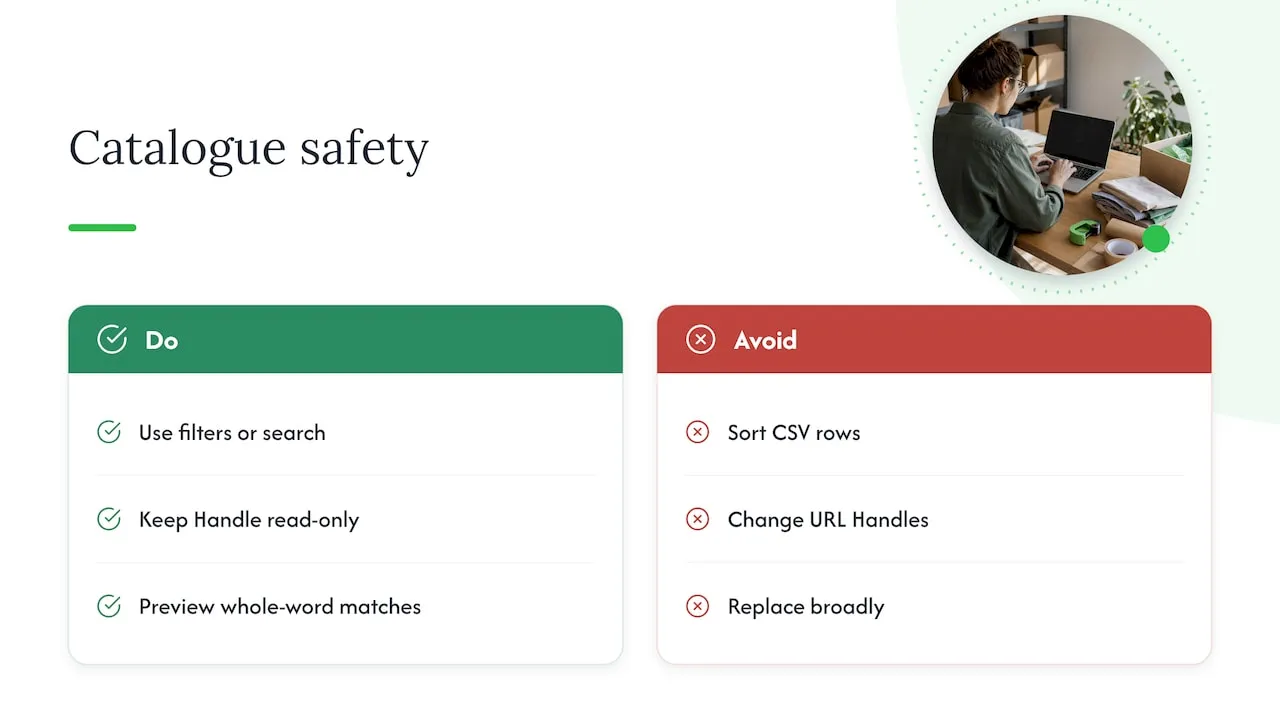
Sorting the file. Shopify warns that sorting a product CSV can unlink variants or image URLs from their products. Importing a sorted file could overwrite existing products with wrong data that you cannot recover, per the export help page. Product CSVs rely on rows sitting under their parent product, so leave the order alone. If you need to find something, use filters or the search box.
Editing the URL Handle. The Shopify SEO bulk editing article explains that changing the handle makes Shopify create a new product rather than update the existing one. You end up with duplicates, and the old URL’s ranking history stays with the old page. Treat the Handle column as read-only unless you are deliberately creating products.
Replacing too broadly. A find and replace on “red” will also change “referred” and “tired” in your descriptions. It will also hit text inside HTML tags and class names. Use whole-word matching, include spaces around short strings, and preview the matches before you replace all. Descriptions are stored as HTML, so a replace that touches a tag can break layout on every product at once.
Shopify’s senior SEO lead Kyle Risley makes the same point in that article: bulk editing implements changes quickly, but mistakes have a larger impact when they are made in bulk.
Worked example
Say you imported 300 products and every description mentions “free shipping over $50”, but you have changed the threshold to $75. In the spreadsheet:
- Filter the Body (HTML) column to cells containing “$50”.
- Check the count. If you expected 300 and the filter shows 340, forty descriptions mention $50 for some other reason, such as a price.
- Replace the full phrase “free shipping over $50” rather than “$50”.
- Spot-check ten rows, then import.
The extra thirty seconds on the count is what separates a clean job from a catalogue where a $50 product suddenly costs $75.
Route 3: the Admin API, for developers
If you or a developer are comfortable with code, the Admin API can change SEO title, SEO description, title and descriptionHtml on products and collections through the productUpdate and collectionUpdate GraphQL mutations, as Shopify describes. A script can apply a regular expression, log every before and after value, and run on a schedule. That audit trail is the main advantage over a spreadsheet. The cost is that a bad pattern runs at full speed, so test it against a development store or a handful of products and keep the log so you can reverse it.
For most small stores, this is more engineering than the job deserves. Reach for it when you manage many stores, repeat the same fix often, or need a changelog.
Variants: where bulk edits get fiddly
Variant edits are the second most common reason people search this topic. Shopify’s bulk editor lets you pick variant-level columns, so you can change variant prices and SKUs in the same grid. The inventory exception above still applies.
In a CSV, variants are extra rows that repeat the product Handle. Find and replace on option values (say “Sm” to “Small”) works, but it must be applied consistently to every row, or you will create two options that look the same to a shopper and are different to Shopify. Change the option name in one place and check the variant count afterwards.
If your real task is creating variants rather than renaming them, our guide to duplicating Shopify variants without CSV errors covers the pitfalls. For the wider picture of editing many pages at once, see our guide to bulk editing product pages.
Images are a different job
Text sits in cells. Images sit in files, and a CSV only holds the URL of each image. That changes what “replace” means:
- Same file name, new picture. Not reliable. Shopify serves images from its own CDN, and the CSV stores a link, not the file.
- New images via CSV. You host the new files somewhere reachable, put the new URLs in the Image Src column, and import. Because of the sorting risk above, the rows must stay in their original order, and the image position and variant image columns need to stay matched to the right rows.
- Resizing. If your goal is smaller files (a forum thread on this topic asks about going from 4000 px to 2000 px squares), the work happens before upload, in an image tool, not inside Shopify’s product grid.
Plan image replacement as a separate pass from text. Do text first, check it, then images. Mixing them in one import makes it hard to tell what broke.
If the real issue is that your photos are the supplier’s photos, replacing them is also a copyright question, not a formatting one. Our bulk product image generation guide shows how to keep a catalogue consistent while producing new images from a CSV.
Check before you publish
A bulk change is only as good as your review. A routine that takes ten minutes and catches most problems:
- Compare counts. Number of products and variants before and after should match, unless you meant to add some.
- Open five random products in the admin and on the live storefront, including one with many variants.
- Check one collection page to confirm titles still display without truncation.
- Inspect structured data on a sample product. If you changed titles or descriptions, your Merchant listings markup should still read correctly, and a primer on the ecommerce schema markup types to add first helps you know what to look for.
- Keep the original file for at least a few weeks, in case a problem only surfaces when a customer reports it.
Timing matters too. Do not run a catalogue-wide edit the week before a sales peak. If you are lining up stock for the holidays, a Black Friday inventory planning timeline is a good reminder to finish structural changes well ahead and leave the busy weeks for fixes only. And when your catalogue is large, working in smaller filtered CSV files keeps each upload quick to verify.
When find and replace is the wrong tool
Find and replace is built for corrections: a changed policy, a rebrand, a misspelling, a new shipping threshold. It is not built for turning someone else’s product page into yours.
Dropshippers often reach for it after importing from a supplier. They swap the brand name, change a few words, and publish. The result is still the supplier’s text with a different noun. Dozens of other stores may carry the same paragraphs, and that is the duplicate content problem search engines and Google Merchant Center reviewers look for. A replaced word does not make a description original.
A better test: if you would need to change more than a few words per product, you are rewriting, not replacing. At that scale, regenerating the copy is faster and safer than patching it. Our walkthrough on safely importing supplier catalogues recommends piloting with 20 to 30 products first, which is the same principle as testing a find and replace on a small batch.
Perspective: why we don’t patch copy, we regenerate it
We built Ecom-eye around one observation from dropshipping stores: most of the pain does not come from typos, it comes from copied pages. Duplicate content, weak rankings and Merchant Center disapprovals share a root cause, which is that many stores publish the same supplier text.
So when a merchant asks us how to bulk find and replace across 500 listings, we ask what they are trying to achieve. If it is a fixed fact (a shipping threshold, a brand name), use the editor or a CSV and check it carefully. If it is “make these listings less like everyone else’s”, no amount of word swapping will do it. Every listing needs its own title, description and images, produced for your store, and we think that is better done by generating the pages than by editing them one string at a time.
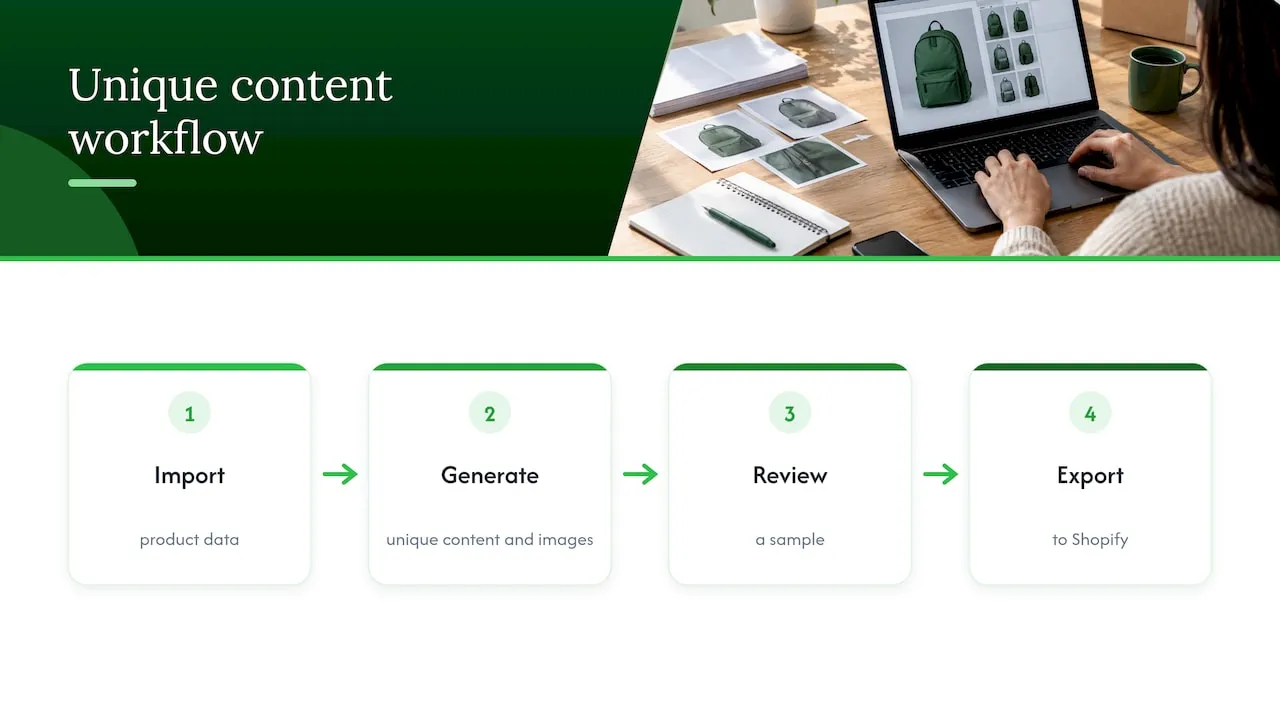
The approach we take is simple: import the product data, generate unique content and images for each product, review a sample, then export to Shopify. It replaces the find, replace, check and re-upload loop for content that was never yours to start with.
— Koen
Regenerate instead of patching
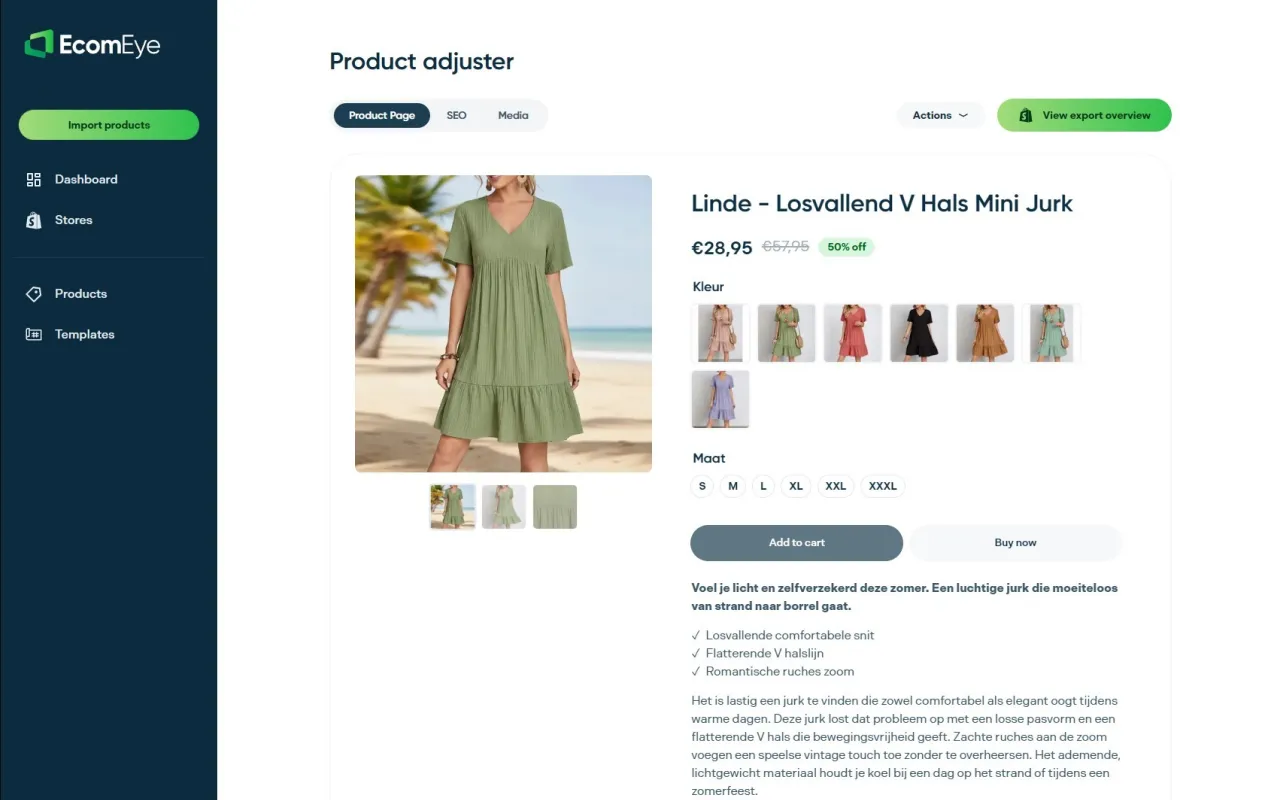
If your “find and replace” is really a rewrite of imported supplier or competitor text, Ecom-eye does that in bulk. You import products from AliExpress, Amazon, Temu or competitor Shopify links, generate unique titles, descriptions and AI product images, and export to Shopify in one click. Our AI product description generator and AI product image generator cover the two jobs this article keeps running into. Plans start at €39 per month for Try-out, with Scaler at €99 per month; see the pricing page for what each includes.
For the process end to end, read our step-by-step bulk optimisation guide for dropshippers, and if you sell in several markets, our piece on bulk translating Shopify stores explains CSV, API and SaaS options past 500 products.
A decision guide
| What you are changing | Best method | Main risk |
|---|---|---|
| Price, SKU, compare-at price, tags | Built-in bulk editor | Browser errors on large selections (Edge) |
| A phrase inside many descriptions | CSV and spreadsheet find and replace | Over-matching, HTML breakage, encoding |
| SEO titles and descriptions at scale | CSV or Admin API | Overwriting good values with blanks |
| Variant option names | CSV, applied to every variant row | Inconsistent options creating duplicates |
| Multi-variant inventory | Shopify Inventory section | Not available in the product bulk editor |
| Images | Separate CSV pass with new image URLs, or re-upload | Rows out of order, links to wrong variants |
| Copied supplier text | Regenerate unique content | Leaving duplicate content in place |
FAQ
Does Shopify have a built-in find and replace for product descriptions?
Shopify’s bulk editor lets you change values in a grid of selected products, such as price, SKU and compare-at price. For swapping words inside long descriptions, merchants generally export a CSV and use their spreadsheet’s find and replace, then re-import. Check your admin for the current feature set, since Shopify updates it over time.
How do I bulk edit product variants in Shopify?
Select your products, click Bulk edit, and add the variant columns you need. Inventory for products with multiple variants is the exception: Shopify says it must be edited in the Inventory section. For renaming options, a CSV works if you apply the change to every variant row.
Why did my CSV import create duplicate products?
The usual cause is a changed URL Handle. Shopify treats a new handle as a new product rather than an update to the existing one. Restore the handle from your original export and re-import, and delete the duplicates once you have confirmed which versions are correct.
Can I undo a bulk find and replace?
Only if you saved the unedited export first. Re-uploading that file restores the old values for the fields in it, which is why keeping the original matters more than any other step. If you changed products after exporting, restore only the affected columns rather than the full file.
Sources
Ready to boost your product pages?
Generate high-converting, SEO-optimized product pages in bulk using AI automation used by e-commerce experts.
No credit card required