Image Overlay Disapproval in Google Merchant Center: How to Fix It
Image overlay disapproval in Merchant Center explained: what triggers it, how to find affected products, fix them for good and get re-approved on Shopify.
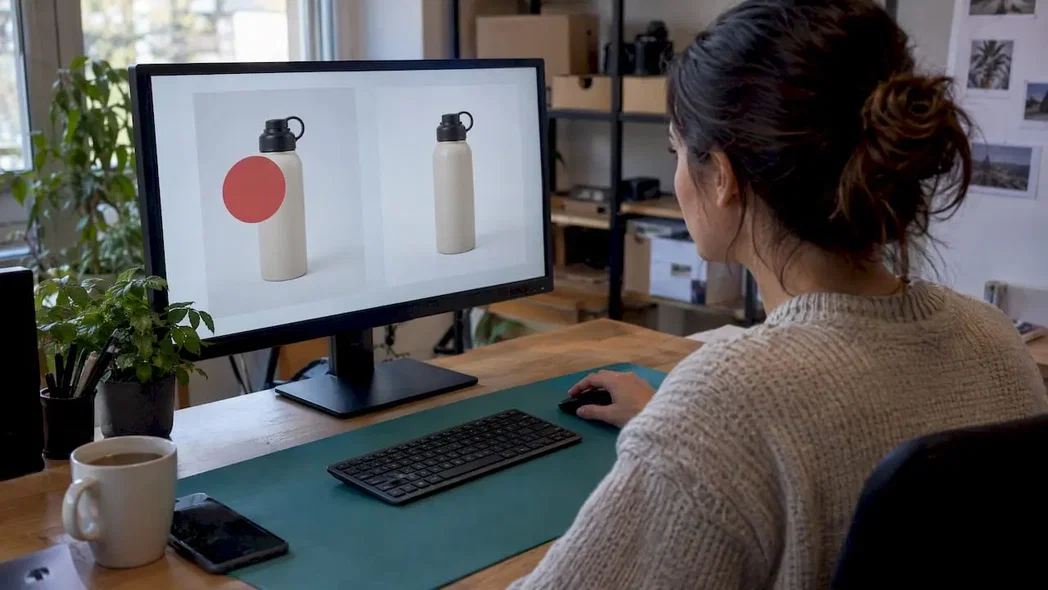
Image Overlay Disapproval in Google Merchant Center: How to Fix It
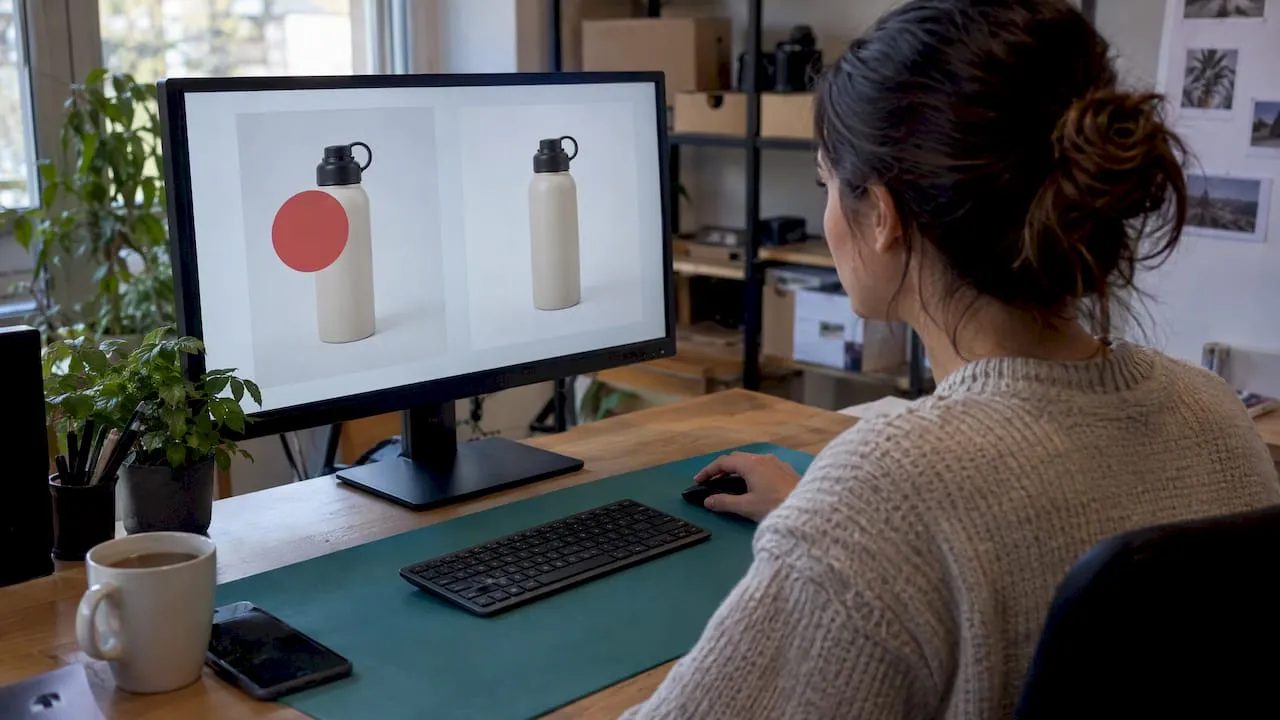
An image overlay disapproval means Google found something added on top of your product photo, such as promotional text, a logo, a watermark or a callout, and it will not show the product until the image is clean. The fix is simple in principle: replace the image with an unobstructed one, change the image URL, and let Google recrawl it. The detail is in finding every affected product, avoiding the same mistake in the next import, and not re-uploading the file that caused the problem.
This guide is written for Shopify store owners and dropshippers who see the warning in Merchant Center and want their Shopping listings back.
TL;DR
- The disapproval is triggered by anything added to the image after the photo was taken: sale badges, “free shipping” banners, store logos, watermarks, price tags.
- Find affected items in Merchant Center under Products, then Needs attention, filtered by the issue, and export the list.
- Upload a clean image with a new file name or URL. Re-uploading the original file brings the disapproval back.
- Changes can take 24 to 72 hours to show. If the item is still disapproved, check the crawled image and whether Google can reach the URL.
- For catalogues imported in bulk, fix the cause at the source: generate clean main images rather than editing them one at a time.
Table of Contents
- What an image overlay disapproval actually means
- What counts as an overlay: prohibited and allowed
- How to find every affected product
- How to fix it: replace the image, change the URL
- Requesting a review and waiting for the recrawl
- If the product is still disapproved after the fix
- Why dropshippers get hit more often
- Perspective: fix the source, not the symptom
- Stop overlays at import with EcomEye
- A prevention checklist for every new import
- FAQ
- Sources
What an image overlay disapproval actually means
Google’s help page for this issue says the products affected have images with promotional text or watermarks that can obstruct the view of the product. In Merchant Center it may appear as “Promotional overlay on image”, “Text on image” or a close variant. The product is disapproved until the image is updated.
The principle behind the rule is that your main image must give shoppers a clean, unobstructed view of the item. Shopping results are a visual comparison tool. If every seller adds a red “-50%” burst, the grid stops being comparable, so Google removes the option.
Two points often confuse sellers:
- The rule targets additions, not the product itself. Google’s guidance treats branding that is physically part of the item differently from marks added in editing. A logo printed on a sneaker is fine. A logo pasted in the corner of the photo is not.
- It is about the image, not your store. A disapproval here does not mean your account is in trouble. It is an item-level issue, and fixing the images clears it. If you also see account-wide warnings, our guide to Google merchant misrepresentation covers that separate problem.
What counts as an overlay: prohibited and allowed
According to Google’s guidance, the prohibited additions include calls to action, price or discount information, free-shipping or warranty claims, promotional adjectives, condition or compatibility text, barcodes or tracking codes, watermarks, copyright symbols, graphic stamps, and added brand, manufacturer or retailer names and logos. Names and logos are allowed when they are an inherent, physical part of the product.
Here is how that looks in practice for a typical Shopify catalogue:
| Element on the image | Allowed? | Why |
|---|---|---|
| Brand name moulded into a water bottle | Yes | Physically part of the product |
| Store logo in the corner | No | Added retailer logo |
| “SALE” or “30% off” badge | No | Price or discount information |
| “Free shipping” banner | No | Shipping claim |
| “Best quality” or “Hot” label | No | Promotional adjective |
| Supplier watermark from a marketplace photo | No | Watermark |
| Size chart or feature callouts on the main image | No | Added text and graphics |
| Product on a plain or lifestyle background, no added graphics | Yes | Nothing covers the item |
| Packaging with printed text, shown as sold | Yes | Part of the physical product |
The row that catches most dropshippers is the supplier watermark. Photos pulled from marketplace listings often carry a seller’s logo in a corner, a faint tiled watermark, or a infographic-style layout with feature text. These are exactly the images that trigger the issue, and they are also a copyright problem, which is why we come back to image sourcing below.
Where overlays sneak in
- Imported supplier images. The first image in a supplier gallery is often a marketing graphic rather than a clean photo.
- Theme and app badges. A badge added by your Shopify theme usually sits on the storefront, not in the image file, so it is not the cause. But apps that bake badges into the image file are.
- Canva or Photoshop templates. Sale templates reused for ads get uploaded as product images by mistake.
- Variant images. The main image may be clean while a variant image carries text. Google can flag the variant.
How to find every affected product
Do not fix the one example Google shows you. Pull the whole list. In Merchant Center, go to Products, open the Needs attention tab, and filter the affected-product list by issue. Open a product to see its item-level details, or use the download icon to export the full list of products with the image overlay issue.
A practical routine:
- Export the list and open it in a spreadsheet.
- Add a column for the image URL and open a sample of 10 to 20 in a browser. Look for patterns: the same supplier, the same template, the same corner.
- Group the products by cause (watermark, badge, infographic first image, variant image). Each group usually has one fix.
- Note the product IDs so you can confirm they clear after the recrawl.
Patterns matter because a store with 800 flagged products rarely has 800 different problems. It usually has two or three bad sources.
How to fix it: replace the image, change the URL
Google’s instruction is to upload a compliant image, change the submitted image URL to point to it, and save or re-upload the product data. On Shopify, that means:
- In the product page, remove the offending image or move a clean one to the first position. The first image is normally what goes into your feed as the main image.
- Upload the new file. Give it a fresh file name so the CDN URL is new.
- Save the product and let your Google channel app or feed sync.
- Check in Merchant Center that the submitted image link now points to the new file.
The new URL is not a nicety. Google says that if you re-upload the original image that caused the disapproval, the product will be disapproved again. And an unchanged URL can take longer to be recrawled, so a renamed file speeds things up.
Automatic image improvements
Merchant Center has a setting called automatic image improvements, which may remove promotional overlays for you. It is worth switching on for a safety net. But if the process fails or the result is poor, you need to upload a compliant replacement yourself. Do not rely on it as your only defence: it is a repair tool, not a way of producing images you control.
Check the image against the other rules
While you replace images, fix the other common failures in the same pass: resolution, cropping, and variant mismatches. Our guides on Google’s 500×500 image rule and Shopify product image dimensions cover those, and our product image best practices show what a feed-ready main image looks like. A clean image that is also too small is still a disapproval.
Requesting a review and waiting for the recrawl
Once the images are fixed, Google says changes may take 24 to 72 hours to appear in Needs attention. If the item or offer remains disapproved, Merchant Center may offer a Request review option. Use it after the fix, not before, because review limits may apply. If the disapproval stays and you cannot tell why, contact Google support.
A sensible timeline:
| When | What to do |
|---|---|
| Day 0 | Replace images, sync the feed, confirm new URLs in Merchant Center |
| Day 1 to 3 | Wait. Do not keep re-uploading |
| Day 3 | Re-export the issue list and compare it with your original |
| Day 3 onward | Request review for items still flagged, if the option appears |
If the product is still disapproved after the fix
When the issue persists, work through this list, based on Google’s guidance on checking product image status:
- Is Google fetching the new URL? Open the product’s issue details and look at the crawled image. If it is the old one, the feed has not updated, or the URL did not change.
- Can Google reach the file? The URL should return the image without redirects, login barriers, robots restrictions or server errors. A password-protected preview store or a blocked CDN path will stall everything.
- Is there a remaining overlay? Look at all additional images and variant images, not only the main one. A single tiled watermark in the corner of a gallery shot can keep the flag alive.
- Is there a different image issue? Size, a placeholder, or a mismatch between image and product can show up once the overlay is gone.
If the pattern points to broader feed trouble, our checklist on Google Merchant disapproval reasons and product data checks and the guide to fixing disapproved products take you through the rest of the diagnostic.
Why dropshippers get hit more often
A store built on imported supplier content inherits other people’s images. That brings three risks at once:
- Overlays and watermarks. Marketplace photos are made to sell on the marketplace, so they carry marketplace branding.
- Duplicate imagery. When many stores use the same supplier photos, your listing looks identical to everyone else’s.
- Copyright exposure. Removing a watermark from someone else’s photo does not make the photo yours.
Cropping a corner or blurring a logo is a weak fix. It rarely removes everything, it tends to leave artefacts, and it is a manual job that does not scale past a few dozen products. Our guide to Shopify product images and SEO explains why unique, clean images also help your listings beyond approval.
And image trouble seldom comes alone. Stores with overlay flags often have thin or copied descriptions as well, which is a data-quality problem in its own right. Our piece on five SKU-level fixes for Merchant Center data quality shows how to tackle them together, and the Shopping feed optimisation guide covers the feed side.
Perspective: fix the source, not the symptom
We see the same story with new dropshipping stores. An owner imports 300 products, 40 are disapproved for overlays, and they spend a weekend editing images one by one. Two weeks later the next import brings the same problem back.
Our view is that an overlay disapproval is a sourcing problem. If your main images start life as someone else’s marketing graphics, you will keep fighting Merchant Center. The durable approach is to treat the supplier image as a reference for what the product looks like, and to publish your own clean, uniquely generated image as the main one. That is how we built EcomEye: product content and images are generated for each user, so every listing is unique even when two stores start from the same product link, and the copyright and DMCA question does not arise from reusing someone’s photos.
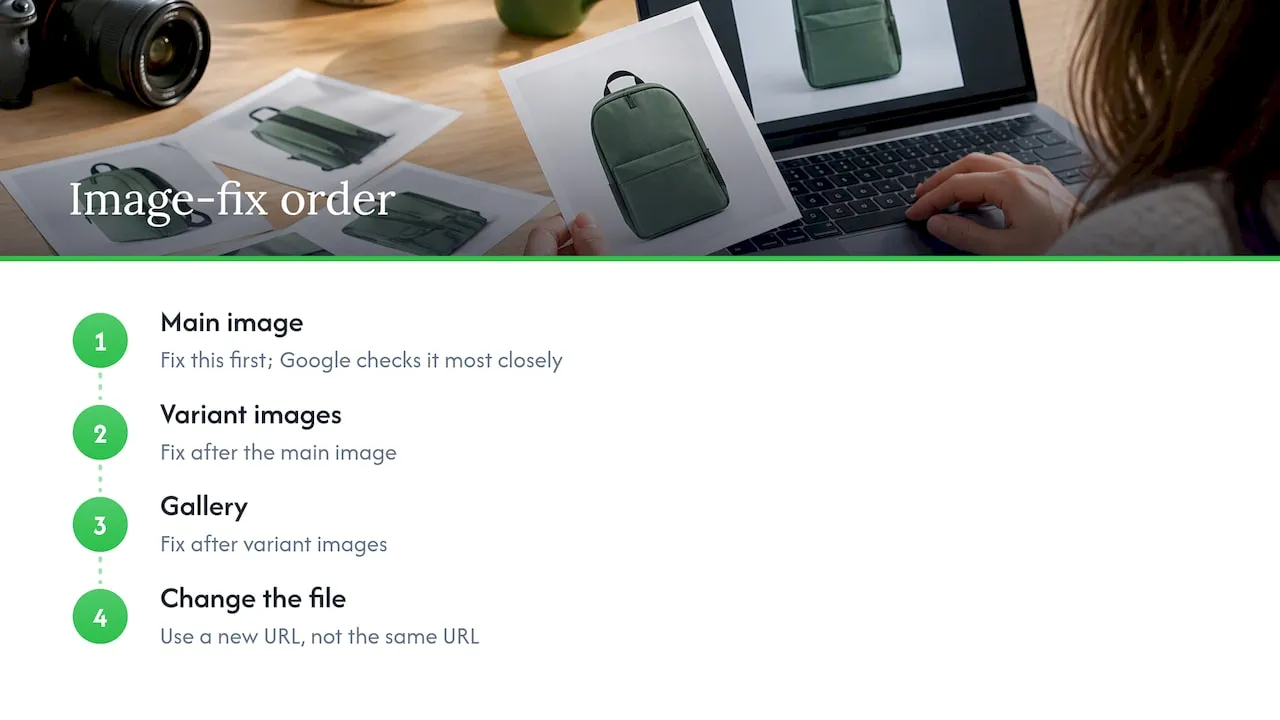
We also think the order matters. Fix the main image first, because that is what Google checks most closely. Then variant images, then the gallery. And always change the file, never just the file’s contents under the same URL.
— Koen
Stop overlays at import with EcomEye
If you are bulk-listing, the cheapest fix is the one you do not repeat. EcomEye imports product data from AliExpress, Amazon, Temu or competitor Shopify links, generates unique titles, descriptions and AI product images, and exports to Shopify in one click. Because the images are generated rather than copied, there are no supplier watermarks or marketing banners to clean off.
You can see how it works on the AI product image generator and the AI product description generator pages. Plans are on the pricing page: Try-out is €39 per month and Scaler is €99 per month.
A prevention checklist for every new import
Before a batch goes live, spend ten minutes on this:
- Open the first image of ten random products at full size. Look in all four corners and across the middle.
- Make sure no image contains price, discount, shipping, warranty or “best seller” text.
- Check that no app or template writes badges into the image file itself.
- Confirm that every image has its own URL and that variant images differ where the variants differ.
- Keep automatic image improvements on as a backstop, and still review what Google changed.
- Export your Needs attention list a few days after launch, so a problem is caught while the batch is small.
Record what you changed and when. If the issue returns, you will know whether the cause was a new supplier, a new app or a re-uploaded file.
FAQ
Can I use any text on a Shopping product image?
Not added text. Google’s guidance prohibits calls to action, price and discount information, shipping and warranty claims, watermarks and added logos. Text that is physically part of the product, such as printing on packaging or a moulded brand name, is allowed. Put your promotions in your feed attributes and on your site instead.
How long does it take for the disapproval to clear?
Google says changes may take 24 to 72 hours to appear in Needs attention. Using a new image URL helps, because an unchanged URL can take longer to recrawl. If the item is still disapproved after that, check the crawled image and whether Google can fetch your URL.
Why is the product disapproved again after I fixed it?
Usually the original image was re-uploaded, or the feed still points to the old URL. Google notes that re-uploading the image that caused the issue leads to another disapproval. Check the crawled image in the issue details and confirm the new URL is the one submitted.
Do automatic image improvements fix this for me?
They may remove promotional overlays, and they are worth turning on. If the process fails or the result is unsatisfactory, you must upload a compliant replacement yourself. Treat the setting as a backstop rather than a plan.
Sources
Ready to boost your product pages?
Generate high-converting, SEO-optimized product pages in bulk using AI automation used by e-commerce experts.
No credit card required