Google merchant misrepresentation: what it means and how to fix it
Learn how to resolve Google Merchant misrepresentation issues and protect your store from penalties. Follow these essential steps now!

Google merchant misrepresentation: what it means and how to fix it

A misrepresentation flag in Google Merchant Center means Google believes your store misled shoppers, whether through false claims, hidden pricing, or a business identity it cannot verify. Enforcement can run from a single warning to a full account suspension, and in serious cases, a permanent ban.
Before you do anything else, take three steps. First, keep at least one product active in your feed. Second, resist the urge to open a new account. Third, screenshot every warning email and the flagged listings before you touch anything, so you have a record of what Google saw.
While you gather evidence, run a fast sanity check on the basics: does your checkout actually complete, have you pulled any offer that looks too good to be true, and can a stranger find your returns and privacy pages without searching?
- Keep your feed live. An empty feed can remove your ability to appeal.
- Do not create a second account. Google links suspensions across related accounts, and a fresh one rarely escapes detection.
- Save dated screenshots of the suspension notice, your listings, and your site as they stood the day you were flagged.
Pro Tip: Take your evidence screenshots before making any fixes. Google’s reviewers want to see what changed, and “before” proof is impossible to recreate after the fact.
TL;DR:
- Maintaining an active product feed without deletion is crucial, as removing it can eliminate your ability to appeal suspensions.
- Ensuring consistent legal business details across your Merchant Center, website, and WHOIS record helps prevent identity mismatches that trigger flags.
- Price discrepancies caused by apps or delayed updates should be thoroughly tested across the product page, basket, and checkout to avoid automatic penalties.
- Allow at least 48 hours after making fixes before submitting an appeal, to give Google time to reindex and verify your corrections.
- Using tools to generate unique content and images in bulk helps eliminate duplicate supplier content, which is a common cause of misrepresentation suspensions.
Table of Contents
- What Google means by misrepresentation
- Why do stores get flagged for misrepresentation?
- The seven-area audit checklist before you appeal
- How do you fix product pages and feed data?
- How do you prove your business identity to Google?
- Why do checkout prices differ from the product page?
- How long does a Google Merchant Center suspension last?
- Staying ahead of future misrepresentation flags
- How EcomEye helps you fix the content side of misrepresentation
- Why most merchants fix the wrong thing first
- Fix the content problem before it costs you another suspension
- Key Takeaways
- Sources
- FAQ
What Google means by misrepresentation
Google defines misrepresentation as content that misleads shoppers by leaving out important details or presenting inaccurate, unrealistic, or untruthful information about your business or products. It’s a broad policy, and Google splits it into recognisable sub-types: misrepresenting who you are, misrepresenting the product itself, dishonest pricing, deceptive promotions, and omitting facts a buyer would need before deciding to purchase.
Google’s own guidance treats omission as seriously as an outright lie. A product page that simply fails to mention a restocking fee, a long delivery window, or a non-refundable condition can trigger the same policy as a fabricated review score.
Enforcement escalates with severity. A first-time, minor issue usually gets a warning and a window to fix it. Repeated or serious violations, especially anything resembling fraud, unavailable “in stock” items, or fake identity, can mean immediate account suspension with no notice.
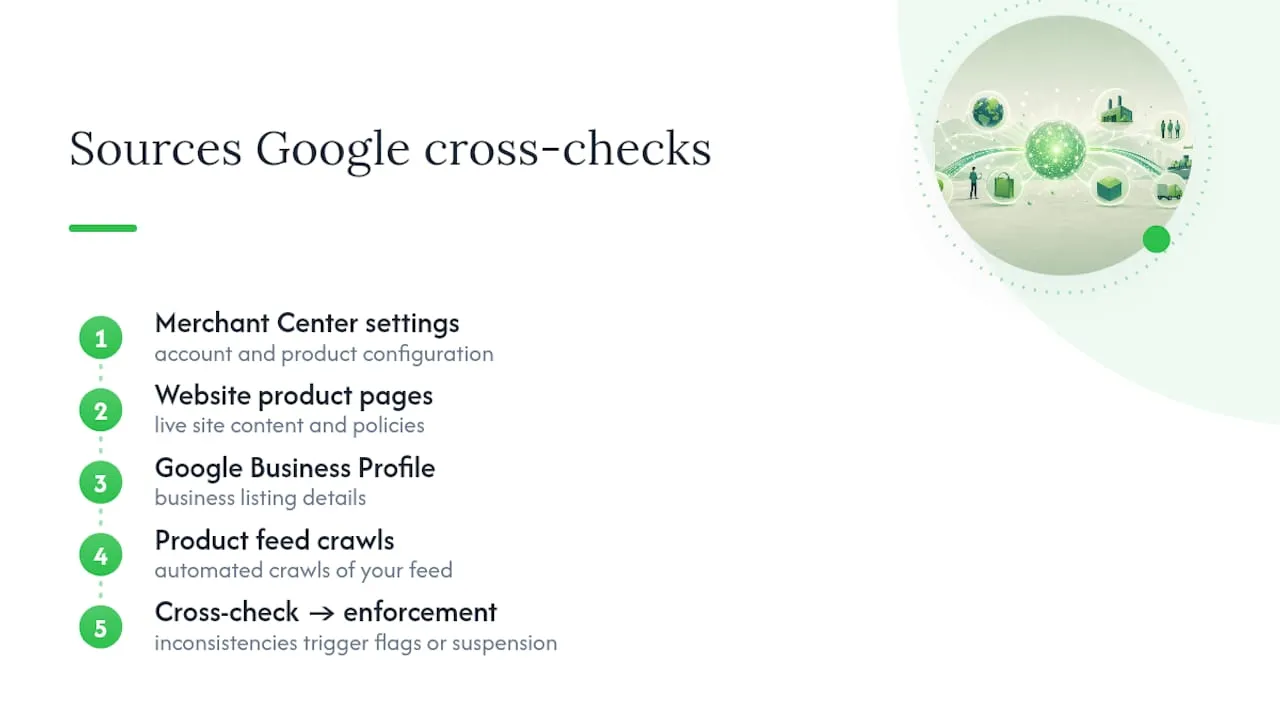
Google doesn’t rely on one signal. It cross-references your Merchant Center settings, your live website, your Google Business Profile, and automated crawls of your product feed, so inconsistencies in any one place can surface the whole problem. That’s why a fix in your feed alone, without matching the website, rarely holds up under review.
Why do stores get flagged for misrepresentation?
Most suspensions trace back to a small set of recurring mistakes. Knowing which one applies to you saves hours of guesswork.
- Price mismatches caused by apps. Currency converters, tax calculators, and discount plugins often change the total at checkout without updating the feed or product page, creating exactly the kind of drift Google’s pricing guidance flags automatically.
- Inconsistent business identity. Your legal name, address, or phone number differs between Merchant Center, your website footer, and your domain registration.
- Masked WHOIS records. Privacy services that hide domain ownership can prevent Google from matching your site to the business behind it.
- Missing or thin policy pages. No shipping page, a copied privacy policy, or a returns process that doesn’t actually work when tested.
- Copied supplier content. Product descriptions and images lifted directly from AliExpress, Amazon, or a competitor’s Shopify store, often with the original brand name still visible.
- Checkout friction. Hidden fees that appear only at the final step, broken payment gateways, or coupon codes that don’t apply the advertised discount.
- Fake trust signals. Security badges, review counts, or “as seen on” logos that aren’t real or aren’t licensed for use.
Dropshipping stores tend to draw closer scrutiny than stores holding their own stock, largely because supplier-sourced content and vague fulfilment timelines are so common in that model.
The seven-area audit checklist before you appeal
Resolving a suspension isn’t a one-field fix. Google’s own guidance on fixing policy violations points to seven areas that need checking together, because reviewers look at the whole picture, not an isolated correction.
- Identity. Do your Merchant Center business details, Google Business Profile, website contact page, and WHOIS record all show the same legal name, address, and phone number?
- Policies. Are your shipping, returns, privacy, and terms pages present, unique to your store, and linked from both the footer and the checkout page?
- Product feed. Do titles, images, GTINs, prices, and availability status in your feed match what actually appears on the live product page?
- Pricing parity. Does the price on the product page match the price at checkout, and does that match the feed? Test this after any app that touches totals runs.
- Website quality. Are there broken links, placeholder text, missing HTTPS, or a checkout that fails partway through?
- Promotions. Does every advertised discount apply correctly and automatically at checkout, with no bait-and-switch between the ad and the final price?
- Checkout integrity. Are policy links, contact details, and delivery estimates visible before a shopper enters payment information, with no fees appearing for the first time at the last step?
Treat this as a single pass, not seven separate projects. A reviewer who finds one area fixed and another untouched will usually assume the whole account is still non-compliant.
Pro Tip: Run the audit as a fresh shopper would: open a private browser window, add a product to your basket, and go through checkout without logging in or using saved details. Half the parity issues merchants miss only show up at that final step.

How do you fix product pages and feed data?
Feed errors and copied content are the most common, and most fixable, causes of a misrepresentation flag. Work through each field methodically rather than skimming for obvious mistakes.
- Title and description. Rewrite anything copied from a supplier or competitor. Generic titles like “Wireless Bluetooth Earbuds 2026” invite duplicate-content flags; specific, accurate titles don’t.
- Image_link. Replace stock supplier photos with original or clearly edited images. Watermarks from another retailer are an instant red flag.
- Price and sale_price. These fields must match the live product page exactly, including during any promotion.
- Availability. “In stock” listings that are actually backordered or discontinued are one of the fastest routes to a suspension.
- GTIN. Confirm the barcode matches the actual product; mismatched GTINs are treated as inaccurate product data.
Beyond the feed itself, add basic structured data (schema.org product markup) so Google’s crawlers can verify your page’s claims independently of the feed. It’s a small technical step that reinforces everything else you’ve fixed.
Test one sample SKU end to end, from product page through checkout, and log any app that changes the total. Pricing app conflicts are behind a large share of parity failures merchants report, often because a discount or tax plugin updates the checkout total without touching the underlying feed. Capture screenshots at every stage; this becomes your evidence for the appeal.
How do you prove your business identity to Google?
Identity mismatches are quieter than a broken checkout, but they’re just as likely to sink an appeal. Google needs your legal business name, address, phone number, and a branded email address to line up exactly across every place it looks.
- Match your Merchant Center business details word-for-word with your Google Business Profile and website footer.
- Use a branded email address ([email protected]) rather than a generic Gmail or Outlook address for account verification.
- Check whether your domain’s WHOIS record is masked. Privacy protection is common, but if Google can’t match your domain owner to your stated business, that mismatch alone can cause a verification failure.
- Your contact page should list more than one way to reach you: email, phone, and ideally a physical address, alongside honest response-time expectations.
- Skip trust badges you haven’t actually earned or licensed. A fake “Verified Secure” logo does more damage than having no badge at all.
When verification keeps failing, providing several corroborating documents, a recent utility bill, a business bank statement, and incorporation paperwork, all showing the same details tends to speed up manual review far more than resubmitting the same single document repeatedly.
Why do checkout prices differ from the product page?
Price drift between your product page and your checkout is one of the most common automatic triggers, and it’s rarely intentional. Currency converter apps, tax calculators that add fees only at checkout, and third-party discount tools are the usual culprits.
- List every app installed that touches pricing, tax, currency, or discounts, and disable each one individually to isolate which one changes the total.
- Test coupon codes exactly as a customer would, watching whether the discount shown in the ad or listing matches what actually gets applied.
- Check your store in an incognito window with no saved payment details, since some apps behave differently for logged-in versus anonymous shoppers.
- Screenshot the product page price, the basket price, and the final checkout total in a single session, with timestamps.
- Repeat the test for at least one discounted product and one full-price product, since apps sometimes behave inconsistently across price tiers.
Pro Tip: Keep a simple log of every app update and rollback for pricing or checkout tools. If a plugin update caused the drift, that log becomes strong evidence in your appeal that you’ve found and fixed the actual cause, not just patched a symptom.
How long does a Google Merchant Center suspension last?
There’s no fixed length. Standard policy violations come with a warning window of 7 to 28 calendar days to fix the issue before enforcement escalates, while egregious violations, fraud or clearly fake products, can mean immediate suspension with no warning at all.
Once you’ve completed the seven-area audit, don’t rush the appeal.
- Confirm your feed is still active with at least one live product. Deleting it can remove the appeal option entirely.
- Wait at least 48 hours after your fixes before requesting a review, giving Google time to reindex your site and feed.
- Document every change with timestamps, ideally backed by server logs or a sitemap update record, so you can prove when each fix went live.
- Submit one comprehensive appeal covering all seven areas, with screenshots and exact URLs, rather than several partial submissions.
- Avoid resubmitting quickly if rejected. An appeal submitted before the reindex window often gets an automated rejection, and repeat attempts can trigger longer cooldowns before you’re allowed to try again.
| Step | Timing |
|---|---|
| Standard warning window | 7–28 calendar days |
| Egregious violation | Immediate suspension, no warning |
| Wait before requesting review | At least 48 hours after fixes |
| Appeal submissions | One comprehensive appeal, not several partial ones |
Staying ahead of future misrepresentation flags
Passing review once doesn’t mean the problem can’t return, especially if pricing apps or supplier feeds change again later.
- Run scheduled parity checks between your feed and live product pages, with alerts if a price or availability field drifts out of sync.
- Review any new app before it goes live, particularly anything that touches pricing, currency, or checkout totals.
- Keep a public change log of significant product content and promotion updates, which doubles as ready-made evidence if you’re ever flagged again.
- If in-house fixes aren’t sticking, or the volume of listings makes manual review impractical, it’s worth bringing in specialist help rather than repeating the same appeal cycle.
Automated scripts that compare feed values against live checkout snapshots catch most drift before Google’s crawlers do, which is a far cheaper problem to solve than a second suspension.
How EcomEye helps you fix the content side of misrepresentation
A large share of misrepresentation cases trace back to content, not policy: copied supplier descriptions, duplicate images shared across dozens of competing stores, and feed fields that never matched the live page in the first place. That’s the specific problem Ecom-eye is built to solve.
- Import product data directly from AliExpress, Amazon, Temu, or a competitor’s Shopify link instead of copying supplier text by hand.
- Generate unique titles, descriptions, and AI product images in bulk, removing the duplicate-content risk that supplier copy creates.
- Export finished pages straight to Shopify, keeping feed fields and live pages aligned from the start.
- Keep timestamped records of generated content and export dates, since that log is exactly the evidence Google’s reviewers want to see when you claim the content issue is fixed.
Pro Tip: If content is your suspension trigger, generate and export one corrected SKU first, screenshot the before-and-after, and use that pair as the template for your change log before touching the rest of your catalogue.
Why most merchants fix the wrong thing first
Merchants under suspension usually fix the most visible problem first, a typo, one bad image, when Google’s reviewers are actually testing whether your whole operation matches what you claim. Cosmetic patches rarely survive a second look.
Prioritise pricing parity, working policy pages, and identity verification before anything else. If your appeal gets rejected twice despite a genuine seven-area fix, it’s worth planning a parallel sales channel rather than waiting indefinitely on a third attempt.
— Koen
Fix the content problem before it costs you another suspension
Copied supplier descriptions and duplicate images are two of the most common triggers behind a misrepresentation flag, and they’re also the easiest to fix permanently rather than patching one listing at a time. Ecom-eye generates unique, SEO-ready titles, descriptions, and AI product images in bulk, pulling straight from AliExpress, Amazon, Temu, or a competitor’s Shopify link, so your entire catalogue matches instead of just the handful of listings you noticed first.
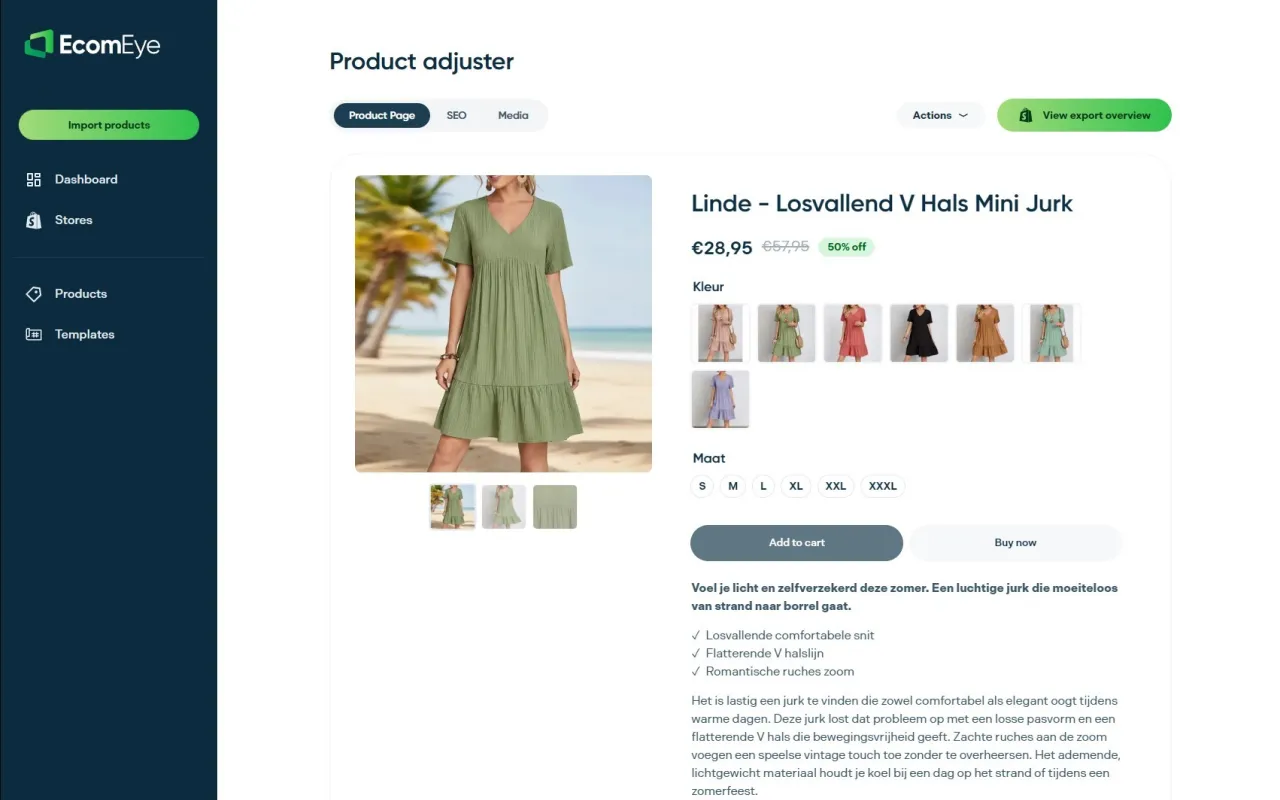
Rather than rewriting descriptions one by one while your account sits suspended, generate a sample SKU through the AI product description generator, pair it with fresh images from the AI product image generator, and export both to Shopify in a single click. Once you’ve seen how a corrected listing looks against your original, exporting the rest of your catalogue takes minutes rather than days, and gives you a ready-made change log for your appeal.
Key Takeaways
Resolving a Google merchant misrepresentation flag requires a complete seven-area audit and one comprehensive appeal, never a partial fix or a rushed resubmission.
| Point | Details |
|---|---|
| Keep your feed active | Never delete your product feed while suspended, or you may lose the ability to appeal at all. |
| Match identity everywhere | Align your legal business name, address, phone, and email across Merchant Center, your site, and WHOIS. |
| Test price parity end to end | Confirm the product page price, basket price, and checkout total all match after every app update. |
| Wait 48 hours before appealing | Give Google time to reindex your fixes; submitting too early usually causes an automatic rejection. |
| Replace supplier content in bulk | Tools like Ecom-eye generate unique descriptions and images to remove duplicate content as a root cause. |
FAQ
How do I fix a Google Merchant Center misrepresentation flag?
Run a full seven-area audit covering identity, policies, feed accuracy, pricing parity, site quality, promotions, and checkout, then submit one comprehensive appeal with screenshots and a change log after waiting at least 48 hours for reindexing.
How do I report misleading information to Google?
Google reviews Merchant Center listings through its own automated crawls and manual checks rather than accepting third-party misrepresentation reports; if you believe a competitor is violating policy, the appropriate route is Google’s Merchant Center policy pages rather than a general report form.
How long does a Google Merchant Center suspension last?
Standard violations carry a warning window of 7 to 28 calendar days before enforcement, while egregious violations can mean immediate suspension with no set end date until a successful appeal.
My Merchant Center account has been suspended. What should I do first?
Keep your product feed active, avoid creating a new account, and screenshot the suspension notice and flagged listings before making any changes, then work through the seven-area audit before appealing. Tools such as Ecom-eye can help fix duplicate supplier content quickly if that’s the root cause.
Can I appeal a Merchant Center suspension more than once?
Yes, but submitting a second appeal before the first has had time to be reviewed, or before your fixes have reindexed, commonly leads to automated rejection and can trigger longer cooldowns before you’re allowed to try again.
Ready to boost your product pages?
Generate high-converting, SEO-optimized product pages in bulk using AI automation used by e-commerce experts.
No credit card required