Google Shopping Feeds for Shopify: 8 Fixes That Help Performance Max
Connect Shopify to Google Merchant Center, fix product data, improve Performance Max matching, and scale copyright safe feed updates with bulk automation.

Google Shopping Feeds for Shopify: 8 Fixes That Help Performance Max

The fastest way to improve your Shopify Google Shopping feed is to connect the Google & YouTube app, confirm price and availability sync, fix missing GTIN and brand fields on your top sellers, and switch on automatic item updates. That combination typically cuts disapprovals, sharpens query matching, and helps Performance Max learn faster, because the campaign has cleaner data to work with from day one.
TL;DR:
- Before listings can serve, claim and verify your domain in Merchant Center, complete shipping and tax settings, and match checkout prices to feed prices.
- Use GTINs issued by manufacturers and keep Shopify vendor values consistent; for genuinely unbranded or private label goods, mark the exemption instead of leaving identifiers blank.
- Use images of at least 100 by 100 pixels, or 800 by 800 pixels for apparel, and remove watermarks and promotional text overlays.
- Use custom labels for margin, seasonality, and priority; assign high value SKUs to single product ad groups and group lower priority items more broadly.
- Wait four to six weeks before judging feed changes, and hold bids and budgets steady while comparing a revised product set with an untouched one.
Table of Contents
- A prioritised optimisation checklist you can run in a day
- How to connect Shopify to Google Merchant Center and submit your feed correctly
- How to write titles, descriptions, and supply attributes that improve matching and CTR
- Using attribute rules, diagnostics and resolving disapprovals efficiently
- How feed improvements change campaign strategy: Performance Max, SPAGs and the mob effect
- Bulk editing, automation tools and a recommended operational workflow
- KPIs, reports and experiment design to measure feed optimisation impact
- Author perspective and EcomEye example workflow
- Where merchants should invest their time
- EcomEye: a practical way to scale feed-safe, SEO-optimised product pages
- FAQ
- Sources
A prioritised optimisation checklist you can run in a day
Feed work rewards sequencing. Fix the structural issues before touching copy, because a beautifully written title on a disapproved product earns nothing. The order below reflects what actually moves approval rates and match quality first.
- Install and verify the Google & YouTube app, then confirm your Merchant Center account is linked and claimed.
- Check that price and availability in your feed match what shoppers see on the live product page.
- Add GTINs and brand values for your best-selling SKUs, or mark genuinely new products as such with consistent vendor data.
- Rewrite titles and descriptions so the most searched terms sit at the front, with benefits stated early.
- Replace low-resolution or watermarked images and turn on Merchant Center’s image improvement suggestions.
- Build a custom_label_0 to custom_label_4 structure around margin, seasonality, or priority tiers.
- Apply labels in bulk through rules or a bulk editor rather than product by product.
- Set a weekly diagnostics review and a standing process for requesting re-review on fixed items.
Pro Tip: Focus first on fixing the small set of SKUs that drive most of your revenue. Full-catalogue perfection can wait; those listings cannot.
Price and availability mismatches are the single most common reason products get flagged, according to Google’s product data specification, which lists the required attributes and explains that disapproved items simply stop showing in Shopping ads and free listings. A warning that goes unresolved can escalate to account-level suspension, so this is not a cosmetic issue.
GTIN and brand omissions are the second biggest cause of friction, particularly for stores sourcing from suppliers who do not always provide clean identifiers. Once the top sellers are sorted, the remaining catalogue can follow in batches rather than all at once.
Image quality matters more than many merchants expect. Google’s guidance treats missing, blurry, or watermarked images as a policy issue, not a styling preference, and it will suppress a listing just as readily as a missing GTIN.
The custom label structure is the piece most stores skip, yet it is what lets you bid differently on a clearance item versus a full-margin bestseller once everything flows into Performance Max. Set it up once, and it keeps paying off every time you adjust budgets.
How to connect Shopify to Google Merchant Center and submit your feed correctly
Start with the Google & YouTube app from the Shopify app store. It handles the bulk of the technical lifting: creating the Merchant Center account if you do not already have one, mapping product fields, and setting up the sync that keeps your feed current.
Before products can serve, you need to claim and verify your domain inside Merchant Center and complete the shipping and tax settings, since Google checks that the price shown in ads matches what the shopper pays at checkout. Shopify’s own guide to launching Shopping ads walks through this setup in detail and stresses that feed quality, not creative polish, is what determines whether campaigns get off the ground.
Most Shopify fields map directly to Merchant Center attributes:
- Product title and description map straight across, so write them with Shopping in mind, not just your storefront.
- Price and compare-at-price feed the price and sale_price attributes.
- Product type and collections inform Google product category and your own product_type field.
- Variant options such as size and colour populate the corresponding Merchant Center variant attributes.
- Vendor typically becomes your brand attribute, which matters for GTIN-exempt categories.
- Images sync from your primary and additional product images, which fill image_link and additional_image_link.
You can edit most of these directly in Shopify admin without touching the feed file, since the app pulls from your live product data.
It helps to understand the different feed types available. A primary feed is the main catalogue submission the Google & YouTube app manages automatically. Supplemental feeds let you layer in data the primary feed lacks, useful for merchants running more complex catalogues with multiple data sources. A promotions feed is separate again, built specifically to surface sales and offers inside Shopping listings rather than altering the core product data.
Automatic item updates, when enabled, let Google re-crawl your product pages and adjust price and availability without waiting for your next full feed submission. This relies partly on structured data on your product pages: JSON-LD markup that includes price, priceCurrency, and availability gives Google a reliable, machine-readable source to check against, which reduces the lag between a stock change on your site and that change reflecting in Shopping. The refresh cadence through the app is typically daily, but structured data closes gaps that can appear between full syncs.
How to write titles, descriptions, and supply attributes that improve matching and CTR
Title structure decides whether your product matches the right search query, and it is usually the fastest win available. Front-load the terms a shopper would actually type: brand, then product type, then the distinguishing variant detail such as colour, size, or material. A title like “Oak Coffee Table, Solid Wood, 120cm, Walnut Finish” outperforms a vaguely branded version like “Beautiful Modern Table for Your Home” because Google’s matching relies heavily on literal term overlap with search queries, not inferred intent.
Avoid promotional language in titles and descriptions, things like “best price” or “free shipping guaranteed,” since Merchant Center policy treats these as promotional claims that can trigger review flags rather than clicks. Save urgency and pricing claims for ad extensions and your landing page, not the feed.
Description copy performs best when it leads with concrete attributes and benefits before any narrative flourish. Put material, dimensions, and key use case in the first sentence, because Google’s algorithms and shoppers alike scan the opening text most closely.
Required identifiers carry real weight in approval rates:
- Supply a correct GTIN whenever the manufacturer issues one. This is the single biggest lever for matching accuracy.
- Use brand consistently across your catalogue, matching the vendor field in Shopify so Merchant Center never sees conflicting values for the same product line.
- For private-label or genuinely unbranded goods, mark the GTIN exemption correctly rather than leaving the field blank, which Google treats as a data gap rather than an intentional exemption.
- MPN can substitute for GTIN only in specific exempt categories, so check the product data specification before relying on it broadly.
Google product category and your internal product_type field serve different purposes and both deserve attention. The Google category determines which taxonomy node your product sits in for browsing and some matching logic, while product_type is yours to define and is what you will use later for custom labelling and campaign structure. Mapping these correctly on day one avoids a painful re-sort later.
Image requirements are stricter than most merchants assume: a minimum resolution of 100 x 100 pixels for most categories (800 x 800 for apparel), no watermarks or promotional text overlays, and ideally multiple angles for anything with texture or dimensional detail that influences purchase decisions. Merchant Center’s image improvement tool will flag suggestions automatically once products are live, and it is worth checking weekly rather than assuming approval means the image is optimal.

Rich, well-structured product data is one of the clearest levers for Performance Max performance, which depends on both feed quality and a diverse set of creative assets to learn efficiently; thin or inconsistent attributes slow that learning process down regardless of budget.
Custom labels (custom_label_0 through custom_label_4) are where feed optimisation starts paying dividends in the ads account itself. A practical structure might use label 0 for margin tier (high, medium, low), label 1 for seasonality (evergreen, seasonal, clearance), and label 2 for a manually assigned priority flag on bestsellers. Once applied, these labels let you build listing groups in Performance Max or standard Shopping campaigns that bid differently by tier instead of treating every SKU identically.
Using attribute rules, diagnostics and resolving disapprovals efficiently
Attribute rules inside Merchant Center let you set or transform field values automatically, without editing Shopify or the feed file directly. A common use case is forcing a consistent brand value across a supplier catalogue where vendor names arrive inconsistently, or automatically appending a size value pulled from the product title when a dedicated size field is missing.
When diagnostics flag issues, work through them in this order:
- Price and availability mismatches first, since these affect the most products and are usually a sync timing issue rather than a data error.
- Missing required attributes next, particularly GTIN, brand, and category, which account for a large share of disapprovals.
- Image issues third: resolution, watermarks, or placeholder graphics that Google’s automated review catches.
- Policy flags last, since these often need a manual read of the specific violation rather than a bulk fix.
Pro Tip: Group disapprovals by cause before fixing anything. Fixing one root cause across fifty SKUs is faster than fixing fifty SKUs one at a time.
Google’s own guidance on fixing disapprovals explains that Merchant Center reviews product data on an ongoing basis, and that items can be preemptively disapproved when a pattern of violations is detected across a feed, not just on individual products. That makes root-cause fixes more valuable than one-off corrections.
Once a fix is applied, you can request a re-review directly in Merchant Center. Turnaround varies by issue type and account history, but straightforward data corrections such as a missing GTIN typically clear faster than policy-related flags, which sometimes involve a manual check. Our own walkthrough of resolving Merchant Center disapprovals covers the most frequent Shopify-specific cases if you want a step-by-step reference.
For a medium or large catalogue, a weekly maintenance cadence works better than sporadic deep cleans. Log each diagnostic issue, the fix applied, and the re-review outcome in a simple spreadsheet or your bulk editor’s notes field. Over a few months this log becomes a useful record of which suppliers or product types generate recurring problems, which is often more valuable than any single fix.
How feed improvements change campaign strategy: Performance Max, SPAGs and the mob effect
Performance Max campaigns lean heavily on feed richness because the system uses your product data, alongside whatever text and image assets you supply, to decide which combinations to test. Google’s Performance Max guidance recommends supplying a wide range of text and image assets and allowing several weeks for the learning phase to stabilise before judging results, since interrupting that period with frequent changes effectively resets the learning process.
A richer feed, with complete attributes and sensible custom labels, gives Performance Max more signal to work with from the start, which tends to shorten that learning curve rather than lengthen it.
The “mob effect” describes what happens when too many dissimilar products sit in one undifferentiated campaign or ad group: budget gets spread thin across items with wildly different margins and intent signals, and the algorithm struggles to optimise toward any one of them effectively. Partitioning products into listing groups or product sets by category, margin tier, or custom label addresses this directly.
A few structural choices help here:
- Use Single Product Ad Groups (SPAGs) for your highest-value SKUs where you want granular control over bids and creative.
- Group lower-priority or long-tail SKUs into broader listing groups by category or custom label rather than isolating each one.
- Map custom labels to bidding tiers: a high-margin label might run a higher ROAS target and more budget headroom, while a clearance label runs a tighter, volume-focused target.
- Apply the “gold-pan” technique in supporting search campaigns: mine search term reports for consistently high-performing queries, then feed negative keywords back into broader campaigns to stop budget leaking toward irrelevant traffic.
None of this works well on a thin feed. The campaign structure is only as good as the attribute data and labelling underneath it, which is why feed work tends to come before campaign restructuring, not after.
Bulk editing, automation tools and a recommended operational workflow
Three broad methods exist for applying feed changes at scale: Shopify’s native bulk editor for quick attribute changes across selected products, CSV import and export for larger structural edits or supplier-driven updates, and Merchant Center’s own attribute rules for transformations that should apply automatically going forward. Each has a place: the bulk editor suits quick manual batches, CSV suits bigger one-off overhauls, and attribute rules suit anything you want fixed permanently without repeating the work.
A workable weekly rhythm looks like this:
- Monday: review Merchant Center diagnostics and flag new issues by cause.
- Tuesday: apply attribute rules or bulk edits to resolve the biggest clusters first.
- Wednesday: run a batch of title and description optimisation on newly added or underperforming SKUs.
- Thursday: check image improvement suggestions and swap out flagged images.
- Friday: resubmit affected products and note anything still pending re-review for the following week.
Pro Tip: Automate the repeatable fixes, but keep a human eye on anything touching brand voice or a genuinely new product category, since automation handles patterns well but misses context.
Automation earns its place once your catalogue grows past the point where manual edits can keep pace, typically anywhere above a few hundred SKUs, or sooner if you add products from multiple suppliers regularly. Manual checks should still cover anything flagged as a policy violation rather than a data error, since those usually need judgement rather than a rule.
This is the exact gap our own platform is built to close. We let you import product links in bulk from AliExpress, Amazon, Temu, or a competitor’s Shopify store, then generate unique, copyright-safe titles, descriptions, and AI product images for every item in one pass. Because each listing is generated fresh rather than copied, you avoid the duplicate content that triggers so many of the Merchant Center flags covered above, and the output exports to Shopify in one click, ready to sync through the Google & YouTube app. A walkthrough of a comparable bulk workflow for listings generally sits in our piece on bulk optimisation for dropshippers, if you want to see the editing side in more depth.
KPIs, reports and experiment design to measure feed optimisation impact
Five metrics tell you most of what matters: impressions, click-through rate, conversion rate, cost per acquisition, and return on ad spend, alongside impression share to show how much available auction volume you are actually capturing.
Merchant Center’s own reports are worth checking regularly rather than relying on the ads account alone:
- The Popular Products report shows which items get impressions but convert poorly, often a feed data issue rather than a pricing one.
- Price competitiveness flags products priced noticeably above the market, which suppresses impression share regardless of how clean the feed is.
- Diagnostics remains your first stop for anything disapproved or at risk, and should be checked on the weekly cadence covered earlier.
- Google Ads’ own product-level insights fill in the campaign-side view: which SKUs drive spend without matching conversion volume.
Give any feed change at least four to six weeks before judging results, in line with Google’s own guidance on the learning period Performance Max needs to stabilise. Changing titles, bids, and budgets all in the same week makes it impossible to say which change drove which result.
The cleanest way to isolate a feed-driven gain is to hold bids and budgets steady while you roll out attribute or title fixes to one product set, then compare that set’s trend against a similar set you have not touched yet. It is not a formal split test, but it is enough to separate a feed improvement from a bid change you made at the same time, which is the comparison most merchants skip and then misread their own results.
Author perspective and EcomEye example workflow
Most feed failures trace back to the same root cause: product pages built by copying a supplier listing or a competitor’s description word for word. That produces duplicate content across hundreds of stores selling the same AliExpress item, which is exactly what triggers the data quality flags and disapprovals covered earlier in this piece. Fixing the campaign structure before fixing this is backwards.
A practical sequence looks like this: import your product links, generate unique titles, descriptions, and images for each one, export the finished pages to Shopify, sync to Merchant Center through the Google & YouTube app, then watch diagnostics over the following week for anything that still needs attention.
We would recommend piloting this on a collection of 50 to 100 SKUs before rolling it across a full catalogue. Measure the approval rate and click-through rate on that pilot set against your existing listings over a comparable period, since that comparison tells you more about real impact than any theoretical claim could.
Unique content at the SKU level is not a nice-to-have for Shopping feeds. It is the difference between a listing that gets reviewed cleanly and one that gets caught in a pattern of disapprovals across an entire supplier catalogue.
Where merchants should invest their time
In week one, connect the Google & YouTube app and fix your top 20 SKUs: price sync, GTIN, brand, and a decent title. That alone resolves most of the disapprovals that stop a new feed from serving at all.
In month one, move to bulk attribute fixes and an image refresh across the rest of the catalogue, working in the batches described earlier rather than trying to clear everything in one sitting.
From month two onward, the priority shifts to automation and cadence: weekly diagnostics checks, custom label maintenance, and campaign structure adjustments as your custom labels mature. Momentum matters more than intensity here. A feed that gets a light weekly check stays healthier than one that gets an exhaustive overhaul every few months, because small issues get caught before they compound into a pattern that triggers a broader review.
— Koen
EcomEye: a practical way to scale feed-safe, SEO-optimised product pages
Everything in this piece points to the same bottleneck: writing genuinely unique, well-structured product content for every SKU, at a pace that matches how fast you add products. We built our platform to close exactly that gap. Import product links in bulk from AliExpress, Amazon, Temu, or a competitor’s Shopify store, and we generate unique titles, clean benefits-first descriptions, and high-quality AI product images for each one, then export the finished pages straight to Shopify ready for your next Merchant Center sync.
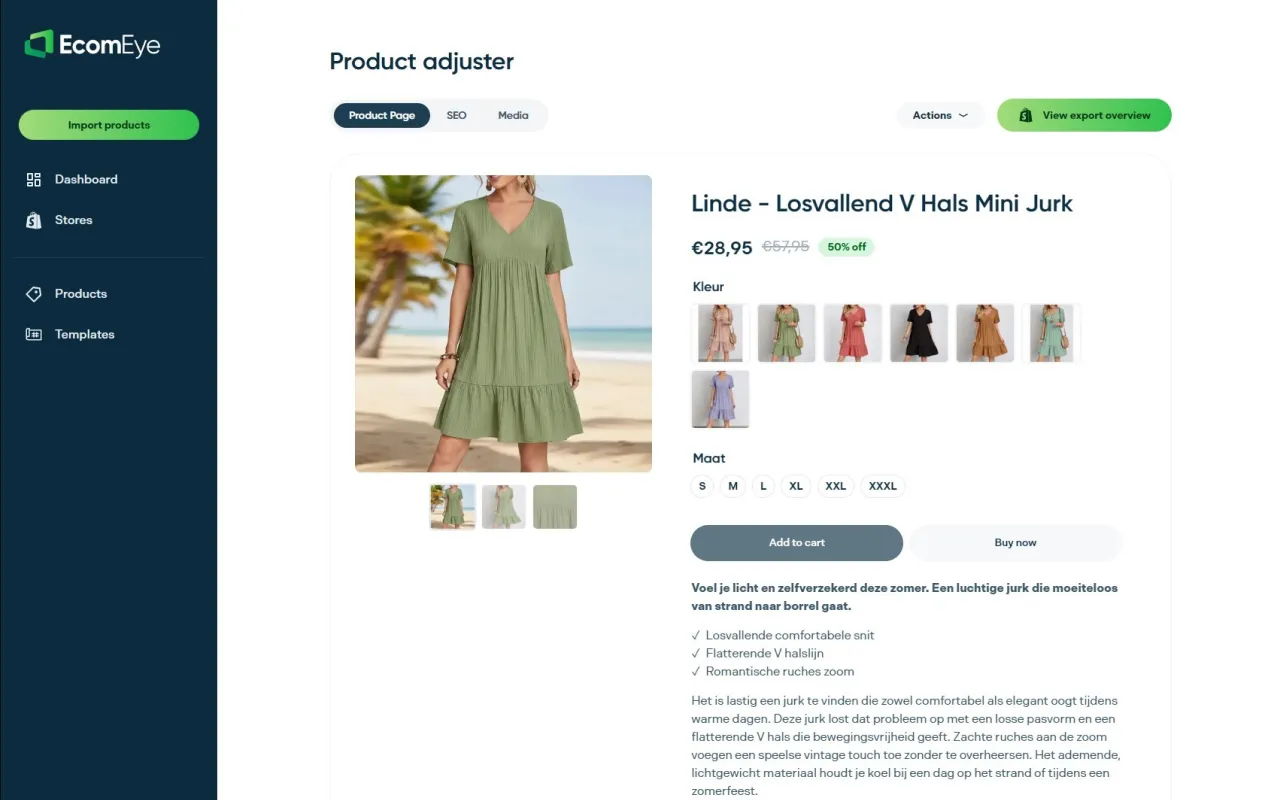
Because every listing is generated fresh rather than copied, you sidestep the duplicate content problem that causes a large share of the disapprovals covered above, without rewriting pages by hand.
- Start with a small pilot collection on the Try-out plan at €39 per month and measure approval and CTR before scaling.
- Review the AI product description generator for a closer look at how the content output is structured.
- Check the AI product image generator if images are your main blocker for approval.
Once a pilot collection shows the improvement, the Scaler plan at €99 per month covers a full catalogue rollout.
FAQ
How long does it take to fix a Google Merchant Center disapproval?
Straightforward data fixes, such as adding a missing GTIN or correcting a price mismatch, typically clear re-review faster than policy-related flags, which can involve a manual check. Google’s disapproval guidance explains the re-review process but does not publish a fixed timeline, so build in a buffer before a campaign launch.
Why do Performance Max campaigns need such rich feed data?
Performance Max uses your product feed alongside supplied text and image assets to decide which combinations to serve, so thin or inconsistent attributes slow its learning process down. Google’s own best practices recommend a wide range of assets and a multi-week learning period before judging results.
What causes duplicate content issues in a Google Shopping feed?
Duplicate content usually happens when a product title and description are copied directly from a supplier or competitor listing, which is common across dropshipping catalogues selling the same sourced item. Generating unique titles, descriptions, and images for each listing, which tools like our platform handle in bulk, avoids this at the source rather than fixing it after a disapproval.
How often should I check Merchant Center diagnostics?
A weekly check works well for most Shopify catalogues, since it catches new issues before they compound into a pattern flag across multiple products. Google’s product data specification and diagnostics tools are designed for this kind of ongoing review rather than a one-time setup check.
Can I use price comparison data to inform my Shopping feed strategy?
Yes, checking how your pricing sits against the wider market helps explain impression share issues that a clean feed alone will not fix. Tools such as AI Price Search let you compare prices against verified retailers, which is useful context alongside Merchant Center’s own price competitiveness report.
Sources
Ready to boost your product pages?
Generate high-converting, SEO-optimized product pages in bulk using AI automation used by e-commerce experts.
No credit card required