Merchants: Fix 4 Google Merchant Center disapprovals that restore Shopping clicks
Triage Merchant Center disapprovals, fix the four issues that block Shopping clicks (PID, price/availability, images, identifiers), request reviews, and...

Merchants: Fix 4 Google Merchant Center disapprovals that restore Shopping clicks

Disapproved products vanish from Google Shopping until you fix the root cause in your feed or on your landing page. Open Merchant Center, go to Products, click Needs attention, and sort by impact to see which items are costing you the most clicks. Correct the feed or the page, then request a review through the Issue Details Page. Turn on Automatic Item Updates as a backup, but never treat it as a substitute for a clean feed.
TL;DR:
- Most disapprovals are caused by price or availability mismatches, which can be quickly fixed by comparing the landing page with the feed and enabling Automatic Item Updates.
- Invalid or missing product identifiers, such as GTIN or MPN, often lead to disapproval; verifying with GS1 and setting identifier_exists=false for authentic no-code products prevents recurring issues.
- Image disapprovals occur due to overlays, low resolution, or promotional content, and require replacing poor-quality images with clear, compliant visuals; automated image adjustments help only minor issues.
- Policy violations and misrepresentation issues are frequent and involve ensuring your store’s business details, return, and shipping policies are accurate, consistent, and accessible.
- Regularly auditing your feed, monitoring diagnostics, and addressing common issues upfront significantly reduce the risk of disapprovals recurring over time.
Table of Contents
- Why does Google disapprove products in Merchant Center?
- Common reasons for product disapprovals and how to fix them
- How do you request a review and what’s the timeline?
- How can you stop disapprovals happening again?
- How EcomEye reduces the errors that cause disapprovals
- A pragmatic order for clearing a disapproval backlog
- Fix listings at the source before they ever get flagged
- Where to check the official Google Merchant Center rules
- Sources
- FAQ
Why does Google disapprove products in Merchant Center?
A disapproval is not the same as a warning, and mixing the two up wastes hours. A warning lets your product keep showing while performance is capped and Google flags something for you to fix. A disapproval pulls the product from Shopping entirely until the issue is resolved. That distinction changes how urgently you should act on each item.
The most common trigger you’ll never see coming is preemptive item disapproval, or PID. This happens when the price or availability in your submitted feed doesn’t match what’s actually on the landing page. Google’s crawlers check both, and any mismatch between the two triggers an automatic disapproval before a human ever looks at the listing. It’s mechanical, not punitive, which is good news: it’s usually a five-minute fix once you know where to look.
Finding disapproved products starts in one place.
- Log into Merchant Center and open Products.
- Click the Needs attention tab, which lists every item with an active issue.
- Filter by status to isolate disapprovals from warnings.
- Click into an individual issue to reach the Issue Details Page (IDP).
The Issue Details Page is where the real diagnostic work happens. It shows you example products affected by the issue, an estimate of the business impact in terms of lost click potential, and a suggested fix specific to that error type. Crucially, you can export the full list of affected SKUs as a CSV file straight from this page.
That export matters more than it sounds. If you manage a catalogue running into the thousands, you cannot fix disapprovals one product at a time inside the Merchant Center interface. Pull the CSV, sort it by issue type and estimated impact, and hand a prioritised sheet to whoever owns your feed or your Shopify theme. A few practical habits make this faster:
- Sort the export by impressions lost, not alphabetically, so you fix the products bleeding the most traffic first.
- Group SKUs by issue type before assigning them, since a batch of identical GTIN errors is fixed differently to a batch of image errors.
- Keep a dated copy of each export so you can measure whether your fix rate is improving week on week.
Common reasons for product disapprovals and how to fix them
Most disapprovals fall into a handful of repeat offenders. Here’s the problem-to-fix mapping that actually clears them.
Price or availability mismatch (PID). Open the landing page in an incognito browser and compare the displayed price and stock status against what’s in your feed, line by line, including currency and tax treatment. Fix whichever one is wrong, whether that’s the feed value or the page itself. Then enable Automatic Item Updates so Google can pull corrected price and availability data automatically going forward, though this works alongside an accurate feed, not instead of one.
Missing or invalid identifiers (GTIN, MPN, brand). Products without a valid Global Trade Item Number get disapproved for identifier issues constantly, especially with dropshipped inventory pulled from supplier catalogues that never had proper codes assigned. Look up or verify the correct GTIN through GS1’s Global Electronic Party Information Registry rather than guessing. If a product genuinely has no manufacturer identifier, which is rare but legitimate for some handmade or bespoke items, set identifier_exists=false in the feed instead of leaving the field blank or fabricating a number.
Image problems. Generic supplier stock photos, images with a promotional badge or watermark baked in, and undersized files are three separate ways to get disapproved on the same attribute. Google’s image requirements are specific on minimum pixel dimensions, and any overlay text (“SALE”, a percentage-off banner) reading as promotional content on the primary image will trigger rejection. Where the fix is minor, Google’s automatic image improvements can crop or adjust for you, but a genuinely low-quality or overlaid image needs replacing outright.

Policy violations and misrepresentation. This one catches merchants off guard because it’s rarely about the product at all. It’s about the store. Google checks that your business name, contact details, and payment methods match what’s actually on your site, and that your returns and shipping policies are visible and functional, not a broken link or a placeholder page.
Data quality errors. Excessive capitalisation in titles (“BEST QUALITY!!! Running Shoes”), an incorrect Google product category, or attribute values that contradict each other (marked as “unisex” but sized only in men’s UK numbering) all fall under this bucket and get flagged even when the product itself is legitimate.
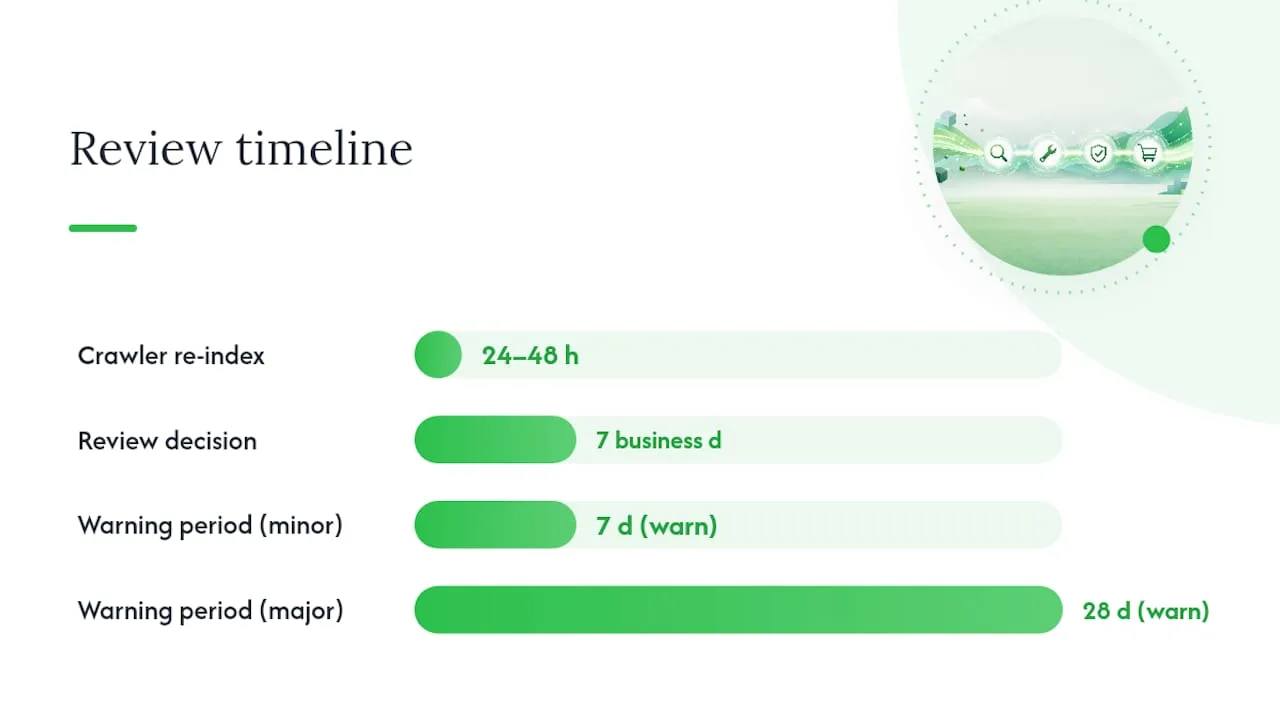
Once you’ve made a fix, don’t request a review immediately. Google’s crawlers typically need 24 to 48 hours to re-index a changed landing page, and a review requested before that happens almost always fails, because the crawler is still checking the old version.
Pro Tip: Before you request a review, force a fresh crawl rather than waiting passively. A small, harmless edit to the page, such as adjusting a meta description, or using Search Console’s URL inspection to request indexing, often gets Google to re-check the page faster than sitting on your hands.
How do you request a review and what’s the timeline?
Once you’re confident the underlying issue is genuinely fixed, go back to the Issue Details Page and choose one of two options. Select “I fixed the issue” if you’ve corrected the feed or the landing page. Select “I disagree with the issue” if you believe Google’s flag was wrong, in which case you’ll need to explain why and, where relevant, attach supporting evidence.
- Confirm the fix is live on the actual landing page, not just saved in your CMS as a draft.
- Wait for the crawler re-index window (24 to 48 hours) before submitting.
- Choose the correct review path and submit any required explanation.
- Complete identity verification (IDV) if prompted; unverified accounts are sometimes blocked from requesting a review until this step is completed.
- Wait for the outcome; Google states reviews can take up to seven business days.
Some issues also carry a warning period, either 7 or 28 days depending on severity, during which the product keeps showing but you’re expected to resolve the underlying problem. Miss that window and you risk the issue escalating from a product-level flag to account-level suspension.
If a review comes back rejected, resist the urge to resubmit immediately. Google enforces a cooling-off period before you can request again, and firing off the same appeal a second time rarely changes the outcome. Use that window properly: audit the product again from scratch, check whether a second, unrelated issue is now masking the first one, and only resubmit once you’re certain the fix addresses exactly what the IDP flagged.
How can you stop disapprovals happening again?
Fixing today’s disapprovals is reactive. The merchants who stop losing sleep over Merchant Center build a few checks into their workflow so the same errors don’t recur every fortnight.
- Validate your feed against Google’s schema and required-attribute list before every upload, catching missing GTINs or malformed price fields before they ever reach Google’s servers.
- Run a daily glance at the Diagnostics tab so a spike in disapprovals gets caught within hours, not discovered a week later in a revenue report.
- Export a CSV of your highest-risk SKUs weekly, specifically anything with frequent price changes or fluctuating stock, since these are the products most prone to PID.
- Set an internal alert for whenever your feed price or availability drifts from your live site, rather than relying on Google to tell you first.
- Keep your site’s contact details, returns policy, and shipping information matched exactly to what’s declared in Merchant Center settings, since misrepresentation issues often stem from a stale policy page rather than anything wrong with the product.
Automatic Item Updates genuinely reduces PID risk, but treat it as a safety net under the trapeze artist, not the artist. Your feed still needs to be the accurate, authoritative source, because Google’s AI-driven ad formats increasingly treat feed data as canonical, and small data errors get enforced more strictly as a result.
Pro Tip: Standardise your image specs once (minimum 800 x 800 pixels, no text overlays, plain or lifestyle background) and write it into your supplier onboarding checklist. Catching a bad image before it’s uploaded is far less work than fighting a disapproval after the fact.
For a broader breakdown of listing errors beyond disapprovals, common product listing challenges is worth a read, and if misrepresentation keeps recurring specifically, Google merchant misrepresentation covers the site-transparency side in more depth.
How EcomEye reduces the errors that cause disapprovals
A large share of disapprovals trace back to listing content, not just feed mechanics: duplicated supplier descriptions, mismatched attributes, or stock images carrying a competitor’s watermark. The software generates unique, SEO-optimised titles and descriptions for every imported product, which removes the duplicate-content risk that often sits underneath a misrepresentation flag. Attribute population and export to Shopify happen automatically, keeping your feed and landing page consistent instead of drifting apart, which is exactly what triggers PID. The image generator produces clean product visuals with no promotional overlays, built for bulk fixes across dozens of listings at once. It won’t fix your returns policy or your fulfilment times. Those are still on you.
A pragmatic order for clearing a disapproval backlog
If you’re staring at fifty disapproved products and one afternoon to fix them, don’t work alphabetically. Fix PID and price or availability mismatches first, because those are pure mechanics, quick to correct, and they restore impressions the fastest. Cosmetic issues like image quality can wait a day without costing you much.
Escalate to a developer only when the fix genuinely sits outside the feed: a server error, a robots.txt blocking Google’s crawler, or a redirect chain mangling your landing page URL. Don’t burn a week waiting on an engineering ticket for something you could have fixed in the feed directly.
The real trap is treating every fix as a one-off. If the same issue type keeps reappearing across your catalogue, that’s a feed governance problem, not fifty separate incidents, and it deserves a permanent process fix rather than fifty repeated manual corrections.
— Koen
Fix listings at the source before they ever get flagged
Most disapprovals trace back to the same weak point: rushed, duplicated, or thin product content that Google’s systems catch faster than any human reviewer. The software generates unique titles, descriptions, and attribute data in bulk when importing from AliExpress, Amazon, Temu, or a competitor’s Shopify store, so the feed and the landing page tell the same accurate story from day one, instead of drifting apart later.
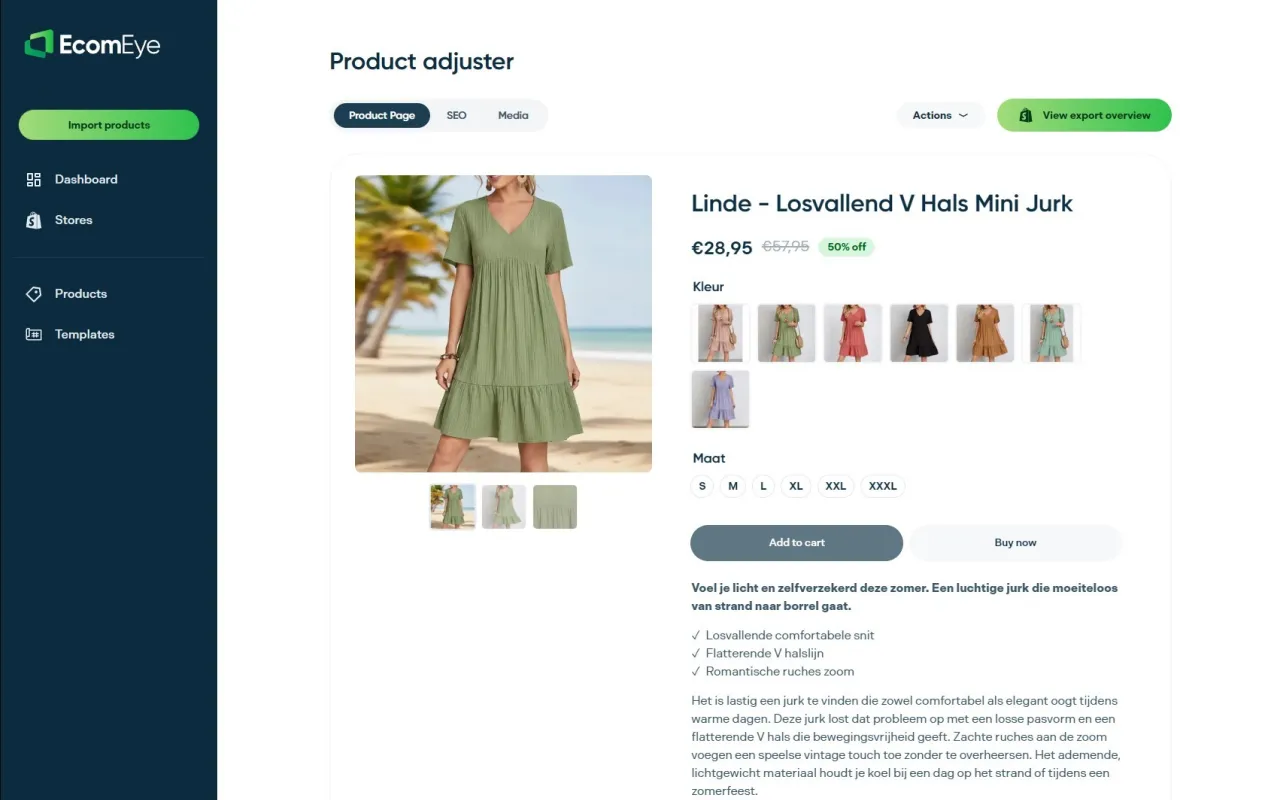
Where most merchants patch disapprovals product by product after the fact, Ecom-eye’s AI product description generator rewrites your entire catalogue’s copy before it’s ever submitted, cutting the duplicate-content and misrepresentation risk at the root. Pair that with the AI product image generator for clean visuals with no promotional overlays baked in, and you’ve closed off two of the biggest disapproval sources before Google’s crawler ever sees them. Run a trial batch through your next product import and check how many issues you’d have avoided altogether.
Where to check the official Google Merchant Center rules
Bookmark these before your next feed upload, not after your next disapproval.
- Product disapprovals: troubleshoot and fix, for a full breakdown of warning versus disapproval status.
- Request a review of your issues, covering the IDV requirement and review timelines.
- Automatic item updates, for reducing preemptive item disapproval risk.
- Policy requirements for Shopping ads, on transparency and misrepresentation rules.
- GS1 GEPIR, for verifying or obtaining product identifiers.
For assortment and channel-strategy thinking beyond Merchant Center compliance, The Dog Gurus’ guide to selling retail products is a useful outside perspective on listing decisions generally.
Sources
- Product Disapprovals: Troubleshoot & Fix in Merchant Center
- Automatic item updates for local and online stores
- Request a review of your issues
FAQ
What happens if Google rejects your review appeal?
Your product stays disapproved and you enter a cooling-off period before you can request another review. Use that time to audit the listing again rather than resubmitting the identical appeal, since Google is unlikely to reverse a decision on unchanged evidence.
How long does it take for Merchant Center to approve products?
Google states that reviews can take up to seven business days, though many resolves faster once the underlying feed or landing-page issue is genuinely fixed and re-crawled.
How do you fix disapproved products causing Google Ads to stop running?
Trace the disapproval back to its source in Merchant Center’s Needs attention tab, fix the feed or landing page mismatch, wait for a re-crawl, and request a review; Shopping ads for that product resume automatically once it’s reapproved.
How do you fix a Google Merchant misrepresentation flag?
Check that your site’s business name, contact details, payment methods, and returns and shipping policies are accurate, visible, and consistent with what’s declared in Merchant Center, since misrepresentation is usually a site transparency issue rather than a single product error.
What’s the difference between a warning and a disapproval?
A warning lets the product keep showing with limited performance while you fix the issue; a disapproval removes the product from Shopping entirely until it’s resolved and reviewed.
Ready to boost your product pages?
Generate high-converting, SEO-optimized product pages in bulk using AI automation used by e-commerce experts.
No credit card required