Canonical URLs for Products on Shopify: What to Check
Shopify sets product canonical URLs for you, but themes, feeds and internal links can undo them. Here is how to check and fix yours, step by step.

Canonical URLs for Products on Shopify: What to Check

Shopify already points every product to one canonical URL, /products/{handle}, so you rarely need to set one by hand. The problems come from what surrounds that tag: theme links to collection-path URLs, variant URLs in feeds, apps that overwrite the tag, and near-identical product pages that give Google no reason to pick one. This guide shows you how to check each of those and fix what is broken.
TL;DR
- Shopify canonicalises collection-path and
?variant=URLs to/products/{handle}by default. You do not add the tag yourself. - A canonical tag is a hint, not a command. Google may choose another URL when other signals disagree, so internal links, sitemaps and feeds must all name the same URL.
- Do not noindex or block the collection-path URLs. Keep them crawlable and stop linking to them.
- Check the rendered HTML with Google Search Console’s URL Inspection tool after every theme or app change.
- Canonicals cannot rescue products with copied or near-identical copy. Unique content is the other half of the job.
Table of Contents
- How Shopify handles product URLs by default
- Why a canonical tag is only a hint
- Where canonical problems actually come from
- How to audit your product canonicals in 15 minutes
- Google Merchant Center and canonical links
- Perspective: canonicals fix the plumbing, not the content
- Fixing the content side before you scale
- How Ecom-eye fits in
- A short maintenance routine
- FAQ
- Sources
How Shopify handles product URLs by default
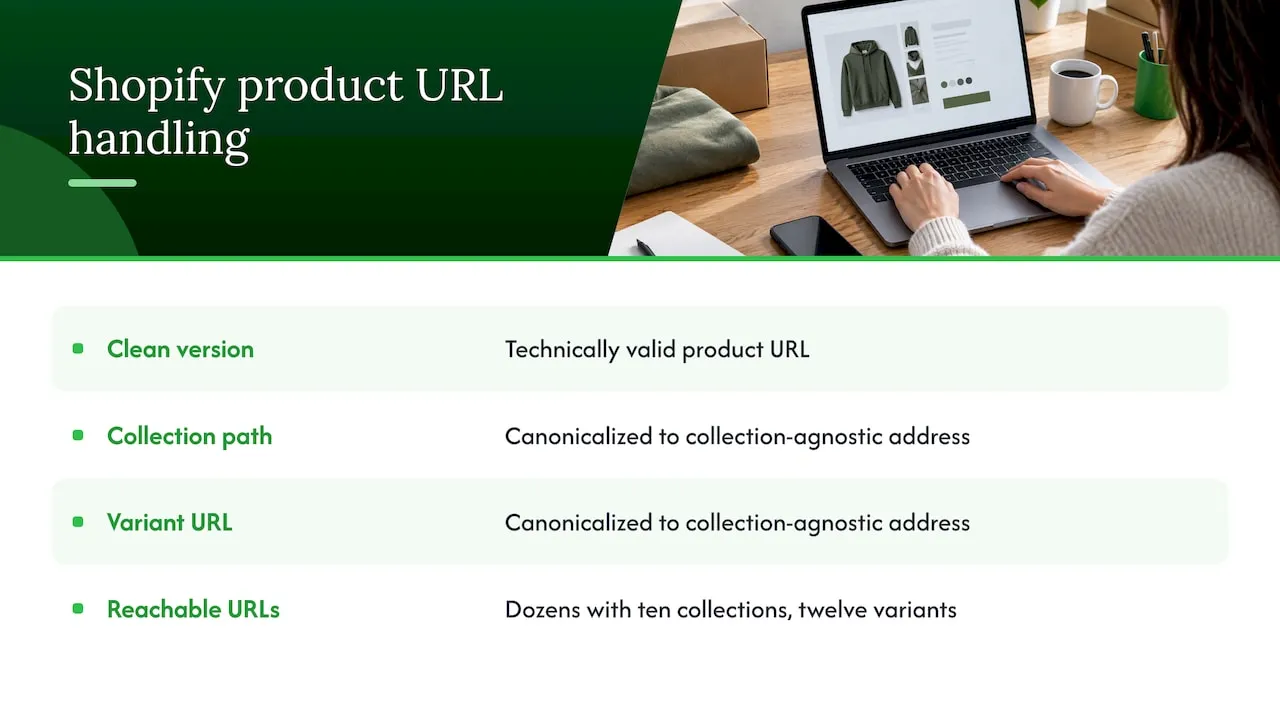
Every Shopify product can be reached in at least two ways. The clean version is /products/blue-running-shoe. If the product sits in a collection, it also loads at /collections/running/products/blue-running-shoe. Both show the same page, and both are technically valid.
Shopify solves this with the {{ canonical_url }} Liquid variable in the theme’s head. According to this technical write-up, the platform canonicalises collection-path URLs and variant URLs (?variant=123456) to the collection-agnostic /products/{handle} address, and this applies across themes by default.
So a product with ten collections and twelve variants may be reachable at dozens of URLs, yet the page tells Google that only one of them counts. That is the intended design, and for most stores it works.
What you cannot change
The /products/ prefix is fixed. Product URLs always include it and collection URLs always include /collections/, and you cannot alter that. What you do control is the handle, the last part of the URL, which you edit in the product’s search engine listing section in the admin.
If you change a handle on a live product, Shopify offers to create a redirect from the old address. Leave that box ticked. Otherwise you lose the links and rankings the old URL had earned.
Why a canonical tag is only a hint
Google’s own documentation describes rel=canonical as a signal it weighs with others, alongside redirects, sitemap inclusion and internal linking. It is not a directive.
One practitioner write-up puts the rate at which Google overrides canonicals at roughly 30 to 40 per cent in some cases. Treat that figure as an estimate rather than a measured constant. The practical point stands: if your navigation, collection grids and sitemap all point at one URL and the tag agrees, Google nearly always follows. If they disagree, you are leaving the decision to Google.
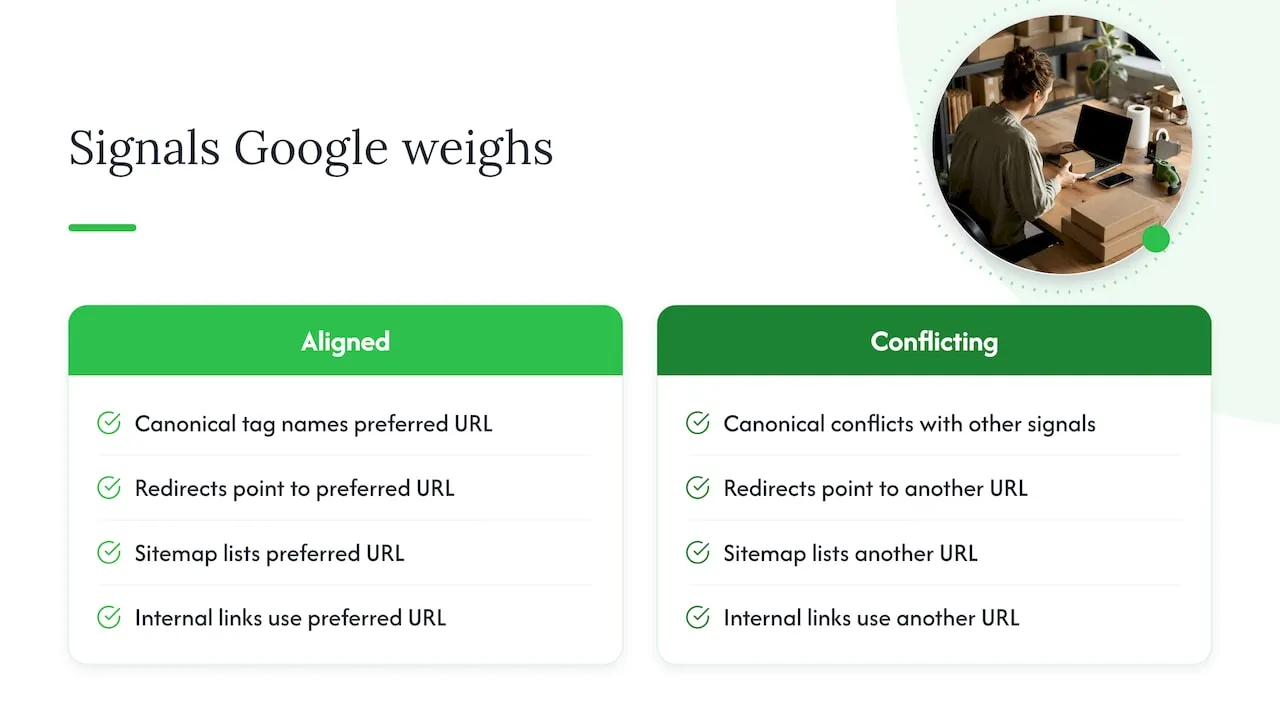
The same source frames canonicalisation as a consolidation tool, not a way to remove URLs from the index. You are not hiding the duplicates. You are lining up every signal behind one preferred address so ranking authority is not split.
Where canonical problems actually come from
In audits of Shopify stores, the default tag is rarely the culprit. These are the usual causes.
1. Theme links that contradict the tag
Many themes build product links with the within: collection filter. That outputs /collections/x/products/y in every product card, so your own site links hundreds of times to the URL you told Google to ignore. Practitioners fix this by editing the product card and related-products snippets (often product-card.liquid or similar) to output the plain /products/ URL.
The same guidance says to update internal links in navigation, collection pages and related-product blocks so they point straight to /products/{handle}. It calls this the most critical step, because internal linking is a strong signal.
2. Noindex or robots.txt on the wrong URLs
It is tempting to hide collection-path URLs with a noindex tag or a robots.txt rule. Don’t. That creates a conflict: the page says “index the product version” through the canonical and “do not index” through noindex. The recommended approach is to keep the pages accessible and make internal linking favour the canonical URL.
3. Variant URLs leaking into feeds
The same technical write-up notes that the real duplicate-content leaks are often variant URLs in product feeds and scripts that push ?variant= into the browser history. If a feed lists ?variant= links, you are asking Google to treat variants as separate destinations. For stores with very large variant sets, our guide to canonical fixes for 2,048 variants goes through the code in detail.
4. Apps and themes overwriting the tag
SEO consultants advise periodic checks because themes and third-party apps can overwrite the platform’s default canonical. A translation app, a page builder or a hand-edited theme.liquid can quietly change the output.
5. Genuinely similar products
A t-shirt store with the same design listed separately for men and women, or the same item imported several times, has a different issue. Here the canonical is not broken; the content simply is not distinct. We cover that in a separate piece on why duplicate product pages hurt.
How to audit your product canonicals in 15 minutes
- Pick five products from different collections, including one with many variants.
- Open the product in two ways: from the collection grid (so the URL contains
/collections/) and via the direct/products/address. - View the page source (right-click, View Page Source) and search for
canonical. Thehrefshould be the clean/products/{handle}URL on your primary domain, with no?variant=and no collection path. - Run the URL Inspection tool in Google Search Console on the same URLs. Compare the user-declared canonical with the Google-selected canonical. If they differ, you have a signal conflict to chase.
- Hover the product cards on collection pages, search results and related-product blocks. If the links show
/collections/.../products/..., fix the theme snippet. - Open your sitemap at
/sitemap.xmland confirm products appear only as/products/URLs. - Check your Merchant Center feed for
?variant=links or tracking parameters (see the next section). - Repeat after every theme update or new app install.
What the results mean
| What you see | Likely cause | Fix |
|---|---|---|
Canonical includes /collections/ |
Theme or app override | Restore {{ canonical_url }} in the head |
| Google picks a collection-path URL | Internal links point there | Change product card link output |
| Google picks a different product | Near-identical content | Rewrite or merge the pages |
Canonical is the primary domain’s myshopify.com address |
Domain setup issue | Set your custom domain as primary |
| Variant URLs in the feed | Feed app settings | Use the product URL without ?variant= |
Google Merchant Center and canonical links
If you run Shopping or free listings, there is a second canonical mechanism. When your product link attribute carries tracking parameters, Google recommends supplying a canonical_link in your product data. It serves a purpose similar to the canonical meta tag on your site, and customers never see it. Its job is to associate the product with the intended URL in Google’s Search index.
The general link guidance repeats the point: if you use tracking parameters in your link attribute, provide a canonical URL in canonical_link. Keep landing URLs clean where you can, and the question disappears.
Perspective: canonicals fix the plumbing, not the content
We built Ecom-eye for dropshippers who list products in bulk, and we see the same pattern. A store imports 300 products from AliExpress or a competitor’s page, publishes them with the supplier’s wording, and then spends weeks debugging canonical tags. The tags were fine. The pages were the problem.
A canonical tag tells Google which URL of a page to prefer. It says nothing about whether that page deserves to rank against thousands of stores selling the same item with the same copied description. When Google sees identical text across many domains, the canonical on your own site cannot help, because the duplication is cross-site, not on-site.
Our view is that you should do the work in this order:
- Get the URL structure clean (this article).
- Make sure each product page has its own title, description and images.
- Only then worry about scaling to hundreds or thousands of listings.
That second step is where bulk tools earn their keep, and where hand-rewriting stops being realistic. For the structural side, our notes on canonical tags in ecommerce and product page indexing cover the details we reach for most often.
— Koen
Fixing the content side before you scale
Once your canonicals are clean, check these product template points before you add more listings. Our checklist of four Shopify product template SEO checks covers them in more depth.
- Unique titles. Two products should never share the same title tag, especially colour or size variants listed as separate products.
- Unique descriptions. Rewrite supplier copy. Do not reuse the same paragraph across products.
- One product per intent. If two pages target the same search, merge them with a redirect rather than canonicalising one to the other.
- Variants as variants. Put sizes and colours inside one product, not in separate listings. Our write-up on variant SEO and bulk workflow explains how.
- Clean structure. A consistent layout helps both shoppers and crawlers; see our guide to product page structure.
When to canonicalise, redirect or merge
| Situation | Best option |
|---|---|
| Same page reachable via collection path or variant parameter | Leave Shopify’s default canonical, fix internal links |
| Two products that are truly the same item | 301 redirect one to the other and merge |
| Two products that differ slightly and both deserve to rank | Keep both, write distinct content |
| Old product retired | Redirect to the closest replacement or its collection |
A canonical pointing from one live product to a different product is a last resort. It asks Google to drop a page you have chosen to keep, and Google may ignore it anyway.
How Ecom-eye fits in
If your canonical structure is sound but your catalogue is full of imported, duplicated copy, that is the gap we close. Ecom-eye imports products in bulk from AliExpress, Amazon, Temu or competitor Shopify links, then generates unique titles, descriptions and AI product images for each one, and exports to Shopify in one click. Every listing is generated uniquely for each user, even when it starts from the same product link.
Plans start with Try-out at €39 per month, and Scaler is €99 per month; see the pricing page for what each includes. You can also look at the AI product description generator and the AI product image generator before you commit.
A short maintenance routine
Canonical health is not a one-off task. Build these checks into your calendar:
- After any theme change: re-test five products, as in the audit above.
- After installing an app that touches the head, feeds or translations: view the source and confirm the canonical.
- Monthly: scan Search Console’s page indexing report for “Duplicate, Google chose different canonical than user” and sample the URLs listed.
- Before a big import: check that handles are unique and descriptive, then publish.
- Each quarter: crawl the site and count internal links that contain
/collections/followed by/products/. The number should be zero.
For wider context on how product pages gain ranking over time, our guide to Shopify product SEO and bulk edits and the product page overview are good next reads, as is the piece on page layout and conversions.
FAQ
Do I need to add canonical tags to my Shopify products manually?
No. Shopify’s themes output the canonical tag automatically through the {{ canonical_url }} variable. Your job is to confirm that your theme and apps have not overwritten it, and that your internal links agree with it.
Why does Google show a collection-path URL instead of my /products/ URL?
Usually because your theme links to that version from collection pages and related-product blocks. Google treats the canonical as a hint and weighs internal links heavily. Change the theme snippets to output /products/{handle}, keep the sitemap clean, and request re-indexing in Search Console.
Should I noindex the collection-path product URLs?
No. Combining noindex with a canonical sends conflicting instructions and can stop the main product page ranking well. Leave those URLs accessible and make your internal linking favour the canonical one.
How do I edit a product URL in Shopify?
Open the product, scroll to the search engine listing and click edit. Change the URL handle and keep the option to create a redirect from the old address ticked. You can change only the handle, not the /products/ prefix.
Can a canonical tag fix duplicate product descriptions copied from a supplier?
No. A canonical consolidates different URLs of the same page on your site. It does not solve identical text appearing across many stores. For that, each product needs its own title, description and images.
Sources
- Shopify Duplicate Content & Canonical Tags Fix (2026)
- Shopify SEO: the complete guide, Aggee Writes
- Shopify ecommerce SEO: tips to rank your shop, EcomSEO
- Resolving Shopify Duplicate Content Between Collection & Product Pages, Amsive
- Google Search index link [canonical_link], Merchant Center Help
- Link [link], Merchant Center Help
- How to specify a canonical with rel=“canonical” and other methods, Google Search Central
Ready to boost your product pages?
Generate high-converting, SEO-optimized product pages in bulk using AI automation used by e-commerce experts.
No credit card required