Google Merchant Disapprovals: 5 Product Data Checks That Catch Errors
Find Google Merchant disapproval causes in images, product data, pricing, stock, and landing pages. Use Diagnostics to prioritize fixes and request review.

Google Merchant Disapprovals: 5 Product Data Checks That Catch Errors

Products are usually disapproved because of image policy problems, bad identifiers, price or availability mismatches, landing-page access errors, or misrepresentation concerns. Open Diagnostics and the Needs attention tab first. Fix feed versus landing-page mismatches and replace faulty images next, then gather evidence before you request a review.
TL;DR:
- Diagnostics’ Needs attention tab links each disapproval to affected products and its cause; fix the feed and landing page before marking it resolved.
- Verify GTINs, brand, and MPN values with the manufacturer when needed; never invent identifiers, and check that variant attributes such as size and color match.
- Google compares feed prices and availability with landing pages, so match update frequency to site changes and schedule sale windows accurately in the feed.
- Policy violations can trigger account suspension rather than affect individual listings; correct transparency or checkout problems, then submit evidence with a review request.
- Google says appeals take about seven business days; after a failed review, correct the cited issue before retrying, and never open a new account.
Table of Contents
- Why do images get products disapproved?
- Which product data and identifier errors cause disapprovals?
- How do price and availability mismatches happen?
- What website problems stop Google verifying your pages?
- What triggers policy disapprovals and misrepresentation flags?
- How do you read Diagnostics and request a review?
- What should you check every week to avoid repeat disapprovals?
- Which fixes should you tackle first?
- How can we help you stop duplicate-content disapprovals?
- FAQ
- Sources
- Authoritative Google pages and EcomEye resources to read next
Why do images get products disapproved?
Image quality problems can lead to disapprovals. Check the image details in Merchant Center and replace images that are flagged.
To find the affected products, check the Needs attention tab for the specific disapproval messages. Then fix them at the source:
- Replace the file in your product CMS, or update
image_linkin the feed for the main shot. - Check Merchant Center’s image guidance before adding other product images.
- Review flagged images and replace any that do not meet Merchant Center’s requirements.
- Check that the new image URL is accessible.
After you save the changes, items usually clear on the next crawl, as item-level data issues often do once the feed is fixed. Our guide to Google’s image requirements offers more information.
Pro Tip: Review product images before uploading, and replace any images flagged by Merchant Center. An AI product image generator is one option for creating replacement images.
Which product data and identifier errors cause disapprovals?
Google states that accurate, correctly formatted data is essential, and it lists incorrect GTIN or MPN values, wrong categories and missing variant attributes among the common problems. Conflicts between your feed and your website add to the list.
Identifiers deserve a careful audit:
- Check that each GTIN is accurate and correctly formatted. Do not guess or invent a number.
- Check that brand and MPN values are accurate.
- If a product has no GTIN or MPN, check Merchant Center’s guidance before entering identifier values.
- Compare the feed with the product page and check that the information is consistent.
- For variants, check that the relevant variant attributes, such as
item_group_id, colour and size, are present and accurate.
Google’s own guidance on this point: accurate, correctly formatted product data is essential for Merchant Center, so a wrong identifier can cost you approval across a whole product group.
If you suspect a manufacturer number is wrong, verify it with the manufacturer before updating the feed. For dropshipped catalogues, our data quality checklist for Shopify dropshippers shows which SKUs to fix first.
How do price and availability mismatches happen?
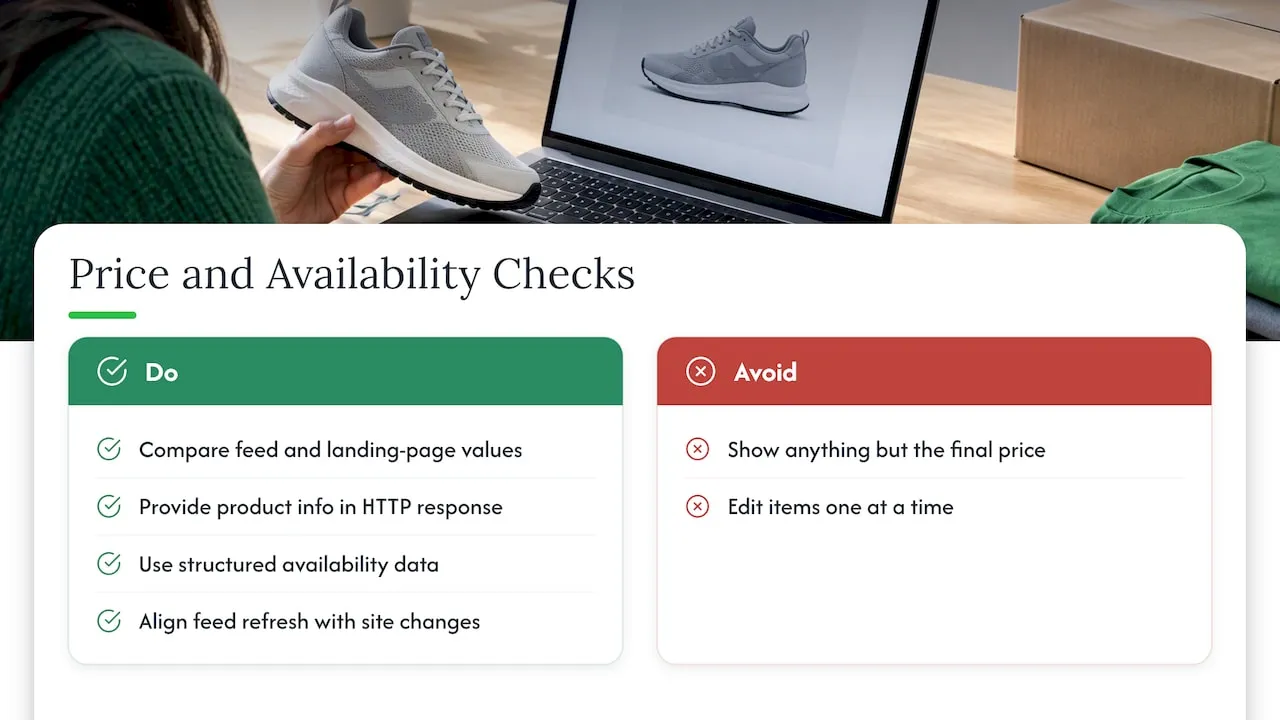
Google crawls your site to check that the price and availability on the landing page match the feed. Its data quality guidance recommends cautious use of automatic item updates, product information in the HTTP response, structured data for availability, and showing only the final price on the product page.
Check whether feed and website values differ, including price and availability. Google identifies mismatched price or availability as a common data issue.
Work through this checklist: consider automatic item updates cautiously, provide product information in the HTTP response, and display only the final price on the product page. Check the landing page and feed for mismatches. If Google loses trust in consistency, it may apply Preemptive Item Disapproval, and the fix is aligning feed frequency with how often your site changes rather than editing items one at a time. Shopify sellers can follow our guide to variant and availability mismatches.
Pro Tip: Schedule sale-price start and end times in the feed to the minute, and test one product after each pricing change before you trust the rest.
What website problems stop Google verifying your pages?
Check that Google can access the landing page and that checkout works without errors. Google identifies checkout errors, restricted billing-country fields and missing confirmation pages as issues to address. Google specifically flags checkouts that cannot be completed without errors, with restricted billing-country fields or missing confirmation pages.
Check that product pages are accessible and that checkout can be completed without errors. Review any checkout problems, including restricted billing-country fields or missing confirmation pages.
Review feed and landing-page consistency, website transparency and checkout functionality. Google says policy violations can lead to warnings or account suspension.
What triggers policy disapprovals and misrepresentation flags?
Data-quality disapprovals affect individual items and often clear after a fix. Policy issues are different: policy-level problems need a manual review request, and an account-level suspension can suppress every product at once, so deal with it before item-level errors.
Google defines misrepresentation as misleading product information, omitted material details, undisclosed costs and deceptive claims. Review your website information for these issues.
To address a policy issue, audit your website transparency, make contact and policy information present and consistent, and then request a review. Google’s page on fixing warnings and suspensions confirms that some violations get a warning period while egregious ones can mean immediate suspension. Our article on misrepresentation fixes goes deeper.
How do you read Diagnostics and request a review?
Start in the Needs attention tab. Each message links to an Issue Details Page that names the affected products and the reason, and Needs attention is where disapproval messages appear, split between policy and data-quality causes.
Use these rules of thumb:
- Fix first, then press “I fixed the issue” once the change is live on both feed and page.
- Press “I disagree with the issue” only when your setup is genuinely compliant.
- Complete identity verification and keep at least one product in the data source before requesting a review, as Google’s review instructions explain.
- Prepare any information relevant to the issue before requesting a review.
Expect a wait. Google indicates about seven business days for an appeal. If the re-review fails, do not resubmit unchanged: re-audit the site, correct what the new message names, and try again. Never delete the account and start over, because creating a new account for the same business risks immediate suspension if violations remain.
Pro Tip: Screenshot the fixed page, the matching feed row and the Diagnostics message together, so your review request shows evidence rather than assertion.
What should you check every week to avoid repeat disapprovals?
Prevention is mostly routine. Follow these steps:
- Match feed cadence to how often your site changes, and use automatic item updates selectively.
- Keep structured data accurate and visible in the page response.
- Write unique titles and descriptions instead of pasting supplier copy.
- Review images before uploading and address any image-quality problems.
- Check Diagnostics regularly and review changes to bulk uploads.
- Keep shipping, returns and contact pages clear and current.
| Area | Check | Frequency |
|---|---|---|
| Diagnostics | Review Needs attention | Daily |
| Feed | Compare price and stock with pages | After each change |
| Content | Scan for duplicates and placeholders | Before every upload |
Our guide to product image best practices offers additional information.
Which fixes should you tackle first?
Review product data and website content for accuracy, and check flagged images and other data-quality issues in Merchant Center. Start by checking price, availability and image issues in Merchant Center. Then fix identifiers, then policy transparency. Automate anything repetitive, but test a small batch before touching the whole catalogue, since a bad bulk change spreads quickly.
— Koen
How can we help you stop duplicate-content disapprovals?
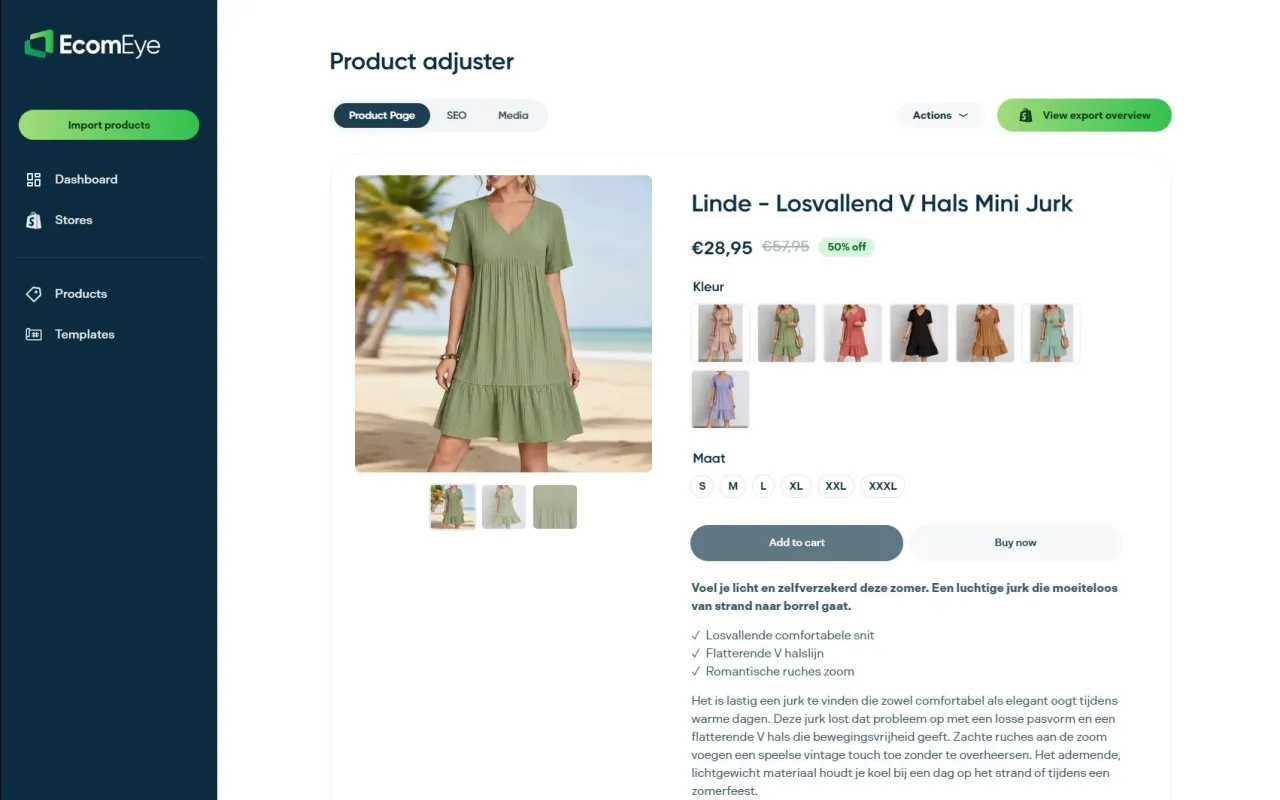
Most of the fixes above are repetitive: new images, unique descriptions, clean titles, consistent data. We offer EcomEye to help with that in bulk. Import products from AliExpress or competitor links, generate titles, descriptions and AI product images, then export to Shopify. The tool can help you create distinct listing content and images, but review each listing for accuracy and consistency before publishing. Try our Try-out plan at €39 per month or the Scaler plan at €99 per month on our pricing page.
FAQ
What happens if Google rejects your appeal?
Your products stay disapproved and the account remains restricted. Re-audit the site against the exact message, fix what it names and request another review rather than resubmitting unchanged. Do not open a new account, as that risks immediate suspension if violations remain.
How to get approved on Google Merchant Center?
Make sure your feed matches your landing pages, your images follow the rules, your identifiers are accurate and your site shows clear business and policy details. Then complete identity verification and check Diagnostics for open issues before requesting review.
Why was my Google ad disapproved?
Ads for products are usually blocked by the same causes as listings: policy violations or data-quality problems. Open the Needs attention tab to see the specific reason, fix it on the page and in the feed, then request a review.
Does Google respond to appeals?
Yes. You can submit an appeal using “I disagree with the issue.” Google indicates about seven business days for a review. If nothing changes after that, contact support.
Authoritative Google pages and EcomEye resources to read next
Start with Google’s data specification, data quality, issues overview and policy pages, all linked above. For hands-on remediation, read our guide to disapproved products, or generate fresh copy with our AI product description generator.
Ready to boost your product pages?
Generate high-converting, SEO-optimized product pages in bulk using AI automation used by e-commerce experts.
No credit card required