Fix 5 SKUs That Restore GMC Data Quality for Shopify Dropshippers
A short, execution-focused checklist for Shopify dropshippers to fix GMC data quality: prioritize five high-traffic SKUs, correct titles/images/prices,...

Fix 5 SKUs That Restore GMC Data Quality for Shopify Dropshippers

GMC data quality means your Google Merchant Center feed attributes match what shoppers actually find on your landing pages and follow Google’s product data rules. If your listings are flagged, open Diagnostics and check “Needs attention” first, then fix the highest-impact price, availability and image mismatches before anything else. Automatic item updates and the Merchant API can stop the same errors from coming back.
TL;DR:
- Most data quality issues stem from missing or incorrect identifiers, mismatched prices or availability, and generic or watermarked images that violate Google’s guidelines.
- Fixing high-traffic SKU issues first can recover more shopping traffic quickly, as disapproved or warning products stop showing regardless of ad campaigns.
- Using automated tools to validate product data before submission minimizes errors and speeds up fixes, especially for large catalogs with frequent stock or price changes.
- Dropshippers often neglect regional differences, risking suspension if product titles, descriptions, or stock information are not properly localized and synchronized by country.
- Regular ongoing audits and applying automatic updates or APIs help maintain accurate listings, reducing disapproval risks and improving ad performance and conversions.
Table of Contents
- Why poor feed data leads to warnings, disapproval and suspension
- Most common data quality issues that trigger warnings
- A quick diagnostic checklist for Merchant Center
- Step-by-step fixes for titles, images, identifiers and prices
- Feed formats, processing reports and common upload pitfalls
- Handling multiple languages and regional product data
- Best practices for ongoing feed optimisation
- How data quality affects ad performance and conversions
- Automated validation before you submit a feed
- What dropshippers get wrong about feed compliance
- Fix data quality issues at the source with EcomEye
- Where to check Google and Shopify documentation next
- Sources
- FAQ
Why poor feed data leads to warnings, disapproval and suspension
Google relies on your product data as the main signal for matching queries to listings and deciding what to show. When that data is thin, inconsistent or wrong, your products lose impressions and clicks before a shopper ever sees them.
The enforcement path typically escalates in stages. A warning appears first, often tied to a specific attribute or a mismatch between your feed and your live product page. Left unresolved, this can turn into preemptive item disapproval, and if the pattern repeats across your account, Google may suspend the account entirely.
Dropshippers hit this pattern more than most, for a few recurring reasons:
- Product descriptions copied directly from AliExpress or a competitor’s Shopify store, which reads as duplicate or low-quality content.
- Placeholder or supplier stock images that do not match the actual item being sold.
- Prices and stock levels that change upstream with a supplier but never get pushed back into the feed.
Each of these is fixable, but only once you know where to look.
Most common data quality issues that trigger warnings
Most disapprovals trace back to a handful of repeat offenders. Check these first, in roughly this order of frequency:
- Missing or incorrect GTIN, MPN or brand: without a valid identifier, Google cannot confidently match your product to its catalogue, which limits how widely it syncs and shows.
- Title and description problems: excessive capital letters, promotional phrases like “50% off today only”, or copy that no longer matches what is written on the landing page.
- Image issues: generic supplier placeholders, visible watermarks or logos, products obstructed by other objects, or images that fall short of Google’s size and clarity rules.
- Price and availability mismatches: the figure or stock status in your feed does not match what a shopper sees on the page, which is one of the fastest routes to a preemptive disapproval.
- Malformed or missing google_product_category and variant attributes: a category left blank or too shallow, or variants missing a shared item_group_id, confuses how Google groups and displays your range.
Google is explicit that accurate, up-to-date product data is the baseline requirement, and that mismatches between what you submit and what is live on your site are treated as a compliance problem, not a minor inconsistency.
A quick diagnostic checklist for Merchant Center
When something breaks, work through this order rather than guessing at fixes:
- Open Diagnostics and sort “Needs attention” issues by impact or lost click potential rather than by date, so you fix what is costing you traffic first.
- Check the processing report for your most recent feed upload to see whether the problem is file-level (a formatting error) or attribute-level (a specific missing field).
- Manually verify the live landing page: does the price match, is availability correct, and does any structured data on the page render as expected?
- Turn on automatic item updates for transient mismatches, and if your stock or pricing changes daily, consider connecting the Merchant API instead of relying on a static feed file.
- Once fixes are live, request a re-review. Google and Shopify both note that reviews can take up to seven business days, so batch your fixes rather than requesting review after every single edit.
Pro Tip: Fix your five highest-traffic SKUs first. Restoring a handful of high-impact products returns more Shopping traffic than spreading the same effort thinly across your whole catalogue.
Step-by-step fixes for titles, images, identifiers and prices
Titles are usually the fastest fix and the easiest to get wrong twice. Keep them between 1 and 150 characters, put the most identifying details (brand, type, key attribute) first, and drop promotional language entirely. If you are generating titles with an AI tool, submit them through the structured_title field with digital_source_type set to “trained_algorithmic_media”, which is how Google expects AI-generated titles to be flagged.
Images need the same scrutiny:
- Replace generic supplier photos with a clear main image showing only the product.
- Remove watermarks, logos and promotional text overlays.
- Meet Google’s minimum size and quality thresholds, and use the “image improvements” suggestions in Merchant Center where they are offered.
For identifiers, supply GTIN, MPN and brand wherever the manufacturer provides them, and only use identifier_exists as false when a product genuinely has none. Verify GTIN accuracy against GS1’s own lookup tools rather than trusting a supplier’s listing.
On categories and variants, apply a google_product_category that goes at least two to three levels deep. Google’s own guidance points to this depth as improving matching quality, and it is one of the simplest changes to make across an entire catalogue in one pass. Group variants under a shared item_group_id so Google understands they are the same product in different sizes or colours.
Price and availability need to match the final landing-page figure exactly, including any currency or tax handling. Where update speed matters, checking the page’s structured data or HTTP response can confirm a change has gone live faster than waiting for a manual check.
Feed formats, processing reports and common upload pitfalls
Most upload failures are mundane rather than mysterious. Wrong file encoding, an incorrect file extension, or a compressed file that exceeds Google’s size limit will all stop a feed from processing cleanly, no matter how good the product data inside it is.
The processing report is the first place to look when something fails silently:
- It shows the status of the last upload, which attributes were affected, and how many products were touched by each error.
- The “Latest update” snapshot tells you when Google last successfully read your feed, which matters if you assume a fix is live when it has not actually been picked up yet.
- If you fetch feeds over SFTP, check permissions, redirect rules and robots settings, since any of these can silently block Google from reading the file at all.
For dropshippers whose prices and stock shift daily with a supplier, relying on a once-a-day static feed almost guarantees mismatches will creep back in. Intraday updates, automatic item updates, or a Merchant API connection all reduce that risk by keeping the feed closer to real time, which is exactly the kind of mismatch Google flags as a disapproval trigger.
Handling multiple languages and regional product data
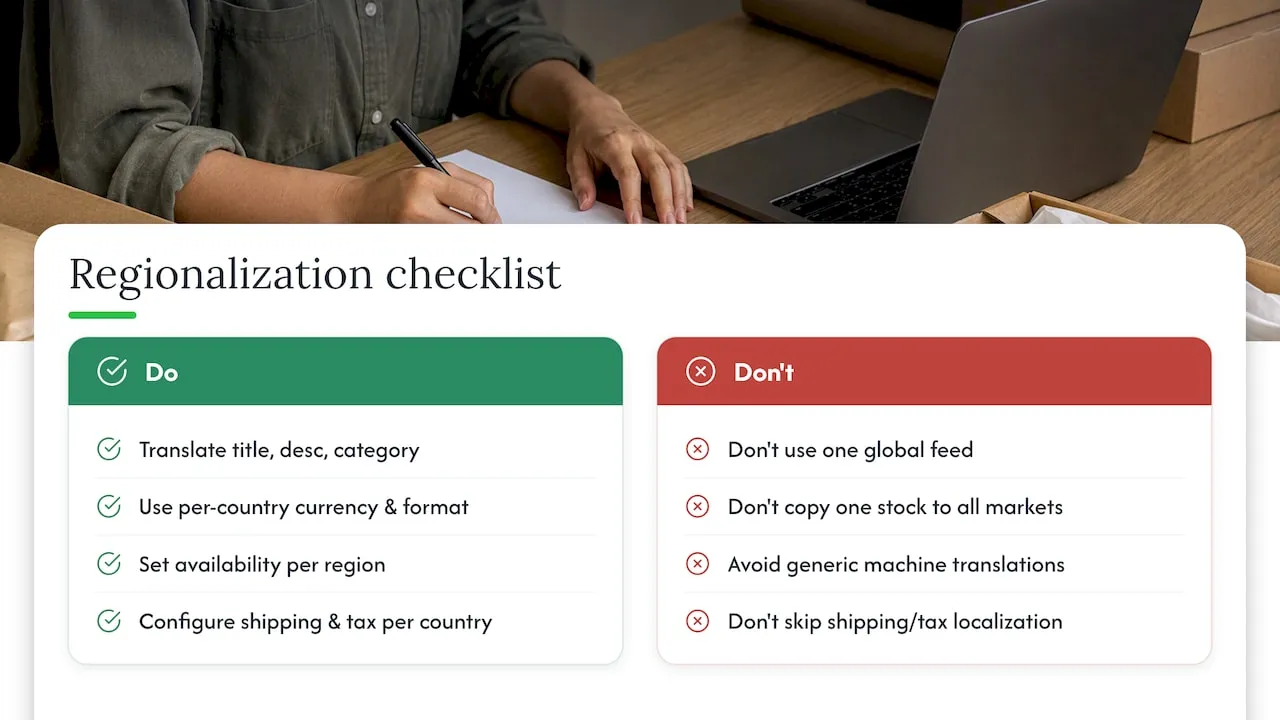
Selling into more than one country or language adds a layer most dropshippers underestimate. Each language and country combination Google serves needs its own feed or clearly separated feed section, with the title, description and category translated properly rather than run through a single machine pass and left as is.
Currency and price formatting must match the target market, and availability should reflect actual regional stock, not a single global figure copied across every country. A product marked “in stock” in one market while genuinely unavailable in another is treated the same as any other availability mismatch.
Shipping and tax settings also need to be configured per target country in Merchant Center, since a product approved for one region can still be rejected or hidden in another if these settings are missing. Keep a consistent naming and attribute structure across every language version of a product, so that variants and item groupings still make sense once translated. Generic machine-translated descriptions that read awkwardly or lose key attributes are more likely to trigger editorial review, so treat translation as a content quality issue, not just a technical one.
Best practices for ongoing feed optimisation
Data quality is not a one-time clean-up, it is a maintenance habit. Build a recurring schedule, weekly at minimum, to check Diagnostics for new issues rather than waiting for a suspension notice to prompt action.
Audit your highest-traffic products more often than the long tail of your catalogue, since prioritising by lost click potential returns the most Shopping traffic for the least effort. Keep a change log of price and availability updates on your side so you can cross-check them against what Merchant Center shows as live.
Automate what you can: automatic item updates for small mismatches, scheduled feed refreshes that match how often your supplier data actually changes, and alerts for new Diagnostics warnings rather than manual checks. Review your google_product_category and identifier fields whenever you add new product lines, since these are easy to leave blank in the rush to list quickly.
How data quality affects ad performance and conversions
A disapproved or warning-flagged product simply stops showing, which removes it from both free listings and paid Shopping ads regardless of how well the campaign around it is built. That is a demand problem before it is ever a conversion problem.
Even products that stay approved but carry weak data, vague titles, thin descriptions, generic images, tend to earn fewer clicks per impression, because shoppers are comparing your listing against others with clearer, more specific information. Once a shopper does click through, a mismatch between what the ad promised (price, availability, the product itself) and what the landing page shows is one of the fastest ways to lose that visit without a sale. Consistent, accurate feed data is not just a compliance requirement, it is part of what makes a click worth paying for in the first place.
Automated validation before you submit a feed
Catching errors before submission is far cheaper than fixing them after a disapproval notice. A basic spreadsheet check for missing required fields, blank GTINs, empty categories, unset item_group_id, will catch a large share of attribute errors before they ever reach Google.
Feed management tools that validate against Google’s specification before upload can flag formatting issues, character limits on titles, and missing identifiers in one pass rather than one product at a time. For image quality specifically, running a check for minimum resolution and watermark detection before generating a feed avoids the editorial disapprovals that come from generic supplier photography.
Whatever tool you use, the principle is the same: validate against Google’s own product data specification before the feed leaves your system, not after Merchant Center tells you something is wrong.
What dropshippers get wrong about feed compliance
Most dropshippers treat Merchant Center disapprovals as a technical glitch to patch once and forget. That view misses the actual pattern: disapprovals are rarely random, they cluster around a handful of recurring habits, copied descriptions, unedited supplier images, and feeds that lag behind real stock changes.
The bigger blind spot is timing. Merchants often fix the visible error, the one Diagnostics flagged, without checking whether the same root cause is quietly affecting other products that have not been flagged yet. A watermarked image on one SKU usually means the same supplier’s images are on a dozen others waiting their turn for review.
The uncomfortable truth is that data quality problems in dropshipping are mostly content problems wearing a technical disguise. Fixing them properly means treating product pages as original content worth writing well, not just fields to fill in fast enough to get a listing live.
— Koen
Fix data quality issues at the source with EcomEye
Most of the fixes above come back to one root cause for dropshippers: product pages built from copied supplier content. EcomEye generates unique titles, descriptions and images for each product you import, which removes the duplicate-content problem that causes many editorial disapprovals in the first place.
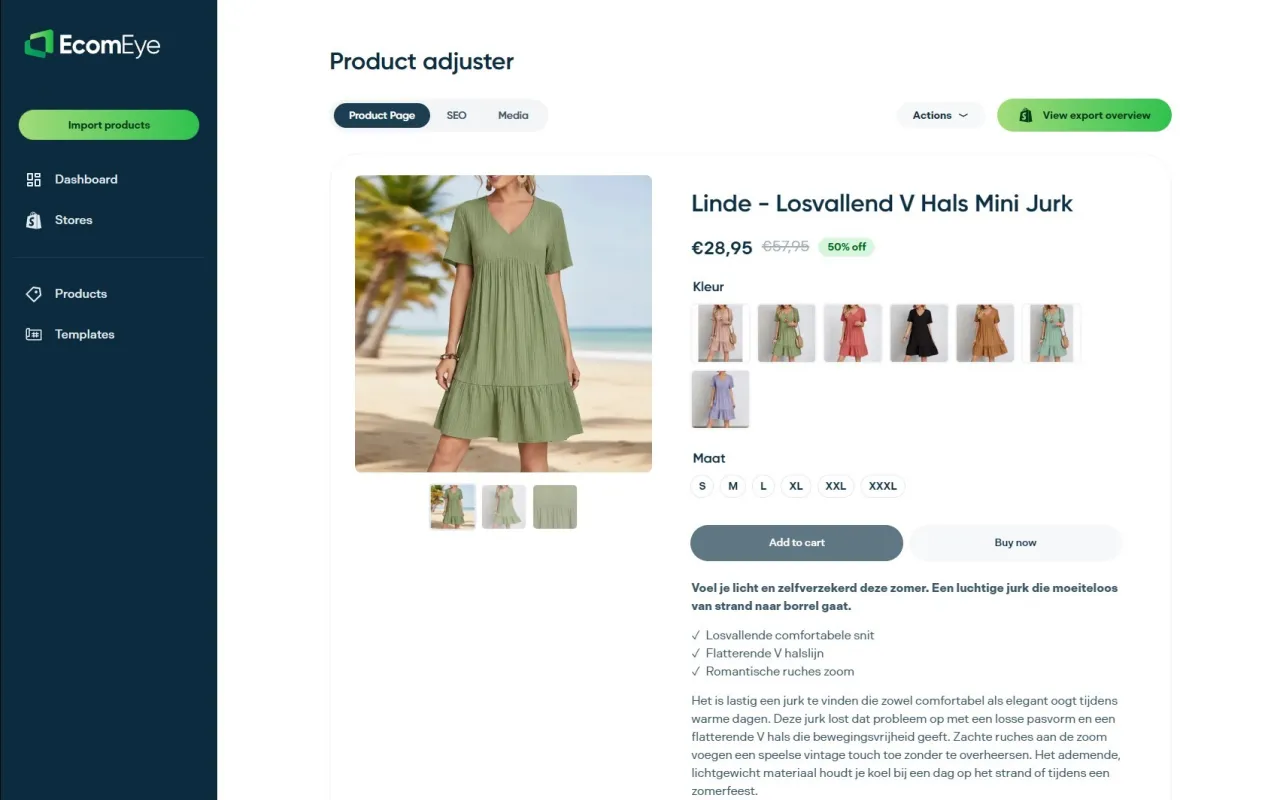
Bulk import from AliExpress, Amazon, Temu or a competitor’s Shopify link lets you regenerate an entire catalogue of flagged SKUs in one pass rather than editing product by product, and the built-in AI image generator replaces watermarked or generic supplier photos without a manual photo edit. Everything exports straight to Shopify in one click, so the fix that fires in EcomEye is the fix that lands on your live landing page.
- Try-out: €39 per month, for merchants testing bulk generation on a smaller catalogue.
- Scaler: €99 per month, for stores generating content and images across a larger product range.
- AI product description generator: for regenerating compliant titles and copy in bulk.
- AI product image generator: for replacing images that trigger editorial rejections.
| Need | EcomEye feature | Where to start |
|---|---|---|
| Unique titles and descriptions | AI product description generator | Ecom-eye |
| Watermark-free, original images | AI product image generator | Ecom-eye |
| Bulk fixes across a catalogue | Try-out or Scaler plan | Ecom-eye |
Run one flagged product through the generator, export it to Shopify, and check it against Diagnostics on your next processing cycle to see the parity for yourself.
Where to check Google and Shopify documentation next
For the primary rules and troubleshooting steps, these pages are worth bookmarking:
- Tips to optimise your product data, for attribute and category guidance.
- Fixing Merchant Center disapprovals, for the warning-to-suspension process.
- Shopify’s guide to disapprovals and warnings, for Shopify-specific steps.
For deeper background on related fixes, see our guides on restoring Shopping clicks after a disapproval, image requirements and why dropshippers fail Google checks. For conversion tactics once traffic is restored, Stellar’s guide to prioritising CRO and BabyLoveGrowth’s product page optimisation tips are useful next reads.
Sources
- Tips to optimize your product data - Google Merchant Center Help
- Fixing Merchant Center disapprovals for product data quality violations - Google Merchant Center Help
FAQ
What does GMC data quality actually mean?
It means the product attributes in your Merchant Center feed, title, price, availability, images and identifiers, are accurate and match what appears on your live landing page. Google treats any mismatch between the two as a compliance issue rather than a display quirk.
How long does a Merchant Center review take after I fix an issue?
Reviews typically take up to seven business days once you request one, according to Google’s own guidance and confirmed in Shopify’s documentation. Batch your fixes before requesting a review rather than triggering one after every small edit.
Why do my products keep getting disapproved for price mismatches?
This usually happens when your feed updates less often than your supplier’s prices change, leaving a gap between what Google has and what is live on the page. Turning on automatic item updates or connecting the Merchant API closes that gap for frequently changing stock and pricing.
Can AI-generated product images or titles cause disapprovals?
AI-generated titles need to be submitted through the structured_title field with the correct source tag, as Google specifies, or they may be treated inconsistently. AI-generated images are not inherently a problem, but they still need to meet the same clarity, size and watermark-free rules as any other product photo.
Does duplicate product description content cause Merchant Center disapprovals?
Copied descriptions are more likely to trigger editorial review because they read as templated or low-quality content rather than genuine product information. Writing or generating unique descriptions for each product reduces this risk considerably.
Ready to boost your product pages?
Generate high-converting, SEO-optimized product pages in bulk using AI automation used by e-commerce experts.
No credit card required