Unavailable Checkout in Merchant Center: How to Fix It
Merchant Center says your checkout is unavailable? Find which of three errors you have, fix the URL, crawl or availability cause, and confirm the fix on Shopify.
Unavailable Checkout in Merchant Center: How to Fix It
When Merchant Center flags an unavailable checkout, Google could not reach a working checkout or product page for your products, or the page it found did not match your feed. The fix is almost always on your own store: correct the checkout URL, make the product page crawlable, and make availability say the same thing everywhere. This guide shows how to tell the three errors apart, fix each one in order and confirm it worked. It also covers keeping your Shopify catalogue clean enough that it does not return, which is what Ecom-eye was built for when you list products in bulk.
TL;DR
- “Unavailable checkout” is not one error. It usually means a checkout URL that is not live, a checkout that lands on the wrong page, or a product page Google cannot open.
- Start in Products > Needs attention. Decide whether one product, a group of products or the whole account is affected before you change anything.
- The common causes are a typo in the checkout URL template, 404s, too many redirects, blocked crawling and stock status that differs between feed, page and checkout.
- After the fix, request a fresh crawl and allow 24 to 48 hours before you decide it failed.
- Dropshippers prevent repeat errors by keeping product data and availability consistent at the source, before it reaches Merchant Center.
Table of Contents
- What the error actually means
- Step 1: Find out how far the problem reaches
- Step 2: Check the checkout URL setup
- Step 3: Make the product page reachable
- Step 4: Align availability across feed, page and checkout
- Step 5: Check the checkout rules Google enforces
- Step 6: Test the way a customer buys
- Step 7: Confirm the fix and give Google time
- Keeping the error from coming back
- Where Ecom-eye fits
- Our view
- FAQ
- Sources
What the error actually means
Google uses several messages that readers lump together as “unavailable checkout”. They look alike in the dashboard but have different causes, so name yours first.
| Message in Merchant Center | What Google found | Typical cause |
|---|---|---|
| Your checkout URL is not yet live | One or more products are ineligible for checkout | A wrong URL, or a checkout URL template with a domain typo, sends shoppers to a 404 or an invalid page |
| Incorrect landing page for checkout | The checkout URL does not land on the cart or checkout | Redirect to a sign-in page or back to the product page |
| Product page unavailable | Google cannot access the landing page | 404, redirect chains, server errors, blocked robots.txt |
| Inaccurate availability | Stock status in the feed differs from the page or checkout | Sold-out item still submitted as in stock |
The definitions come from Google’s own help pages: the checkout URL is not yet live error means products are ineligible for checkout because customers would reach a 404 or invalid checkout page. Incorrect landing page for checkout appears when checkout links send people to a sign-in or product page instead of the cart or checkout, which breaks the shopper’s path.
A product page unavailable error is the harshest of the group. The affected products are disabled and stop showing in ads and free listings until Google can access the page again. Google’s reasoning is simple: an unreachable page gives users a bad experience and wastes your ad spend.
Step 1: Find out how far the problem reaches
Before you touch a setting, find out whether this is one product, a batch or your whole account. The fix is different for each.
Google separates two kinds of issue. Product-level issues affect individual products and show in Products > Needs attention, where you can filter by impact, label, status or title and download a CSV of affected items. Setup and policy issues affect the whole account and show as a banner at the top of Merchant Center. Re-reviews of account-level issues can take up to 7 days.
Open the Needs attention tab. The three cards at the top show the highest-impact issues and how many products each touches. Click the issue to reach its details page, which gives example products and suggested actions. Download the CSV and sort it by supplier or collection: if every affected product shares a vendor, a template or a variant structure, you have found your pattern.
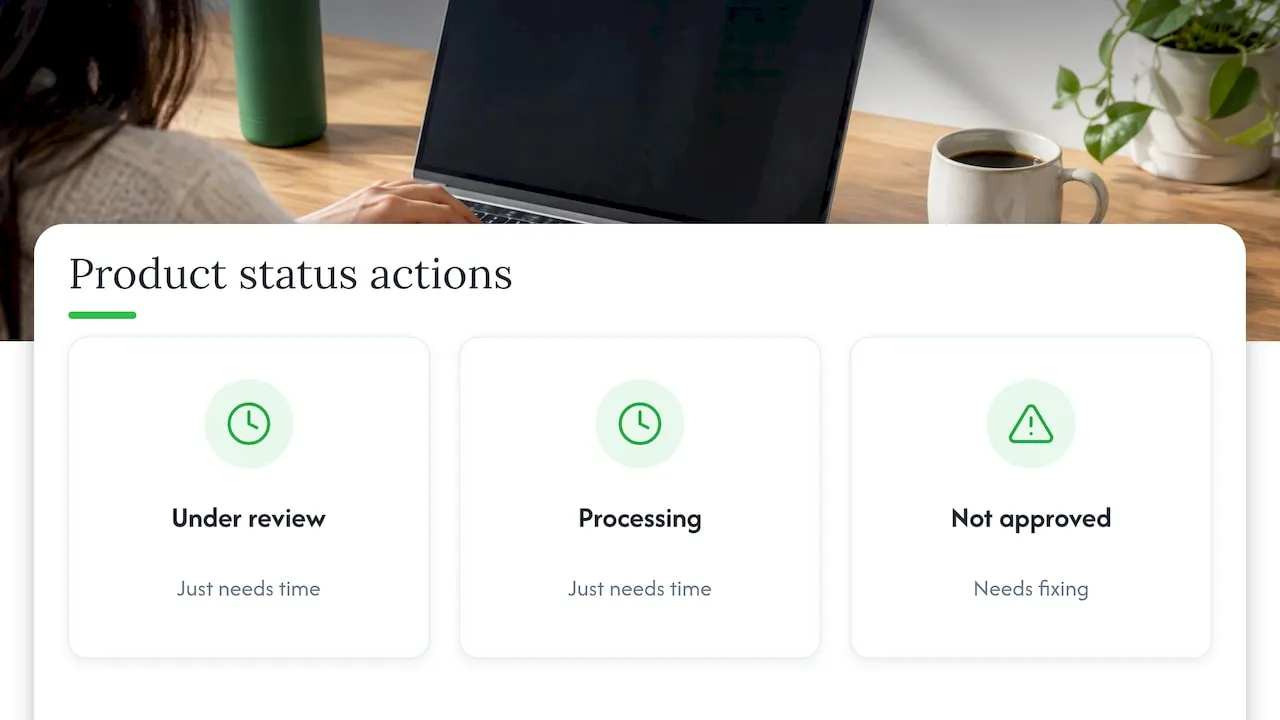
Also check the Status column. Google’s visibility and status guide lists five states: Under review, Processing, Approved, Limited and Not approved. Only Not approved products need fixing; Under review and Processing just need time.
If many products went inactive at once and your store works normally, check Google’s Merchant Center status dashboard. It reports service disruptions in real time, so you do not chase a fault that sits on Google’s side.
Step 2: Check the checkout URL setup
If the message is “Your checkout URL is not yet live”, look at how checkout is defined. Google lets you set it in two places: at account level, as a generic checkout URL template under Settings > Business info > Checkout, or per product with the checkout_link_template attribute. Google’s guidance is to use one level, not both.
Work through this list:
- Open the template and compare the domain character by character with your live store domain. A typo or a leftover myshopify.com address is a common reason for a 404.
- Paste a sample of the template into a private browser window with a real product and variant filled in. You should land in a working cart or checkout.
- Check that you are not running both an account-level template and a product-level attribute in your feed.
- Confirm the final page is the cart or checkout, not a login wall or the product page. That is the “incorrect landing page” version of the error.
Shopify stores also need the basics Google expects. The Google & YouTube channel requirements include a non-private store, a valid payment provider, a Refund Policy and Terms of Service in the footer menu, visible contact information, and shipping to supported countries in a matching currency. A store that fails one of these can look like a checkout problem when it is a setup problem.
Step 3: Make the product page reachable
For “Product page unavailable”, Google tried the URL in your link, link_template or mobile_link attribute and failed. Google’s list of crawl errors is short, and each item is testable:
- 404 page not found. The product was deleted, archived or its handle changed. Check the exact URL from the feed.
- More than two redirects. Chains created by theme changes, apps or language redirects can exceed the limit.
- HTTP 5xx or connection failure. The server errored or timed out when Google visited.
- Unreachable robots.txt. Google could not read the file, so it will not crawl.
- Unresolvable hostname. The domain in the URL does not resolve.
- A URL that does not start with http:// or https://, or one on an unverified domain.
Open each affected URL in a private window, logged out. Shopify store owners are always signed in to their own admin, which can hide problems a customer sees, such as a password page, a market redirect or a geolocation pop-up. If the page loads but is slow or blocked only for certain visitors, check theme apps and any bot protection.
Dropshipping catalogues are especially exposed. Products sourced from a supplier are often unpublished or deleted when the supplier discontinues them, while the Merchant Center copy lives on. Remove or archive the product in Shopify first, so the next sync does not resend a dead URL. For the broader pattern of what gets listings rejected, see our guide to Google Merchant Center disapprovals.
Step 4: Align availability across feed, page and checkout
A checkout can also be judged unavailable because the product the shopper sees does not match your data. Google’s availability guidance is specific:
- Do not mark a product in_stock if it is sold out. Submit out_of_stock.
- Use preorder with an availability_date for unreleased items.
- Use backorder for items with a long fulfilment time.
- Make sure the buy button works and that availability is the same on the landing page, the checkout page, structured data and the feed.
Google’s checkout requirements say the same from the other side: availability in product data must match the product page and checkout pages. Individuals must be able to buy, guest checkout must be supported, and checkout must be secured with a valid SSL certificate.
Variants are where dropshippers trip. A product with ten sizes may have two sold out at the supplier, and a feed that submits the parent as in stock will disagree with the checkout. If you manage large catalogues, our guide on fixing variant and availability mismatches in bulk walks through the pattern. Ecom-eye includes built-in tools for Google Merchant Center and product variant management, and it also converts size systems, which keeps variant data tidy when you import from several suppliers.
Step 5: Check the checkout rules Google enforces
If Google reports a checkout-incomplete warning or suspension, check the rules in Google’s checkout-incomplete guidance:
- Billing addresses cannot be restricted to certain countries.
- Quote-only sites are not supported.
- Payment methods named on informational pages must be available at checkout.
- A confirmation page must appear after purchase.
- A mandatory newsletter or promotion signup before checkout is not allowed.
Google’s product data specification adds that product data must meet Shopping ads policies, landing page requirements, shipping rate requirements and checkout requirements, and that you should not link to an interstitial page unless the law requires it. Pop-ups that block the page, mandatory age gates you added for convenience and forced account creation are all worth removing.
If the account itself has been suspended, the process is different; our account suspension fix plan covers it.
Step 6: Test the way a customer buys
Test on a real phone and a desktop, logged out. Shopify recommends placing at least one test order during setup or after payment changes, to check checkout, order processing, inventory, shipping and taxes. Its Shopify Payments test mode simulates successful and failed transactions, and you should turn it off afterwards.
Two cautions from Shopify’s test mode documentation: while test mode is on, express options such as Apple Pay or Google Pay can still take real payment from real cards, and test orders must never be fulfilled, because shipping labels cost real money. A banner on the order confirms that no real charge was captured.
For wallet buttons, Shopify documents how to test accelerated checkout buttons on desktop and mobile by opening your store from Online Store > View store and adding the debug string it describes.
Test after every change to your theme, an app, shipping rates or payments. These are the moments checkout breaks without anyone telling you.
Step 7: Confirm the fix and give Google time
Fixing the store does not clear the error by itself. Google says that once technical fixes are live, a small ad edit or an appeal starts a fresh crawl, which usually finishes within 24 to 48 hours. If the review succeeds, the disapproval disappears.
A sensible routine:
- Fix the cause on the live store and in the feed.
- Reopen the affected URLs in a private window to confirm they load and check out.
- Request a review, or make a minor edit, in Merchant Center.
- Wait the full 48 hours before concluding anything.
- Go back to Needs attention and see whether the count dropped.
If products reappear after you removed them, the cause is usually that the source still holds them. Remove the item in Shopify first, then deal with the Merchant Center copy, so the next sync does not push bad data back.
Keeping the error from coming back
Most repeat errors come from catalogues that change faster than the data does. A supplier sells out, a variant is retired, a product is imported twice with slightly different pages. Three habits help:
- Run a lifecycle for each product. Decide when a product is archived, not paused, and remove dead URLs before the next feed sync.
- Keep one source of truth. Whatever your feed says about price and availability should come from the same Shopify data your checkout uses.
- Check after every change. A private-window walk from product page to checkout takes two minutes and catches most breaks.
Two further Google changes affect product data that dropshippers generate in bulk. Since the April 2024 specification update, Google asks for the structured_title and structured_description attributes to disclose AI-generated titles and descriptions. In December 2024 Google also relaxed its language rule: product information in a language other than the feed language is allowed if most product data matches the feed language, although performance may be limited. If you sell in several languages, our guide to product localisation for dropshippers shows how to keep the data aligned.
If you are still setting up your shop for Shopping, the US Google Shopping setup guide for dropshippers covers the order of work, and our piece on feed optimisation for Shopify covers what to improve once approvals are stable.
Where Ecom-eye fits
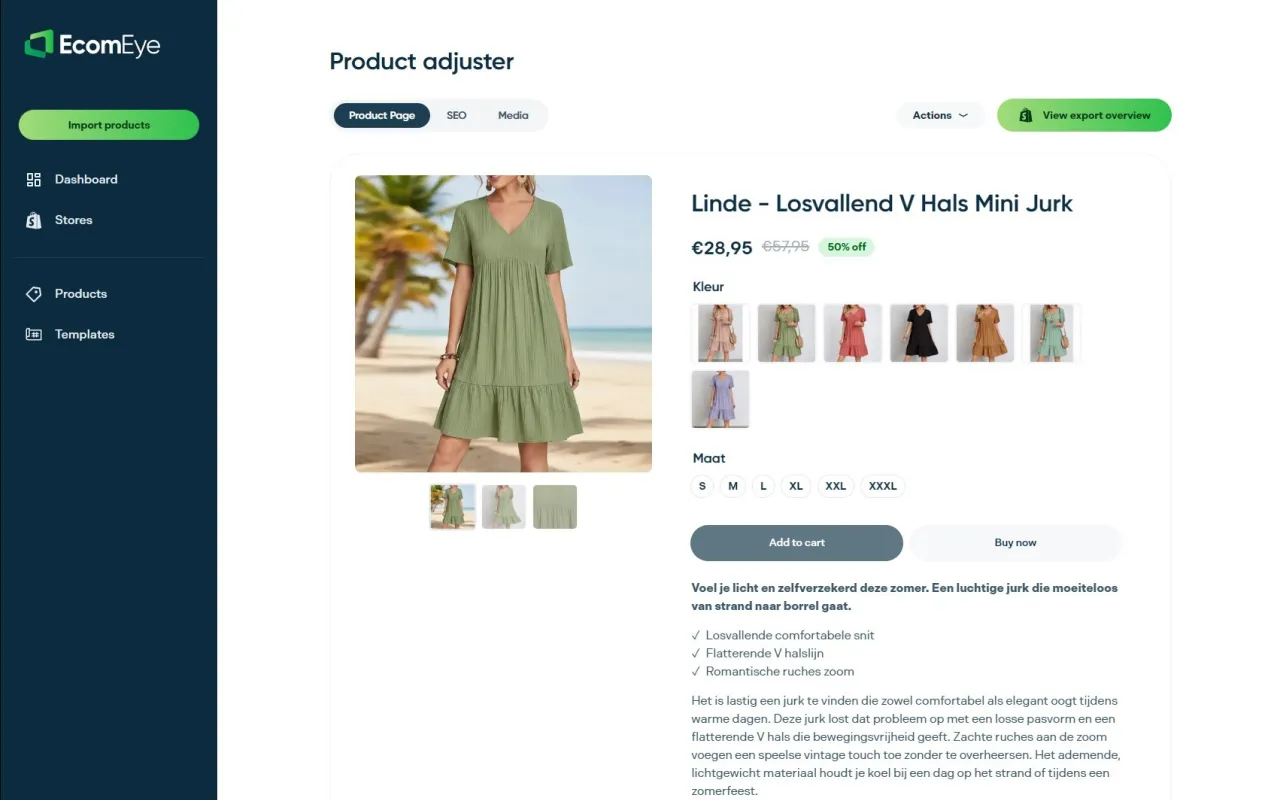
A checkout URL typo is a settings fix that you make yourself in Merchant Center. The other half of the problem is the volume and quality of product data behind it. Ecom-eye imports products in bulk from AliExpress, Amazon, Temu or competitor Shopify links and generates unique titles, descriptions and AI product images for each one, so you are not publishing copied supplier pages. It also gives you built-in template and bulk editing, multi-language pages, size system conversion and one-click export to Shopify.
The Try-out plan costs €39 per month and the Scaler plan €99 per month; both are listed on the pricing page. New users can start with a free trial.
Our view
Most dropshippers meet this error as a surprise, then spend a weekend inside Merchant Center settings. In our experience the useful question is not “which setting broke?” but “which products should have been listed at all?”
Bulk catalogues grow quickly, and every imported page is another URL, another variant set and another availability value that Google will compare with your checkout. That is why we built Ecom-eye around clean, unique product pages and variant handling from the start. Each listing is generated uniquely for the user, even when two stores start from the same product link, which removes the copied-content problem that so often travels with disapprovals.
Fix the checkout URL first, then make your catalogue something you can keep consistent. That is the difference between a one-off repair and a store that stays approved.
Koen
FAQ
Is “unavailable checkout” the same as “unavailable landing page”?
No. An unavailable landing page means Google cannot open the product URL. A checkout error means the checkout URL is not live or does not land on the cart or checkout page. They can happen together, so check the exact wording in Needs attention.
How long does it take for the error to clear?
After the fix is live, an appeal or a small edit starts a new crawl that usually finishes within 24 to 48 hours. Account-level re-reviews can take up to 7 days. Wait out the window before you change anything else.
Do I set the checkout URL in the account or in the feed?
You can use either, but not both. Account level means a generic template in Business info > Checkout. Product level means the checkout_link_template attribute. Setting both is a common source of conflicting data.
Can sold-out dropshipping products cause this?
Yes. If the feed says in stock but the page or checkout says sold out, Google flags an availability mismatch. Submit out_of_stock, or use preorder or backorder where they fit, and keep the same value on the page, in structured data and in the feed.
Sources
- Google: Your checkout URL is not yet live
- Google: Incorrect landing page for checkout
- Google: Product page unavailable
- Google: Issues in Merchant Center
- Google: The Needs attention tab
- Google: Check product visibility and status
- Google: Merchant Center status dashboard
- Shopify: Google & YouTube channel requirements
- Google: Inaccurate availability status
- Google: Checkout requirements and best practices
- Google: Checkout incomplete warning or suspension
- Google: Product data specification
- Shopify: Preparing your store for launch
- Shopify: Testing Shopify Payments
- Shopify: Testing accelerated checkout buttons
- Google: Unable to view products on online store
- Google: 2024 product data specification update
- Google: Merchant Center announcements change log