Shopify bulk: Fix Merchant Center variant and availability mismatches
Shopify bulk sellers: stop availability mismatches in Merchant Center. Follow a concise workflow to fix variant and structured-data errors, resync feeds,...

Shopify bulk: Fix Merchant Center variant and availability mismatches

An availability mismatch means your feed says one thing and your website says another, whether that’s on the landing page, in your structured data, or at checkout. Fix it by opening Merchant Center, going to Products > Diagnostics, and downloading the affected-product CSV from the “Needs attention” tab. Work through the checklist below to find the root cause and get your listings back in front of shoppers.
TL;DR:
- Mismatches often stem from timing gaps, variant differences, or structured data rendering issues, which cause Google to see inconsistent availability across layers.
- Review the exact variant and timing of Google’s crawl, ensuring your website and structured data match the feed at the point of crawling, before making changes.
- Fix checkout issues, use correct attributes like availability_date for preorders, and avoid using out_of_stock to temporarily hide products, to maintain accurate listings.
- Resubmit corrected data through the appropriate channel and request a review after verifying the fix with Google’s Rich Results Test to trigger a new crawl within 24 to 48 hours.
- Build a publishing process that finalizes inventory and variants before product pages go live, supported by scheduled feeds or automation, to prevent future availability mismatches.
Table of Contents
- What causes an availability mismatch in Merchant Center?
- Step-by-step fixes you can apply now
- Building a sync workflow that prevents this happening again
- Resubmitting fixes and what happens next
- Why unique, synchronised product pages cut Merchant risk
- How EcomEye keeps bulk publishing in sync
- Sources
- FAQ
What causes an availability mismatch in Merchant Center?
Before touching your feed, work out which layer is actually broken. Google checks that your stated availability matches across the data source, the landing page, any structured data, and the checkout flow. It only takes one of those four to disagree for a product to get flagged.
Google’s own troubleshooting guidance points to a shortlist of usual suspects behind inconsistency between feed and landing page:
- Timing gaps. Your feed updates on a schedule, but your stock changes in real time. Google crawls somewhere in between and sees stale data.
- Variant mismatch. Your feed references a specific size or colour ID, but the landing page defaults to a different variant when the URL loads.
- Hidden structured data. Availability that only renders after JavaScript executes may never reach Googlebot, because the crawler sometimes reads the raw HTML before scripts run.
- Geolocation or IP-based content. Some stores serve different stock or shipping information depending on the visitor’s location, which confuses a crawler with no fixed region.
- Checkout-only failures. The product page might look fine while the buy button is broken, disabled, or the item can’t actually ship to any address.
- Misused stock attributes. Setting a product to out_of_stock just to pause it from ads is a common workaround, and it’s exactly what Google warns against.
Most mismatches trace back to one of these six, not to some obscure feed formatting error. Narrow it down here before you touch anything downstream.
Step-by-step fixes you can apply now
Once you know roughly where the fault sits, work through this sequence in order rather than jumping straight to resubmission.
- Reconstruct what Google actually saw. Use the issue timestamp from your CSV to check what your page displayed at that moment, not what it shows right now. Google’s own advice on mismatched product availability stresses this: the crawl may predate your fix, so comparing today’s page against an old warning wastes time.
- Check the exact variant Google crawled. Confirm the size, colour, or quantity ID in your feed matches what loads by default on that specific URL.
- Fix the landing page and checkout together. Make sure the buy button works, shipping is available to the destinations you sell into, and preorder or backorder dates are visible on the page itself, not buried in a tooltip.
- Correct your structured data. Add or fix schema.org JSON-LD so availability and price sit in the server-rendered HTML, not in a script that fires after load.
- Use the right attribute, not a workaround. Preorder and backorder items need availability_date, not a false out_of_stock flag; use excluded_destination or pause when you genuinely want to stop an item advertising.
- Resubmit through the right channel. A single product can be edited directly in Merchant Center; bulk corrections go through a feed reupload or the Content API.
- Validate before you request review. Run the page through the Rich Results Test and fetch it as Googlebot would, checking the same variant and shipping address combination that triggered the original flag.
Pro Tip: Test the precise product URL and variant combination Google crawled, not just the general product page. A fix that works on the default variant can still fail on the exact size or colour ID that got flagged.
If the fix looks solid on your side, a small edit to the ad or a formal review request can prompt a fresh crawl. Repeated review requests on the same unresolved issue rarely speed things up and can flag the account for closer scrutiny.
Building a sync workflow that prevents this happening again
Most mismatches are avoidable with a publishing order that respects how Google actually crawls. The fix isn’t a smarter feed. It’s sequencing.
Finalise your inventory count, shipping rules, and variant setup before the product page goes live, not after. Once the page is published, export your feed from that same dataset snapshot, so the numbers you send Google match what a shopper would see seconds later.

For stores updating stock frequently, scheduled feed uploads or the Content and Inventory APIs beat manual reuploads every time. Automatic item updates can also catch small discrepancies, though Google disables them if your feed and page microdata disagree too often, so they’re a safety net rather than a substitute for a clean pipeline.
A few habits worth building into any bulk-export process:
- Prefer server-rendered price and availability values over anything JavaScript injects after page load.
- Build variant-mapping checks into your export script so the feed ID and the landing page default always agree.
- QA a sample of pages after every bulk export, not just before the first one.
- Treat pricing errors the same way. The same rendering issue that hides availability from crawlers can hide price changes too.
Resubmitting fixes and what happens next
Single-product fixes can be edited directly in Merchant Center. For anything wider, correct the issue in your CSV and reupload, or push the change through the Content API. Shopify merchants have it slightly easier here: forcing a resync inside the Shopify app usually pushes corrected data through without a manual feed rebuild, since Merchant Center accepts platform imports directly.
After resubmitting, request a review or make a small ad edit to prompt a fresh crawl. Google typically completes review crawls within 24 to 48 hours, though extra verification checks can push that longer.
- If automatic item updates were switched off, don’t expect them back immediately, restore a stable match between your feed and page microdata first.
- For anything beyond a single product issue, such as a suspended account, escalate to support rather than repeating review requests, which won’t fix an account-level flag.
Why unique, synchronised product pages cut Merchant risk
Duplicate content and mismatched availability tend to travel together. Stores that copy competitor listings wholesale often inherit stock language, variant structures, and shipping claims that never matched their own inventory in the first place, which makes mismatches harder to spot amid everything else that’s already wrong with the page.
Automation genuinely helps here, but only when paired with clean inventory data. A publishing pipeline that finalises stock and variants before bulk export will always outperform one that generates pages first and hopes the feed catches up. For dropshippers scaling fast, that ordering matters more than any individual fix.
— Koen
How EcomEye keeps bulk publishing in sync
Most of the mismatches above start with a rushed export, not a broken feed. The platform generates unique, SEO-ready product titles, descriptions, and AI product images in bulk from various product links, then exports directly to Shopify with one click, avoiding the need for manual page rebuilding that can cause feed misalignment.
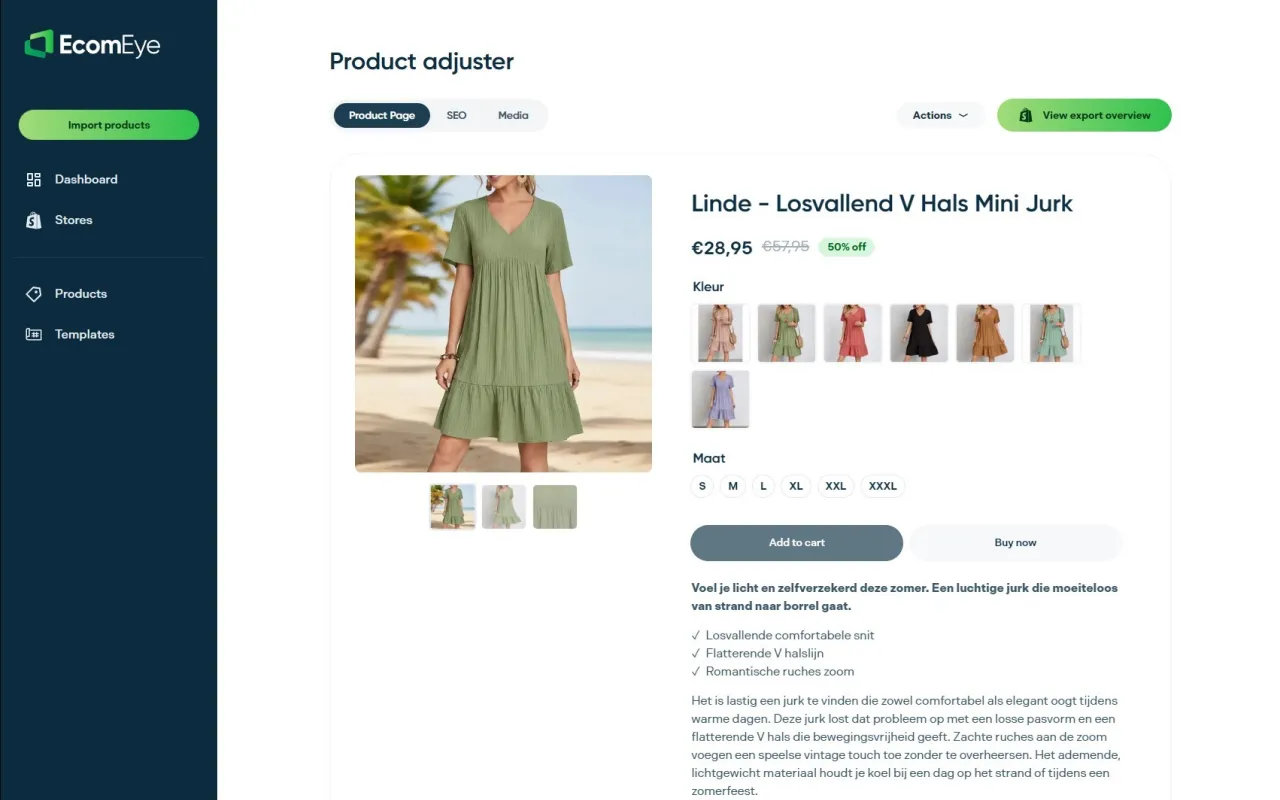
Because every page is generated fresh rather than copied, you avoid the duplicate-content noise that makes variant and availability errors harder to track down. The built-in templating also means bulk edits happen once, across every listing, instead of page by page. If you’re publishing at volume and want fewer surprises in your Needs attention tab, start with the Try-out plan at €39 a month, or move straight to Scaler at €99 a month for larger catalogues. Compare features on the AI product description generator page before you decide.
Sources
For the exact rules, read Google’s own pages on availability requirements and fixing feed-to-landing-page inconsistency. For platform-specific troubleshooting, see EcomEye’s guide to fixing Google Merchant disapprovals and its product listing audit checklist.
- Availability availability - Google Merchant Center Help
- How to fix: Mismatched product availability - Google Merchant Center Help
FAQ
What does “availability mismatch” mean in Merchant Center?
It means the availability value in your product feed doesn’t match what Google’s crawler found on your landing page, in your structured data, or at checkout. Google treats this as a customer-experience problem, not just a formatting error, since shoppers expect what they see in an ad to match what they find after clicking.
How long does Google take to re-review a fixed listing?
Review crawls typically finish within 24 to 48 hours after you resubmit corrected data or request a review. Some products need extra verification, which can extend that window.
Can I just set a product to out_of_stock to hide it temporarily?
No. Google explicitly advises against using out_of_stock to hide products from ads; use the excluded_destination or pause attributes instead, since misusing availability values on many products can risk account suspension.
Why does my Shopify feed keep showing the wrong variant?
This usually happens when your feed references one variant ID while your storefront defaults to a different one on load. Always check the exact variant, including size and colour, that appears in your feed against what the landing page shows by default.
Does EcomEye help prevent these mismatches?
EcomEye reduces the duplicate-content and variant-mapping errors that often sit behind availability mismatches, since every page it generates is unique rather than copied from a competitor. Pricing starts with the Try-out plan at €39 a month for merchants who want to test the workflow first.
Ready to boost your product pages?
Generate high-converting, SEO-optimized product pages in bulk using AI automation used by e-commerce experts.
No credit card required