Fix Duplicate Meta Descriptions on Shopify
Find and fix duplicate meta descriptions in your Shopify store: why they happen, how to audit them, and how to rewrite them in bulk for products and collections.

Fix Duplicate Meta Descriptions on Shopify

Duplicate meta descriptions on Shopify almost always come from blank SEO fields, a theme that falls back to a default, a CSV that repeated one description across many rows, or auto-generated pages such as blog tag pages. The fix has three parts. Find the affected URLs with a crawl. Write a unique description for each page that matters, in bulk where you can. Then check the page source to confirm only one description tag is output.
This guide walks through each step for products, collections, pages and blog posts, and explains what to expect from Google once you have fixed them.
TL;DR
- Blank SEO description fields make Shopify themes fall back to defaults, so many pages end up with the same or near-identical text.
- Crawl your store, export the meta description column and sort it to group identical entries by URL.
- Edit descriptions in the admin, with the bulk editor, or through a CSV import. Shopify’s documented limits are 70 characters for the SEO title and 320 for the description.
- Check the HTML source: there should be exactly one description tag per page.
- Google may rewrite your snippet anyway, so write descriptions that match the page and let unique page content do the heavy lifting.
Table of Contents
- Why Shopify stores end up with duplicate meta descriptions
- How to find duplicate meta descriptions across your store
- Edit meta descriptions in the Shopify admin
- Fix duplicates in bulk
- Blog tag pages and other automatic pages
- Check the page source for duplicate tags
- How long until Google shows the new description
- Perspective
- Stop duplicates before they start
- Generate unique product pages in bulk
- FAQ
- Sources
Why Shopify stores end up with duplicate meta descriptions
Shopify lets you set a meta description for webpages, product pages, collection pages and blog posts, and its own guidance says each page should have a unique one. The trouble starts when the field is left empty.
Blank fields and theme fallbacks
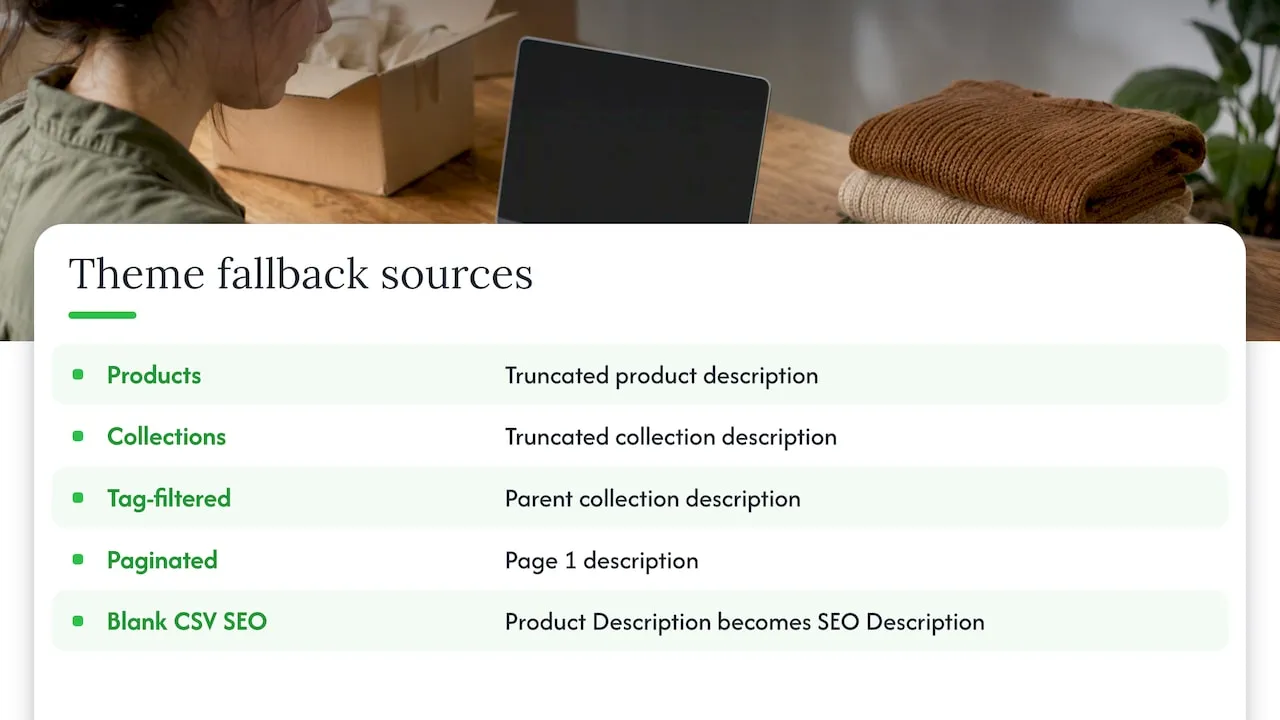
According to one Shopify SEO guide, when SEO fields are blank the theme uses defaults. Products use a truncated product description, collections use a truncated collection description, tag-filtered collections reuse the parent collection’s description, and paginated collections reuse the description of page 1. That last pair explains why a clean-looking catalogue can still show dozens of repeats in a crawl.
There is a second trap in the CSV import. A CSV reference summary notes that a blank SEO Description column uses the product Description, and that if you edit the SEO fields by hand and later change the product description, the SEO description does not follow. Over time the two drift apart.
Repeated copy from bulk tools and uploads
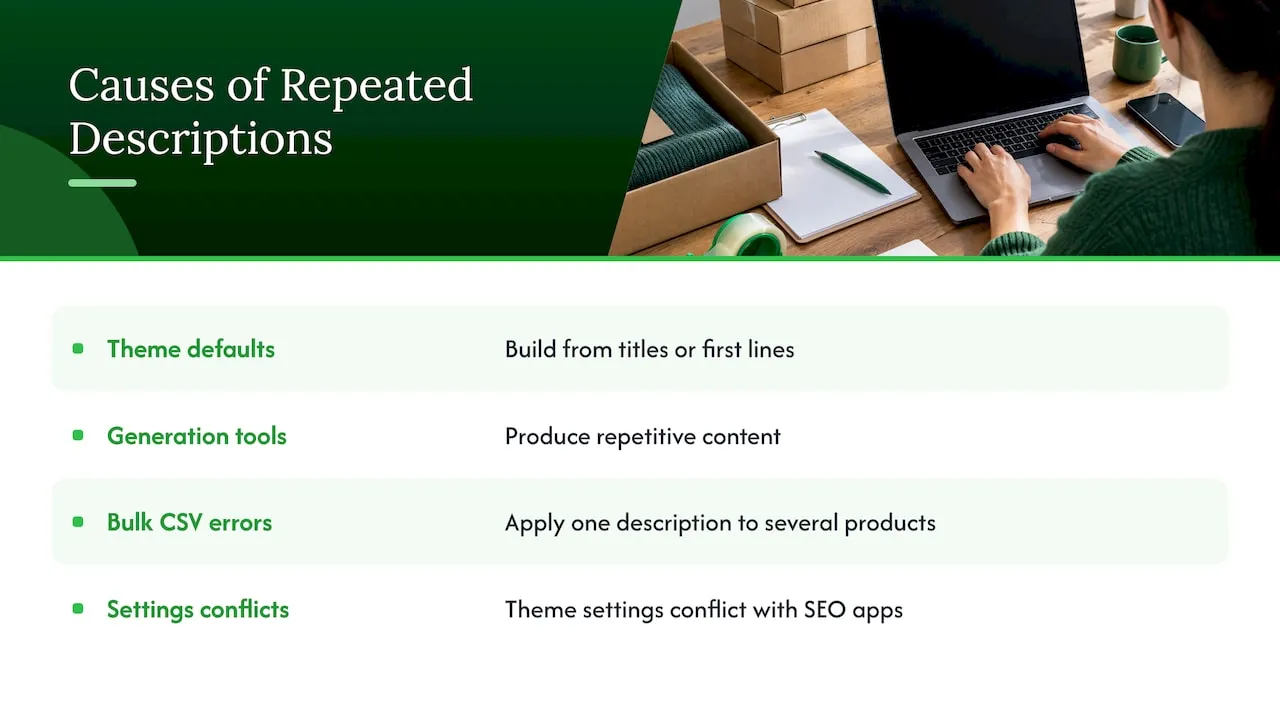
A troubleshooting guide lists four root causes: theme defaults that build descriptions from titles or first lines, generation tools that produce repetitive content, bulk CSV errors that apply one description to several products, and conflicts between theme settings and SEO apps.
For dropshippers this matters twice. If you import supplier text, the first lines of many descriptions are often identical, and a theme that truncates them hands you duplicate meta descriptions for free. Our guide on why duplicate product pages hurt covers the wider content problem.
Hardcoded theme code
Sometimes the theme itself is the cause. In one Shopify community thread, a homepage description showed on every product page because the theme’s liquid file contained hardcoded text instead of dynamic variables. The fix was conditional code that shows a page-specific description when one exists.
How to find duplicate meta descriptions across your store
You cannot fix what you cannot see, and the admin does not give you a duplicate report. Crawl the store instead.
- Run a crawler such as Screaming Frog SEO Spider across the whole store.
- Export the results as a CSV.
- Open it in Excel or Google Sheets and sort the Meta Description column A to Z, which groups identical descriptions next to their URLs.
- Add a column that labels each URL by type: product, collection, collection with tag filter, paginated page, blog post, blog tag page.
The type column is the useful part. Duplicates inside one type tell you the template or import is at fault. Duplicates across types, such as a collection description appearing on its filtered and paginated variants, tell you it is an automatic fallback.
Google Search Console is a free second view of your pages, but treat the crawl as your working list because it shows you exactly what each URL outputs.
Triage before you edit
Do not rewrite every duplicate. Sort the list into three piles:
| Pile | Examples | Action |
|---|---|---|
| Pages that should rank | Products, main collections, key pages, strong blog posts | Write a unique description |
| Automatic variants | Paginated collections, tag-filtered collections | Rely on canonical setup and a good parent description |
| Thin utility pages | Blog tag pages | Consider keeping them out of search results |
Edit meta descriptions in the Shopify admin
The manual route is fine for your top 20 pages. Shopify’s own instructions are:
- Open the product, collection, webpage or blog post.
- Find the Search engine listing section.
- Click Edit website SEO or the pencil icon.
- Enter the meta description and save.
For the homepage, go to Online Store > Preferences and use the social sharing image and SEO section.
Shopify’s help page recommends keeping a description to around 160 characters and the title to about 60, with a hard limit of 70 for the title. Write the description as a plain, direct sentence or two that says what the page offers. Put the product type, the distinguishing detail (material, size, use) and one reason to click.
Fix duplicates in bulk
When the list runs into hundreds of URLs, you need a bulk method. A Shopify SEO guide describes four.
| Method | Best for | Watch out for |
|---|---|---|
| Product CSV export and import | Products, one-off clean-ups | Choose the overwrite option for matching handles; blank cells fall back to defaults |
| Admin bulk editor | Small to mid-size product batches | Add the SEO title and SEO description columns from the column picker |
| Spreadsheet-style import/export apps | Collections, pages and blog posts too | App settings can conflict with theme output |
| Admin GraphQL API | Developers, very large catalogues | Needs code and careful testing |
The same source gives Shopify’s documented limits as 70 characters for the SEO Title and 320 for the SEO Description. Those are storage limits, not a target. Search results show far less, so keep the useful part at the start.
The CSV workflow, step by step
- Export your products and keep an untouched copy as a backup.
- Delete every column you do not need to change, but keep the handle column.
- In the SEO Description column, write a distinct description per row.
- Check for repeats with a spreadsheet duplicate highlight before you import.
- Import with the overwrite option for matching handles.
- Re-crawl a sample of URLs to confirm the change.
Step 4 is where most bulk errors are caught. A single dragged cell can copy one description down 400 rows.
Writing hundreds of unique descriptions
A formula such as “product type + key attribute + benefit” gives structure without making every line identical. Use the product’s own data: material, colour, size range, use case. For help with the product copy those descriptions should reflect, see our notes on product description ideas for Shopify SEO and 150 to 300 unique words per page. If you need to correct a repeated phrase across many fields, our guide to Shopify bulk find and replace shows safer ways to do it.
Blog tag pages and other automatic pages
Blog tag pages are a common source of near-identical metadata. According to a Shopify blog structure guide, tag pages have no editable title or meta description by default, so they share almost the same metadata. For most thin tag pages, the suggested fix is adding a noindex, follow directive through a small edit to theme.liquid that targets tag pages. People can still navigate them, but they leave search results.
The same source names two costs of leaving them: wasted crawl effort on near-empty pages, and a pile of low-value pages that can weigh on how the whole site is judged. Back up your theme before editing code, and if you are not comfortable with liquid, ask a developer to make the change.
Check the page source for duplicate tags
Sometimes the admin shows one description but the page outputs two. That happens when the theme and an SEO app both print a tag. One practical walkthrough suggests this check:
- Open the page, right-click and choose View Source.
- Search for
<meta name="description. - You should find exactly one match.
If you find more, back up your theme first. If the extras sit in the theme layout, delete them. If an app adds them, check the app’s settings, contact its support, or bring in a developer. The same guide warns that with two tags search engines cannot tell which to use and may pick text from the page instead.
How long until Google shows the new description
After you fix things, be patient and know what to expect. A timing guide puts the usual range at a few hours to about four weeks, and says requesting indexing with the URL Inspection tool in Search Console typically brings a recrawl forward to a day or two.
If nothing changes after two weeks, the same source suggests checking that:
- the new description is in the raw HTML and not injected by JavaScript;
- only one description tag exists;
- the page is indexable, not blocked or canonicalised elsewhere;
- your CDN or cache serves the updated HTML to crawlers.
Google may rewrite your snippet anyway
Google’s documentation says snippets are created primarily from page content, and that it may use the meta description when that describes the page better. One analysis from Portent, summarised here, found first-page rewrite rates of 71% on mobile and 68% on desktop.
That is not a reason to skip descriptions. It is a reason to make the page itself carry the specifics. A unique description gives Google a good option and gives you control on the queries where it picks it. A generic or duplicated one gives Google every reason to write its own.
Perspective
Most duplicate meta descriptions we see are not an SEO mistake. They are a workflow mistake. A store owner imports a few hundred products from a supplier, the product copy is the same as everyone else’s, the SEO fields stay blank, and the theme quietly turns the first lines of that copy into the meta description.
That is why we build around the page, not the tag. Our platform is designed to generate a unique title, description and images for every product, even when two users start from the same product link, and to export them to Shopify in one click. When the page content is unique and well structured, a unique meta description is a natural by-product rather than a separate chore.
If you run a dropshipping store, our advice is to fix the source of the repetition first, then use bulk tools to keep every new batch clean from day one.
Koen
Stop duplicates before they start
Once the existing list is clean, change the process so it does not come back:
- Never import with blank SEO fields. Fill title and description in the same file as the product copy.
- Use a template, not a copy. A pattern with product-specific slots stays unique; a pasted sentence does not. Our checklist of four product template SEO checks goes through this.
- Write titles with the same care. Repeated titles usually travel with repeated descriptions. See how to optimise product page titles for search and conversions.
- Re-crawl after every large import. It takes minutes and catches a dragged cell before Google does.
- Mind the Shopping side. If you run Google Shopping, unique product data helps there too; our piece on Google Shopping feeds for Shopify covers the fixes.
For the wider picture of how metadata supports a dropshipping store, read our overview of SEO metadata on Shopify for dropshippers.
Generate unique product pages in bulk
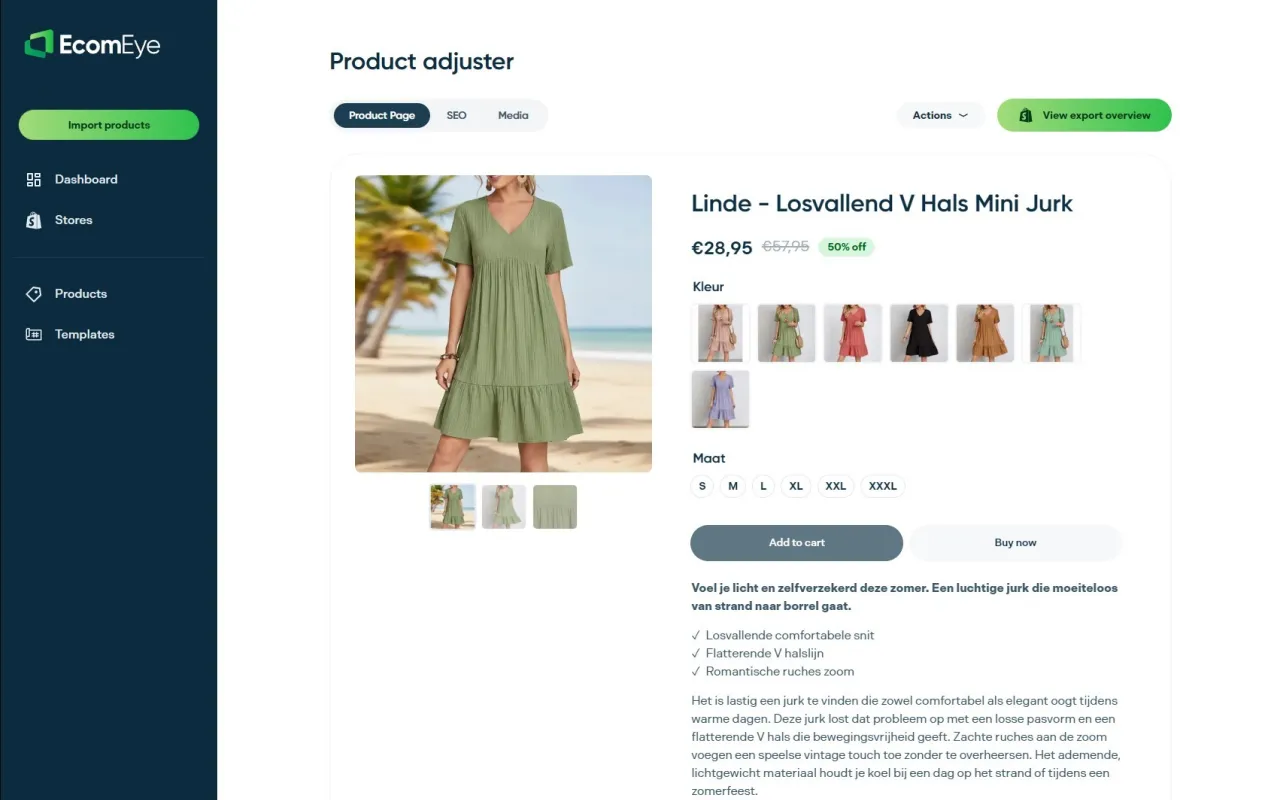
If your duplicates come from imported supplier copy, rewriting field by field is slow. EcomEye imports products in bulk from AliExpress, Amazon, Temu or competitor Shopify links, generates unique titles, descriptions and AI product images, supports multi-language pages, and exports to Shopify in one click. Plans are the Try-out at €39 per month and the Scaler at €99 per month; see the pricing page for current terms, or look at the AI product description generator.
Start with your most important collection, regenerate its product pages, and re-crawl to see the duplicate count fall.
FAQ
Do duplicate meta descriptions hurt Shopify SEO?
They make it harder for search engines to tell your pages apart, and Shopify advises a unique description for each page. They are rarely a penalty on their own, but they waste a chance to describe each page. Fix products and main collections first.
Should I write a description for every page?
Write them for pages you want to rank: products, key collections, main pages and your best posts. For thin automatic pages such as blog tag pages, keeping them out of search results with noindex is often simpler than writing text for each.
Why does my homepage description show on every page?
Usually the theme has the description hardcoded in its layout instead of using dynamic variables. A developer can change it to output the page’s own description when one exists, falling back to the store description only when it does not.
Can I bulk edit Shopify meta descriptions?
Yes. You can use the admin bulk editor with the SEO columns added, a product CSV import with overwrite for matching handles, a spreadsheet-style app, or the GraphQL API. Always keep a backup of the original export before importing.
Why is Google still showing the old description?
Give it up to about four weeks, and request indexing in Search Console to speed it up. If it still shows old or different text, check the raw HTML for a single description tag. Google may also write its own snippet from the page.
Sources
- Shopify Help Center: adding keywords for SEO
- Shopify: how to write meta descriptions
- Google Search Central: control your snippets
- Shopify Meta Descriptions at Scale
- Meta Descriptions in WordPress and Shopify
- Fix duplicate meta descriptions on Shopify
- Shopify community: homepage description on all product pages
- How to get rid of duplicate meta descriptions on Shopify
- Shopify Blog URL Structure: SEO mistakes to avoid
- Duplicate meta titles or meta descriptions in Shopify
- How long Google takes to update an SEO description
- Should you add a CTA to every meta description?
Ready to boost your product pages?
Generate high-converting, SEO-optimized product pages in bulk using AI automation used by e-commerce experts.
No credit card required