SKU vs GTIN in Ecommerce: What Each One Does
SKU vs GTIN explained for Shopify sellers: who creates each code, where it goes, and what to do for Google Merchant Center when a product has no GTIN.

SKU vs GTIN in Ecommerce: What Each One Does

A SKU is a code you make up to track your own inventory. A GTIN is a number assigned to the product itself, and it is the same whoever sells it. They are not interchangeable, and putting one in the other’s field is one of the most common ways Shopify stores end up with Google Merchant Center warnings.
This guide explains what each code is, who creates it, where it goes in Shopify, and what to do when a dropshipped product has no GTIN.
TL;DR
- A SKU is internal. You create it to track stock, orders and sales reports. Every seller of the same product can use a different one.
- A GTIN is global. It is the number behind the barcode (UPC, EAN, ISBN and so on) and identifies the product wherever it is sold.
- Never submit your SKU as a GTIN. If a product has no assigned GTIN, Google says to leave the field out and give the brand and MPN instead.
- In Shopify, SKU and Barcode are separate fields. Keep them separate in every import and bulk edit.
- Set a SKU format once and apply it to every variant, so reports, fulfilment and feeds stay clean as the catalogue grows.
Table of Contents
- SKU and GTIN in one table
- What a SKU is and what it is for
- What a GTIN is and what it is for
- SKU vs GTIN: the differences that matter
- How to find each code
- Where each code goes in Shopify
- When Google wants a GTIN
- What to do when a product has no GTIN
- Worked example: one product, three variants
- Common mistakes to avoid
- Build pages and variants at scale with EcomEye
- FAQ
- Sources
SKU and GTIN in one table
| SKU | GTIN | |
|---|---|---|
| Full name | Stock keeping unit | Global Trade Item Number |
| Who creates it | You, the seller | The brand owner, through GS1 or its member organisation |
| Scope | Your store only | Worldwide, one product one number |
| Format | Free, alphanumeric, your rules | Fixed numeric formats (8, 12, 13 or 14 digits) |
| Main purpose | Inventory, fulfilment, reporting | Product matching, barcodes, marketplaces and Google |
| Shopify field | SKU | Barcode |
The rest of this article unpacks each row.
What a SKU is and what it is for
A SKU is a code you use internally to track inventory and report on sales, as Shopify’s help centre describes it. You decide what it looks like. Nobody assigns it, nobody checks it for uniqueness outside your store, and a different retailer stocking the identical product will almost certainly use a different one.
That is also why a SKU is a poor way to identify a product to the outside world. Amazon’s seller guidance makes the point directly: a product may carry a different SKU at every retailer that stocks it, while its GTIN stays constant globally.
SKUs are not mandatory in Shopify, but they pay off quickly. They help with inventory tracking, reporting and fulfilment, and Shopify Fulfillment Network requires a unique SKU for each variant. Even if you never use that network, treating “unique SKU per variant” as a house rule is sensible.
How to build a SKU that still works at 5,000 products
There is no official standard, so the best format is one a tired person can read at a glance. A few conventions that hold up:
- Make it meaningful but short. Category, product, then variant attributes:
TSH-CRW-BLK-Mreads as a crew-neck T-shirt, black, medium. - Use one separator and stick to it. Hyphens are the safest choice.
- Avoid characters that cause trouble. Spaces, slashes and symbols break spreadsheets and some feed tools. Letters and numbers are enough.
- Beware leading zeros and look-alike characters. Spreadsheets strip leading zeros, and the letter O and the digit 0 get confused. Pick a style that avoids both.
- Never reuse a SKU. If a product is discontinued, retire its code rather than recycling it, or old sales reports will point at the wrong item.
- Do not put prices or supplier names in it. Those change, and the SKU should not.
For a variant-heavy catalogue, the SKU pattern is what makes bulk work possible. Our guide to Shopify variants, SEO and bulk workflow covers how to keep large variant sets manageable.
What a GTIN is and what it is for
A GTIN is a number assigned to a product so that every business in the supply chain can recognise it. It is what a barcode usually encodes. The formats include GTIN-12 (the UPC common in the United States), GTIN-13 (EAN, or JAN in Japan), GTIN-14 and GTIN-8, and book identifiers such as ISBN-13 and ISSN-13, according to GS1’s selling online guidance.
Two practical points follow from that:
- UPC and GTIN are not rivals. A UPC is simply a GTIN-12, so a product with a UPC already has a GTIN.
- A GTIN belongs to the product, not to you. Whether you buy from a wholesaler or a supplier platform, the same physical product keeps the same number.
SKU vs GTIN: the differences that matter
Who assigns it
You assign your SKUs. GTINs come from the brand owner. Sellers should establish GTINs for made-to-stock products before they are offered for sale, per GS1 US trade item guidelines. In the US, a brand owner creates a product in the GS1 US Data Hub, assigns a GTIN based on its GS1 Company Prefix and generates the barcode.
The practical rule for resellers and dropshippers: if you did not manufacture or brand the product, the GTIN is not yours to create. You find it, you do not invent it.
Who uses it
Your SKU serves you, your warehouse or fulfilment partner and your reports. A GTIN serves everyone else: marketplaces, shopping engines and retailers that need to know two listings are the same product. The two sit side by side in business systems. The GS1 EDI standard lets a seller send its own internal SKU, the customer’s item number and the global GTIN in the same message, which keeps private inventory codes distinct from shared trade identifiers, as the GS1 US guideline explains.
Are GTIN and SKU the same?
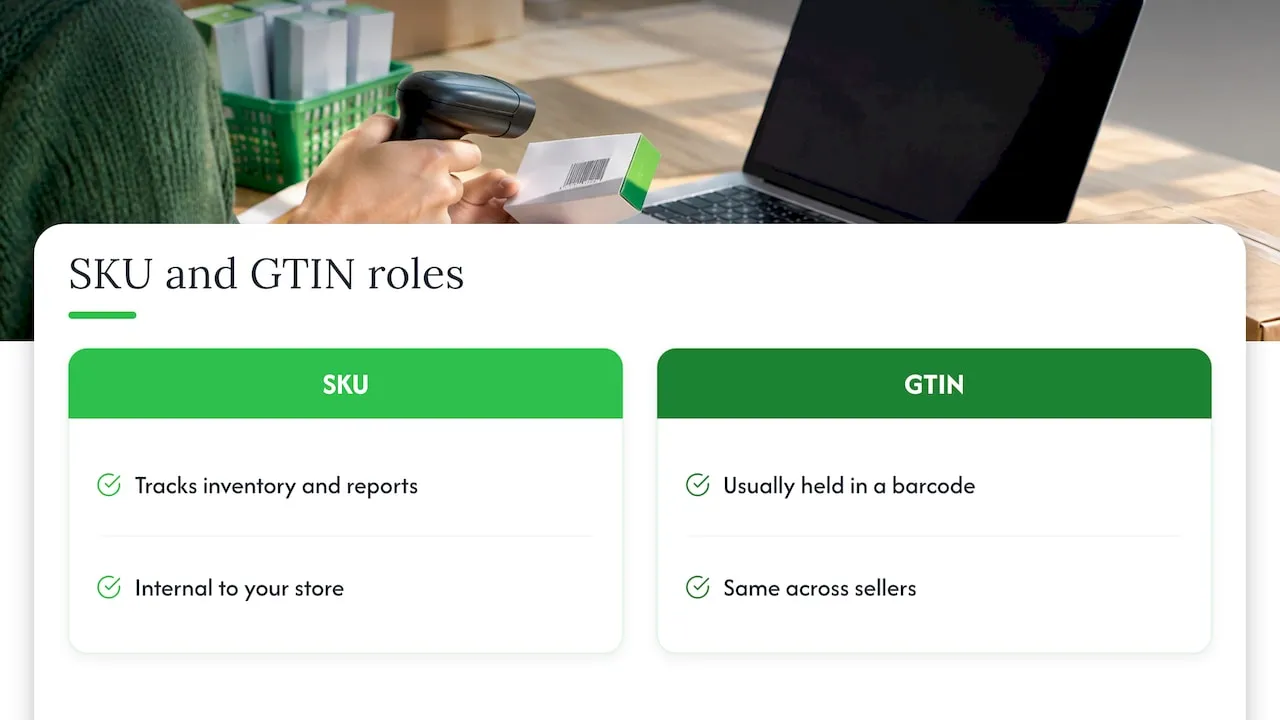
No. A SKU is for your inventory and reports. A barcode usually holds a GTIN, a number that is the same for every seller, as one ecommerce guide puts it. One product, two jobs, two codes.
How to find each code
Your SKU: open the product in Shopify admin and look in the Inventory section of each variant. If it is blank, you or your import never set one.
A product’s GTIN:
- Look at the barcode on the packaging. The digits printed under it are the GTIN.
- Check the manufacturer’s or brand’s product page or spec sheet.
- Ask the brand or authorised distributor for it directly.
- For books, the ISBN-13 on the back cover or the copyright page is the GTIN.
Supplier listings on wholesale or marketplace platforms often show a supplier’s internal product ID. That is not a GTIN, so do not copy it into the barcode field.
Where each code goes in Shopify
Shopify keeps them apart on purpose. Use separate SKU and barcode fields on the same product; SKUs can be edited in bulk or imported by CSV. In the bulk editor, the Barcode field is for a barcode, UPC or ISBN, while SKU is a separate variant property.
That gives you a simple checklist before any bulk upload:
- SKU column holds your own code, unique per variant.
- Barcode column holds a real GTIN or stays empty.
- No column holds a supplier ID pretending to be a barcode.
- Every variant of a product has its own row and its own values.
Bulk imports are where mix-ups happen, because a single misplaced column repeats across hundreds of products. If you bring products in from a supplier link or competitor page, check the mapping of these two columns first. If you duplicate variants to build a range, our guide to duplicating Shopify variants without CSV errors shows how to avoid carrying the same SKU into two rows.
When Google wants a GTIN
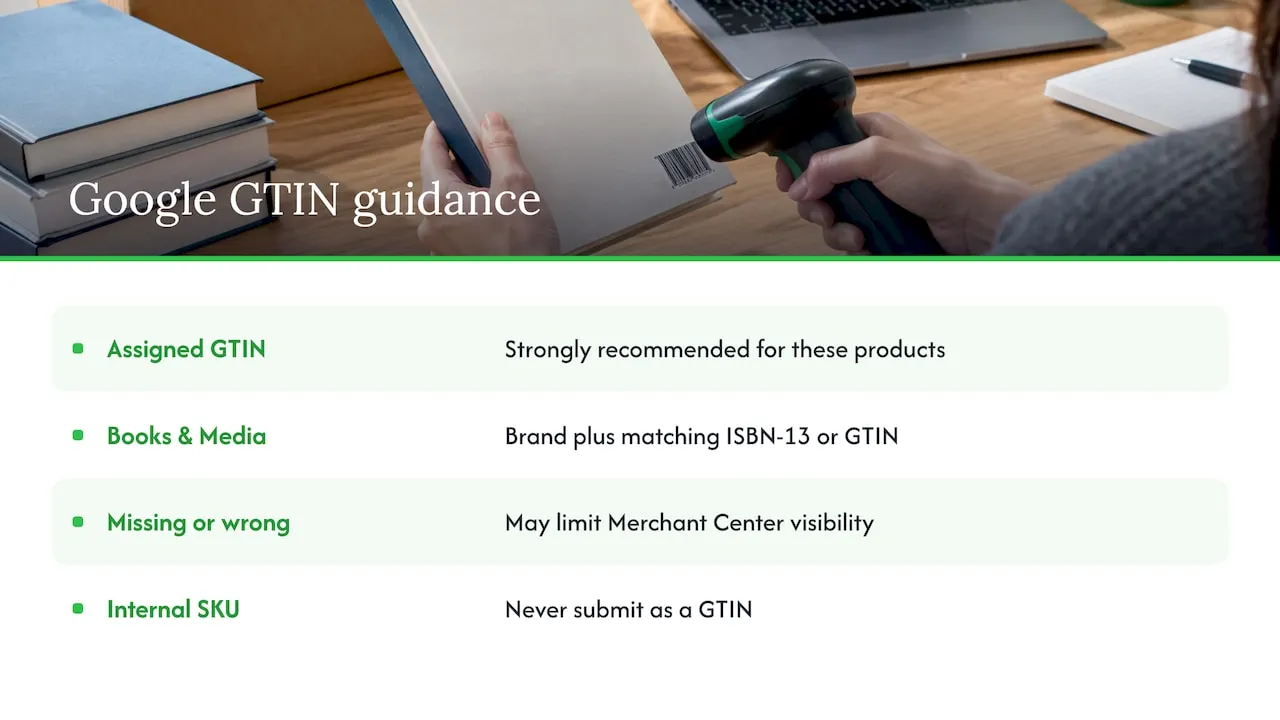
For widely manufactured products that have an assigned GTIN, Google strongly recommends submitting it, and products that have an assigned identifier may have limited visibility without it. Missing or incorrect values can limit product visibility in Merchant Center.
Some categories are stricter. For Books and Media, Merchant Center needs both the brand name and the specific ISBN-13 or GTIN to match the product to its catalogue.
The part many sellers miss: Google’s guidance is not to submit internal SKUs or other values specific to your store as GTINs. A wrong GTIN is worse than none, because it tells Google the product is something it is not. For a plain-language overview of the platform, see our primer on what Google Merchant Center is.
What to do when a product has no GTIN
This is the everyday dropshipping situation: unbranded or private-label products from a supplier that have no barcode registered anywhere.
If a product has no assigned GTIN, do not submit one or make one up. Google says to provide the brand and the manufacturer part number (MPN) instead. In practice:
- Branded product with a barcode: enter the GTIN exactly as printed, plus the brand.
- Branded product, no barcode you can find: contact the brand, or use brand and MPN.
- Unbranded or custom product: give your store or product line as the brand, give a consistent MPN, and leave GTIN empty.
- You are the brand owner: get GTINs through GS1 before you list, as described above.
A tidy feed with honest identifiers is easier to keep approved than one padded with guessed numbers. For a step-by-step version, our three-step checklist for Merchant Center unique identifiers walks through it, and the article on GTIN exemptions for Shopify sellers covers how enforcement affects stores selling custom or unbranded goods.
Identifiers also feed into structured data. If you want product pages to carry them correctly in markup, this overview of ecommerce schema markup types is a good place to start, and our own piece on fixing Shopify product schema shows the Shopify side. For the feed itself, shopping feed optimization explains how identifiers fit alongside titles and attributes.
Worked example: one product, three variants
Imagine you sell a branded water bottle in three colours.
| Variant | Your SKU | Barcode (GTIN) | Brand | MPN |
|---|---|---|---|---|
| Black, 750 ml | BTL-750-BLK | 12-digit UPC from the packaging | Brand name | Brand’s part number |
| Blue, 750 ml | BTL-750-BLU | A different UPC from the packaging | Brand name | Brand’s part number |
| Green, 750 ml | BTL-750-GRN | A different UPC from the packaging | Brand name | Brand’s part number |
Each variant has its own SKU and its own GTIN. Now suppose you also sell your own unbranded steel bottle. Its SKUs follow the same pattern, but the barcode stays empty and the feed carries your brand and an MPN instead. The format is identical, and the only difference is that you did not invent a number to fill a gap.
The same discipline stops the availability and variant mismatches that Merchant Center flags. Our guide to fixing availability and variant mismatches in bulk shows what those look like.
Common mistakes to avoid
- Copying the SKU into the barcode field so the column is not empty. This breaks the GTIN rule above.
- Using the supplier’s product ID as your SKU with no prefix. If you change supplier, your history becomes meaningless.
- One SKU for all variants. You lose the ability to track stock by size or colour.
- Spreadsheet damage. Opening a CSV and saving it can strip leading zeros from GTINs or turn long numbers into scientific notation. Format those columns as text before editing.
- Inventing GTINs. Never generate numbers to get a listing through.
- Changing SKUs casually. Old reports and integrations reference them.
Our view on identifiers
Most store owners who come to us have the same story: a catalogue imported at speed, a feed full of warnings, and no clear idea which column is wrong. The cause is almost always content and identifiers treated as an afterthought.
We build EcomEye on the opposite idea. Every product page should be unique, SEO-ready and safe for Google Merchant Center, and that includes keeping the data around the page tidy. Our platform is designed to generate original titles, descriptions and AI product images in bulk from an AliExpress, Amazon, Temu or competitor link, with built-in tools for Merchant Center and variant management. Because every listing is generated uniquely for you, even from the same product link, you are not publishing a copy of someone else’s page.
Our advice on identifiers is simple. Keep your SKU as your own system, let the barcode hold only a real GTIN, and never fill the gap with a guess. Decide your SKU pattern before the first bulk import, not after the thousandth product.
Koen
Build pages and variants at scale with EcomEye
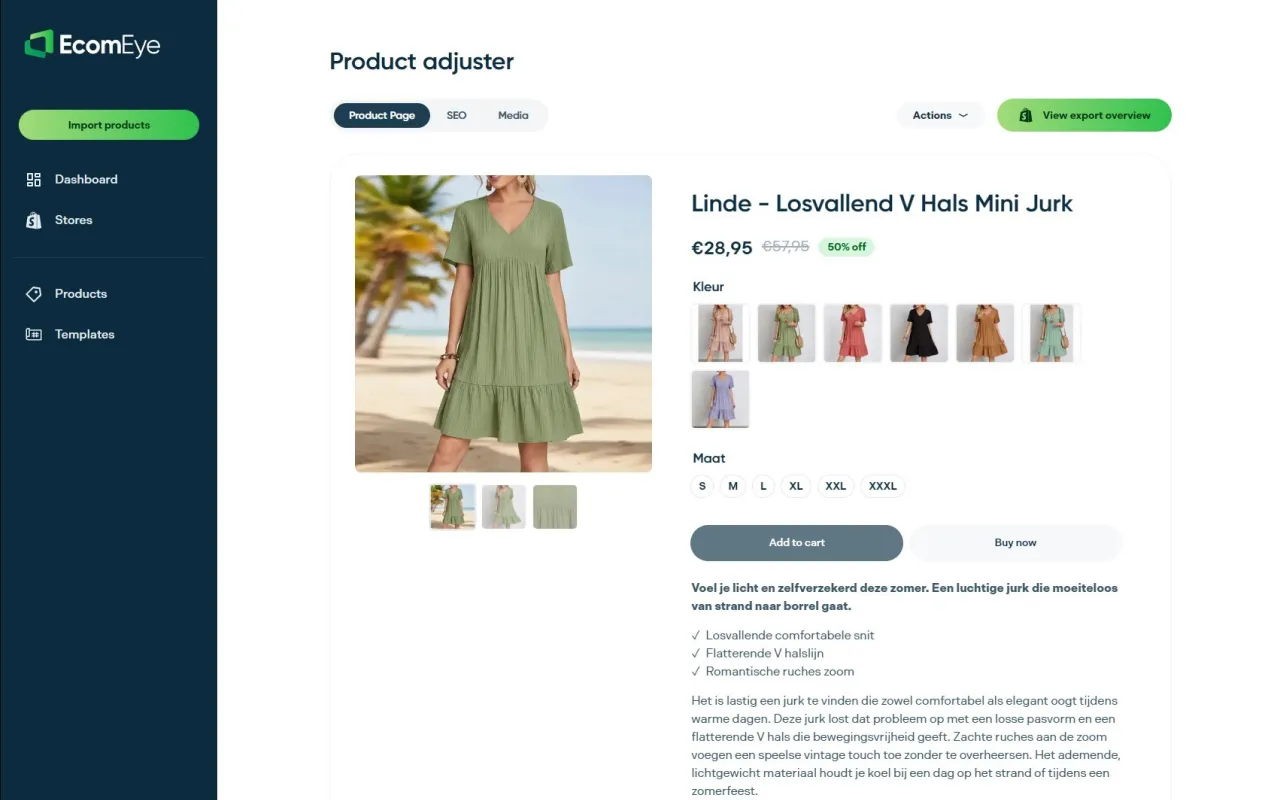
Once your identifiers are in order, the next bottleneck is the pages themselves. EcomEye imports products in bulk, generates unique titles, clean descriptions and AI product images, supports multi-language pages and size system conversion, and exports to Shopify in one click.
Plans start with Try-out at €39 per month, and Scaler is €99 per month; see the pricing page for what each includes. If you want to see the output first, try the AI product description generator or the AI product image generator.
FAQ
What is the difference between a SKU and a GTIN?
A SKU is a code you create to track your own inventory and sales. A GTIN is a number assigned to the product itself, usually shown as a barcode, and it is the same for every seller worldwide. Use the SKU inside your business and the GTIN when matching products with marketplaces and Google.
Can I make up a SKU?
Yes. A SKU is yours to define, and Shopify does not require one. Choose a consistent pattern, keep it unique per variant and avoid reusing codes. You cannot make up a GTIN, though, because that number must be assigned to the product.
Is a UPC the same as a GTIN?
A UPC is one type of GTIN, specifically the 12-digit GTIN-12. EAN and JAN are 13-digit GTINs, and there are also 8- and 14-digit formats, as listed by GS1. If your product has a UPC, you already have its GTIN.
What do I enter in Google Merchant Center if my product has no GTIN?
Leave the GTIN empty and give the brand and MPN instead. Google says not to submit a made-up number or an internal SKU as a GTIN. Check the product category too, since Books and Media require an ISBN-13 along with the brand.
Where do I put the SKU and the barcode in Shopify?
Each variant has a SKU field and a separate Barcode field in its inventory settings. Put your own code in SKU and a real UPC, EAN or ISBN in Barcode. The same split applies in CSV imports and the bulk editor.
Sources
- Shopify Help Center: Using SKUs to manage your inventory
- Shopify Help Center: Adjusting inventory quantities in bulk
- GS1: Get your GTIN for selling online
- GS1 US: Trade Item Identification and Communication Guidelines
- GS1 US: Create Products and Generate UPC-A Barcodes
- Amazon Seller Central: What is a SKU
- Google Merchant Center Help: GTIN
- Google Merchant Center Help: About unique product identifiers
- Google Merchant Center Help: Missing ISBN or GTIN
- What Is a SKU, and How Is It Different From a Barcode?
- Ecommerce schema markup types
- Shopping feed optimization
Ready to boost your product pages?
Generate high-converting, SEO-optimized product pages in bulk using AI automation used by e-commerce experts.
No credit card required