Google Merchant Center: what UK retailers need to know
Discover what Google Merchant Center is and how it empowers UK retailers with free listings, campaign data, and seamless integrations.

Google Merchant Center: what UK retailers need to know

TL;DR:
- Google Merchant Center is a free tool that manages product data and feeds it across Google’s surfaces for organic listings and ads. Ensuring consistent, accurate information on product pages and feeds prevents disapproval issues and enhances visibility. Automating content generation and regularly reviewing diagnostics are essential for maintaining a compliant, high-performing catalog.
Google Merchant Center is a free Google tool that stores your product data and distributes it across Google’s surfaces, powering everything from organic Shopping listings to paid Performance Max campaigns. Think of it as the backend warehouse for your catalogue: you put product information in, Google decides where and how to show it.
Here is what it enables at a glance:
- Free product listings across Google Search, the Shopping tab, Google Images, and Maps
- Data supply for paid campaigns including Shopping ads and Performance Max
- Inventory and local inventory feed syncing for both online and physical stores
- Platform integrations with Shopify, Wix, and WooCommerce for automated syncing
- Bulk product management via file upload, Google Sheets, or the Content API
Shopify store owners can link their store directly to Merchant Center for automatic syncing. Tools like Ecom-eye take that a step further by generating the compliant, SEO-ready product pages that feed into that sync without the manual work.
Table of Contents
- What does Google Merchant Center do, and where do your products appear?
- How product data flows through Merchant Center
- How do you set up a Merchant Center account in the UK?
- What product attributes does Google require, and why do listings get disapproved?
- How do you keep product data healthy and maximise visibility?
- How does Merchant Center feed into paid campaigns, and what does it cost?
- How do you stop Google from listing your products?
- A practical example: fixing bulk disapprovals at scale
- What are Google Merchant Center’s policies and compliance requirements?
- How do you troubleshoot common Merchant Center account issues?
- What reporting and insights does Merchant Center offer?
- How does Merchant Center integrate with Google services beyond ads?
- How should you manage account security and user access?
- Key takeaways
- The part most retailers get wrong
- Bulk-generate Google-compliant product pages with Ecom-eye
- Useful sources
- FAQ
What does Google Merchant Center do, and where do your products appear?
Merchant Center is the backend product-data hub. Google Shopping is the consumer-facing destination that displays those products. They are not the same thing, and conflating them leads to confusion about what you actually control.

| Aspect | Google Merchant Center | Google Shopping |
|---|---|---|
| What it is | Backend data management tool | Consumer-facing product discovery surface |
| Who uses it | Retailers and store owners | Shoppers |
| What it contains | Product feeds, attributes, diagnostics | Product listings, prices, images |
| Cost | Free | Free (organic); paid via Google Ads |
Once your data is in Merchant Center, Google uses it to surface your products across multiple properties:
- Google Search product snippets (the image-rich results above organic links)
- Shopping tab (the dedicated product browsing experience)
- Google Images (shoppable image results)
- Google Maps and local search (via local inventory feeds)
- YouTube shoppable surfaces
- Performance Max campaigns across the entire Google network
Merchant Center does not handle checkout or payment processing. That stays on your ecommerce platform. Merchant Center’s job is purely data supply.
For Shopify merchants, the platform integration syncs your catalogue automatically. Ecom-eye complements this by generating unique, copyright-safe product pages before they hit the feed, which matters because duplicate or thin content is one of the fastest routes to a disapproval.
How product data flows through Merchant Center
Product data is uploaded or synced to Merchant Center, and Google uses it to generate listings and to supply ad systems. The pipeline has five stages: data in, attribute mapping, Google Ads link, diagnostic review, and listing live or disapproved.
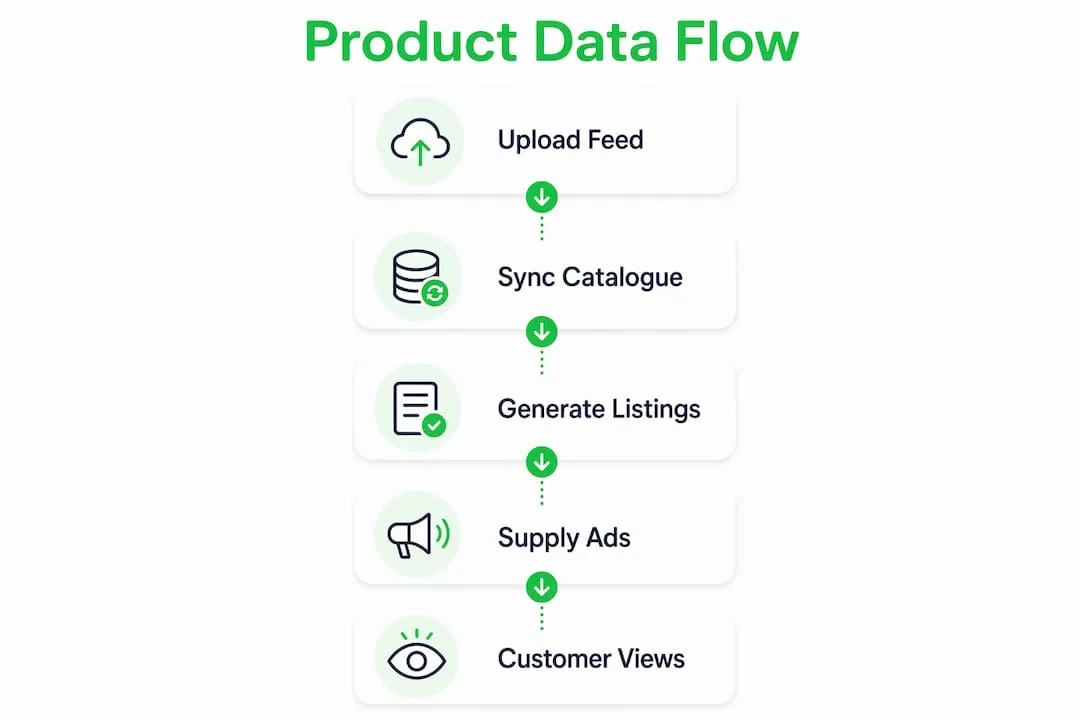
Feed types and their uses
| Feed type | Typical use case |
|---|---|
| Primary feed | Main product catalogue; adds and removes products |
| Supplemental feed | Patches missing attributes or overrides primary data |
| Local inventory feed | Stock levels and pricing for physical store locations |
| Promotions feed | Sale prices, discount codes, and promotional messaging |
| Content API | High-volume or frequently changing catalogues |
Data sources you can use
- Automatic crawl via schema.org structured data markup on your product pages
- Third-party platform sync (Shopify, Wix, WooCommerce) for automatic updates
- File upload (TSV, XML) on a scheduled fetch or one-time basis
- Google Sheets template for smaller catalogues
- Manual entry for individual products
- Content API for large or complex accounts needing programmatic control
After connecting a Shopify store, changes take 24–48 hours to reflect in Merchant Center. That lag matters when you run flash sales or change prices.
Required attributes
Every product needs: title, description, price, availability, link, image_link, shipping, and brand. GTINs (Global Trade Item Numbers) are required for products that have them assigned by a manufacturer. Missing a GTIN where one exists is a common disapproval trigger. MPN (Manufacturer Part Number) covers products without GTINs.
The lifecycle in brief:
- Add a data source (platform sync, file, API, or Sheets)
- Map product attributes to Google’s specification
- Link your Merchant Center account to Google Ads
- Run diagnostic checks to catch errors before submission
- Products go live or enter a disapproved/limited state pending fixes
How do you set up a Merchant Center account in the UK?
Setting up takes under an hour if your product data is ready. The steps below are specific to UK-based stores.
- Create a Google Account (or use an existing one; one email address per Merchant Center account)
- Go to the Merchant Center sign-in page and create your free account
- Enter business information: business name, website URL, phone number, and address
- Set your target country to United Kingdom — this choice is effectively permanent, so get it right
- Verify and claim your website: add a meta tag, upload an HTML file, or use Google Tag Manager or Google Analytics
- Configure shipping settings: set up shipping labels and rates that match exactly what appears on your store pages
- Set up returns policy: display a clear returns policy; Google surfaces this to shoppers
- Link to Google Ads: go to Settings > Linked accounts and connect your Google Ads account
- Add users and access controls: assign Admin, Standard, or Read-only roles as appropriate
- Add your product data source: connect Shopify, upload a feed file, or use Google Sheets
UK-specific notes:
- VAT must be handled correctly. UK prices in your feed should include VAT, matching your store pages
- Shipping costs in the feed must match your checkout exactly; mismatches trigger disapprovals
- Returns policy display is increasingly factored into listing quality
Pro Tip: If you plan to sell into the EU or other markets, set up separate feeds or a separate Merchant Center account per country from the start. Trying to retrofit multi-country targeting onto a single UK-configured account creates targeting and tax misconfigurations that are difficult to unpick later.
What product attributes does Google require, and why do listings get disapproved?
Google’s product data specification is the definitive reference, but the most common disapproval causes come up repeatedly across UK stores.
Mandatory attributes:
- Title, description, price, availability, link, image_link, shipping, brand
- GTIN where the manufacturer has assigned one (required for most branded goods)
- MPN for products without GTINs
- Condition (new, refurbished, used)
Common disapproval reasons:
- Price mismatch: Google crawlers verify that the price on your product page matches the feed. Any discrepancy triggers a warning or disapproval
- Missing or low-quality images: images must be at least 100 x 100 px (250 x 250 recommended); white-background lifestyle shots perform better but are not mandatory
- Missing GTINs: for branded products with assigned GTINs, omitting them limits visibility and can cause disapprovals
- Incorrect category mapping: wrong Google product category reduces relevance and can trigger policy flags
- Policy violations: prohibited products, misleading descriptions, or unsupported promotions
- Poor landing-page quality: pages that are slow to load, require login, or show different content to Googlebot
- Inaccurate availability: listing a product as “in stock” when it is not
To triage issues, go to Products > Diagnostics in Merchant Center. The Diagnostics report groups errors by type and shows how many products are affected. The Product status report shows the status of individual items. Fix the highest-volume errors first; a single attribute error affecting 500 products outweighs five individual disapprovals.
Pro Tip: Use a supplemental feed to patch GTINs or override incorrect attributes without touching your primary feed. This is particularly useful when you are waiting for a supplier to confirm correct GTINs — you can push a temporary fix immediately and update the primary feed once confirmed.
Shopify’s native Google channel and Ecom-eye’s export function both help prevent price mismatches by keeping the feed and the live page in sync. When product pages are generated with accurate, unique content from the start, the crawl-to-feed consistency check rarely fails.
How do you keep product data healthy and maximise visibility?
Consistently accurate product data correlates with better visibility for both free listings and paid campaigns. Data health is not a one-time task.
Weekly actions:
- Review the Diagnostics report for new errors
- Check for price or availability mismatches flagged by Google’s crawlers
- Confirm that any sale prices in the feed match live pages
Monthly actions:
- Audit a sample of product titles and descriptions against Google’s title best practices (front-load key attributes: brand, product type, size, colour)
- Check image resolution and quality across your top-selling SKUs
- Review shipping and returns settings against any policy changes
Automation recommendations:
- Use Shopify’s native Google channel or the Content API for automatic feed updates
- Schedule file-based feeds to refresh every 24 hours at minimum
- Use Ecom-eye to bulk-generate product pages with unique titles, descriptions, and images before they enter the feed
Pro Tip: Maintain a small test subset of 10–20 SKUs that you use to trial feed changes before pushing them to your full catalogue. Run the change on the test subset, wait for Google to process it (usually 24–48 hours), check Diagnostics, and only then roll out to the full feed. This catches formatting errors before they affect thousands of products.
Good product image quality is one of the most overlooked levers. Images that fail Google’s resolution or background requirements are a silent disapproval cause that does not always surface prominently in Diagnostics.
How does Merchant Center feed into paid campaigns, and what does it cost?
Merchant Center provides the creative data for ads. Google Ads controls bidding, budgets, and targeting. The two systems are separate but linked.
Merchant Center itself is free. Paid traffic costs are managed entirely within Google Ads on a pay-per-click basis. There is no subscription fee for Merchant Center, no per-listing charge, and no minimum spend.
Campaign types that use Merchant Center data:
- Shopping campaigns: product-level bidding using feed data for titles, images, and prices
- Performance Max: Google’s automated campaign type that uses Merchant Center data across Search, Display, YouTube, Gmail, and Maps
- Local inventory ads: surface in-store availability to nearby shoppers using local inventory feeds
- YouTube shoppable ads: product cards shown alongside relevant video content
Timeline from feed upload to ad delivery:
- Upload or sync product data to Merchant Center
- Google reviews products (typically 1–3 business days for new accounts; faster for established accounts)
- Policy review may add 1–2 days for certain product categories
- Feed errors delay approval until resolved
- Once approved, products are eligible for both free listings and paid campaigns immediately
New accounts often face a longer initial review. Keeping your feed clean from day one shortens that window considerably. A feed with 200 errors on first submission can sit in review for a week or more.
How do you stop Google from listing your products?
Pausing or removing listings requires deliberate action. Passive neglect — letting a feed go stale or leaving mismatched data in place — can trigger warnings or account suspension rather than simply stopping listings.
To pause a feed:
- Go to Settings > Data sources in Merchant Center
- Select the feed you want to pause
- Choose Pause (products remain in Merchant Center but stop being served)
To remove a product data source entirely:
- Go to Settings > Data sources
- Select the data source
- Choose Delete — this removes all products associated with that source
To remove individual products:
- Go to Products > All products
- Select the product(s) and choose Delete
To unlink a Shopify integration:
- In Merchant Center, go to Settings > Linked accounts
- Remove the Shopify connection
- Also disable the Google channel within Shopify to stop future pushes
To close your Merchant Center account:
- Go to Settings > Account settings
- Select Close account
- Expect listings to disappear from Google surfaces within a few days, though the exact timeline varies
Pro Tip: Before closing an account, download your product feed data and any performance reports you want to keep. Once the account is closed, that data is gone.
A practical example: fixing bulk disapprovals at scale
A common scenario for UK dropshippers: a store imports several hundred products from AliExpress, syncs them to Merchant Center via Shopify, and within a week sees mass disapprovals. The Diagnostics report shows two dominant errors: price mismatch and missing GTINs.
Diagnostic steps:
- Open Products > Diagnostics and filter by error type
- Export the affected product list as a CSV
- Spot-check five to ten product pages manually: compare the live price to the feed price
- Check whether the price mismatch is caused by currency formatting, VAT inclusion, or a sync delay
Remediation plan:
- Fix the root cause first: if prices are mismatching because the Shopify sync is delayed, adjust the sync frequency or switch to the Content API
- Use a supplemental feed to push corrected GTINs for the affected products while the primary feed is updated
- For landing-page issues (thin descriptions, duplicate content copied from a supplier), bulk-regenerate product pages with unique content
Bulk disapprovals caused by feed-to-page mismatches are almost always a content problem, not a technical one. The feed says one thing; the page says another. Fix the page first, then reprocess the feed. Trying to patch the feed without fixing the underlying page just delays the next disapproval cycle.
Ecom-eye addresses this directly. Its bulk product-page generation produces unique titles, clean descriptions, and AI-generated images for each SKU, so the page Google crawls matches the feed data and passes the consistency check. For dropshippers dealing with Google Merchant disapprovals caused by duplicate supplier content, this is the fix that stops the cycle.
Pro Tip: After bulk-fixing disapprovals, use the “Request review” function in Merchant Center rather than waiting for Google’s next scheduled crawl. It speeds up re-approval by days.
Aim for a low disapproval rate for your catalogue, eliminate feed processing errors, and expect impressions to stabilise following remediation.
What are Google Merchant Center’s policies and compliance requirements?
Google’s Merchant Center policies cover what you can sell, how you must represent it, and how your website must behave. Violations result in product disapprovals, account warnings, or full account suspension.
Key policy areas:
- Prohibited products: weapons, certain pharmaceuticals, counterfeit goods, and other restricted categories cannot be listed
- Misrepresentation: product titles, descriptions, and images must accurately represent what is sold; misleading claims trigger disapprovals
- Website requirements: your site must be fully functional, have a clear returns and refund policy, and display contact information
- Landing-page consistency: the page Google crawls must show the same price, availability, and product as the feed
- Checkout accessibility: Google must be able to complete a test purchase flow; login-gated or broken checkouts cause account issues
- Data quality: feeds must meet the product data specification for formatting, required attributes, and value accuracy
Policy violations are categorised as either item-level (affecting individual products) or account-level (affecting the whole account). Account-level suspensions are the most serious and require a formal review request after fixing the underlying issues.
How do you troubleshoot common Merchant Center account issues?
Most Merchant Center problems fall into three categories: feed errors, policy violations, and account-level issues. Each has a different fix path.
Feed errors show up in Diagnostics under the “Errors” tab. The most common are attribute formatting errors, missing required fields, and price or availability mismatches. Fix these in the feed file or via your platform sync, then wait for the next scheduled fetch or trigger a manual reprocess.
Policy violations appear under “Policy violations” in Diagnostics. Each violation links to the relevant policy page. Read the policy, fix the product or page, and then use “Request review” to speed up re-evaluation.
Account-level suspensions are flagged at the top of the Merchant Center dashboard. They require fixing all underlying issues first, then submitting a review request via the “Request review” button in Account issues. Google typically responds within a few business days, though complex cases take longer.
For persistent price mismatch errors, check whether your Shopify theme is rendering prices differently for Googlebot than for human visitors. Some discount apps or geo-pricing tools alter prices for certain user agents, which breaks the crawl-to-feed consistency check.
What reporting and insights does Merchant Center offer?
Merchant Center’s reporting goes well beyond a simple list of approved and disapproved products. The platform offers clicks, impressions, and product-level performance data that you can use to prioritise optimisation effort.
Available reports:
- Performance report: clicks and impressions by product, product group, or brand over a custom date range
- Competitive visibility: how your products compare to similar items in terms of impression share
- Price competitiveness: whether your prices are above or below the market range for comparable products
- Best sellers: which products and brands are trending in your category on Google Shopping
- Product status report: approval status, disapproval reasons, and pending review items for every SKU
The competitive visibility and price competitiveness reports are genuinely useful for UK retailers. If your impression share is low despite a clean feed, the price competitiveness report often reveals that your prices are above the market range for that product category, which suppresses visibility even for approved listings.
Custom reports can be exported for deeper analysis in Google Sheets or a BI tool. For stores running Performance Max campaigns, linking Merchant Center to Google Ads unlocks additional product-level conversion data that does not appear in Merchant Center alone.
How does Merchant Center integrate with Google services beyond ads?
Merchant Center connects to a broader set of Google services than most retailers realise, and several of these integrations are free.
Local Inventory Ads let physical retailers show real-time in-store stock to nearby shoppers on Google Search and Maps. You upload a local inventory feed alongside your standard product feed, and Google surfaces a “nearby” or “in store” badge on your listings. For UK retailers with both online and physical presence, this is one of the most underused features.
Google Maps integration surfaces your products in local search results when a shopper searches for a product type near a specific location. This requires a verified Business Profile linked to your Merchant Center account.
YouTube shoppable surfaces use your Merchant Center product data to display product cards alongside relevant video content. This is managed through Google Ads but draws directly from your Merchant Center feed.
Google Search Console does not integrate directly with Merchant Center, but both tools are useful in parallel: Search Console shows how your product pages perform organically, while Merchant Center shows how the same pages perform as Shopping listings.
Google Analytics 4 can be linked to Merchant Center to pass conversion data back into product performance reports, giving a more complete picture of which products drive revenue, not just clicks.
How should you manage account security and user access?
Merchant Center account security is straightforward but often neglected until something goes wrong. An unauthorised change to a feed or shipping setting can cause widespread disapprovals before anyone notices.
Access roles:
- Admin: full access including account closure and billing; restrict to one or two trusted individuals
- Standard: can manage products, feeds, and campaigns; appropriate for day-to-day team members
- Read-only: can view reports and diagnostics; suitable for analysts or agency reporting contacts
Best practices:
- Use a dedicated Google Account for your Merchant Center, separate from personal Gmail
- Enable two-factor authentication on all Google Accounts with Merchant Center access
- Review the user list quarterly and remove former employees or agency contacts promptly
- If you use an agency to manage your Shopping campaigns, grant Standard access rather than Admin
- Audit linked accounts (Google Ads, third-party platforms) regularly; remove connections that are no longer active
A compromised Merchant Center account can have its feed replaced with policy-violating products, triggering an account suspension that takes weeks to resolve. Two-factor authentication on the primary account is the single most effective preventive measure.
Key takeaways
Google Merchant Center is the free data hub that connects your product catalogue to Google’s surfaces; keeping your feed and product pages in sync is the single most important thing you can do to maintain visibility and avoid disapprovals.
| Point | Details |
|---|---|
| Merchant Center is free | The platform costs nothing; paid traffic runs through Google Ads on a pay-per-click basis. |
| Feed-to-page consistency is critical | Google crawlers verify prices and availability against live pages; mismatches are the leading disapproval cause. |
| Verify and claim your site | Without website verification, your products cannot appear on Google surfaces. |
| Automate your syncing | Use Shopify integration or the Content API to keep product data current and reduce manual errors. |
| Ecom-eye prevents disapprovals at source | Bulk-generating unique, SEO-ready product pages before they enter the feed stops duplicate-content and mismatch issues from arising. |
The part most retailers get wrong
Most guides treat Google Merchant Center as a technical setup problem. Get the feed right, verify the site, link to Google Ads, done. That framing misses where the real damage happens.
The majority of UK stores that struggle with Merchant Center are not failing on setup. They are failing on content. They import products from a supplier, copy the supplier’s title and description, and push that to the feed. Google’s crawlers see the same text on dozens of other stores. The feed-to-page check passes, but the listing gets suppressed or disapproved for policy reasons that trace back to thin or duplicate content.
The fix is not a technical one. It is a content one. Every product page that goes into a Merchant Center feed needs to be genuinely unique, accurately priced, and consistent with what Google will find when it crawls the URL. That is a hard standard to meet at scale without automation.
The stores that maintain clean feeds long-term are the ones that solved the content problem first, not the ones that spent the most time in Diagnostics.
Bulk-generate Google-compliant product pages with Ecom-eye
Duplicate product content is the root cause of most Google Merchant disapprovals for UK dropshippers. Ecom-eye fixes that at the source: import products in bulk from AliExpress, Amazon, Temu, or competitor Shopify links, and the platform generates unique titles, clean descriptions, SEO-ready content, and high-quality AI product images for every SKU.
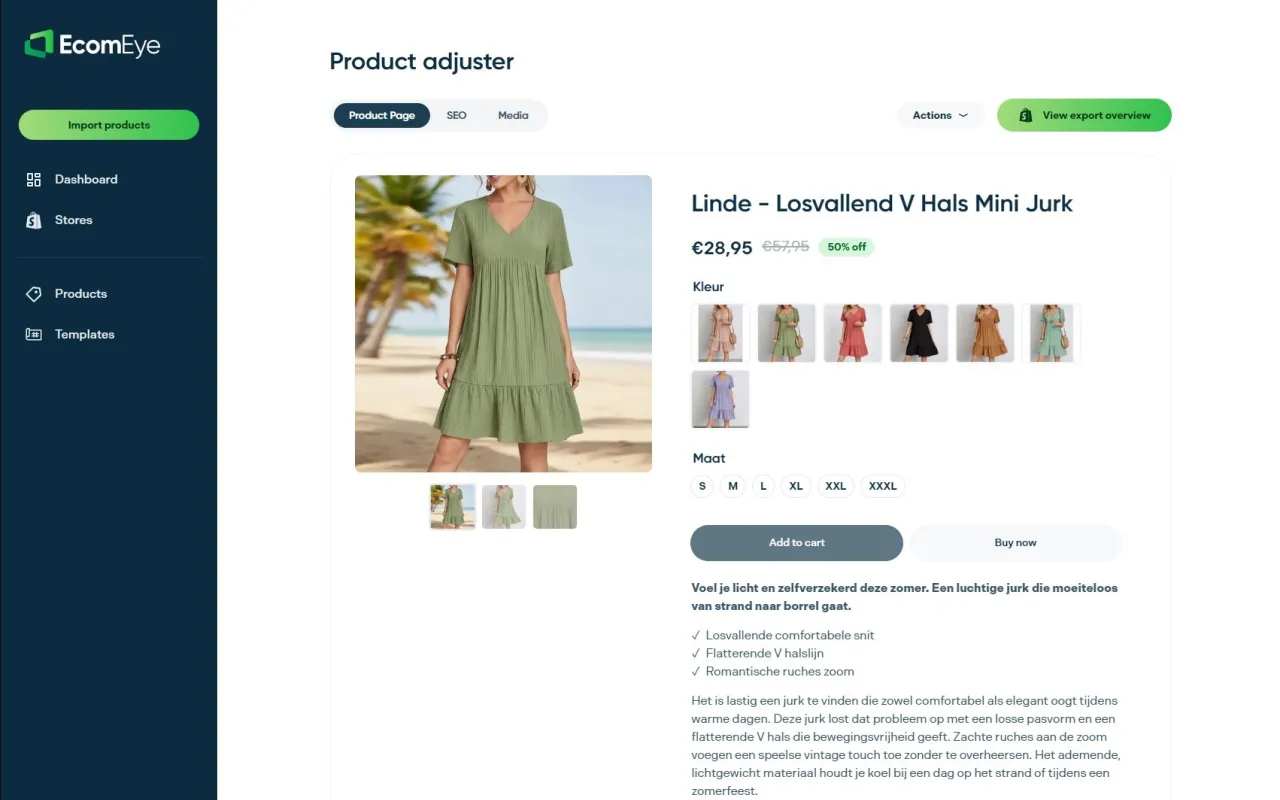
The one-click Shopify export means your product pages are live and consistent with your feed before Google ever crawls them. No price mismatches. No duplicate descriptions. No copyright risk. For stores dealing with recurring disapprovals or scaling from tens to hundreds of SKUs, this is the difference between a feed that stays clean and one that needs constant firefighting.
Start with Ecom-eye free trial credits and see how many compliant product pages you can generate before committing to a plan.
Useful sources
Official documentation and practical references for UK Merchant Center users:
| Resource | What it covers |
|---|---|
| Google Merchant Center overview | Platform overview, account creation, and feature summary |
| How Merchant Center works | Feed mechanics, surfaces served, and campaign integration |
| Get started with Merchant Center | Step-by-step account setup guide from Google |
| Product data specification | Full attribute requirements and formatting rules |
| Upload products to Merchant Center | All feed upload methods including Shopify sync |
| Merchant Center account settings | Country targeting, account management, and closure |
| Merchant Center diagnostics guide | How to read Diagnostics and Product status reports |
EcomEye guides for deeper reading:
- Why optimise for Google Shopping — product optimisation strategies that improve Merchant Center visibility
- Common product listing challenges: fix guide — step-by-step fixes for frequent listing problems
- Ecommerce SEO best practices for Shopify stores — landing-page quality guidance that supports feed compliance
FAQ
What is Google Merchant Center used for?
Google Merchant Center stores your product data and distributes it across Google surfaces including Search, the Shopping tab, Maps, and YouTube, powering both free organic listings and paid Shopping campaigns.
Is Google Merchant Center the same as Google Shopping?
No. Merchant Center is the backend tool where retailers manage product data; Google Shopping is the consumer-facing destination where shoppers browse and compare products using that data.
How do I stop Google from listing my products?
Pause or delete your product data source in Merchant Center under Settings > Data sources, or remove individual products from the Products section. Do not simply let a feed go stale — outdated or mismatched data can trigger warnings or account suspension rather than stopping listings.
Is Google Merchant Center free?
Merchant Center itself is completely free. Costs only arise if you run paid Shopping or Performance Max campaigns through Google Ads, which operate on a pay-per-click basis.
Why are my products being disapproved in Merchant Center?
The most common causes are price mismatches between the feed and live product pages, missing GTINs for branded products, low-quality images, and policy violations. Check the Diagnostics report in Merchant Center to see which errors affect the most products and fix those first.
Ready to boost your product pages?
Generate high-converting, SEO-optimized product pages in bulk using AI automation used by e-commerce experts.
No credit card required