Bulk Language Creation on Shopify: Add Languages and Translate Products
How to add languages to Shopify and translate product pages in bulk: the CSV workflow step by step, the limits to know, and how to avoid duplicate content.
Bulk Language Creation on Shopify: Add Languages and Translate Products
Bulk language creation on Shopify means two jobs: adding a language to your store, then filling it with translated product content for hundreds of listings at once. Shopify handles the first job natively. For the second, its CSV route only moves text in and out: Shopify doesn’t generate the translations, so you still need a source of good copy per language. For a dropshipper that source matters, because translating copied supplier text just multiplies duplicate content. We built Ecom-eye to generate unique, multi-language product pages in bulk and export them to Shopify in one click.
TL;DR
- Add a language under Settings > Languages, then add translations and publish. Adding and publishing are separate steps, so you can prepare a language before customers see it.
- Shopify’s CSV export and import moves text in bulk, but you supply the translations yourself, and you must only edit the Translated content column.
- Product tags cannot be translated, and SEO titles and descriptions translate only once they have been customised.
- Translating copied supplier descriptions spreads duplicate content into every language. Start from unique source copy.
- Ecom-eye generates unique, multi-language product pages from AliExpress, Amazon, Temu or competitor links and exports them to Shopify in one click.
Table of Contents
- What bulk language creation actually covers
- How many languages can you add?
- Step 1: Add and publish the language
- Step 2: Get unique source copy before you translate anything
- Step 3: Translate in bulk with Shopify’s CSV workflow
- Common errors, and how to avoid them
- Variants, options and images
- Check the pages before and after you publish
- Where translation apps fit
- Our view
- Create your multi-language product pages with Ecom-eye
- FAQ
- Sources
What bulk language creation actually covers
A Shopify store has a default language. Every other language is a layer on top: the same products, collections and pages, with a translated version of each text field. “Bulk” means you are not opening each product and typing the translation into a form.
For a product, the translatable fields include the title, the description (stored as body_html) and the SEO title (meta_title), as listed in Shopify’s CSV translation guide. Two limits catch people out. Product, article and blog tags cannot be translated, and product SEO titles and descriptions are translatable only when their default-derived settings have been customised. If you never set a custom SEO title, there is nothing separate to translate, and your translated page may show a title derived from the default.
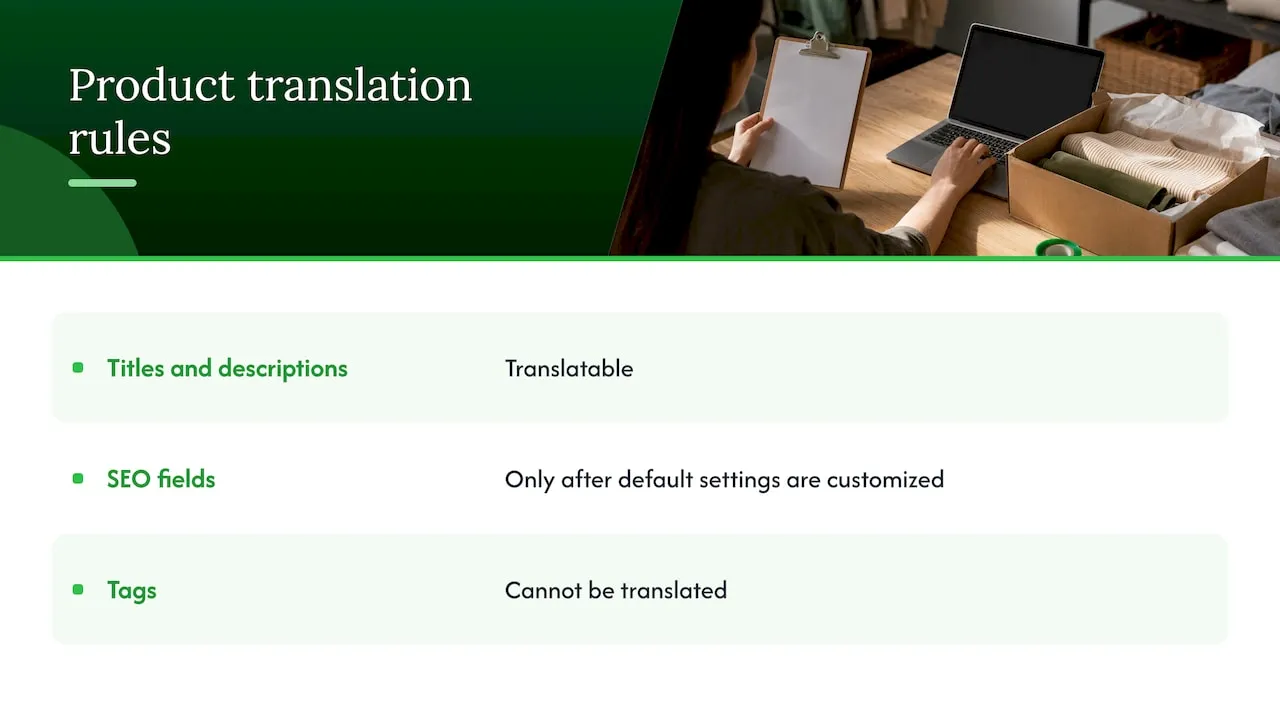
That has a practical effect. If your collections rely on tags for filtering, plan for that, because the tag text stays in the original language. For search metadata, write a custom SEO title and description in the default language first, so there is a field to translate.
How many languages can you add?
Plan limits come first. According to Shopify’s multilingual requirements, the Basic, Grow, Shopify and Advanced plans support up to 20 languages, and Shopify Plus supports up to 30. Shopify also states that its free themes work with multiple languages. For a third-party theme, confirm compatibility with the theme’s developer before you commit to a launch.
Most dropshippers do not need 20 languages. A sensible first wave is the two or three markets where you already see ad traffic or orders. Each language is a full set of product pages to maintain, so add them in the order your demand justifies.
Step 1: Add and publish the language
The setup follows Shopify’s language management guide:
- In Shopify admin, go to Settings > Languages.
- Click Add language and select the language.
- Turn on the domains where it should appear, then click Done.
- Add translations, either with Shopify’s Translate & Adapt app or a translation app.
- Publish the language from Settings > Languages.
Keep the order in mind. Shopify separates adding a language from publishing it, so you can load translations before the language goes live. Publishing without translations shows only the default theme and checkout translations, so shoppers would see a half-empty store in their language. Do not publish until the product content is in.
Step 2: Get unique source copy before you translate anything
This is the step most bulk-translation tutorials skip, and it is where dropshippers lose rankings.
If your English product page is a pasted supplier description, the translated page is the same text in another language. You now have thin, duplicated content in several languages, and in Google Merchant Center that can lead to disapprovals. Translation does not fix a weak source. It copies it.
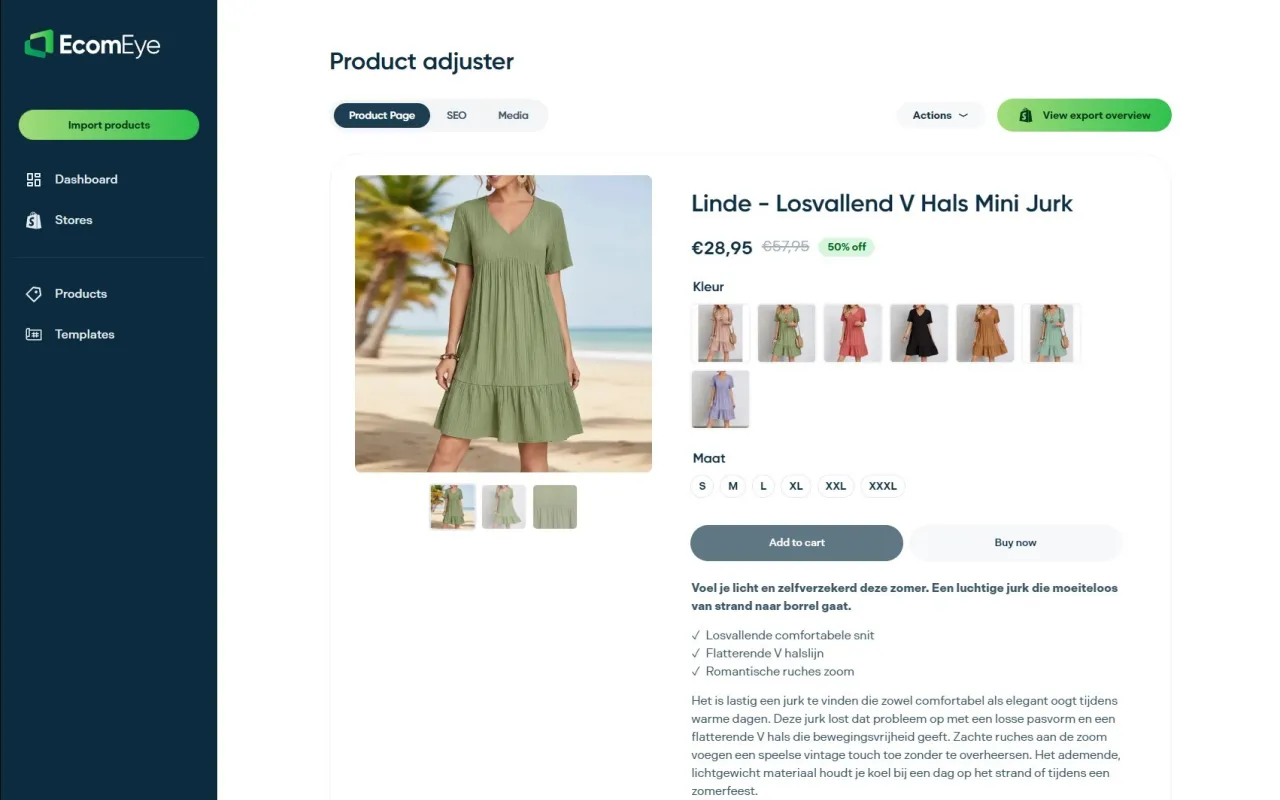
So write the source once, properly, and translate from that. Doing this by hand across 500 products is slow. Ecom-eye imports products in bulk from AliExpress, Amazon, Temu or competitor Shopify links and generates a unique title, description and AI product images for each one. Every listing is unique even when it is based on the same product link, which means your pages do not mirror the copy sitting on other stores. Our safe bulk import guide walks through that part in detail.
Built-in template and bulk editing let you adjust tone or fix a phrase across the whole catalogue before you create the other languages. For apparel, the size system conversion handles US, UK and EU sizing, which is a localisation job that plain translation never covers.
Step 3: Translate in bulk with Shopify’s CSV workflow
The native route works well for stores that already have translations in hand, whether from a translator, an agency or your own generated copy. The process in Shopify’s CSV guide is:
- Export. From Settings > Languages, export the translation content you want. Shopify emails you a CSV.
- Read the columns. The file lists resource type, resource ID, field, locale, market, status, default content and translated content.
- Fill in Translated content. Enter the translation in that column only. Do not change the other columns, because Shopify uses them to match each row to the right product field.
- Save the file. Product CSV instructions require UTF-8 encoding and LF-style linefeeds. Saving from a spreadsheet with the wrong encoding is a classic cause of broken accents and characters in French, German or Polish.
- Import. Go to Settings > Languages > Import and upload the file. Choose whether to overwrite existing translations.
- Check the results. Review any errors on the import page, and read Shopify’s confirmation email for failed or skipped entries.
The CSV is a transport format, not a translator. A column of empty cells imports as nothing. The work of producing the text sits outside Shopify, and that is the gap we fill: Ecom-eye creates the multi-language pages for you, so you are not typing or pasting 500 rows into a spreadsheet. If you want the deeper comparison of CSV, API and software routes for large catalogues, see our guide to bulk translating Shopify with CSV, API or SaaS.
Common errors, and how to avoid them
The same few mistakes account for most failed imports, all of them listed in the CSV guide:
| Mistake | What happens | Fix |
|---|---|---|
| Editing columns other than Translated content | Rows no longer match a product field, so they fail or skip | Change only the Translated content column |
| Choosing overwrite by accident | Existing translations are replaced | Confirm the overwrite choice before you import |
| Importing a language that matches the store’s default language | The import is rejected or does nothing useful | Check the locale column against your default |
| Ignoring the confirmation email | Failed or skipped rows go unnoticed | Read the email and the import-page errors, then re-import the fixes |
Two habits prevent most of this. First, test with a file of ten products before you import the whole catalogue. Second, keep an untouched copy of the original export, so you can restore the structure if a spreadsheet tool mangles it.
Variants, options and images
A product page is more than title and description, and bulk work should cover the rest.
Variants and options. Size and colour option names appear on the product page and in the cart. If they stay in English, a Spanish page looks unfinished. Check that option names and values are translated, not only the main description. Sizing is also a market issue: a US size 8 is not a UK 8, so converted size charts reduce returns as well as confusion.
Collections and other pages. Collection titles and descriptions are separate resources from products. Export and translate them in the same pass, or your navigation will stay in the default language.
Image alt text. Shopify notes that alt text describes images for screen-reader users and can support SEO, so translate it with the rest. If your store sells jewellery, the principles in this guide to AI product photography for jewellery show how much of a listing’s appeal lives in the images, which is another reason alt text deserves a proper translation rather than a skip.
Slugs. Shopify says translated URL slugs are optional. If you want them, our walkthrough on translating product slugs in Shopify covers the steps.
Check the pages before and after you publish
Once a language is published and assigned to the intended domains, Shopify gives translated pages unique URLs, automatic hreflang tags and sitemap inclusion. Hreflang tags tell search engines which language version to show to which audience, so you do not need to add them by hand. Search engines still need to index the translated languages, which takes time.
A short quality check before launch:
- Open five products per language on mobile and read the title, description, option names and add-to-cart text.
- Confirm the language appears on the domain you intended, not just in the admin.
- Look for untranslated leftovers: tags, size charts, shipping notes.
- Confirm that custom SEO titles and descriptions exist and have been translated, since those fields translate only once customised.
If you sell through Google Shopping, each language feed needs titles and descriptions that match the page. Our guide on stopping Merchant rejections through localisation explains how that lines up for dropshippers.
Where translation apps fit
Beyond the CSV route, stores usually use one of two kinds of tool: Shopify’s own Translate & Adapt app, which also supports manual editing through the product page’s More actions > Localize flow, and third-party translation apps that translate text automatically. Both start from whatever text is already in your store. That is why the source copy decision in Step 2 matters more than the tool you pick afterwards.
For a dropshipper, the cleaner order is: generate unique source pages, create the language versions, then export to Shopify. Our guide to one-click export covers that last move, and the Shopify language limits article explains what to expect from theme text at scale.
Our view
Most stores treat translation as the finish line: get the English page live, then push it through a translator. We think that is backwards for dropshipping.
When a product page is copied from a supplier or a competitor, every language you add is another copy of the same text. Our approach is to make the page unique first. Ecom-eye generates each title, description and product image uniquely for each user, so even two stores starting from the same product link end up with different listings. That removes the copyright and DMCA worry at the root, and it gives Google a reason to rank your page.
Multi-language pages come from the same run, not from a second project. You import in bulk, generate, review with the built-in bulk editing and export to Shopify in one click. No rewriting, no copy and paste between spreadsheets.
The stores that scale are the ones that treat content as a pipeline rather than a chore. Language is just one more output of that pipeline.
Koen
Create your multi-language product pages with Ecom-eye
If your plan is to launch several languages across a big catalogue, Ecom-eye does the heavy part. It imports from AliExpress, Amazon, Temu or competitor Shopify links, generates unique SEO-ready titles, descriptions and AI product images, creates multi-language pages, and exports them to Shopify in one click. Plans start at €39 per month (Try-out) and €99 per month (Scaler), with details on the pricing page. You can also see how the Shopify product page builder works.
FAQ
Can I translate my whole Shopify catalogue at once?
Yes. Export your content from Settings > Languages, fill in the Translated content column and import the file. Shopify does not produce the translations, so you need the translated text ready. Ecom-eye can generate multi-language product pages in bulk if you want to skip the manual part.
How many languages can a Shopify store have?
The Basic, Grow, Shopify and Advanced plans support up to 20 languages, and Shopify Plus supports up to 30, according to Shopify’s requirements page. Start with the markets that already send you traffic and add more as demand grows.
Why are my product tags and SEO fields not translating?
Shopify does not allow product tags to be translated. Product SEO titles and descriptions are translatable only after you have customised them, so set custom values in your default language first, then translate them.
What file format should my CSV use?
Shopify’s product CSV instructions ask for UTF-8 encoding and LF-style linefeeds. Saving in another encoding is a common reason accented characters appear broken after import.
Does translating a copied supplier description help SEO?
It tends not to. The translated page carries the same duplicated content in a new language. Start from a unique description, then create the language versions from it.
Sources
- Shopify Help Center: Adding translations using CSV files
- Shopify Help Center: Requirements and considerations for multiple languages
- Shopify Help Center: Managing your store’s languages
- Shopify Help Center: Using CSV files to import and export products
- Shopify Help Center: Translating content manually using Translate & Adapt