How to Translate Product Slugs in Shopify, Step by Step
Shopify does not translate product URL handles automatically. Here is how to translate slugs per language, in bulk, with redirects and hreflang checks that hold up.

How to Translate Product Slugs in Shopify, Step by Step

Shopify translates your product titles and descriptions for you, but it does not translate the product slug, the last part of the URL. You add each language’s slug by hand in the Translate & Adapt app, or prepare them in a spreadsheet when you have many products. Shopify then creates the redirect from the old URL for you. This guide shows the exact clicks, the bulk routine, the redirect checks and the mistakes that cost dropshippers traffic. It also shows why the cleanest slugs start with a properly translated product title, which is the part we automate at Ecom-eye.
TL;DR
- Shopify’s automatic translation does not cover URL handles, so you enter each translated slug yourself in Apps > Translate & Adapt.
- Only the part after /products/ changes. The word “products” cannot be translated, and slug translations apply to every market that uses that language.
- Adding a translated handle redirects the old URL to the new one. Changing an already translated handle later needs a manual 301 redirect.
- For dozens or hundreds of products, write the slugs from the translated titles in a sheet, then load them in batches. Do not type them one product at a time.
Table of Contents
- What a slug is and what Shopify translates
- Why bother translating slugs at all
- Step by step: translate one product slug
- Why automatic translation skips handles
- Redirects: what Shopify does and what you must do
- Translating slugs in bulk
- Slugs, hreflang and duplicate pages
- Mistakes that cost traffic
- Get the titles right before you set the slugs
- FAQ
- Sources
What a slug is and what Shopify translates
A slug, which Shopify calls a URL handle, is the readable end of a product address. In yourstore.com/products/linen-summer-dress, the slug is linen-summer-dress. It is built from the product title when you create the product, lowercased, with spaces turned into hyphens.
Once you publish a second language, Shopify adds a language code to the address, for example yourstore.com/fr. According to Shopify’s language management page, hreflang tags (the code that tells Google which page belongs to which language) are added automatically for those language URLs. Translated slugs are optional, but they improve localisation.
So a French shopper can land on /fr/products/robe-ete-en-lin instead of /fr/products/linen-summer-dress. Shopify’s own slug guide uses the same pattern: a Spanish version of /products/model-train can become /es/products/tren-a-escala, while the /products/ path stays fixed.
Shopify supports translated handles for products, collections, blogs, articles and pages, as its 2023 changelog states. This guide stays on products, because that is where a dropshipper’s catalogue and search traffic sit.
Why bother translating slugs at all
A slug is a small ranking signal and a big trust signal. A shopper in Lyon who sees an English slug in a French search result reads it as a store that has not finished the job. A slug in their own language matches what they typed and tells them the page is for them.
For a Google dropshipper the second reason is as important. A store that ships the same supplier title in six languages, with slugs left in English, looks thin and templated. Pages that are translated all the way through, from title to description to URL, read as a real local store. We cover the wider case in our guide to launching one to three languages first.
A realistic scale: Shopify allows up to 20 languages on Basic, Grow, Shopify and Advanced plans, and up to 30 on Shopify Plus. Most stores should start with one to three, and pick the ones where they already have orders.
Step by step: translate one product slug
This is the manual route Shopify documents. You need the language already added and published under Settings > Languages.
- In your Shopify admin, open Apps > Translate & Adapt. You can also open a product and choose More actions > Localize, which jumps to the same editor.
- Select the language you want to work on.
- Choose the resource type Products and open the product.
- Find the URL handle row. The default-language slug sits on the left, and the field for the translation sits on the right.
- Type the translated slug, then save.
These steps come from Shopify’s help page on translating content manually. The same page says sitemaps update automatically and a redirect is created from the default-language URL to the translated one.
How to write a good translated slug
Shopify staff say handles saved with spaces are lowercased, de-accented and hyphenated automatically. Do not rely on that for quality. Write the slug the way you want it to appear:
- Use the words a local shopper would search for, not a literal word-for-word translation of the English slug.
- Keep it short: the product type, the key attribute and, if it helps, the material. Three to five words is plenty.
- Use lowercase letters and hyphens only. Accented letters are converted to plain ones, so
robe-étébecomesrobe-ete. - Drop filler words and supplier codes. A slug like
robe-ete-en-linbeatsrobe-femme-ete-2026-nouveau-hot-sale-1.
Note that a language written in a non-Latin script will end up with Latin letters in the slug. Decide before you start whether you want a transliterated slug, and use the same rule for the whole catalogue.
Our article on writing SEO product titles goes through the title rules in detail. The slug is a trimmed copy of a good title, so get the title right first.
Why automatic translation skips handles
It surprises many merchants that a store with fully machine-translated content still has English slugs in every language. A Shopify staff member explained that URLs are sensitive and merchants want control, which is why handles are not auto-translated. The same post suggests preparing translated handles outside Shopify and then updating them in the Translate & Adapt editor when you have many.
That is the logic behind the routine below: you translate titles at scale, derive slugs from them, then apply the slugs in a controlled batch.
Redirects: what Shopify does and what you must do
Getting redirects wrong is the most expensive slug mistake, because it breaks links that already rank or already sit in ads and feeds.
When Shopify redirects for you
When you add a translated handle for the first time, Shopify redirects the old URL to the new translated URL, per its changelog. Shopify staff in a Community thread describe the redirect as an indexable 301, and say that deleting the translation reverts to the pre-translation state.
When you must redirect yourself
The same thread says that changing a translated URL that already exists does not create a redirect automatically. If you rewrite a slug you translated last month, add the 301 yourself:
- Go to Content > Menus > View URL Redirects (in some admin layouts it sits under Online Store > Navigation).
- Click Create URL redirect.
- Enter the old path under Redirect from and the new path under Redirect to.
- Save, then open the old link in a browser to confirm it lands on the new page.
These are the steps in Shopify’s URL slug guide, which also tells you to update internal links so they point straight at the new address instead of leaning on the redirect.
A quick check after every batch
- Open three old URLs. Each should reach the new page in one hop, with no chain.
- Check that the new URLs appear in your sitemap. Shopify says all published languages are included in the sitemap.
- Update any Google Merchant Center feed, ad destination or email link that still uses the old URL.
- Watch Search Console for 404 errors in the following weeks.
Translating slugs in bulk
A store with 300 products and four languages has 1,200 slugs. Nobody should type them one by one. Shopify names three routes: the Translate & Adapt app, a compatible translation app, or CSV export and import. Shopify’s bulk editing page confirms that a CSV file is the route for editing a larger number of items, with a confirmation email once the upload is processed.
The routine that works for a dropshipping catalogue:
- Translate the product titles first. Every slug is derived from a title, so a weak title produces a weak slug. For large catalogues, this is the stage to automate. Our guide to bulk translating a Shopify catalogue compares the CSV, API and SaaS routes.
- Build a sheet with one row per product: the product ID or default handle, then one column per language holding the slug.
- Generate slugs from the translated titles with simple rules: lowercase, hyphens, no accents, no stop words, a maximum of about five words. Use a formula in your spreadsheet so every row follows the same rule.
- Scan the sheet for duplicates. Two products with the same slug in one language will clash. Add a distinguishing word such as the colour or material.
- Load a small batch of 10 to 20 products first and test the redirects.
- Load the rest once the test batch behaves.
A worked example
Say your English product is “Linen Summer Dress for Women, Short Sleeve, Hot Sale 2026”, with the handle linen-summer-dress-for-women-short-sleeve-hot-sale-2026. The French title you publish is “Robe d’été en lin à manches courtes”.
| Step | English | French |
|---|---|---|
| Title | Linen Summer Dress for Women, Short Sleeve, Hot Sale 2026 | Robe d’été en lin à manches courtes |
| Remove filler and accents | linen summer dress short sleeve | robe ete lin manches courtes |
| Final slug | linen-summer-dress | robe-ete-lin |
| Resulting URL | /products/linen-summer-dress | /fr/products/robe-ete-lin |
The French slug is short, readable and built from the words a French shopper would type. When you save it, the old URL redirects to it.
Slugs, hreflang and duplicate pages
A translated slug is only one piece of the multilingual setup. Three checks keep the rest honest.
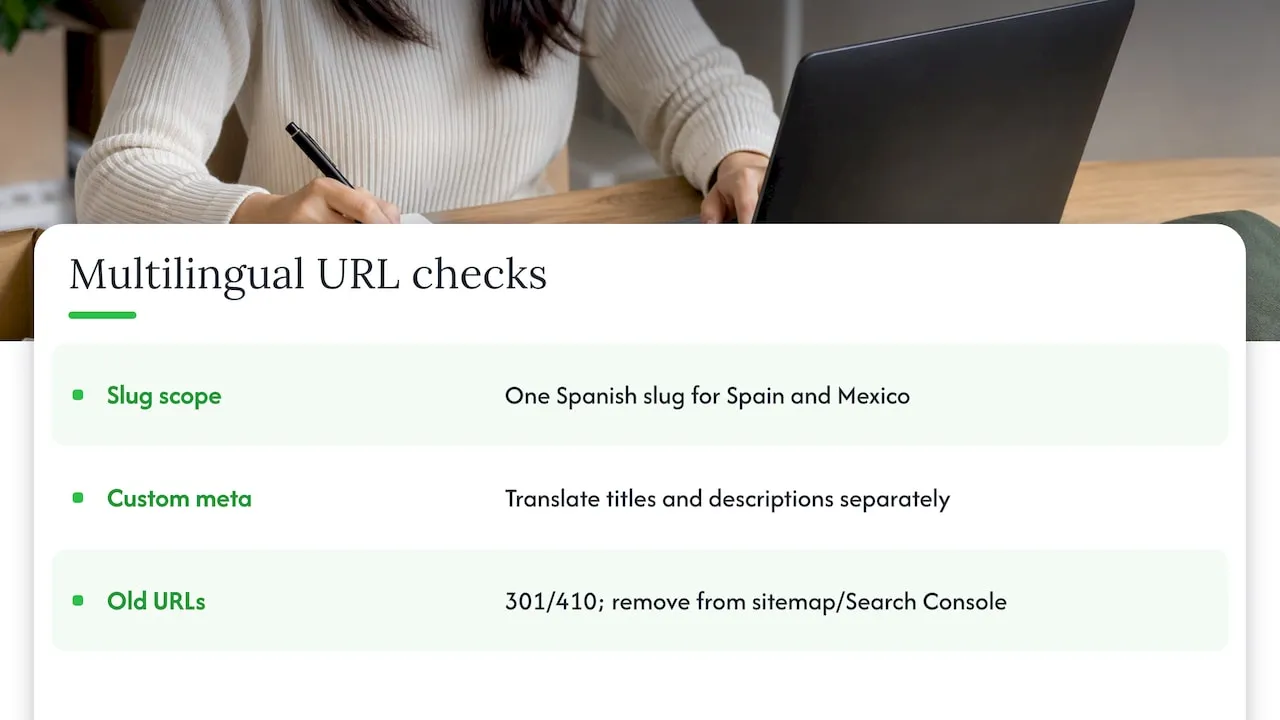
Slugs apply across markets. Shopify’s requirements page says slug translations cannot be customised per market. If you sell Spanish to both Spain and Mexico, they share one Spanish slug, so pick wording that works for both.
Meta fields follow the title unless you change them. The same page says that product meta titles and descriptions on default settings pull from the translated title and description. Customised meta fields have to be translated separately.
Old language URLs should not linger. A Shopify Community thread on duplicate content advises that if outdated language URLs still serve content, you redirect them with a 301 or return a 410, remove them from Search Console and clean the sitemap. If you retire a language, do this at the same time.
For the technical side of language tags, our hreflang check for Shopify is a ten-minute test you can run after publishing.
Mistakes that cost traffic
- Translating the slug before the title is final. You then change the slug again, and the second change does not redirect automatically.
- Leaving supplier junk in the slug. Dropshipping titles often carry strings like “2026 new hot sale”. They look spammy in a URL.
- Relying on redirect chains. If you rename a slug three times, the first old URL passes through two hops. Point the oldest URL straight at the newest.
- Forgetting the feed. A Google Merchant Center feed that still lists the old URL can lead to mismatches and disapprovals. Our piece on product localisation for dropshippers explains how listing data and landing pages should agree.
- Different slug rules per language. Pick one rule and apply it to every product, or you will not be able to audit the store later.
Our view on slugs
We build Ecom-eye for people who list products in bulk, so we think about slugs the way a dropshipper does: as the last, small step of a long pipeline, not as a job in its own right. The slow part is never typing the handle. It is having a clean, unique, properly translated title for each product in each language to build the handle from.
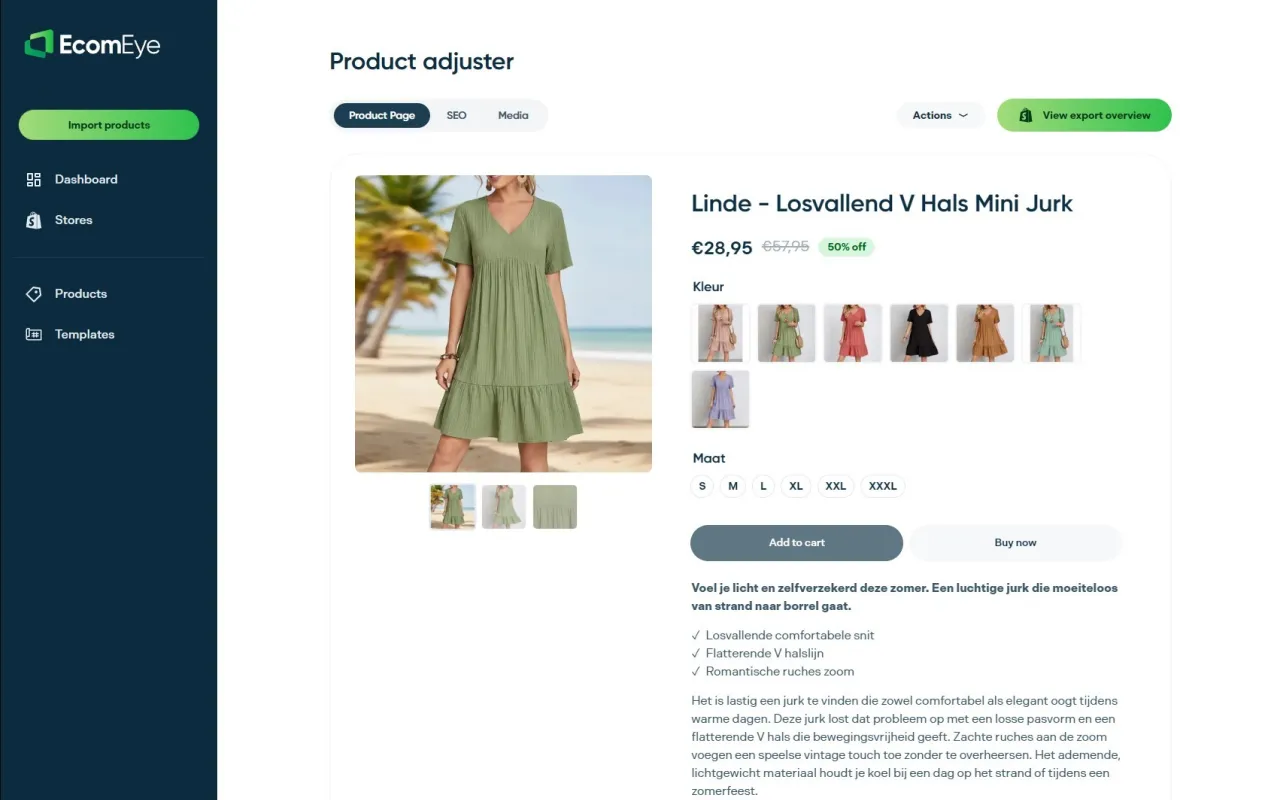
That is where we put our effort. Ecom-eye imports products from AliExpress, Amazon, Temu or competitor Shopify links, generates unique titles and descriptions, creates multi-language pages and exports them to Shopify in one click. When the title in every language is right the first time, the slug becomes a ten-second decision and the redirect work shrinks, because you are not rewriting handles twice.
Our advice is to settle the title and its translation first, and to apply the slugs once, in one batch, with one rule.
Koen
Get the titles right before you set the slugs
Ecom-eye generates unique, SEO-optimised titles and descriptions for your Shopify products from a supplier or competitor link, creates the pages in several languages, and exports them to Shopify in one click. Plans are Try-out at €39 per month and Scaler at €99 per month, and you can see what each includes on the pricing page. If you also need fresh copy for the default language, the AI product description generator covers that.
For the step-by-step view of the whole localisation process, from language setup to publishing, read our Shopify localisation guide.
FAQ
Can Shopify translate product slugs automatically?
No. Shopify’s automatic translation does not include URL handles, so you enter the translated handle for each language yourself in Translate & Adapt. For a large catalogue, prepare the slugs in a spreadsheet and load them in batches.
Can I translate the word “products” in the URL?
No. Shopify says the word “products” in the path cannot be translated. Only the slug after it changes, so /en-ca/products/shoes can become /es-mx/products/zapatos, but the /products/ part stays.
Will I lose rankings when I translate a slug?
Shopify redirects the old URL to the new translated one when you add the handle, so existing links keep working. Test a few old URLs after each batch, update internal links and feeds, and add a manual 301 if you change a handle you already translated.
Do translated slugs need their own hreflang tags?
No separate step is needed. Shopify adds hreflang tags automatically for language-specific URLs when you publish a language, and the translated slug is simply the address of that language’s page. Run a quick check after publishing to confirm the tags point at the right URLs.
Sources
- Shopify Help Center: Translating content manually using Translate & Adapt
- Shopify Help Center: Managing your store’s languages
- Shopify Help Center: Requirements and considerations for multiple languages
- Shopify Help Center: Bulk editing
- Shopify changelog: Translate resource URL handles for different languages
- Shopify blog: URL slug best practices
- Shopify Community: Tips from the team, how to bulk translate URLs
- Shopify Community: 301 redirects in Shopify URL translations
- Shopify Community: Duplicate content issues due to language translation