Safe Bulk Import of Competitor Products into Shopify for Dropshippers
A practical dropshipper playbook for bulk-importing competitor catalogues into Shopify safely. Covers CSV and URL workflows, import apps, AI rewriting,...

Safe Bulk Import of Competitor Products into Shopify for Dropshippers

The fastest safe route is to pull a competitor’s public catalogue into a Shopify‑compatible CSV using an export tool, clean the fields, and run it through Products > Import. For anything beyond a handful of SKUs, use an import app or an AI rewriting step. Test everything on a development store first and back up your existing catalogue before you run a mass import. If you want the rewriting and export handled automatically, some platforms offer that as one workflow.
TL;DR:
- For small batches up to 50 SKUs, manual spreadsheet editing is fastest, but larger or recurring imports benefit from apps or AI rewriting tools.
- Shopify requires unique handles and correctly formatted image URLs to prevent duplicate listings and import failures.
- Regularly test exported competitor CSVs on a development store, fix encoding, URL, and handle issues before importing to avoid errors.
- Copying product descriptions and images directly from competitors risks SEO penalties and Merchant Center disapproval, making rewriting and original content essential.
- Using automated tools like EcomEye can generate unique titles, descriptions, and images for scalable, SEO-compliant product listings.
Table of Contents
- Choosing between CSV, URL tools, apps and AI rewriting
- What Shopify’s CSV template actually requires
- Running the Shopify CSV import step by step
- Pulling a competitor’s public catalogue into a usable CSV
- Setting up import apps for larger or recurring catalogues
- Fixing the errors that stop most imports cold
- Keeping imported product pages SEO-safe and copyright-clean
- Verifying and publishing imported listings properly
- Why competitor research should inform, not replace, your product pages
- Import bulk, rewrite automatically, export in one click
- Templates and tools worth bookmarking
- Sources
- FAQ
Choosing between CSV, URL tools, apps and AI rewriting
The right method depends on how many products you’re moving and how much risk you’re willing to carry on duplicate content. A one‑off batch of 20 to 50 SKUs is a manual CSV job. A recurring sync from multiple suppliers is an app job. Anything you plan to publish as-is from a competitor’s page needs a rewrite step, full stop.
- Manual CSV: fast for small batches, full control over fields, but tedious past 50 to 100 rows and prone to formatting errors.
- URL/export tools: quick way to pull a public store’s catalogue (Brandsearch’s Shopify product downloader is built for this), good for research and bulk starting points, but raw output still needs cleaning.
- Import apps: best for scheduled or recurring imports and complex metafields, at the cost of a subscription and a learning curve.
- AI rewriting layer: essential if you’re importing competitor copy, since it removes duplicate content risk before publishing.
Decision rule: with relatively small batches, do it manually in a spreadsheet. Need scheduled or automated syncs, use an app. Worried about Google Merchant disapprovals or duplicate content, add an AI rewrite step regardless of scale.
What Shopify’s CSV template actually requires
Shopify’s product CSV isn’t complicated once you understand one thing: the Handle column is what groups variants under a single product. Every row sharing the same handle becomes one product listing with multiple options (size, colour, and so on). Get the handle wrong and you’ll either create duplicate products or merge unrelated items into one listing.
The core columns worth knowing before you touch a competitor export:
- Handle — unique per product, shared across its variant rows.
- Title, Body (HTML), Vendor, Type, Tags — your standard descriptive fields.
- Option1 Name / Value, Option2 Name / Value — how variants like size or colour are defined.
- Variant SKU, Variant Price, Variant Inventory Qty — the commercial data.
- Image Src — the image URL, which must be a direct, publicly accessible link.
Competitor exports rarely map cleanly to this structure. Descriptions often carry stray HTML tags, embedded tracking scripts, or encoding artefacts from the original store’s content management system. Commas inside product titles or descriptions can break CSV parsing if they’re not properly quoted, and non-UTF-8 encoding will scramble special characters like accented letters or currency symbols.
Images cause the most avoidable failures. Image Src needs an absolute HTTP or HTTPS URL that Shopify can reach directly. Data URLs, base64-encoded image strings, and links behind login walls or hotlink protection simply won’t import, according to MDN’s documentation on data URLs. Rehosting images, or regenerating them entirely with an AI image generator, sidesteps both the technical problem and the copyright one.
Pro Tip: Before touching your live store, run 3 to 10 sample rows through a free development store. It costs nothing, takes ten minutes, and shows you exactly how Shopify will interpret your handles, variants and images before you commit hundreds of SKUs to the same mistake.
Running the Shopify CSV import step by step
Shopify’s own import documentation lays out a straightforward path, but a few choices along the way decide whether the import goes cleanly or creates a mess you have to unpick manually.
- Go to Shopify admin > Products > Import, then choose your file (upload directly or paste a URL to a CSV hosted elsewhere).
- Shopify will show a preview and ask you to confirm column mapping. Check this carefully. It rarely gets everything right on the first pass, especially with third-party exports.
- Decide publish status: imported products can land as Draft or Active. Default to draft for anything you haven’t manually reviewed yet.
- Understand overwrite behaviour: if your CSV uses a handle that already exists in your store, Shopify updates that product rather than creating a new one. This is exactly how accidental overwrites happen. Use unique handles for new imports, and only reuse handles deliberately when you mean to update existing listings.
- After the import runs, check Products > Import > Import history or your activity log to confirm row counts and catch failed rows.
- If something goes wrong, you can remove imported items by filtering on handle or tag and bulk deleting, which is far easier if you tagged the batch on the way in.
Pulling a competitor’s public catalogue into a usable CSV
Most dropshippers start competitor research by browsing a rival’s storefront manually, which is slow and error-prone once you’re past a dozen products. A cleaner workflow: paste the competitor’s public store URL into an export tool, download the resulting Shopify-compatible CSV, and inspect it before it ever touches your admin panel.
The typical path looks like this:
- Paste the public storefront URL into an exporter such as Brandsearch’s downloader, which pulls variants, prices, images and tags into a structured file.
- Open the CSV in a spreadsheet and check delimiters, since some exporters use semicolons or tabs depending on locale settings.
- Verify image URLs actually load in a browser. Broken or hotlink-protected links are the single most common reason batches fail partway through import, a pattern practical guides on importing via URL flag repeatedly.
- Check for private or unlisted items that shouldn’t have been exposed publicly at all, and drop those rows.
- Confirm currency formatting matches your store’s setup. Some exports carry symbols or thousand-separators that Shopify’s price field will reject.
None of this gives you permission to publish the competitor’s text or images unchanged. Copying product descriptions word for word is duplicate content in Google’s eyes and, depending on the images, a copyright issue too.
Pro Tip: Treat every exported CSV as raw research material, not publishable inventory. Run titles and descriptions through a rewriting pass and regenerate images before anything goes live, the same way you’d rewrite notes from a competitor’s brochure rather than photocopy it.
Setting up import apps for larger or recurring catalogues
Manual CSV work stops making sense once you’re managing hundreds of SKUs or need imports to repeat on a schedule. This is where a dedicated import app earns its subscription fee, and where Matrixify’s templates and documentation are worth reading even if you end up using a different tool, since the field logic transfers across most import apps.
Apps typically automate:
- Downloading and rehosting product images automatically, rather than leaving you to fix broken Image Src links by hand.
- Mapping spreadsheet columns to Shopify fields with saved templates, so repeat imports don’t require remapping every time.
- Importing metafields and extended product data that Shopify’s base CSV format can’t reliably carry, useful for stores with custom product attributes.
- Running scheduled jobs, so a supplier feed refreshes automatically instead of manual re-exports.
Before trusting an app with a full catalogue, configure and test on a small batch first. Check filename handling on rehosted images, confirm the app respects your store’s rate limits during large runs, and watch for silent failures on rows with unusual characters. A paid app is worth it once you’re managing a catalogue large enough, or complex enough, that manual CSV editing costs you more hours than the subscription costs in fees.
Fixing the errors that stop most imports cold
A handful of mistakes account for nearly every failed Shopify import, and most have a five-minute fix once you know what you’re looking at.
- Missing or renamed headers — Shopify expects exact column names. A header renamed by an export tool (say, “Product Title” instead of “Title”) will cause that column to be ignored rather than flagged, so cross-check against the official template.
- Invalid or unreachable image URLs — confirm every Image Src loads in a private browser tab before import; hotlink protection and expired links are the top cause of partial imports.
- Encoding problems — save your CSV as UTF-8 to avoid scrambled accented characters and currency symbols, a fix that Matrixify’s guidance covers in detail for spreadsheet-based imports.
- Duplicate handles — two unrelated products sharing a handle will merge into one listing with mismatched variants; generate handles from SKU rather than title to avoid accidental collisions.
- Hidden characters and inconsistent line endings — copying data from a PDF or a competitor’s HTML page often carries invisible formatting that breaks CSV parsing; paste as plain text first, then reformat.
- Variant grouping mistakes — if Option1/Option2 values don’t line up consistently across rows sharing a handle, Shopify may create phantom variants or drop options entirely.
Clean the file in a plain spreadsheet, remove anything that doesn’t look like standard text, and re-save before your next attempt.
Keeping imported product pages SEO-safe and copyright-clean
Copying a competitor’s product page word for word creates two separate problems, and both cost you money. Google can flag duplicate content and suppress your organic rankings, while Google Merchant Center routinely disapproves listings that match text found elsewhere on the web. Neither penalty is instant. Both show up weeks after you’ve already invested in the listings.
The fix isn’t complicated in principle: unique titles, unique descriptions, and unique images per product, even when several competitors are selling the identical item, as outlined in the Ecommerce Programmatic SEO: A Practical Rollout Playbook.
- Run every imported description through a rewrite template rather than publishing raw export text.
- Generate fresh product images instead of hotlinking or rehosting a competitor’s photos unchanged.
- Normalise metadata (tags, product types, SEO titles) across the batch so nothing reads like a scraped feed.
- Publish a small live batch first and watch how it performs before pushing the full catalogue.
Some platforms address this gap by taking bulk-imported product data from AliExpress, Amazon, Temu, or competitor Shopify links, generating unique titles, descriptions, and product images automatically, and then exporting the finished pages directly to Shopify, avoiding manual rewriting queues and copyright exposure.
Pro Tip: After publishing, check Google Merchant Center’s diagnostics tab weekly for the first month. Disapprovals for duplicate or scraped content tend to surface there before they show up in your organic traffic numbers.
Verifying and publishing imported listings properly
Before you flip a batch from draft to active, spot-check a sample across the full range you imported, not just the first few rows. Confirm SKUs match the right variant, images display correctly on the product page (not just in the admin thumbnail), and prices carry the right currency and decimal formatting.
Run at least one test purchase through checkout on a handful of products to confirm the buy flow actually works, particularly if variants have different prices or weights that affect shipping calculations.
- Check inventory tracking is switched on correctly for each imported SKU, especially if the competitor export listed stock levels that don’t match your actual supplier availability.
- Confirm fulfilment settings, since imported products sometimes default to settings that don’t match your actual shipping setup.
- If a channel like Google Merchant Center rejects listings after publishing, check the specific disapproval reason. Duplicate content and missing required attributes are the two most common causes, and both trace back to skipping the rewrite step.
Publish in small waves rather than all at once. It’s far easier to catch a systemic error across 20 products than across 2,000.
Why competitor research should inform, not replace, your product pages
Pulling a rival’s catalogue teaches you what’s selling, how they price, and where gaps in their range sit. That’s genuinely useful. What it shouldn’t become is a template for copying their words and photos onto your own store, because that trades a short-term shortcut for a long-term ranking problem.
The stores that last treat competitor data as a starting point for better merchandising, not a finish line. Build product pages that reflect your own positioning, and let the research shape decisions rather than dictate copy. Compliance and search visibility compound over months. A copied description saves you an afternoon and costs you far more than that later.
— Koen
Import bulk, rewrite automatically, export in one click
EcomEye exists for exactly the gap this article has been walking through: bulk-importing product data from AliExpress, Amazon, Temu, or competitor Shopify links, then generating unique, SEO-ready titles, descriptions, and AI product images for every item before it ever touches your storefront.
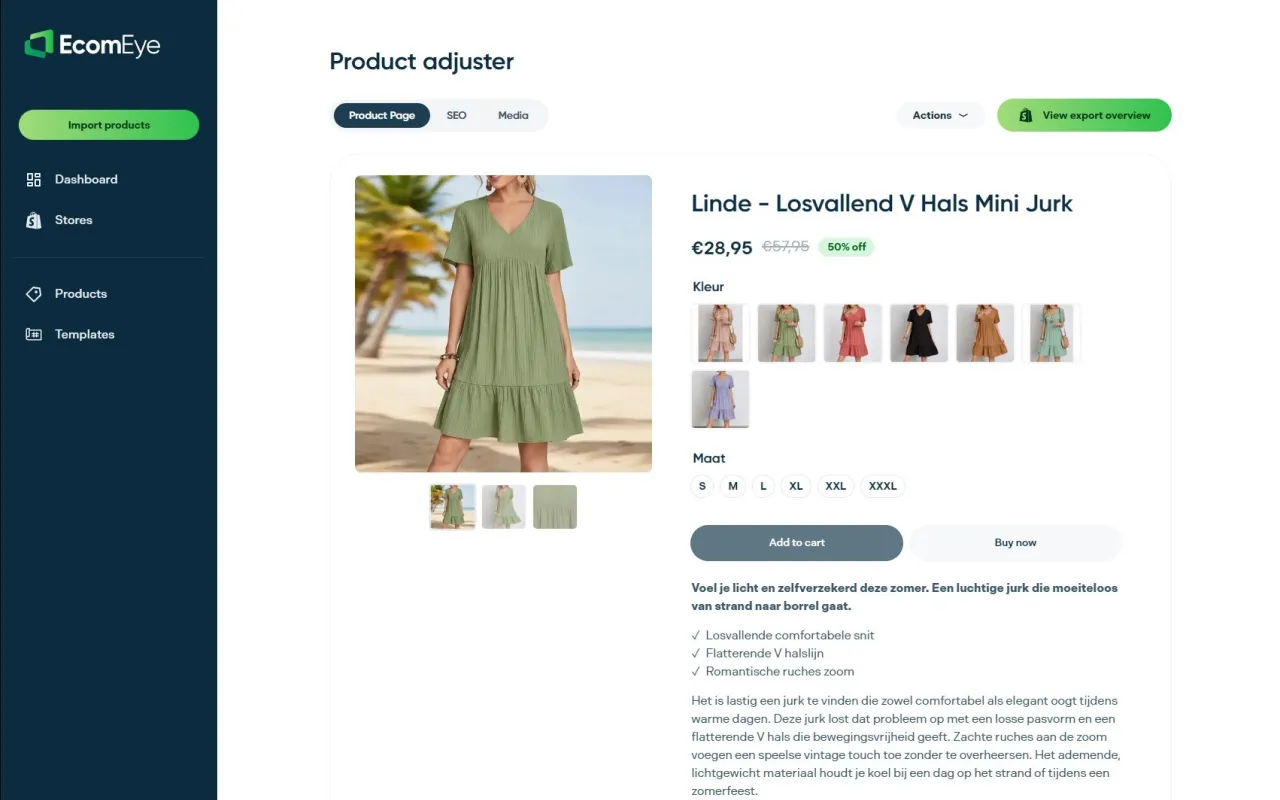
That matters most for dropshippers scaling fast, where manually rewriting hundreds of imported listings simply isn’t realistic and skipping the rewrite step risks the duplicate content and Merchant Center problems covered above. Because generated images and descriptions can be unique per user, two stores importing the same product link may end up with unique pages rather than copies of each other. If you’re weighing whether to build a rewriting pipeline yourself or use one, the Try-out plan at €39 per month is the low-risk way to run your own batch through it, with the Scaler plan at €99 per month for larger, ongoing catalogues.
Templates and tools worth bookmarking
Before running your next import, keep these open in a tab:
- Shopify’s CSV import guide — the official column reference and step-by-step admin walkthrough, including the downloadable template.
- Brandsearch’s Shopify product downloader — pulls a public store’s catalogue into a Shopify-ready CSV for research or import prep.
- Matrixify’s product import/export documentation — the deeper reference for metafields and complex variant structures basic CSV can’t handle.
FAQ
How do I import products from other Shopify stores?
Export the public store’s catalogue into a Shopify-compatible CSV using a tool like Brandsearch’s downloader, clean the fields and image links, then upload it through Products > Import in your Shopify admin. Always test the file on a development store first, and rewrite any copied text and images before publishing.
What sells fast on Shopify?
Products with clear demand signals, low return rates, and genuine differentiation tend to move fastest, though exact winners shift by season and niche. Competitor research helps identify demand patterns, but pairing that research with unique product pages is essential to maintaining good search rankings.
Can you make $10k a month on Shopify?
It’s achievable for some stores, but it depends heavily on niche, ad spend, margins and how quickly you can list quality products without triggering duplicate content issues. Speed of listing matters, which is why many scaling dropshippers use bulk import combined with tools like EcomEye to publish unique pages faster than manual rewriting allows.
Does Kim Kardashian use Shopify?
There’s no verified public record confirming this, and it isn’t relevant to running a competitor-import workflow. Focus on your own catalogue strategy rather than celebrity platform choices.
Will importing competitor product text hurt my Shopify SEO?
Yes, publishing copied descriptions can trigger duplicate content issues in search rankings and lead to Google Merchant Center disapprovals. Running imported text through a rewriting step and generating original images, as tools like EcomEye’s AI product description generator do, addresses both risks before the listing goes live.
Ready to boost your product pages?
Generate high-converting, SEO-optimized product pages in bulk using AI automation used by e-commerce experts.
No credit card required