How to Remove Watermarks From Product Photos (and Stay Safe)
Removing a watermark from a supplier photo does not give you the right to use it. Learn the legal limits, Google's rules and a clean, bulk-ready alternative.

How to Remove Watermarks From Product Photos (and Stay Safe)

You can remove a watermark from a product photo in a minute with an AI eraser or a photo editor. But taking the watermark off does not give you the right to use the image. If the photo is not yours, you need permission first. For a dropshipper listing dozens or hundreds of products, the faster and safer route is usually to skip the supplier’s watermarked photo and publish unique images instead. That is what Ecom-eye is built for: it generates unique AI product images and pages in bulk from a product link.
This guide covers who may remove a watermark, how to do it properly on images you hold rights to, what Google Merchant Center expects, and what to do when you have no rights at all.
TL;DR
- Removing a watermark never grants permission. Rights come from the copyright owner, not from the edit.
- Google Merchant Center does not allow watermarks, copyright symbols or stamps on product images, so a watermarked supplier photo can keep your products off Google surfaces.
- On images you own or are licensed to edit, work from the highest-resolution file, erase only the mark, and check the result at 100% zoom and at shopper size.
- With no permission, ask the owner in writing, get a clean original, shoot a sample yourself, or use unique generated images.
- For bulk catalogues, unique AI images from a product link avoid the watermark problem altogether.
Table of Contents
- Why a clean photo is not a permitted photo
- What Google Merchant Center says about watermarks
- The route we recommend: unique images instead of cleaned copies
- How to remove a watermark from a photo you have rights to
- How to check that an edited photo still looks natural
- What to do if you do not have permission
- Publish unique product pages in bulk
- FAQ
- Sources
Why a clean photo is not a permitted photo
A watermark is a signal that someone claims the picture. It is often the only visible sign of who owns it, but it is not the source of the ownership. The owner holds the rights whether or not the mark is there.
The U.S. Copyright Office explains that the Digital Millennium Copyright Act (DMCA), the US law on online copyright, makes it unlawful to remove or alter copyright-management information in certain circumstances. That information includes identifying details and terms of use that travel with a work. A watermark carrying a name or a logo can fall into that description.
The Office’s guidance on permissions adds two points a seller should keep in mind. Copyright owners hold the exclusive rights to reproduce and adapt their works, and if you want to use something you did not create, you should determine its copyright status and seek permission unless a limitation applies. A missing copyright notice does not mean a picture is free to use.
Suppliers say this plainly in their own policies. One US wholesaler’s published copyright policy states that buying its products does not license its product photographs, and that removing or changing its watermark does not grant permission to use the image.
In practice, that gives you a simple test before you open any editor:
- Did you take the photo, or did you pay someone to take it for you under a contract that gives you the rights?
- Does a licence or written permission cover editing and commercial use on your store?
- If neither is true, treat the image as off limits, whatever the watermark looks like.
This is general information, not legal advice. If you have received a takedown notice or a claim about an image, speak to a copyright attorney.
Supplier photos on AliExpress and Amazon
Dropshippers often assume that a photo on a supplier listing is there to be reused. A listing being public does not make the picture free. We cover the platform side in more detail in our guides to AliExpress image copyright, AliExpress image licensing and Amazon product image copyright. If you ever need to defend your own photos, see how to enforce image copyright on Shopify.
What Google Merchant Center says about watermarks
Even if the legal side were settled, a watermark causes a second problem: your listings may not show on Google.
Google’s help page on text overlays says product images must give an unobstructed, clean view of the item, and it lists stock-photo watermarks, copyright symbols and graphic stamps among the overlays to avoid. The image-link specification takes the same line: it disallows promotional overlays and watermarks, and images that do not comply may not appear on Google surfaces until you correct them.
Google also offers automatic image improvements that try to remove detected text, watermarks, overlays and logos. The catch is that the original image can stay in place when the system cannot fix it without reducing quality. The same page names complex collages, heavy text over product features and strong or dense watermarks as cases where cleanup may fail, and in those cases you have to upload a compliant replacement. Do not rely on Google to rescue a watermarked supplier photo.
The fix Google gives is to update the submitted image URL to a valid image that meets the overlay rules, then save the product in Merchant Center.
Size matters as much as cleanliness
The same image-link page states that from January 31, 2027, product images must be at least 500 × 500 pixels, and it recommends 1500 × 1500 pixels or above for performance. A small, watermarked thumbnail from a supplier listing fails twice. For a deeper look at feed-ready sizes, see our guide to Google’s 500×500 rule and our note on Shopify image dimensions. Sellers who want to go further on resolution and listing quality will find useful detail in this piece on product detail page optimisation.
The route we recommend: unique images instead of cleaned copies
A cleaned copy of someone else’s photo carries three risks: the rights question, visible repair marks, and the fact that every other seller using the same supplier link has the same picture. Duplicate imagery is a weak base for a store that wants to rank and stay approved.
The better route is to give each product its own images. Ecom-eye imports product data from AliExpress, Amazon, Temu or competitor Shopify links, then generates unique titles, descriptions and AI product images. Our approach is designed so that all content and images are generated uniquely for each user, which removes the copyright and DMCA risk that comes with reusing a supplier’s picture, and every listing is unique even when it starts from the same product link. You can edit in bulk, use built-in templates, publish in several languages and export to Shopify in one click.
That means the watermark question mostly disappears: there is nothing to erase because you are not publishing the original file. You can see how this works in our AI product image generator, and the matching AI product description generator covers the text so the page is unique from the title down.
How to remove a watermark from a photo you have rights to
Sometimes the situation is straightforward: the photo is yours, you hired a photographer who placed a proof watermark, or the owner has told you in writing that you may edit it. In that case, careful removal is fine. Here is the routine, with what goes wrong at each step.
Step 1: Keep the original and work on a copy
Save the untouched file first and export the cleaned image as a separate file. If a repair looks wrong later, you can start again, and you keep a record of what you were given.
Step 2: Start from the highest-resolution file
Every removal tool rebuilds the covered pixels from the surrounding picture. More resolution means more information to rebuild from. Starting from a small supplier thumbnail and upscaling afterwards usually leaves a soft patch where the mark was.
Step 3: Select only the watermark
Whether you use an AI eraser with a brush or a selection tool in a desktop editor, cover the mark and a thin margin around it, not the product. The more of the product you select, the more the tool has to invent. Where the watermark sits on a plain background, the job is easy. Where it crosses fabric, a logo or text on packaging, expect trouble.
Step 4: Run the removal and repair what is left
In Photoshop-style editors, the usual approach is to select around the mark and use Content-Aware Fill for simple surrounding areas, then tidy leftover pixels with the Clone Stamp or Healing Brush. Translucent watermarks that span the whole frame are best done in small pieces, then softened at the edges. In free editors the equivalent is a heal-selection filter followed by the same cloning and healing tools. In an online AI eraser, brush slightly beyond the mark, run it, then re-brush anything left behind.
Step 5: Inspect the result properly
This is where most sellers stop too early. See the next section for the checks.
Step 6: Cropping is a last resort
Cropping works only when the mark is near an edge, and it changes the composition and can cut useful context out of the shot. If the crop damages the product view, find a clean file or reshoot instead.
None of this is quick for a catalogue. Each image takes several passes, and with 200 products the time adds up. That is a further reason to generate images in bulk rather than edit them one by one.
How to check that an edited photo still looks natural
A watermark removal can look perfect in a thumbnail and fall apart on a product page. Check three things.
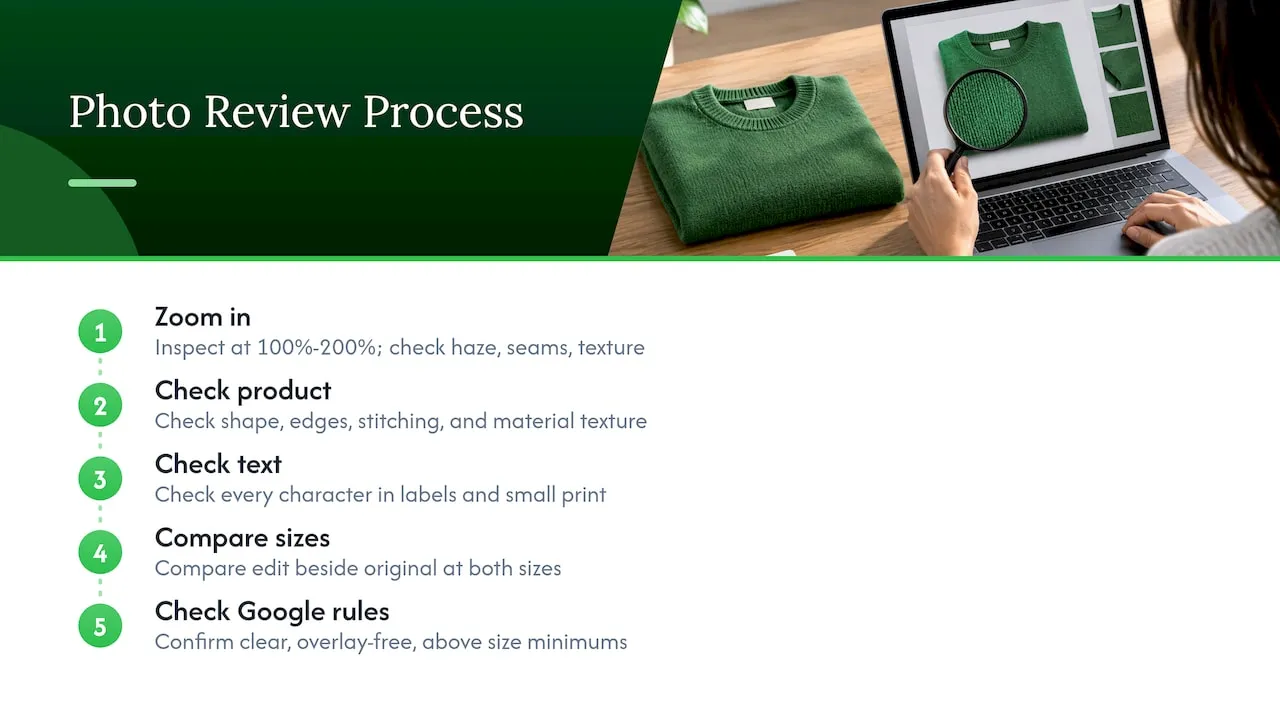
Zoom in. Inspect the repaired area at 100% to 200%. Look for leftover haze, ghost outlines, seams, smeared texture, mismatched colour and gradients, and soft patches next to sharp areas.
Look at the product, not just the patch. Check shape, proportions, edges, reflections, zippers, stitching and material texture. Glossy surfaces and fabrics show repairs most clearly because the tool has to invent a pattern.
Check text and labels. AI rebuilds covered pixels from nearby context, so labels, logos on the product and any small print are the least reliable parts. If the product carries readable text, check every character, and fix it by hand or use a different image.
Then view the image at the size shoppers will see it. A fix that looks flawless zoomed in can show sharpening halos or compression artefacts at the final display size, and the reverse can be true as well. Compare the edit beside the original at both sizes before you publish.
Finally, test it against Google’s rules, not just your eye. The image should be clear, free of overlays and above the size minimums above. For a fuller checklist, see our product image best practices for Shopify stores and Shopify product images SEO guide.
What to do if you do not have permission
If the image is not yours and nobody has licensed it to you, removing the watermark is the wrong next step. These are the ones that work, in the order we would try them:
- Use unique generated images. Create your own product images from the product link and publish those. With Ecom-eye this happens in bulk, so a 100-product import does not turn into 100 editing jobs.
- Ask for permission in writing. The Copyright Office says to seek permission from the current owner of the exact material before use unless a limitation applies. Ask for written confirmation that states whether you may edit the photos and whether you may use them on your store and in Google Shopping.
- Request clean originals. Check your supplier agreement or the supplier’s media portal, and ask for unwatermarked files together with that written permission.
- Photograph a sample. If you cannot clarify the rights, buy one unit and shoot it yourself.
Two mistakes come up again and again. Attribution does not replace permission, and neither does the fact that an image is publicly posted. And a feed that accepts an image is not proof that you may use it: usage permission and Google feed compliance are separate checks.
Replacing images already live on your store
If unauthorised photos are already published, replace them. Delete the old image from the product, put the authorised or generated image in the primary position, resync your product feed and check Merchant Center for remaining image issues. Our guide to the ideal product gallery for Google Shopping shows how many images to include and in what order.
Our view: stop repairing other people’s photos
Every week a dropshipper decides between fixing a supplier’s watermarked picture and moving on. We think the second choice wins, and the reasoning is simple.
Editing a copied photo still leaves you with a picture another seller can also publish, and it still leaves the question of who owns it. A store built on repaired copies has the same weakness across hundreds of pages: duplicated visuals, uncertain rights and the risk of disapproved products.
That is why Ecom-eye generates every image and every description uniquely for each user, even when two users start from the same product link. The point is not speed alone. It is a catalogue where the watermark problem never arises, and where Google-facing details such as variants and Merchant Center requirements are handled with built-in tools.
If you take one thing from this guide: do not spend your hours erasing logos. Spend them choosing products.
Koen
Publish unique product pages in bulk
Ecom-eye is a pay-as-you-go and subscription platform for Shopify dropshippers who need unique, Google-ready product pages at volume. Paste in product links from AliExpress, Amazon, Temu or competitor Shopify stores, generate titles, descriptions and AI images, adjust them with templates and bulk editing, and export to Shopify in one click. Plans on the pricing page start with Try-out at €39 per month and Scaler at €99 per month, and new users can start with a free trial.
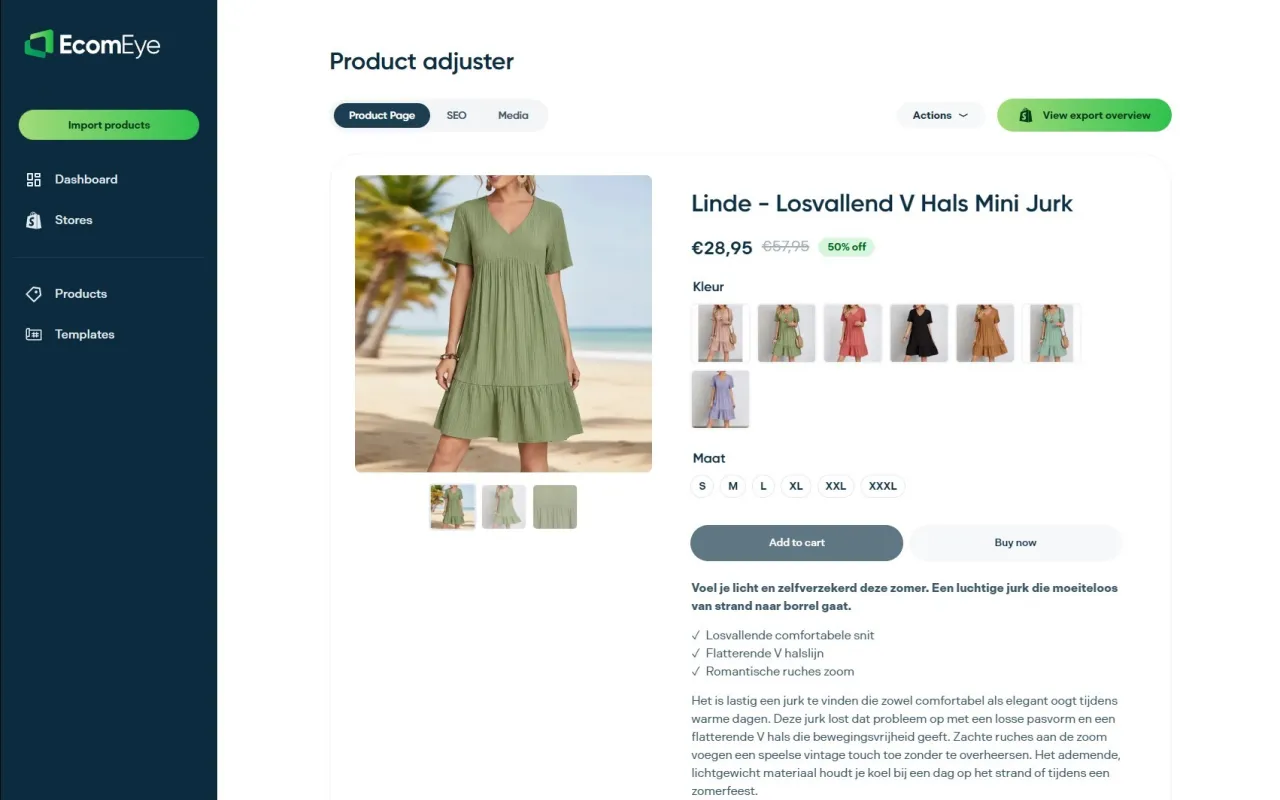
If you are importing a large batch this week, start with a handful of products and compare the generated pages with the watermarked originals you were about to clean.
FAQ
Is it legal to remove a watermark from a product photo in the US?
It depends on who owns the image and what the watermark says. The DMCA makes it unlawful to remove or alter copyright-management information in certain circumstances, and a watermark carrying an owner’s name can qualify. If the photo is yours or you hold written permission to edit it, removal is not the issue. For anything else, speak to a copyright attorney.
Does removing the watermark give me permission to use the photo?
No. Permission comes from the copyright owner or a licence, never from the edit. Some suppliers state in their policies that changing or removing their watermark grants no rights. Get written confirmation covering editing and use on your store and in Google Shopping.
Will Google reject a product image with a watermark?
Google Merchant Center disallows watermarks, copyright symbols and graphic stamps on product images, and non-compliant images may not appear on Google surfaces until fixed. Google’s automatic improvements may remove some marks, but the original can stay when the system cannot fix it cleanly. Replace the image URL with a compliant one and save the product.
What is the quickest way to get clean images for many products?
Generating unique images in bulk from your product links. With Ecom-eye you import the links, generate images and descriptions, and export to Shopify in one click, so you are not editing each supplier photo by hand.
Sources
- The Digital Millennium Copyright Act, U.S. Copyright Office
- Circular 16A: How to Obtain Permission, U.S. Copyright Office
- Copyright & Content Use Policy, KT Supply
- Google Merchant Center Help: Text on image
- Google Merchant Center Help: Image link
- Google Merchant Center Help: Allow Merchant Center to improve your product images
- Product detail page optimisation guide