Prepare Catalogs for Google's 500×500 Rule: Image Requirements & Fixes
Prepare for Google's 500×500 image rule. Warnings start Apr 14, 2026; enforcement Jan 31, 2027. URL rules, AI metadata needs, and bulk fixes

Prepare Catalogs for Google’s 500×500 Rule: Image Requirements & Fixes

Google will enforce a 500×500 pixel minimum for every product image submitted through image_link and additional_image_link from 31 January 2027, with warnings appearing in Merchant Center from 14 April 2026. Files must stay under 16 MB and 64 megapixels, in JPEG, WebP, PNG, non-animated GIF, BMP or TIFF format. Google recommends 1500×1500 pixels or larger for the best presentation. If you haven’t audited your feed yet, do it this week.
TL;DR:
- The new minimum image size requirement of 500×500 pixels starts enforcement on January 31, 2027, with warnings appearing from April 14, 2026.
- Uploads should prioritize images of 1500×1500 pixels or larger for best performance and avoid exceeding 16 MB in JPEG or WebP formats.
- URL formatting errors, incorrect file extensions, blocked
robots.txt, or redirects are common causes of image disapproval rather than pixel size issues.- Google prohibits promotional overlays, watermarks, borders, placeholders, and multiple products in a single image, except for branding physically printed on the product.
- Use bulk-generation tools to efficiently replace undersized images, preserve metadata for AI images, and fix variant mapping errors before the 2027 deadline.
Table of Contents
- What are the current Google Shopping image size requirements?
- How do I submit image URLs correctly for Google Shopping?
- What content is banned from Google Shopping product images?
- How do I fix a rejected or flagged product image?
- What makes a Google Shopping image perform well, not just pass?
- Do AI-generated product images need special metadata?
- What’s the enforcement timeline and what should I do now?
- Where large catalogues actually lose the fix
- Fix your product images before the 2027 deadline hits
- Sources worth bookmarking
- Sources
- FAQ
What are the current Google Shopping image size requirements?
Merchant Center still accepts smaller images for some categories today, but that changes soon. Non-apparel products can currently pass at 100×100 pixels, and apparel at 250×250, according to Google’s own guidance on undersized images. Both thresholds disappear on 31 January 2027, replaced by a single 500×500 pixel floor across every category.
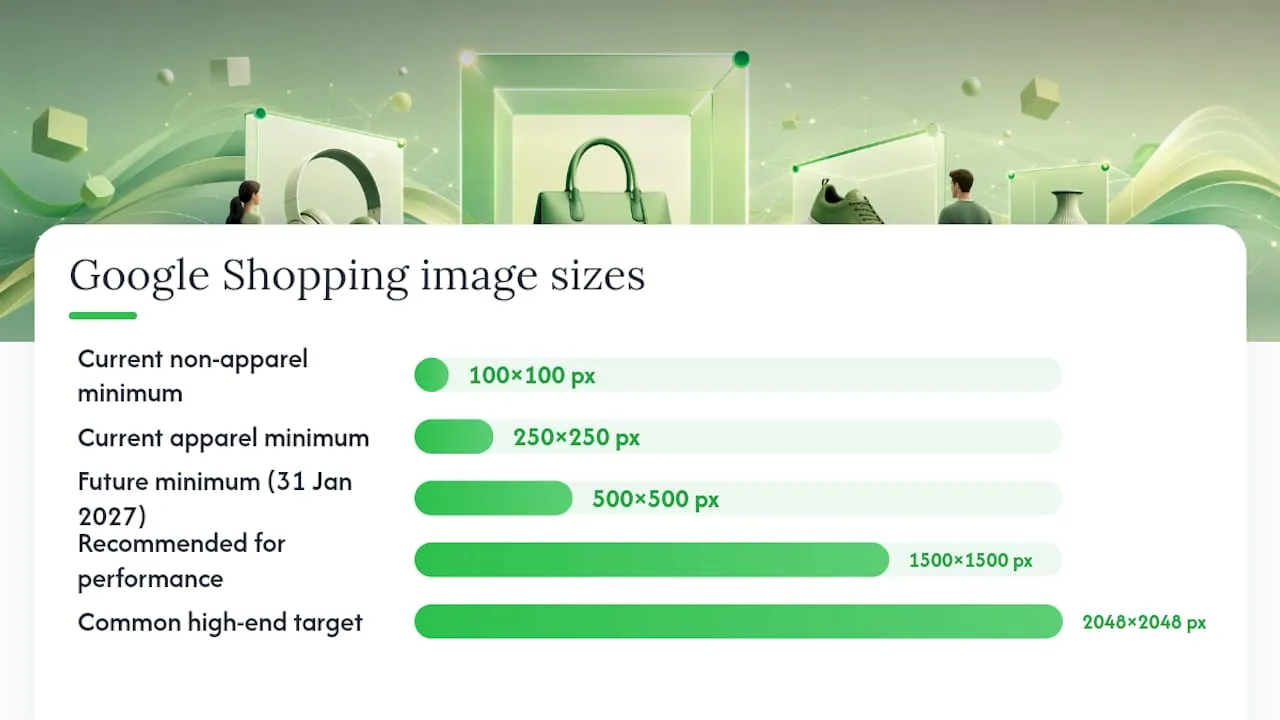
That’s the bare minimum to avoid disapproval, not the size that actually performs well. Google’s image_link documentation recommends 1500×1500 pixels or higher for best results, and plenty of stores now push to 2048×2048 for flagship products photographed against clean backgrounds. Bigger files hold detail through zoom and cropping across placements, from the main Shopping tab to Performance Max feeds.
Here’s the reference table worth bookmarking:
| Requirement | Value |
|---|---|
| Minimum (effective 31 Jan 2027, all categories) | 500×500 px |
| Current minimum, non-apparel | a smaller minimum |
| Current minimum, apparel | 250×250 px |
| Recommended for performance | 1500×1500 px or larger |
| Common high-end target | 2048×2048 px |
| Maximum file size | 16 MB |
| Maximum resolution | 64 megapixels |
| Accepted formats | JPEG, WebP, PNG, non-animated GIF, BMP, TIFF |
A practical rule for most catalogues: shoot or generate images no smaller than 1500×1500, export as JPEG or WebP for a good size-to-quality ratio, and keep every file well clear of the 16 MB ceiling. Anything you’re currently serving at the old 100×100 or 250×250 minimums needs replacing regardless of how well it’s performing today, because the enforcement date doesn’t care about click-through history.
How do I submit image URLs correctly for Google Shopping?
Most disapprovals that look like “image quality” problems are actually URL problems. Google’s image_link attribute has strict formatting rules, and small mistakes here cause repeated feed failures long before anyone checks pixel counts.
- The URL must start with
http://orhttps://and follow RFC 3986 encoding, meaning spaces and special characters need proper percent-encoding rather than raw text. - Only one image_link is accepted per product; extra image URLs belong in additional_image_link fields, not stacked into the same attribute.
- The file extension must match the actual format. A file saved as PNG but linked with a
.jpgextension throws an “unsupported image type” error even though the image itself is fine. - Check
robots.txton your hosting domain or CDN. If Googlebot-image is blocked, Google can’t fetch the file, and the product gets flagged as if the image doesn’t exist. - If images sit behind redirects, make sure the final destination resolves cleanly. Chained redirects and login-gated CDNs are a common, invisible cause of fetch failures.
- Avoid linking to thumbnail versions of your product photos. A 150×150 thumbnail generated by your theme will fail the size requirement even if the original file is enormous.
- Never link to an upscaled image pretending to be high-resolution. Google’s crawler reads pixel dimensions, but a blurry, artificially enlarged file still reads as poor quality to shoppers and can trigger quality-based disapprovals separately from the size rule.
Test your image URLs directly in a browser before submitting a feed. If the image doesn’t load instantly and cleanly for you, it won’t load for Google’s crawler either.
What content is banned from Google Shopping product images?
Editorial rejections are the ones merchants find most frustrating, because the image is technically valid but still gets refused. Google’s image guidelines prohibit several categories of content on your primary product image:
- Promotional text or overlays, including “Sale,” “Free Shipping,” or percentage-off badges layered onto the photo.
- Logos or watermarks that don’t belong to the product itself, including your own store’s watermark stamped across the image.
- Decorative borders, frames, or coloured backgrounds behind the product.
- Placeholder graphics, “image coming soon” boxes, or stock icons standing in for a real photo.
- Multiple unrelated products crammed into a single frame when the listing is for one item.
There’s a reasonable exception: branding that’s physically printed on the product, like a logo stitched into a jacket or embossed on a phone case, is fine because it’s part of the item itself, not an overlay you’ve added. Lifestyle shots, model photography, and staged scenes are also welcome. They just belong in additional_image_link fields rather than the main image slot.
Apparel gets its own nuance. Model shots are actively encouraged as additional images because they help shoppers judge fit and drape, but the model needs to show the full garment. Cropping off the head or feet on the primary product shot is a common rejection reason, since Google wants the full item, not a partial view, as the default frame.
Pro Tip: Keep the product filling 75 to 90 percent of the frame. Too much empty space around it reads as a low-effort photo; too little makes the image feel cropped and cramped in thumbnail view.
How do I fix a rejected or flagged product image?
Merchant Center gives you a direct path to every affected SKU, but most merchants don’t check it until disapprovals pile up. Start in the Diagnostics tab, look for Needs attention, and open the item-level warnings. You’ll often see messages like “Image too small for upcoming enforcement,” which flags products that pass today’s minimum but will fail once the 500×500 rule goes live.
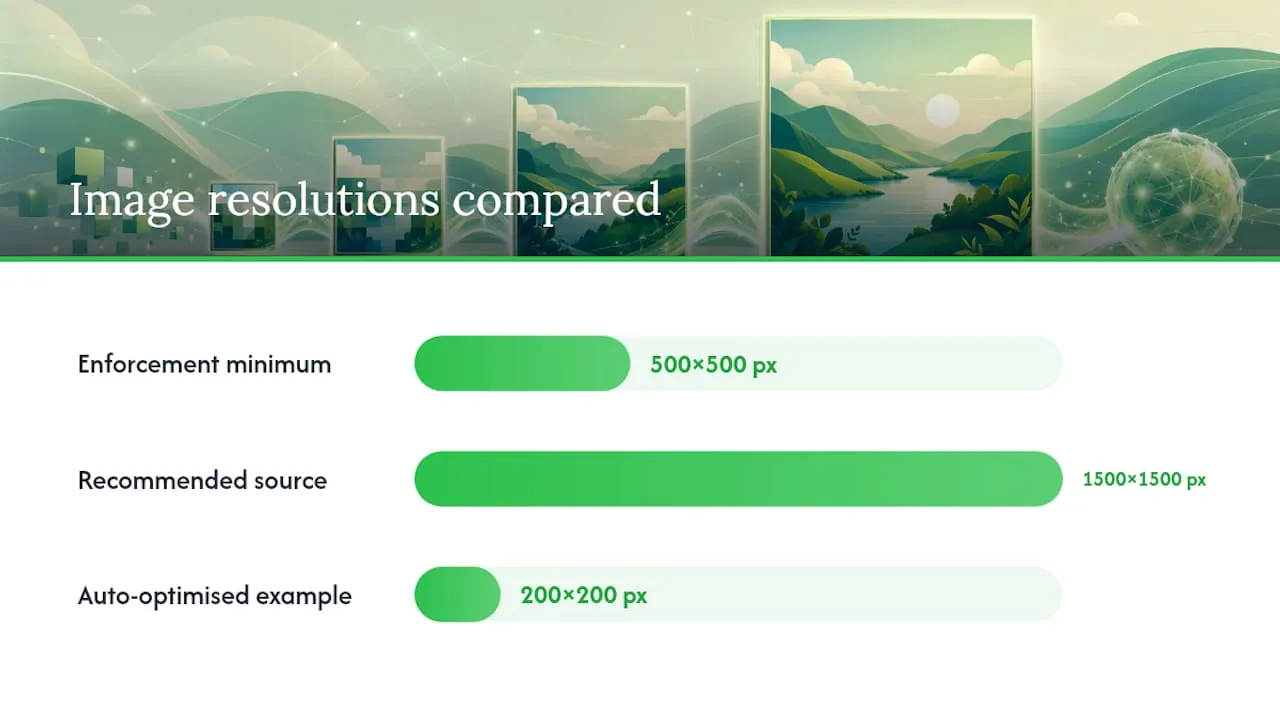
One thing worth understanding before you start replacing files: Google can auto-optimise some undersized images to meet the new minimum, effectively upscaling them slightly to bridge the gap. That keeps a product live, but an auto-optimised image is still a compromise, not a genuine fix. If the original source photo exists at higher resolution, replace it yourself rather than relying on Google’s optimisation, since a real 1500×1500 image will always outperform an upscaled 200×200 file dressed up to pass.
The remediation workflow, once you’ve identified the affected products:
- Export the list of impacted SKUs directly from the “Needs attention” panel or via Download impacted products.
- Pull original high-resolution source files where they exist, or commission new photography or AI-generated replacements for products that never had a proper shoot.
- Update the image files on your website or CDN, then update the feed’s image_link and additional_image_link values if the URLs changed.
- Trigger a fetch or reprocess in Merchant Center and check the diagnostics tab again in 24 to 48 hours to confirm the warning has cleared.
- For variant-heavy listings, double check that each colour or size variant points to its own correct image rather than all variants sharing one generic photo. This is one of the most common and easily missed mistakes, especially on stores that bulk-imported variants without mapping images individually.
What makes a Google Shopping image perform well, not just pass?
Passing the technical check gets your listing live. Getting clicks is a different problem, and it comes down to composition as much as compliance.
- Keep the product at 75 to 90 percent of the frame, consistent with the composition guidance behind most high-performing Shopping listings.
- Use a square, 1:1 aspect ratio wherever possible. Google Shopping placements crop inconsistently across the Shopping tab, Performance Max, and Discovery ads, and square images hold up better across all three.
- Shoot or generate at 1500×1500 pixels minimum, and consider 2048×2048 for hero products, since larger source files reduce visible compression artefacts once Google resizes them for different placements.
- Fill your additional_image_link slots (up to 10 per product) with lifestyle shots, close-up detail crops, and scale references, roughly in that order, so the shopper sees context first, texture second, and size third.
- When resizing in bulk, work from the largest master file rather than re-compressing an already-compressed image, since repeated compression is what pushes files toward visible artefacting long before they hit the 16 MB cap.
Pro Tip: If your CDN auto-compresses on upload, check the output resolution afterward. Some platforms silently downscale images past your intended size to save bandwidth, which quietly reintroduces the exact problem you were trying to fix.
For a deeper breakdown of composition and sizing decisions specific to Shopify catalogues, see this guide on product image best practices for Shopify stores.
Do AI-generated product images need special metadata?
Yes, and this is the requirement most stores miss entirely. Google’s product data specification requires that any image created with generative AI retain metadata identifying its digital source type. Specifically, Google looks for IPTC tags such as TrainedAlgorithmicMedia, CompositeSynthetic, or AlgorithmicMedia embedded in the file.
The practical risk is that these tags get stripped without anyone noticing, usually during resizing, format conversion, or a trip through a compression tool that rebuilds the file from scratch.
- Check the metadata on an AI-generated image before you upload it, using any tool that reads IPTC fields, not just the visible EXIF camera data.
- Avoid batch resizing tools that rebuild files from pixel data alone, since many strip embedded metadata as a side effect.
- If you convert file formats (say, PNG to WebP), verify the metadata survived the conversion rather than assuming it did.
- Never deliberately strip IPTC tags to “clean up” a file. Doing so on an AI-generated image can itself trigger a policy issue, separate from any image quality problem.
If you generate product images through an AI tool as part of your workflow, confirm the platform preserves this metadata by default. It’s worth checking before you scale image generation across an entire catalogue rather than discovering the gap after a batch of disapprovals.
What’s the enforcement timeline and what should I do now?
Two dates matter, and they’re not the same thing operationally. From 14 April 2026, Merchant Center starts surfacing warnings on any image below 500×500 pixels, but those products stay live. From 31 January 2027, the rule becomes an actual enforcement point, and undersized images can trigger disapproval.
That gap is your window to fix things without pressure. Here’s the order to work through it:
- Export your full list of impacted products from Merchant Center’s diagnostics panel as soon as warnings appear, using Download impacted products.
- Sort by traffic and margin, not alphabetically. Fix your highest-selling SKUs first, since a delay on a low-traffic product costs far less than a delay on a bestseller.
- Replace images at the source (your website or CDN), aiming for 1500×1500 or higher rather than the bare 500×500 minimum.
- Update your feed and trigger a reprocess, then use View fix inside Merchant Center to confirm the specific warning has cleared for each product.
- Re-check diagnostics weekly through early 2027 rather than assuming a one-time fix holds, since new products or supplier-provided images can quietly reintroduce the same problem.
Where large catalogues actually lose the fix
Most image disapprovals I see trace back to the same handful of causes: watermarked supplier photos pulled straight from AliExpress listings, mismatched file extensions from bulk CSV imports, and variant images that never got mapped correctly during a rushed migration. None of these are hard problems individually. They become hard at scale, when a store is trying to fix 4,000 SKUs with the same manual process that worked fine for 40.
Templated, automated image generation is the only realistic answer once a catalogue passes a few hundred products. Doing it by hand means someone opening each listing, checking pixel dimensions, checking metadata, checking the file extension, and repeating that four thousand times without making a mistake on any of them. That’s not a workflow, it’s a liability.
Customers scaling dropshipping catalogues run into exactly this bottleneck, which is part of why bulk, metadata-preserving image generation matters more than most merchants expect until they hit it. It’s worth reviewing your own catalogue’s history of disapprovals before assuming your current process will hold through 2027.
— Koen
Fix your product images before the 2027 deadline hits
There are manual routes to this problem: hire a photographer for every SKU, or spend hours per product cleaning up supplier images in an editor. Both work at small scale and both collapse the moment your catalogue passes a few hundred items. There is a solution built for exactly the gap between those two options: bulk-generating compliant, high-resolution product images without the per-image labour or the photography budget.
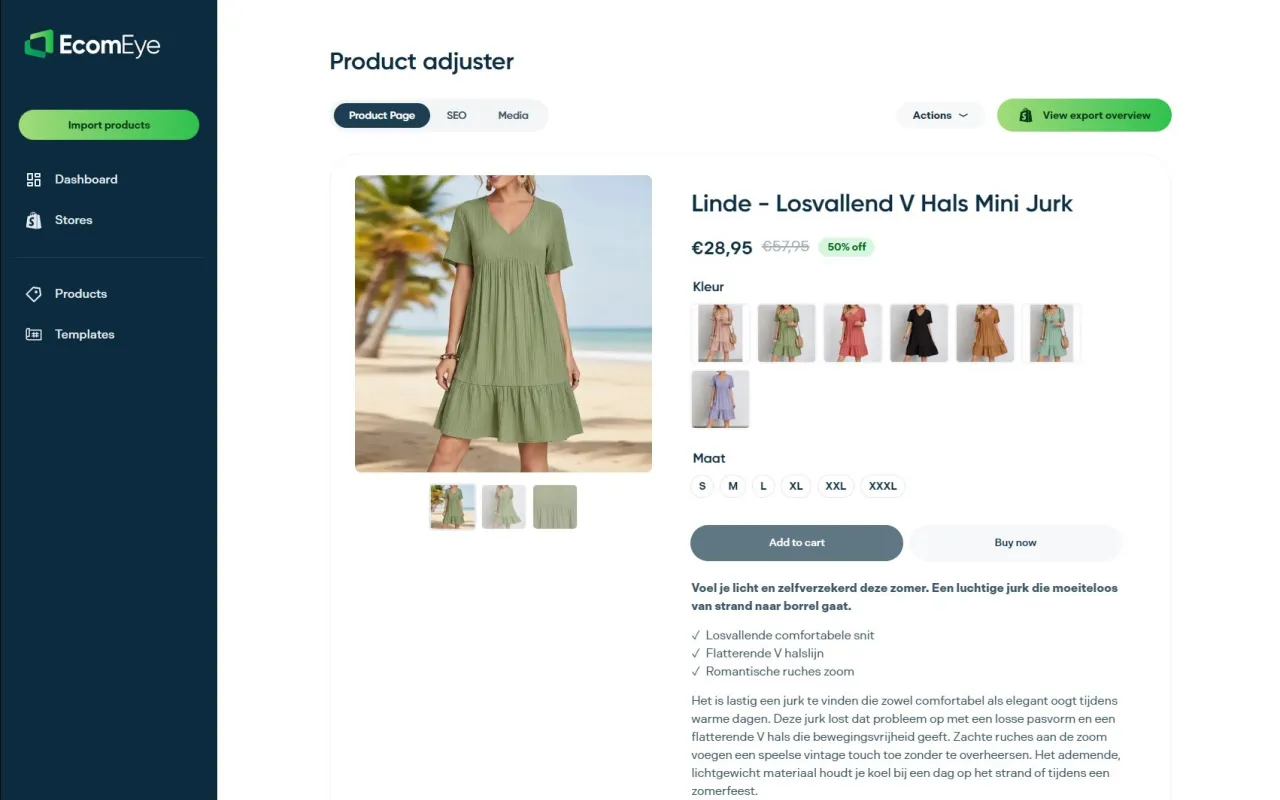
Import your product data from AliExpress, Amazon, Temu, or a competitor’s Shopify store, and a platform generates unique, copyright-safe images and SEO-ready descriptions in bulk, preserving the metadata AI-generated images need to stay compliant. Export straight to Shopify in one click, no manual resizing, no re-uploading, no checking file extensions one product at a time. Start with the AI Product Image Generator to see how quickly a full catalogue can move from flagged to compliant, and pair it with the AI Product Description Generator so your listings are ready on every front, not just the image.
Sources worth bookmarking
Keep these open while you audit your feed, since Google updates specifics inside these same pages rather than announcing changes elsewhere.
- [Image link [image_link] documentation for the full technical spec: formats, size caps, and URL rules](https://support.google.com/merchants/answer/6324350)
- Merchant Center product data specification update for the exact enforcement timeline and warning behaviour.
- How to fix: Image too small for current category minimums and diagnostic guidance.
- Product data specification for AI image metadata for the IPTC tagging requirements on generative AI images.
Sources
Google requires you to have the rights to use any image you submit, and images pulled directly from suppliers or competitors often carry watermarks or promotional overlays that trigger editorial rejection regardless of ownership.
- Merchant Center product data specification update 2026
- Product data specification (image metadata / AI image rules)
FAQ
What are the image size requirements for Google Merchant Center?
Images must reach 500×500 pixels once enforcement begins on 31 January 2027, though Google recommends 1500×1500 pixels or larger for best performance, with a 16 MB file size cap and 64 megapixel maximum.
How do you submit an image for Google Shopping?
You submit product images through the image_link attribute in your product feed, using a direct https URL that follows RFC 3986 encoding, plus up to 10 additional images through additional_image_link.
Can I use AI-generated images for Google Shopping listings?
Yes, provided the image retains IPTC metadata identifying it as AI-generated, using tags such as TrainedAlgorithmicMedia or CompositeSynthetic; tools like Ecom-eye’s image generator are built to preserve this metadata automatically.
How do I know if my product images are affected by the new rules?
Check Merchant Center’s Diagnostics tab under “Needs attention” for warnings like “Image too small for upcoming enforcement,” which flags any product below the 500×500 pixel threshold ahead of the 2027 deadline.
Ready to boost your product pages?
Generate high-converting, SEO-optimized product pages in bulk using AI automation used by e-commerce experts.
No credit card required