How to Normalize Supplier Data for Shopify Before You Import
Normalize supplier data for Shopify: map columns to Shopify's CSV fields, clean titles, SKUs, prices and variants, and fix import errors before they cost you.

How to Normalize Supplier Data for Shopify Before You Import

To normalize supplier data for Shopify, you map every supplier-specific column, label and format onto one consistent model, then match that model to Shopify’s own product CSV fields: Title, URL handle, SKU, Price, Inventory quantity and the option columns. You do it in a staging copy, never in your live catalogue, and only after that do you rewrite titles and descriptions. This guide gives you the order of work, the exact field rules, and the checks that stop a messy spreadsheet turning into duplicate products, deleted variants or Google Merchant Center disapprovals.
TL;DR
- Normalizing means mapping supplier labels and formats to one internal model, then to Shopify’s CSV headers. Do it in a staging file, not in your store.
- Clean first (formats, units, categories, duplicates), enrich second (titles, descriptions, images). Rewriting copy on top of inconsistent data wastes the work.
- Shopify’s rules are strict: comma-delimited CSV, prices with no currency symbol, weight in grams, a repeated URL handle on every variant row.
- Match duplicates on hard identifiers (SKU, GTIN, MPN plus brand), and send doubtful matches to a human instead of guessing.
- If you run Google Shopping, price, currency and availability must agree across your product page, structured data, checkout and feed.
Table of Contents
- What “normalizing” supplier data actually means
- Clean first, enrich second
- Step 1: Put the file in staging, not in your store
- Step 2: Map supplier columns to Shopify’s CSV fields
- Step 3: Standardize the fields that break imports
- Step 4: Run the pre-import checks
- Step 5: Deduplicate without losing variants
- Step 6: Validate and import, then fix errors
- Step 7: Keep Shopify and Google Merchant Center in agreement
- Our perspective: normalize the data, then make the content yours
- Where Ecom-eye fits in
- FAQ
- Sources
What “normalizing” supplier data actually means
Every supplier describes the same things differently. One sends “Colour”, another “Color”, a third “Clr”. Sizes come as S/M/L, as 8-10-12, or as free text. Prices carry currency symbols, thousands separators or trailing notes. Normalizing is the job of translating all of that into one vocabulary and one format, so that a product from supplier A and a product from supplier B look identical to your store.
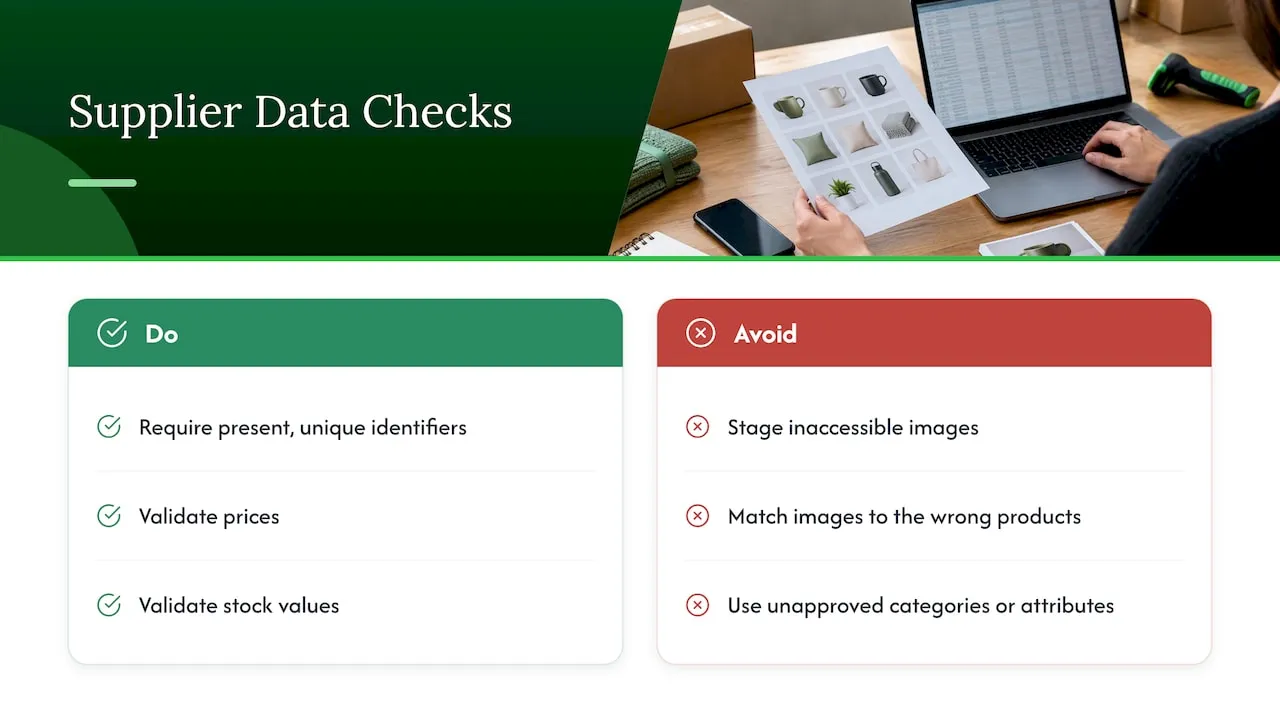
A useful working definition comes from a supplier data import workflow guide: map supplier-specific labels and formats to an internal data model, and check before staging that required identifiers are present and unique, prices and stock values are valid, images are accessible and correctly matched, and categories and attributes follow approved vocabularies. Another source puts the cost of skipping this plainly: without internal standards, every supplier onboarding turns into a custom project.
For a dropshipper the stakes are practical. A bad import does not just look untidy. It can overwrite variants, create a second copy of a product you already sell, publish a price with a currency symbol that Shopify rejects, or push a feed to Google that contradicts your landing page.
Clean first, enrich second
Shopify’s own product-data guide separates raw supplier data, cleaned data and enriched data. Cleaning normalizes formats, aligns units, assigns categories and removes duplicates. Enrichment comes afterwards and adds customer-facing copy, attributes, media and structured fields.
The order matters. If you generate descriptions before the identity, units, categories and variants are settled, you will regenerate them every time a size chart or colour name changes. So the sequence is:
- Archive the original file untouched.
- Normalize identity, units, categories, variants and formats in a staging copy.
- Validate against Shopify’s CSV rules.
- Enrich: titles, descriptions, images, translations.
- Pilot a small batch, then import the rest.
On step 1, keep the raw supplier file. Guidance on import workflows recommends archiving originals before transforming them, so that when something looks wrong you can tell whether the problem began with the supplier or with your own transformation rules.
Step 1: Put the file in staging, not in your store
Treat any supplier file as untrusted. One catalogue-cleaning guide recommends a staging or review layer instead of importing straight into the master catalogue, so you can catch missing fields, format inconsistencies, duplicate products, taxonomy mismatches, variant problems and broken image references first.
For most Shopify merchants, “staging” is simply a copy of the spreadsheet with a column recording where each value came from, plus a tab for rows you are unsure about. You do not need a product information system to work this way. You need discipline: nothing goes into the Shopify upload file until it has passed your checks.
Step 2: Map supplier columns to Shopify’s CSV fields
Shopify’s CSV import documentation is the reference for the target. Your mapping table should have three columns: the supplier’s header, your normalized name, and the Shopify header. A typical mapping looks like this:
| Supplier label (examples) | Shopify field | Rule |
|---|---|---|
| Product name, Item, Description 1 | Title | One clear product name, no supplier codes or shouting capitals |
| Item no., Part no., Ref | SKU | Unique per variant, never reused |
| RRP, Cost, Price (USD) | Price | Number only, no currency symbol |
| Stock, Qty, On hand | Inventory quantity | Whole number; applies only to single-location stores |
| Colour, Size, Material | Option name and value columns | Consistent vocabulary across all products |
| Weight (kg, lb, oz) | Weight | Number in grams |
| Image link | Image source | Publicly accessible URL |
| Product type, Group | Category | Shopify’s standard taxonomy |
Two mapping rules cause most of the pain. First, Shopify uses the URL handle as the unique product identifier, and new products with variants need one. Repeat the same handle on every variant row so the rows group into one product. Second, use commas as delimiters. If you open and save the file in Excel, check the export settings so that the comma format survives.
Step 3: Standardize the fields that break imports
Titles
Supplier titles are written for a trade catalogue: all caps, model codes, pack sizes in odd places. Normalize them to a pattern you can repeat, for example product type, key feature, material or colour. Do not worry about polish yet. The goal here is consistency, and persuasive wording belongs in the enrichment step.
SKUs
A SKU should be unique and stable. If your supplier’s codes are reused, truncated by spreadsheet software or missing on some rows, fix that now, because SKUs are what you will match on later when prices and stock change. Watch for leading zeros stripped by Excel and for scientific notation on long numeric codes.
Prices
Shopify wants prices without currency symbols. Strip symbols, spaces and thousands separators, use a full stop as the decimal mark, and check that no cell holds text such as “POA” or “call us”. Decide your pricing rule (cost plus markup, or supplier RRP) in a separate column so the logic is visible, and never overwrite the supplier’s original number.
Inventory
The Inventory quantity column applies only to stores with a single location. Make sure values are whole numbers, and decide in advance what a blank means. Treat blank incoming values cautiously: a blank in a supplier update may mean “unchanged”, not “zero”, and importing it as zero or as an empty overwrite can remove content you had approved.
Options and variants
Standardize option names (Size, Colour) and values (Small, not S, sm, small) across all products. This is also where a lot of data is quietly lost. When you update variant data in an existing store, include the Option1 name and Option1 value columns, or existing variants can be deleted. If you work with large variant counts, our guides on duplicating Shopify variants without CSV errors and on variant SEO and bulk workflow go deeper.
Weights, tags and categories
Enter weight as a number in grams. Convert pounds and ounces in your staging file, not by eye. Tags should use letters, numbers and hyphens. For categories, use Shopify’s standard taxonomy rather than the supplier’s own tree, because supplier categories rarely match each other. Apparel sellers also need to convert size systems (US, UK, EU) into one scheme before the import.
Image URLs
Images must sit at publicly accessible URLs. A link behind a supplier login or an expiring link will import as a broken image or not at all. Use the variant image column for variant-specific pictures, and open a sample of links in a private browser window before you upload. If you also want fresh, consistent visuals across a catalogue, see how bulk product image generation from a CSV keeps a catalogue consistent.
Step 4: Run the pre-import checks
Before a file goes near Shopify, run a short checklist: required identifiers present and unique, prices numeric, inventory in recognised formats, images reachable, category values from your approved list. The logic is the same whether you sell electronics or secondhand stock; a piece on vetting a used clothing supplier makes the point that diligence on the supplier side pays off before money moves, and the data version of that diligence is this checklist.
A quick way to organise the checks:
| Check | Pass condition | If it fails |
|---|---|---|
| Identifier | SKU filled and unique per variant | Generate or request codes; never import blanks |
| Price | Numeric, positive, no symbol | Strip symbols; flag text values |
| Stock | Whole number | Decide a rule for blanks |
| Image | URL opens publicly | Replace or re-host |
| Category | In your approved list | Map manually |
| Handle | Same value on all variant rows | Repeat it |
Step 5: Deduplicate without losing variants
Duplicates are the most common result of merging more than one supplier. The risk runs both ways: leave them and you have two pages competing for the same keyword; merge carelessly and you destroy sellable variants.
A sound approach, drawn from product-catalogue guidance:
- Match on deterministic identifiers first. Normalized GTIN, MPN and brand are the strongest keys; SKU works when it is your own. Use fuzzy or semantic matching only to propose candidates, and send uncertain matches to human review.
- Preserve the raw values. Keep the source value and where it came from beside the cleaned one, and tell true duplicates apart from valid variants, such as different colours or sizes, otherwise a merge can destroy sellable variant information.
- Define a winner per field. When two suppliers disagree, decide in advance which source is authoritative for each attribute, for example manufacturer data over supplier data.
- Use an exception queue. Rows you cannot match with confidence go to a separate tab for a person to decide. Guessing is how a size 10 ends up listed as a size 12.
If you import from competitor or marketplace links rather than spreadsheets, the same logic applies, with the added problem of copied text. Our guide to safe bulk import of competitor products and the one on importing products from URLs without duplicate content cover that case.
Step 6: Validate and import, then fix errors
Save the file as a comma-delimited CSV, with the Shopify headers exactly as documented. Import a small batch first. A pilot of 20 to 30 products shows you whether handles, variants and images behave before you commit the whole catalogue; we describe the method in piloting a supplier catalogue import.
When Shopify rejects rows, read the message. When related variant data is missing, the error tells you which columns need values. The usual causes and fixes:
- Variant columns flagged as missing: add the Option1 name and Option1 value, and repeat the handle.
- Garbled columns or one giant column: the file is not comma-delimited, usually after an Excel save. Re-export with the right setting.
- Price rejected: a currency symbol, a text value or a comma used as a decimal mark.
- Images not appearing: the URL is private, expired or redirects to a page rather than a file.
Step 7: Keep Shopify and Google Merchant Center in agreement
If you sell through Google Shopping, normalization does not stop at Shopify. Google expects the price and currency to match your product landing page, structured data and checkout, and availability to match across the same places. For the US and Canada, the feed price excludes taxes; for other countries it includes VAT or GST. Availability uses fixed values: in_stock, out_of_stock, preorder or backorder.
That has a direct consequence for supplier data. If your supplier feed says “Available”, “yes” or “3-5 days”, normalize it to one of Google’s values and make your Shopify inventory logic produce the same answer. Mismatches are a typical trigger for disapprovals. We cover the fixes in Merchant Center variant and availability mismatches and the five SKU-level fields that restore data quality.
Our perspective: normalize the data, then make the content yours
We see the same pattern with Shopify dropshippers. They spend hours tidying a supplier spreadsheet, then publish the supplier’s own wording, or text copied from a competitor, on top of it. The data is clean and the page is still a duplicate.
Our view is that these are two separate jobs with a fixed order. Normalization makes your catalogue consistent and importable. Content generation makes it unique. A product page that shares its text and images with every other store selling the same item invites duplicate-content problems and, for Google dropshippers, Merchant Center trouble. That is why we built Ecom-eye around uniquely generated titles, descriptions and images for each user, so that two merchants working from the same product link do not end up with the same page. If you want the wider approach, read how to build unique product catalogues.
My practical advice: do not buy a tool to fix a data problem you have not defined. Write your mapping table, your approved vocabularies and your exception rules first. Any tool, including ours, works better when the input is disciplined.
— Koen
Where Ecom-eye fits in
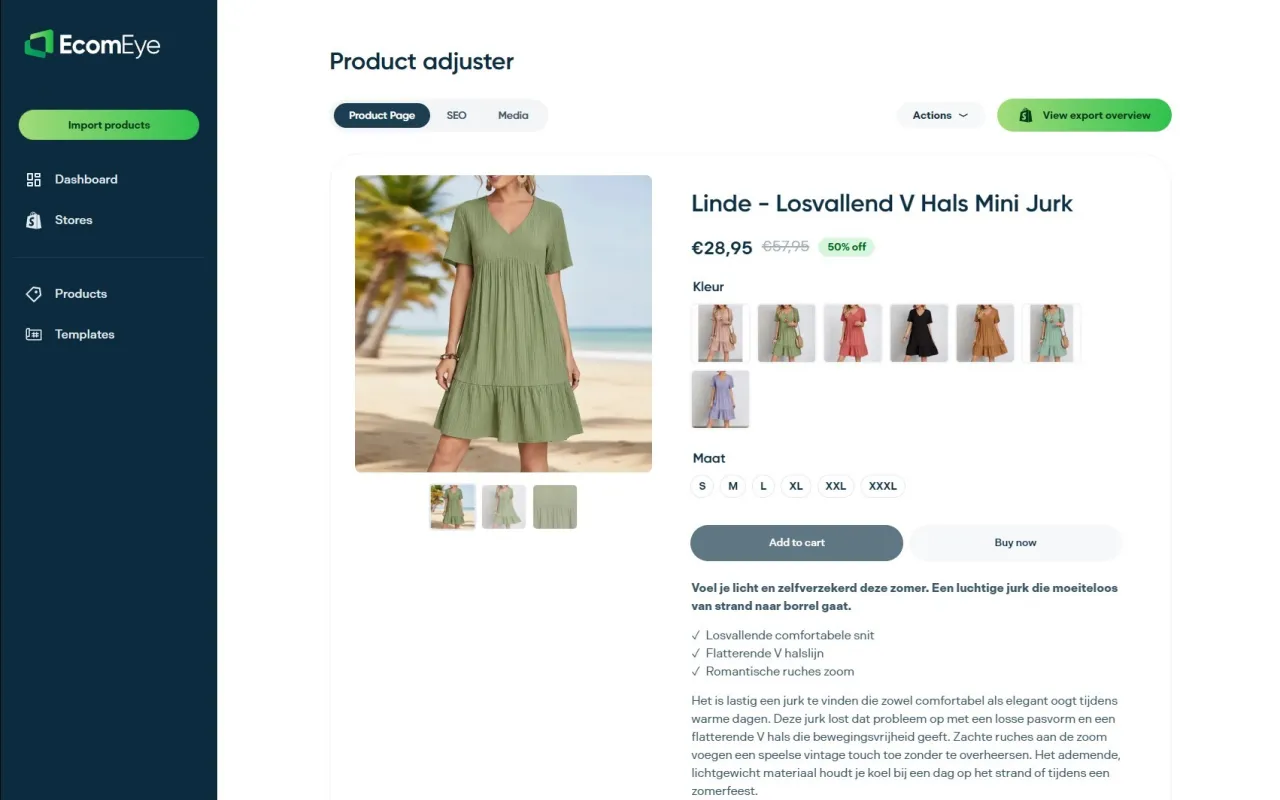
Once your data is normalized, the slow part is turning hundreds of rows into pages that are unique, search-ready and safe to publish. Ecom-eye imports products in bulk from AliExpress, Amazon, Temu or competitor Shopify links, generates unique titles, descriptions and AI product images, handles multi-language pages and size system conversion, and exports to Shopify in one click.
Plans start with Try-out at €39 per month, and Scaler is €99 per month. You can compare them on the pricing page, or see what the AI product description generator produces before you commit. For the export step, our guide to copyright-safe one-click bulk export to Shopify shows the flow.
FAQ
Should I clean supplier data before or after generating product descriptions?
Before. Cleaning fixes identity, units, categories and variants, while enrichment adds copy and media. If you write descriptions first, any later change to sizes, colours or categories forces you to redo them.
Can I import a supplier CSV straight into Shopify?
Only if it already matches Shopify’s format, which is rare. The file must be comma-delimited, prices must have no currency symbols, and variant rows need a repeated URL handle. Test a small batch first, and keep the original supplier file untouched.
How do I avoid deleting existing variants when updating products?
Include the Option1 name and Option1 value columns whenever your file updates variant-related data. Without them, Shopify can remove variants that already exist. Run the update on a few products before the full catalogue.
How do I tell a duplicate from a genuine variant?
Match on hard identifiers such as GTIN, or MPN plus brand, before anything else. Two rows with the same product name but a different size or colour are variants, not duplicates. Send anything unclear to manual review.
Sources
- Shopify Help Center: Using CSV files to import and export products
- Google Merchant Center: product data specification
- Google Merchant Center: create a product file
- Shopify: Product data enrichment for ecommerce
- Supplier product data import workflow guide
- How to clean supplier data before it destroys your catalogue
- How to merge multiple supplier catalogues into one clean structure
- Product deduplication guide
- Supplier product data onboarding checklist
Ready to boost your product pages?
Generate high-converting, SEO-optimized product pages in bulk using AI automation used by e-commerce experts.
No credit card required