3 Step Compliance Checklist for Google Merchant Unique Identifiers
Fix GTIN, MPN and SKU errors with a 3 step compliance checklist. Prevent disapprovals, check GTIN ownership with GEPIR, or scale with Ecom-eye.
3 Step Compliance Checklist for Google Merchant Unique Identifiers

Supply GTIN, MPN and brand whenever they exist. These are Google’s unique product identifiers, and every product also needs a stable internal ID, usually your SKU, that never changes once set. Never invent a GTIN or MPN to fill a gap. Only set identifier_exists to “no” when a product genuinely has none, such as a custom or vintage item.
TL;DR:
- Using manufacturers’ assigned GTINs and MPNs is crucial, and these should match official records to prevent listing disapproval and limited visibility.
- The internal product ID or SKU must remain stable, under 50 characters, and consistently structured across listings, because changes reset performance data and harm rankings.
- Set
identifier_existsto “no” only when a product genuinely lacks manufacturer GTIN, MPN, and recognized brand, to avoid flagging errors that lead to warnings or disapproval.- Common causes of identifier failures include checksum errors, brand mismatches, incorrect format lengths, and reused or fabricated GTINs, which can be verified through GS1 tools.
- Automating bulk verification and generation of product data, with careful documentation of identifiers, reduces disapproval risks and improves compliance at scale.
Table of Contents
- What are Google Merchant unique identifiers?
- Getting the feed ID and SKU right
- When should you use identifier_exists?
- Why identifiers fail validation and get flagged
- A quick checklist to fix identifier issues fast
- How Ecom-eye builds compliant product pages at scale
- Accuracy beats shortcuts every time
- Fix your feed with compliant pages, not copied ones
- Where to verify identifier rules directly
- Sources
- FAQ
What are Google Merchant unique identifiers?
GTIN, MPN, and brand together tell Google exactly what a product is, and getting them right is the difference between your listing surfacing for the right search and vanishing into limited performance. Google treats unique product identifiers as the global language for inventory. If a manufacturer has already assigned a GTIN to your item, submitting the listing without it can restrict how often it appears in Shopping results.
GTIN (Global Trade Item Number) is the barcode number printed on packaging. It comes in several accepted formats:
- UPC or GTIN-12, the standard 12-digit code used across North America
- EAN or GTIN-13, the 13-digit equivalent common in Europe and elsewhere
- ISBN, for books, either 10 or 13 digits
- GTIN-14, used for multi-packs and case-level shipping units
MPN (Manufacturer Part Number) fills the identifier gap when no GTIN exists. The rule here is strict: only use a number the manufacturer itself assigned. Never generate your own part number and label it an MPN. If you’re a reseller and the manufacturer hasn’t issued a part number, you likely can’t supply one, and that’s fine.
Brand matters even for private-label goods. If you manufacture and sell under your own label, your business name is the brand. Every variant, whether it’s a different size, colour, or material, needs its own distinct GTIN or MPN rather than one shared code across the whole product line.
Getting the feed ID and SKU right
The id attribute is not the same thing as GTIN or MPN. This is your internal key, the value Google uses to track a single listing’s performance over time, and it should be a stable SKU that never changes once assigned.
A few practices protect that stability:
- Keep the ID under 50 characters, using letters, numbers, and basic punctuation only
- Use the same ID structure consistently across every country or language version of a listing
- Never repurpose or reassign an ID to a different product later
- Treat it as permanent from the day you first publish the item
The reason this matters more than most merchants expect: changing a product’s ID resets its performance history. All the impression data, click history, and Shopping ranking signals tied to that product start from zero again. A rebrand, a supplier switch, or a lazy feed rebuild can quietly wipe out months of accumulated performance if the ID changes along the way.
When should you use identifier_exists?
Set identifier_exists to “no” only when a product genuinely has no manufacturer-assigned GTIN, MPN, or recognised brand. This covers a narrow set of real cases:
- Custom-made or bespoke goods with no manufacturer code
- Genuine vintage or antique items predating barcode standards
- Some own-brand goods where no formal MPN was ever issued
A CSV row for a genuinely identifier-free item might read: id: hand-carved-oak-bowl-01, title: Hand Carved Oak Bowl, identifier_exists: no, brand: [omitted]. In an XML feed, that’s <g:identifier_exists>no</g:identifier_exists> with no <g:gtin> or <g:mpn> tags present at all.
The trap here is setting this to “no” out of convenience rather than fact, just to skip the hassle of tracking down a real GTIN. Google’s systems cross-check this against product category and known brand data, and a mismatch generates a warning, not a pass.
Why identifiers fail validation and get flagged
Google checks submitted GTINs against GS1’s own standards. Errors typically fall into a few recurring patterns:
- An invalid checksum digit, meaning the number was mistyped or fabricated
- A GTIN registered to a different brand than the one listed on your product
- A GTIN length that doesn’t match any recognised format (not 8, 12, 13, or 14 digits)
- Conflicting brand and GTIN values that don’t correspond to the same manufacturer
Identifier problems, especially mismatched brand and GTIN pairs, are commonly cited as frequent causes of automatic disapproval for US-listed products, and many such issues could be avoided., and it’s an easy trap: a GTIN copied from a similar item elsewhere in your catalogue, or reused across a supplier change, will fail the moment Google cross-references it.
You can check ownership of a GTIN prefix through GS1’s GEPIR lookup, which shows which company registered a given barcode range. It’s a fast way to catch a mismatch before Google does. Repeated identifier problems across a catalogue don’t just cost individual listings visibility. Google tracks account-level data quality, and persistent violations can escalate toward account-level restrictions, which is a far more expensive fix than correcting a feed column.
A quick checklist to fix identifier issues fast
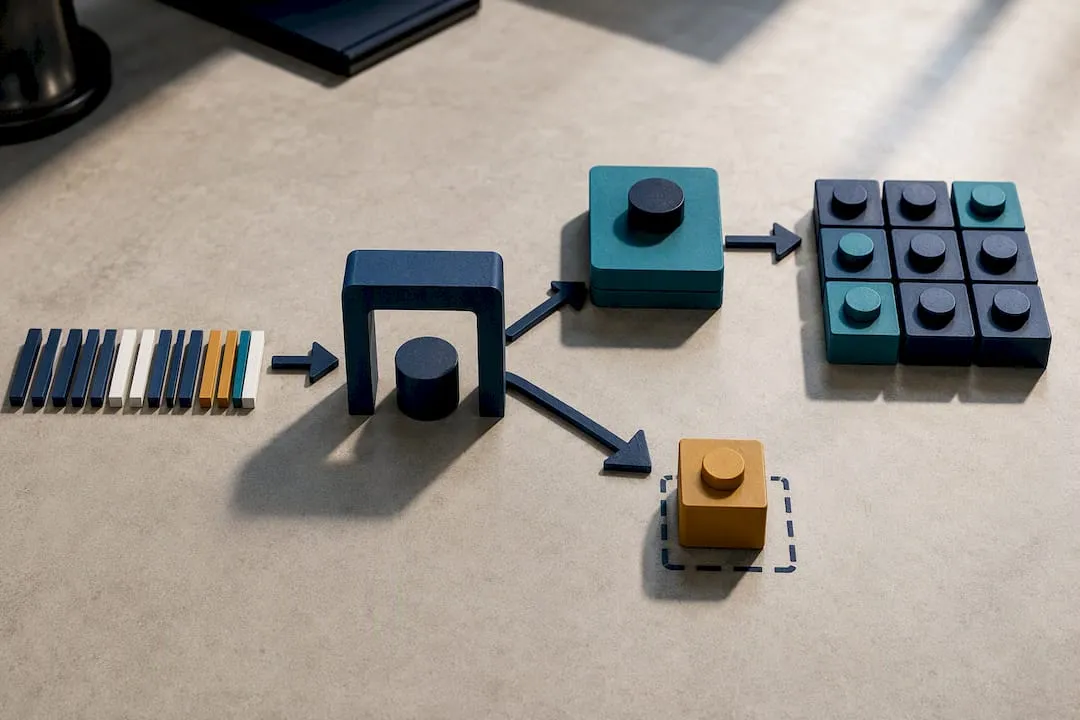
Three steps catch most problems before they reach Google:
- Check the product packaging or manufacturer datasheet for the printed barcode
- Contact the manufacturer directly if the code isn’t visible or documented anywhere
- Run the number through a GS1 validator or GEPIR before submitting it to your feed
A variant product with a proper GTIN and a custom item with none look like this in a feed:
| Field | Variant product (blue, size M) | Custom item (no UPI) |
|---|---|---|
| id | tshirt-blue-m | oak-bowl-custom-01 |
| gtin | 0123456789012345 | (omitted) |
| mpn | (omitted) | (omitted) |
| brand | YourBrand | YourBrand |
| identifier_exists | (omitted, defaults to yes) | no |
In Merchant Center, the Diagnostics tab under Products flags identifier warnings by item, so start there before resubmitting a full feed.
How Ecom-eye builds compliant product pages at scale
Manually verifying GTINs, MPNs, and brand fields across hundreds of SKUs is where most merchants lose the thread, and it’s usually the moment duplicate or careless listings creep in.
Ecom-eye was built around that exact bottleneck. It generates unique titles, descriptions, and AI product images in bulk, rather than copying supplier or competitor listings, which is the single biggest cause of the Merchant Center disapprovals merchants run into.
A few things that matter for identifier compliance specifically:
- Bulk import from various sources, without dragging duplicate copy along with it
- One-click export to Shopify, keeping your feed structure consistent instead of patched together by hand
- Multi-language page generation for merchants selling across regions
For deeper detail on structuring product data correctly once it reaches Shopify, the guide on common product listing challenges covers SKU mapping in more depth.
Accuracy beats shortcuts every time
The mistake I see most often isn’t a technical one. It’s merchants treating identifiers as a box to tick rather than data Google actually cross-checks. A fabricated MPN or a reused GTIN might pass on day one and quietly tank performance three weeks later when Google’s systems catch the mismatch.
The safer habit is boring but effective: document where every identifier came from, and when in doubt, omit rather than invent. A missing GTIN limits reach. A wrong one risks the account.
— Koen
Fix your feed with compliant pages, not copied ones
This service gives you a faster route to clean, disapproval-resistant listings than manually chasing GTINs across a growing catalogue. Instead of copying supplier descriptions and hoping Google doesn’t notice the duplication, you generate unique titles, descriptions, and images in bulk, then export straight to Shopify with your identifier fields intact.
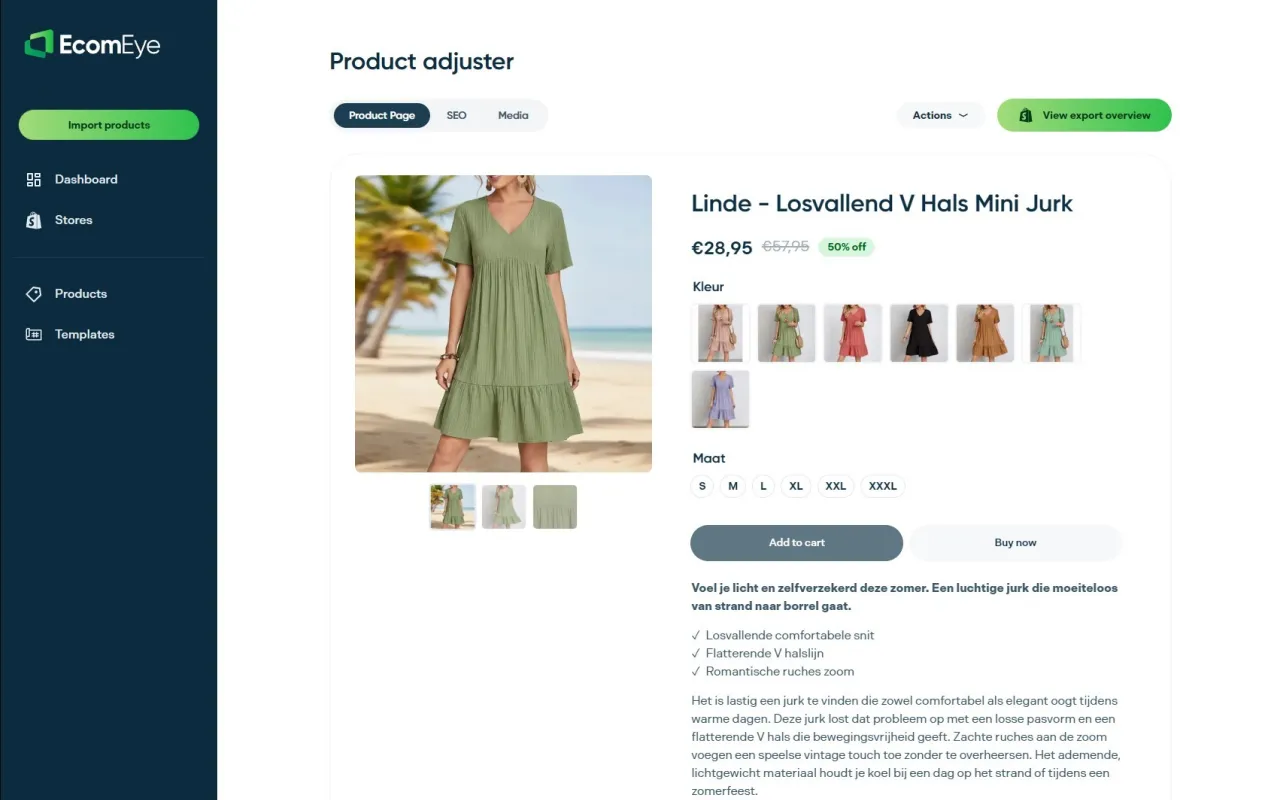
The AI product description generator handles the copy side directly, pulling from AliExpress, Amazon, Temu, or competitor links without reproducing their text. Pair it with the AI product image generator when supplier photos aren’t usable for your listings. If your catalogue also needs a structural check, the product-page optimisation guide is a useful companion read before you resubmit a feed. Start a trial and run your next batch of products through it before your current feed picks up another disapproval.
Where to verify identifier rules directly
For the rules themselves, go straight to Google’s unique product identifiers page and the product data specification. To confirm who owns a GTIN prefix, use GS1’s GEPIR lookup before you submit.
FAQ
How do I identify a Google merchant?
A Google merchant is identified by their unique Merchant Center account ID, visible in the Merchant Center dashboard URL and account settings, separate from any product-level identifiers like GTIN or SKU.
Can I look up a merchant ID?
Yes, if you have access to a Merchant Center account, the merchant ID appears in the account settings and in the URL when logged in; there’s no public directory for looking up another business’s merchant ID.
What is a merchant product identifier?
It refers to the combination of GTIN, MPN, and brand that Google uses to uniquely identify a product, alongside the seller’s own internal id (SKU) attribute that tracks that listing’s performance.
How do I trace a Google merchant transaction?
Transaction tracing happens through Google Ads conversion tracking or Merchant Center’s own reporting tools, not through the product identifier fields, which exist to describe items rather than record sales.
What happens if I submit an incorrect GTIN?
Google validates GTINs against GS1 checksum and format rules, and an incorrect or mismatched value typically triggers a disapproval or limited visibility until it’s corrected.
Ready to boost your product pages?
Generate high-converting, SEO-optimized product pages in bulk using AI automation used by e-commerce experts.
No credit card required