How to bulk edit product pages: a 2026 guide
Learn how to bulk edit product pages efficiently in 2026. Discover methods that boost your SEO and streamline your listing updates.

How to bulk edit product pages: a 2026 guide

TL;DR:
- Bulk editing product pages saves time but requires careful method selection based on catalogue size. Using native editors for small tasks, CSV workflows for larger updates, and third-party apps for recurring or multi-channel edits ensures efficiency without risking SEO. Always back up data, validate changes with small batches, and prioritize data consistency to prevent search ranking drops.
Bulk editing product pages is the process of updating multiple product listings at once, rather than opening each page individually. For Shopify retailers managing hundreds or thousands of SKUs, this is not a convenience. It is the difference between a well-maintained catalogue and one that quietly drains your search rankings. The right approach to mass edit product information depends on your catalogue size, the fields you need to change, and how often you repeat those updates. This guide covers all three main methods, the steps to execute them safely, and the mistakes that cost retailers their SEO gains.
How to bulk edit product pages: choosing the right method
Three distinct methods exist for bulk editing product listings, and each suits a different scale of work.
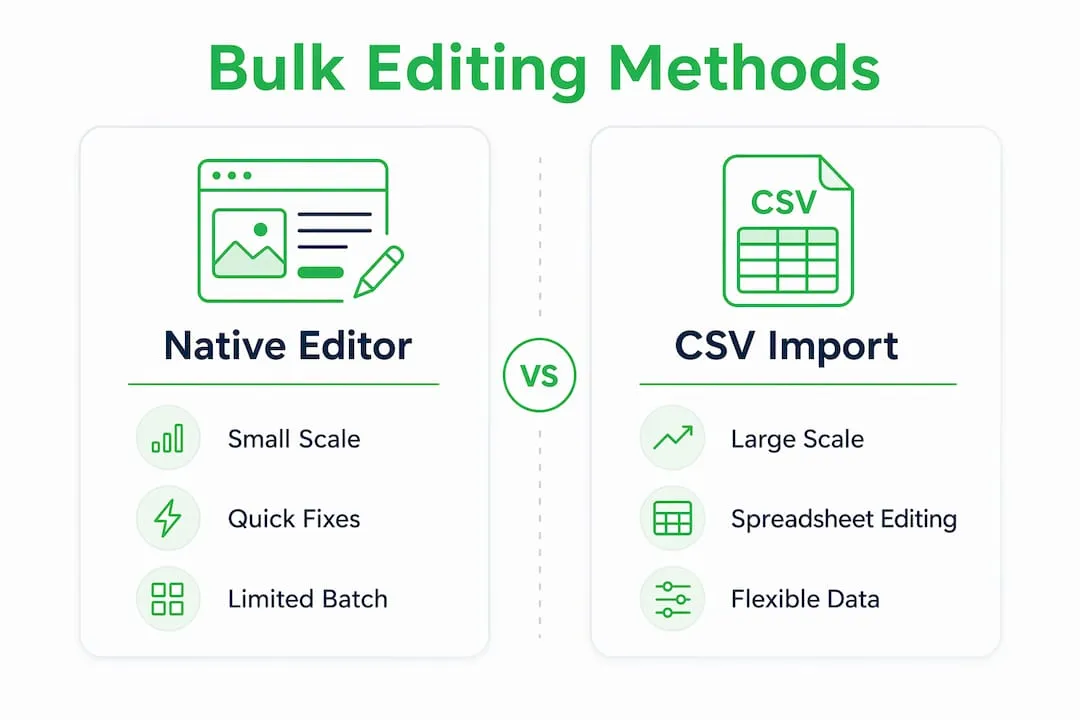
Native bulk editors are built directly into platforms like Shopify. They are fast to access and require no additional software. The trade-off is significant: Shopify’s native bulk editor limits operations to 50–100 products per session and excludes advanced fields such as meta descriptions and URL handles. That restriction makes it suitable only for small, simple tasks like updating prices or stock levels across a handful of products.
CSV export and import workflows remove that ceiling. You export your product data as a spreadsheet, edit it in bulk using formulas or find-and-replace tools, then reimport the file. This method handles thousands of rows and gives you full control over every field. The risk is human error during editing, which scales with catalogue size.
Third-party bulk editing apps add automation, scheduling, and formula-based logic on top of the CSV approach. These tools can process over 5,000 products in minutes and handle cross-time-zone scheduling for price changes. That processing power matters when you are running promotions across multiple storefronts simultaneously.
| Method | Best for | Key limitation | Speed |
|---|---|---|---|
| Native bulk editor | Small edits, up to 100 products | No meta fields, no undo | Instant |
| CSV export and import | Medium to large structured updates | Manual error risk | Minutes to hours |
| Third-party apps | Large, recurring, or multi-channel edits | Cost and setup time | Fastest at scale |
Pro Tip: Start with the native editor for quick price or inventory fixes. Move to CSV for anything touching descriptions or tags. Use a third-party app for any update you will need to repeat monthly or that touches SEO fields.
Step-by-step: bulk editing with CSV files
The CSV method is the most widely applicable way to edit multiple product pages at scale. Follow these steps carefully to avoid the most common errors.
Exporting your product data
Go to your Shopify admin panel and navigate to Products. Select the products you want to update, or export your full catalogue. Shopify generates a CSV file containing every product field, including titles, descriptions, tags, prices, and handles. Download this file and save a backup copy immediately before touching anything.

Editing in a spreadsheet
Open the CSV in Google Sheets rather than Microsoft Excel. Excel sometimes reformats special characters and date fields, which corrupts data on reimport. In Google Sheets, use Find and Replace (Ctrl+H) for text swaps, or write column formulas to apply consistent changes across thousands of rows. Preserving product handles is critical. If you alter the handle column, Shopify treats the row as a new product rather than an update, creating duplicates.
The most common editing mistakes in CSV workflows are:
- Deleting the header row or reordering columns
- Changing the “Handle” field accidentally
- Pasting content with curly quotes instead of straight quotes
- Leaving blank cells in required fields like Title or Vendor
- Saving the file in a format other than UTF-8 encoded CSV
CSV files risk corrupting descriptions and character encodings, particularly with special characters or multilingual text. Always check a sample of edited rows before proceeding to a full import.
Validating and reimporting
Before reimporting, test with a small batch of 10–20 rows. Create a duplicate of your CSV, keep only those rows, and import that file first. Review the results in your Shopify admin. If the output looks correct, proceed with the full file. During reimport, select the “Overwrite existing products” option. Without it, Shopify creates duplicate listings instead of updating existing ones.
Pro Tip: Always keep your original exported CSV as a backup. If the reimport produces errors, you can restore from that file rather than manually correcting live product pages.
Processing time scales with catalogue size. A file with 10,000 rows may take several minutes to process. Do not close the browser tab or interrupt the upload.
How do third-party bulk editing tools improve on CSV?
Third-party apps go beyond what CSV workflows can achieve alone. The core advantage is automation. You can set a pricing formula, such as “increase all products in Collection X by 15%”, and apply it with a single action rather than editing a spreadsheet column manually. Centralised bulk editing with apps is industry best practice for retailers selling across multiple storefronts, because it prevents data drift between channels.
The practical benefits for online retailers include:
- Formula-based price and discount updates applied by collection, tag, or vendor
- Scheduled changes that go live at a specific date and time
- Preview mode to review changes before they publish
- Undo or rollback features that native editors do not offer
- Filtering by metafield values, inventory levels, or custom conditions
Editing across multiple storefronts without a centralised tool causes inconsistent product details across channels. A product that shows one price on your main store and a different price on a regional storefront damages customer trust and can trigger Google Merchant Centre disapprovals.
Third-party apps also handle SEO fields safely. Indiscriminate bulk editing of SEO-critical fields risks harming search rankings. A good app lets you preview meta title and meta description changes before they go live, and flags any field that would break a URL handle.
Pro Tip: If you manage more than three storefronts or run weekly promotions, connect your bulk editing app to your inventory or ERP system via API. That connection removes the manual export step entirely and keeps data consistent without human intervention.
What mistakes should you avoid when bulk editing product pages?
The most damaging mistakes in bulk editing are not technical. They are procedural. Retailers rush the process, skip validation, and discover errors only after they affect live pages and search rankings.
Warning: Shopify’s native bulk editor saves changes instantly without rollback. There is no undo button. A mistake on 500 products is live the moment you click save, and correcting it requires another bulk operation or a manual fix.
The most frequent errors and how to prevent them:
- No backup before editing. Export your full catalogue before every bulk operation. Experienced operators export full catalogues prior to bulk updates as standard practice.
- Poor filtering before selection. Native editors default to the current page view. If you forget to filter, you edit the wrong products. Always confirm your selection count before applying changes.
- Careless metadata changes. Changing meta titles or descriptions without a plan harms SEO. Bulk editing can be the missing link for optimising large catalogues, but only when changes are deliberate and previewed.
- URL handle errors. Changing a URL handle breaks any existing backlinks and removes the page from Google’s index until it is recrawled. Only change handles when you have 301 redirects in place.
- Skipping test imports. Importing 10,000 rows without a test batch is the fastest way to corrupt your catalogue. Always validate a small batch first.
Consistent data management during bulk edits matters more than raw speed. A bulk edit completed in ten minutes that introduces errors takes hours to diagnose and fix.
Key takeaways
Bulk editing product pages works best when you match the method to the task: native editors for small updates, CSV for structured changes, and third-party apps for large or recurring operations.
| Point | Details |
|---|---|
| Match method to task size | Use native editors for under 100 products, CSV for thousands, apps for recurring or multi-channel work. |
| Always back up before editing | Export your full catalogue before every bulk operation to enable recovery from errors. |
| Protect SEO fields | Preview meta title, meta description, and URL handle changes before publishing to avoid ranking drops. |
| Validate with small batches | Test CSV imports with 10–20 rows before applying changes to your full catalogue. |
| Centralise multi-channel edits | Use a bulk editing app or PIM tool to keep product data consistent across all storefronts. |
Why data consistency beats speed every time
Retailers often treat bulk editing as a time-saving exercise and measure success by how quickly the job is done. That framing is wrong. Speed is irrelevant if the data that comes out the other side is inconsistent or broken.
I have seen stores where a single rushed CSV import changed URL handles across 2,000 products. The pages did not disappear overnight. Google simply stopped finding them, one by one, over the following weeks. By the time the retailer noticed the traffic drop, the damage was months old. No single bulk edit is worth that risk.
My recommendation is to treat every bulk operation as a two-stage process: prepare and preview, then execute. The preparation stage, which includes filtering, backing up, and testing a small batch, takes longer than the edit itself. That is exactly as it should be. The product page structure you are editing is the foundation of your organic traffic. Treat it accordingly.
The other thing I would stress is that the methods are not mutually exclusive. Use the native editor for a quick price fix today. Use a CSV for a description refresh next week. Use an app for your monthly promotional pricing. Combining methods by task type is more reliable than committing to one approach for everything.
Platform features do change. Shopify updates its bulk editor capabilities regularly, and third-party apps add new field support with each release. Check your tools every quarter to see whether a manual step you have been doing can now be automated.
— Koen
Ecom-eye: bulk product pages without the manual work
Bulk editing existing product pages is one challenge. Creating original, SEO-ready pages in bulk from scratch is another entirely. Most Shopify dropshippers copy product pages from competitors or AliExpress, which leads to duplicate content, low search rankings, and Google Merchant Centre disapprovals.
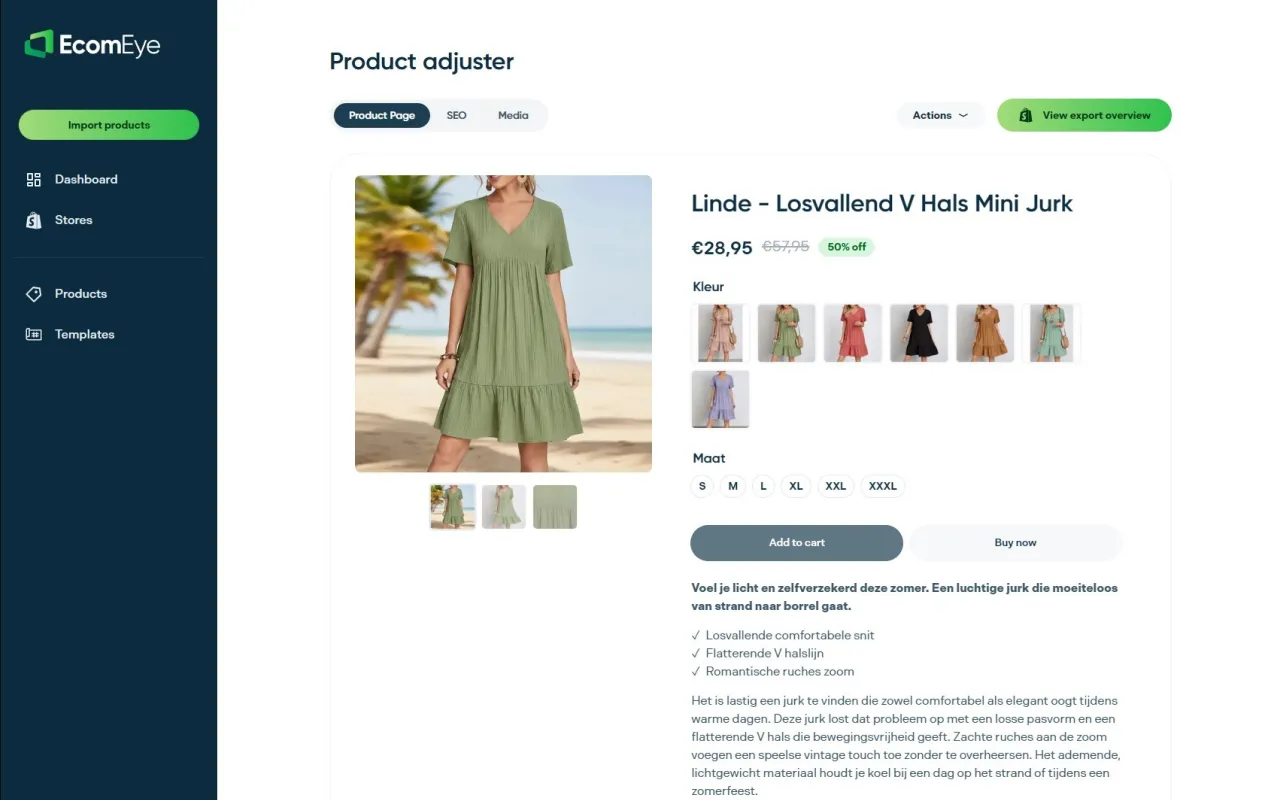
Ecom-eye solves that at the import stage. You bring in products from AliExpress or competitor links in bulk, and Ecom-eye automatically generates original titles, clean descriptions, and SEO-ready content for every product. It also produces high-quality AI product images and supports multi-language pages. The output exports directly to Shopify in one click. If you want to create product pages in bulk without rewriting, copyright risk, or manual work, Ecom-eye is built for exactly that. Visit ecom-eye.com to see how it works.
FAQ
What is the fastest way to edit multiple product pages?
The native bulk editor in Shopify is the fastest option for small updates. For larger catalogues, a third-party bulk editing app processes changes more quickly and with fewer manual steps.
How do I bulk edit product pages without losing SEO data?
Export a full CSV backup before editing, avoid changing URL handles unless you have redirects in place, and preview all meta title and meta description changes before publishing.
Can I bulk edit more than 100 products at once in Shopify?
Yes, but not with the native bulk editor, which caps operations at 50–100 products. Use a CSV export and import workflow or a third-party app to update thousands of products in a single operation.
What causes errors in CSV bulk imports?
The most common causes are altered product handles, incorrect character encoding, reordered columns, and blank required fields. Always test with a small batch before importing your full catalogue.
Is bulk editing product listings safe for SEO?
Bulk editing is safe when changes are planned and previewed. Careless edits to meta descriptions, titles, or URL handles can harm search rankings, so validate every SEO field change before it goes live.
Ready to boost your product pages?
Generate high-converting, SEO-optimized product pages in bulk using AI automation used by e-commerce experts.
No credit card required