Shopify Product Feed Optimization: 6 Checks, Unique AI Pages
Use six Shopify admin checks to improve feed accuracy, reduce Merchant Center disapprovals, and see how unique AI pages address duplicate content.

Shopify Product Feed Optimization: 6 Checks, Unique AI Pages

Product feed optimisation for Shopify means fixing the titles, descriptions, images, categories and identifiers that Google Merchant Center reads from your store, so Shopping surfaces your products accurately and approves them without delay. Get these attributes right and you see more impressions, fewer disapprovals and better returns on Shopping campaigns. Start with the attribute checklist below.
TL;DR:
- Start with your ten highest traffic products, and replace supplier copy with unique descriptions; duplicate text can hurt approvals and organic visibility.
- Match feed variant prices and availability to live pages; use API updates when prices or stock change several times daily, rather than scheduled uploads.
- For products without manufacturer barcodes, set identifier_exists to no and provide brand or SKU details; a blank GTIN can trigger avoidable disapproval.
- Use Merchant Center Diagnostics to find failed attributes, fix them, and resubmit; item reviews take a few business days, while account warnings take 28 days.
Table of Contents
- Why feed optimisation matters for Shopping and account health
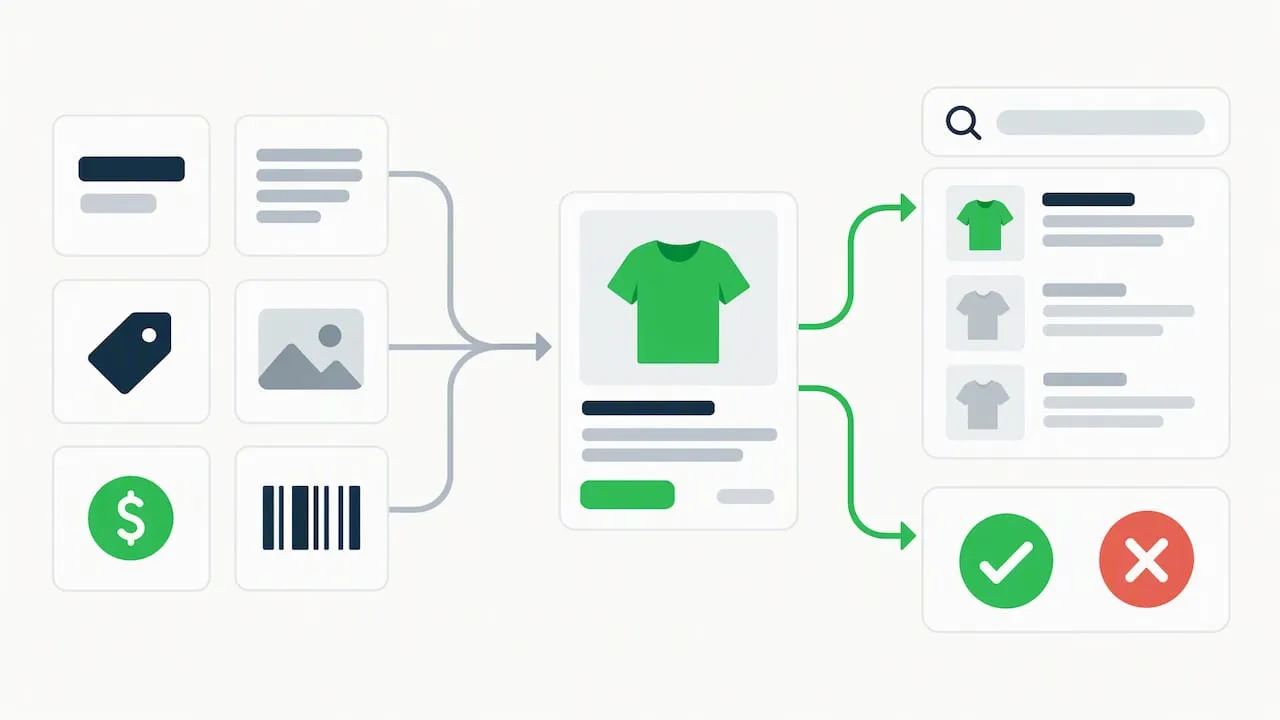
- Attribute checklist: titles, descriptions, categories, images, price and identifiers
- Practical Shopify steps to create and deliver an optimised feed
- Keeping feed and landing pages consistent: structured data, automations and crawler access
- Diagnose and remediate Merchant Center warnings and disapprovals
- Quick audit: a 6-point Shopify feed check you can run now
- Koen’s perspective: the highest-impact fix most merchants skip
- EcomEye: how we help Shopify merchants fix feed problems at scale
- FAQ
- Sources
Why feed optimisation matters for Shopping and account health
Merchant Center matches your products to shopper searches using the attributes in your feed, not the words on your storefront alone. When a title is vague, a category is wrong or a price does not match your product page, Google either ranks that listing lower or rejects it outright.
Poor data quality compounds across an account. A handful of mismatched prices or missing identifiers can trigger warnings that escalate into account-level suspensions if left unresolved.
The business impact shows up fast:
- Weak titles and categories mean fewer impressions for searches you should be winning.
- Price or availability mismatches cause item disapprovals that cut off traffic overnight.
- Repeated violations risk account-level warnings that threaten every active listing, not just one.
- Clean, consistent feed data improves click-through rate because shoppers see accurate, specific listings.
Every fix you make at the attribute level feeds directly into campaign performance and account stability.
Attribute checklist: titles, descriptions, categories, images, price and identifiers
Shopify pulls most feed attributes straight from your product admin pages, so the fastest optimisation work happens there, not in a separate export tool. Work through these fields in order:
- Titles: Shopify sends your product title field directly to Merchant Center, so lead with the brand, product type and key attributes (size, colour, material) and drop promotional language like “sale” or “free shipping”, which Google treats as noise rather than search signal.
- Descriptions: Write enough detail to describe the product fully, including materials and use cases, and avoid pasting supplier copy verbatim since duplicate text across competing stores hurts both approval odds and organic visibility.
- Google product category: Assign the Google taxonomy ID rather than a free-text label; Shopify’s Google & YouTube app lets you map this per product or per collection, and an accurate category improves query matching.
- Images: Use a clean main image with no watermark, logo overlay or promotional badge, following the product data specification for background and sizing rules.
- Price and availability: Confirm that the price shown in your feed matches what a shopper sees on the live product page, including for preselected variants, since mismatches are one of the most common disapproval triggers.
- Identifiers: Supply GTIN, brand and MPN wherever they exist. For custom or private-label items without a barcode, set identifier_exists to “no” and provide brand or SKU details instead, exactly as the product data specification requires.
Pro Tip: Audit your ten highest-traffic products first. Fixing attributes on your best sellers moves the needle faster than working through your full catalogue alphabetically.
Each of these fields feeds Merchant Center’s matching and review systems simultaneously, so a single pass through this list addresses both visibility and approval risk at once.
Practical Shopify steps to create and deliver an optimised feed
Shopify’s native integration handles most of the feed mechanics, but you need to know where to look when something needs a manual fix.
- Go to Sales channels → Google & YouTube in your Shopify admin, then open Manage Products to see sync status and category mapping for each item.
- Use the field mapping screen to confirm which Shopify fields (title, description, product type) populate which Merchant Center attributes, and override mappings where the defaults do not fit.
- Toggle sync off and back on for a product to force an immediate re-sync after you edit a field, rather than waiting for the next scheduled upload.
- Rely on scheduled feed uploads for routine catalogue changes, but switch to the Content API or Inventory API when prices or stock levels change several times a day, since the price troubleshooting guidance recommends API updates over feed uploads for high-frequency changes.
- Shopify Plus merchants with custom apps can push updates via API directly, bypassing the standard feed schedule entirely, and can choose XML or CSV feed formats depending on downstream tooling.
Checking sync status after every bulk edit catches mapping errors before they become disapprovals.
Keeping feed and landing pages consistent: structured data, automations and crawler access
Google cross-checks your feed against the live product page, so any gap between the two, especially on price and availability, is a direct path to disapproval.
- Add schema.org JSON-LD to each product page with price, priceCurrency, availability and condition, then test it with the Rich Results Test to confirm Google can read it.
- Enable Automatic Item Updates so Google can correct minor mismatches automatically, but keep your regular feed uploads running since this feature is a safety net, not a replacement.
- Avoid injecting price or stock values with client-side JavaScript after the page loads; structured data must appear in the HTML your server returns, or Google’s crawler may miss it entirely.
- Switch to API-driven updates when you change prices multiple times a day, since scheduled crawls and feed uploads will not keep pace with that frequency.
Enabling Automatic Item Updates reduces transient mismatches during rapid price changes, though Google’s own guidance notes it is not a full substitute for API-driven updates when prices move often. Our in-depth Shopify product schema guide walks through the JSON-LD implementation step by step and shows how to enhance product presentation with live commerce tactics using the live shopping tools from Tekton LA.
Diagnose and remediate Merchant Center warnings and disapprovals
A disapproval is rarely a mystery once you know where to look. Follow this sequence every time:
- Open Diagnostics in Merchant Center to see which attribute failed and which items are affected, since the disapproval guidance groups issues by root cause rather than by product.
- Fix the flagged field in Shopify, whether that is a missing identifier, a mismatched price or an image with a promotional overlay.
- Re-upload the feed or push the fix through the API, then request a re-review inside Merchant Center once the correction is live.
- For items without a barcode, set identifier_exists to “no” rather than leaving the GTIN field blank, which Google reads as missing data rather than as “not applicable.”
- Check variant preselection on your product page; if the feed references a specific variant URL, that variant’s price and availability must match exactly.
Item-level reviews typically resolve within a few business days, but account-level warnings follow a longer 28-day process, and Google offers a courtesy review option if you believe the warning was issued in error. Our disapproval remediation guide covers the four most common cases we see on Shopify stores, and our data-quality walkthrough pairs well with Diagnostics for repeat offenders.
Quick audit: a 6-point Shopify feed check you can run now
Run through these six checks on your worst-performing products before touching anything else:
- Does the title include product type, brand and a distinguishing attribute, with no promotional language?
- Is the description unique to your store, or does it match a supplier page word for word?
- Is the main image free of watermarks, logos or promotional badges?
- Does every variant have a GTIN, or identifier_exists set to “no” where none exists?
- Does the feed’s variant URL match the price and availability shown on the live page?
- Are Automatic Item Updates and sync settings enabled and confirmed active?
Pro Tip: Duplicate product descriptions copied from AliExpress or competitor listings are one of the most common causes of repeated disapprovals we see across Shopify stores. Generating unique titles, descriptions and images for each listing removes that failure point at the source rather than patching it product by product.
Koen’s perspective: the highest-impact fix most merchants skip
The mistake I see most often on Shopify feeds is not a missing GTIN or a wrong category. It is a full catalogue of product pages copied straight from a supplier listing, word for word, image for image. That single habit creates duplicate content across hundreds of stores selling the same item, and it quietly drags down both Shopping approval rates and organic rankings. Fixing titles and categories helps, but rewriting the content itself is the change that moves the needle furthest.
— Koen
EcomEye: how we help Shopify merchants fix feed problems at scale
We focus on the key fix that matters most: unique product content. Instead of pasting supplier descriptions into Shopify, we generate titles, descriptions and AI product images for every listing, so each store gets unique pages.
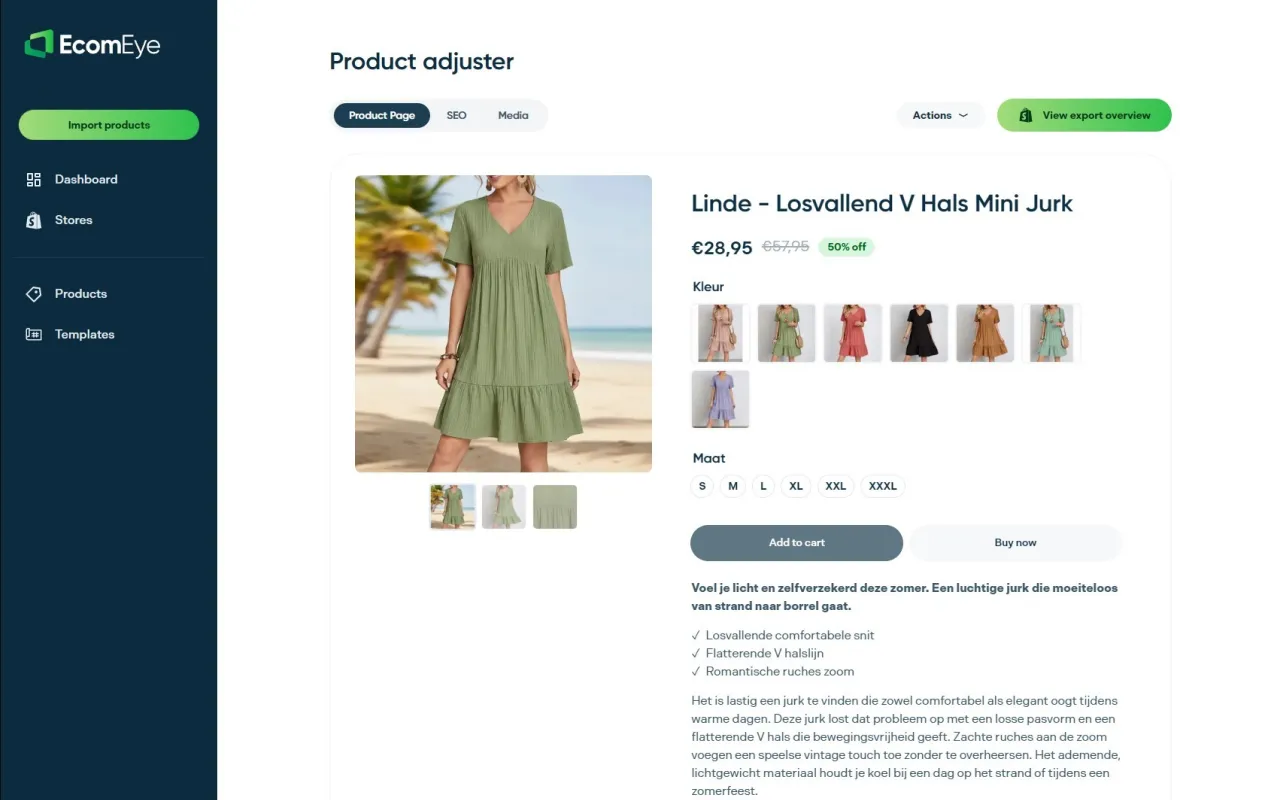
- We import product data in bulk from AliExpress, Amazon, Temu or competitor Shopify links.
- We generate SEO-ready titles, clean descriptions and high-quality AI images, including multi-language versions.
- We export finished pages to Shopify in one click, with no manual rewriting.
That removes duplicate content as a disapproval cause before Diagnostics ever flags it. Check our pricing for the Try-out plan at €39 per month or the Scaler plan at €99 per month, and see the AI product description generator for a closer look at how the content comes together.
FAQ
What is product feed optimisation for Shopify stores?
It means editing the title, description, category, image, price and identifier fields that Shopify sends to Google Merchant Center so they match your live product pages and follow Google’s product data specification. Well-optimised feeds get approved faster and appear more often in Shopping results.
How long does a Merchant Center review take after resubmission?
Item-level reviews are typically resolved within a few business days, while account-level warnings follow a longer process that can run up to 28 days, according to Google’s disapproval guidance. A courtesy review is available if you believe a warning was issued incorrectly.
Why does Google keep disapproving my Shopify products?
The most common causes are price or availability mismatches between the feed and the live page, missing identifiers like GTIN, and images with watermarks or promotional text, all covered in the product data specification. Checking Diagnostics first tells you exactly which attribute failed before you start editing.
Do I need a GTIN for every product on Shopify?
Only if the product has a real barcode from the manufacturer; for custom or private-label items without one, set identifier_exists to “no” and supply brand or SKU details instead, as described in the product data specification. Leaving the field blank instead of setting it explicitly is a common cause of avoidable disapprovals.
How does EcomEye help with Merchant Center disapprovals?
We generate unique titles, descriptions and AI images for each product, which removes the duplicate content that causes many Shopping disapprovals when merchants copy supplier listings directly. Plans start with the Try-out tier at €39 per month, listed on our pricing page.
Sources
Ready to boost your product pages?
Generate high-converting, SEO-optimized product pages in bulk using AI automation used by e-commerce experts.
No credit card required