Shopify Unit Pricing: Liquid fixes to avoid thousands of SKU edits
Shopify uses one unit system per store. Get developer ready Liquid checks, step by step unit price setup, and an EcomEye bulk workflow to avoid thousands...

Shopify Unit Pricing: Liquid fixes to avoid thousands of SKU edits

No. Shopify uses one unit system per store, metric or imperial, so unit prices show identically across every market you sell in. You cannot present grams to European customers and ounces to American ones from the same store. If that mismatch matters to your catalogue, the fix is a workaround, not a setting. Start by checking your Unit system under Settings → General before you touch a single product.
TL;DR:
- Shopify’s store-wide unit system applies globally and cannot display different units to different markets without separate store setups.
- Changing the store’s unit system after adding many product unit prices requires recalculations, as existing values do not convert automatically.
- Vintage themes often do not render unit prices automatically, necessitating manual Liquid template edits or upgrading to an Online Store 2.0 theme for native support.
- Multi-currency stores show fixed measurement labels with only the currency converting, not the unit description itself, limiting per-market label customization.
- Testing every language and currency combination, and confirming legal unit-price display requirements before launch, prevents silent errors and compliance issues.
Table of Contents
- What to check before you localise units in Shopify
- How do you set the store unit system and add unit prices?
- How do you display unit prices correctly in your theme?
- What does unit pricing mean for multi-currency Shopify stores?
- What should you test before launch, and is unit pricing a legal requirement?
- How EcomEye handles bulk unit pricing and multi-language pages
- Practical trade-offs and what I’d default to
- How EcomEye can help with bulk unit-price and multi-language rollouts
- Where to check the details yourself
- Sources
- FAQ
What to check before you localise units in Shopify
Before you change anything, work through a short pre-flight list. Most unit-pricing mistakes happen because someone edits products before confirming the store-wide setting, and that creates a mess of mismatched SKUs later.
Run through this:
- Open Settings → General and note the current Unit system. Does it match the units your primary market actually expects?
- List which product types genuinely benefit from unit pricing. Food, drinks, fabric by the metre, and bulk goods sold by weight or volume are the classic candidates. A single T-shirt does not need one.
- Check your theme. Online Store 2.0 themes render unit prices automatically on product, collection, cart, and checkout pages, but older “vintage” themes need manual template edits first.
- Back up your theme files and export a CSV of your product catalogue before making bulk changes.
- Flag any target market where unit-price display might be a legal requirement, not a nice-to-have. You’ll need to confirm this properly before launch, covered later.
Pro Tip: If you sell across the UK, EU, and US from one store, decide your default unit system based on where most of your revenue comes from, not where you personally shop. Retrofitting unit prices to thousands of SKUs later is far more painful than picking correctly on day one.
How do you set the store unit system and add unit prices?
Setting up unit pricing in Shopify admin is straightforward once you understand the sequencing. Get the store setting right first. Everything else follows from that.
- Go to Settings → General and find the Unit system field. Choose metric or imperial. This applies to the entire store, not per product or per market, and changes here affect how unit prices display everywhere.
- Open a product or variant and scroll to the pricing section. You’ll see an option to add a unit price once pricing is enabled for that product type.
- Enter the base measure and total amount. For a 500g jar of jam priced at $4.50, you’d set the reference unit to 100g, and Shopify calculates $0.90 per 100g automatically. For a 2 litre bottle at $6.00, a 1 litre reference unit gives you $3.00 per litre.
- For bulk catalogues, use CSV import. Update the relevant unit price columns alongside your existing price and SKU columns. Keep decimal precision consistent. Rounding a $0.895 per 100g calculation to $0.90 is fine visually, but if your CSV rounds inconsistently across thousands of rows, you’ll get rich-snippet mismatches between what Google indexes and what the storefront shows.
- Use the bulk editor for smaller batches (under a few hundred products) rather than CSV, since it lets you spot obvious entry errors before saving.
Changing the store unit system after you’ve already added unit prices to many products can cause issues. Existing unit price values don’t auto-convert. Switching from imperial to metric after the fact means every previously entered unit price needs recalculating, not just relabelling.
One practical constraint worth internalising: unit prices display the same unit type to every market regardless of where the customer is browsing from, because the setting lives at the store level, not the market level. If your US and German customers need to see different unit conventions on the same product, Shopify’s native settings won’t do that split for you. You’d need separate markets with distinct product listings, or a documented labelling decision that accepts the compromise.
How do you display unit prices correctly in your theme?
Getting unit prices to render correctly, and to respect the customer’s language and currency, comes down to a handful of Liquid checks in your product, collection, and cart templates.
Start by checking whether the variant actually has a unit price before rendering anything:
- Check
variant.unit_price_measurementexists before attempting to output a unit price, otherwise you’ll get blank or broken markup on products that don’t use it. - Use the
unit_price_with_measurementfilter to format the unit price and its measurement together according to the store’s language and money settings, rather than hand-building the string yourself. - Combine it with your existing money filter, so something like
variant.unit_price | money_with_currency | unit_price_with_measurementgives you a fully formatted, locale-aware output such as “£0.90/100g” or “$3.00/L”. - Repeat the same check in your cart template, not just the product page. It’s the most commonly missed spot.
Localisation selectors work on a separate but related mechanism. The {% form 'localization' %} tag drives your language and country dropdown, pulling from localization.available_countries and localization.available_languages to populate the options. For headless or custom storefronts, the Storefront API’s Localization object exposes the same data, and the @inContext directive lets you switch the active locale programmatically.
Vintage themes are the recurring failure point here. They don’t render unit prices automatically, so you’re editing Liquid snippets by hand across product, collection, and cart templates. Test on a duplicate theme first. Lazy-loaded product grids and customised pagination snippets have a habit of silently swallowing the unit price output even when your template code looks correct.
If you’re still on a vintage theme, weigh the cost of manual edits against upgrading to an Online Store 2.0 theme, which handles this natively.
What does unit pricing mean for multi-currency Shopify stores?
Unit measurement labels stay fixed across every market. Only the price itself converts. A product marked “$3.00/L” for US customers becomes “£2.40/L” for UK customers once currency conversion applies, but the “per litre” part never changes regardless of who’s looking at it.
To enable multi-currency selling, you’ll need Shopify Payments and the localization objects that let customers pick their currency and language through a storefront selector. A few things matter here:
- Enable multiple currencies through Shopify Payments, then use
{% form 'localization' %}to build the customer-facing selector. - For structured data and SEO, set
priceCurrencytocart.currency.iso_coderather than hardcoding a currency string. This keeps your rich snippets accurate as customers switch currencies, which matters for how Google displays your pricing in search results. - If unit presentation genuinely must differ between markets, for instance because one market expects “per lb” and another expects “per kg” on the exact same physical product, your only clean options are market-specific SKUs or a fully separate market storefront. There’s no native per-market unit override.
Most stores never need that last step. It’s an edge case reserved for catalogues where unit familiarity measurably affects whether people buy.
What should you test before launch, and is unit pricing a legal requirement?
QA for unit pricing is easy to underestimate because the failure modes are quiet. Nothing crashes. Numbers just show up wrong, or don’t show up at all, in one specific flow you didn’t check.
- Test every published language and currency combination on product pages, collection lists, cart, and checkout. A unit price that renders correctly in English/USD can silently disappear in a German-language cart view if your template logic missed a locale branch.
- Check order-confirmation emails. Default notification templates display unit prices automatically, but customised templates often override this behaviour and need manual code snippets added back in.
- Scan for hardcoded URLs. Routes that bypass Shopify’s dynamic locale routing will drop customers out of their selected language or currency context, which quietly breaks the whole localisation experience you just built.
- Confirm the legal position for each target market. Unit price display is mandatory in some jurisdictions, and this isn’t a feature you can skip based on preference. Document what you find, market by market, before rollout, not after a customer or regulator flags it.
Pro Tip: Keep a simple spreadsheet mapping each market to its unit-price legal status and your evidence source. It takes twenty minutes and saves you from re-researching the same jurisdiction twice a year later.
How EcomEye handles bulk unit pricing and multi-language pages
Manually updating unit price measurements across a few thousand SKUs, in multiple languages, is exactly the kind of work that breaks down under manual effort. This is where automation earns its place, not as a nice extra, but as the only realistic way to keep pace with a large catalogue.
EcomEye fits into this workflow in a few concrete ways:
- Bulk-import product data from AliExpress, Amazon, Temu, or competitor Shopify links, then generate unique, SEO-ready titles and descriptions instead of duplicated supplier copy.
- Produce translated product pages for multiple languages in the same pass, so your unit-price rollout and your multi-language expansion happen together rather than as two separate projects.
- Generate high-quality AI product images alongside the text, which matters when a unit-system change means product photography needs updated labelling too.
- Export everything to Shopify in one click, which matters most when you’re migrating thousands of SKUs after switching your store’s unit system, or building market-specific product variants where that’s genuinely justified.
This kind of step-by-step localisation workflow is where the bulk relabelling work actually gets done, rather than staying a permanent to-do item.
Practical trade-offs and what I’d default to
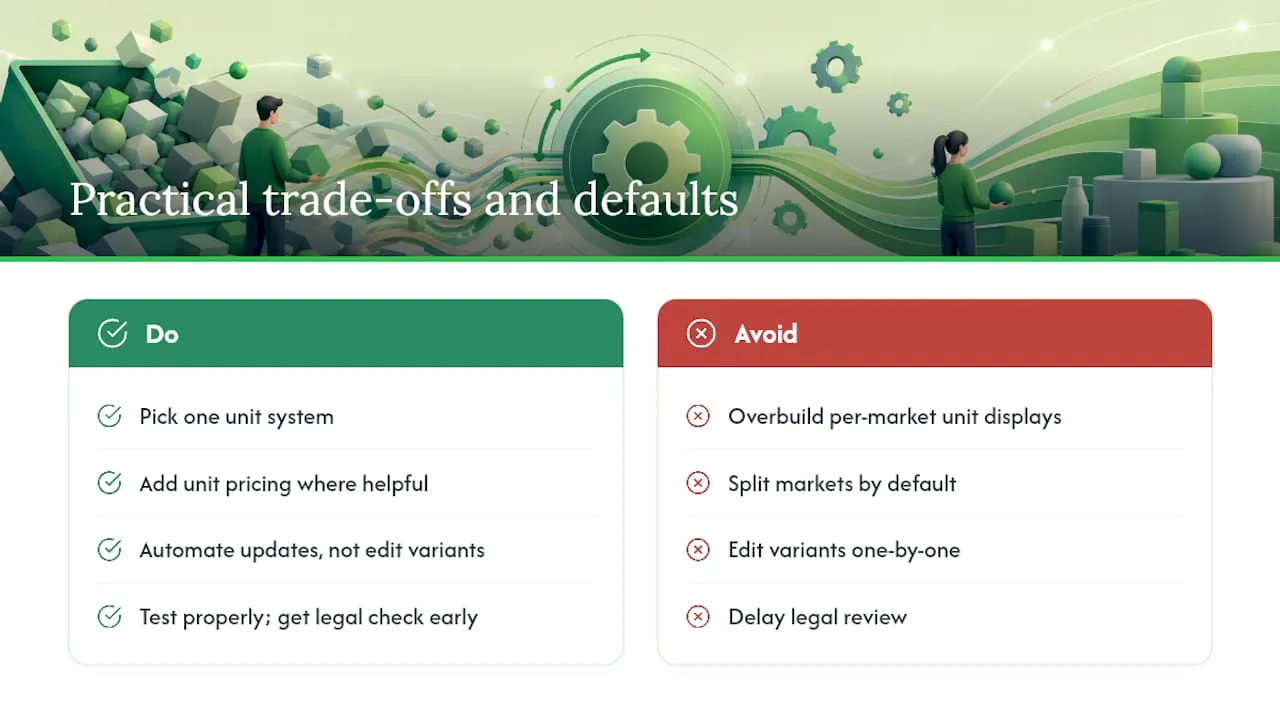
Pick one unit system that matches where most of your revenue comes from, add unit pricing to the product categories where it genuinely helps comparison shopping, and automate the update process rather than editing variants one by one. Separate markets or market-specific SKUs are worth the operational overhead only when unit familiarity demonstrably affects conversion, not as a default precaution.
Most merchants overbuild this. They spend weeks agonising over per-market unit display before checking whether their audience actually cares. Test properly, fix your notification templates, and get the legal check done early. Skip the elaborate market-splitting architecture until you have evidence it’s needed.
— Koen
How EcomEye can help with bulk unit-price and multi-language rollouts
If you’re staring down a catalogue of several thousand SKUs that all need updated unit price measurements, translated descriptions, and fresh images after a unit-system change, doing it product by product in Shopify admin will eat weeks you don’t have. Ecom-eye is built for exactly this kind of bulk operational work: import your existing catalogue, generate unique SEO-optimised titles and descriptions in multiple languages, and produce AI product images, all without touching a single duplicate line of supplier copy.
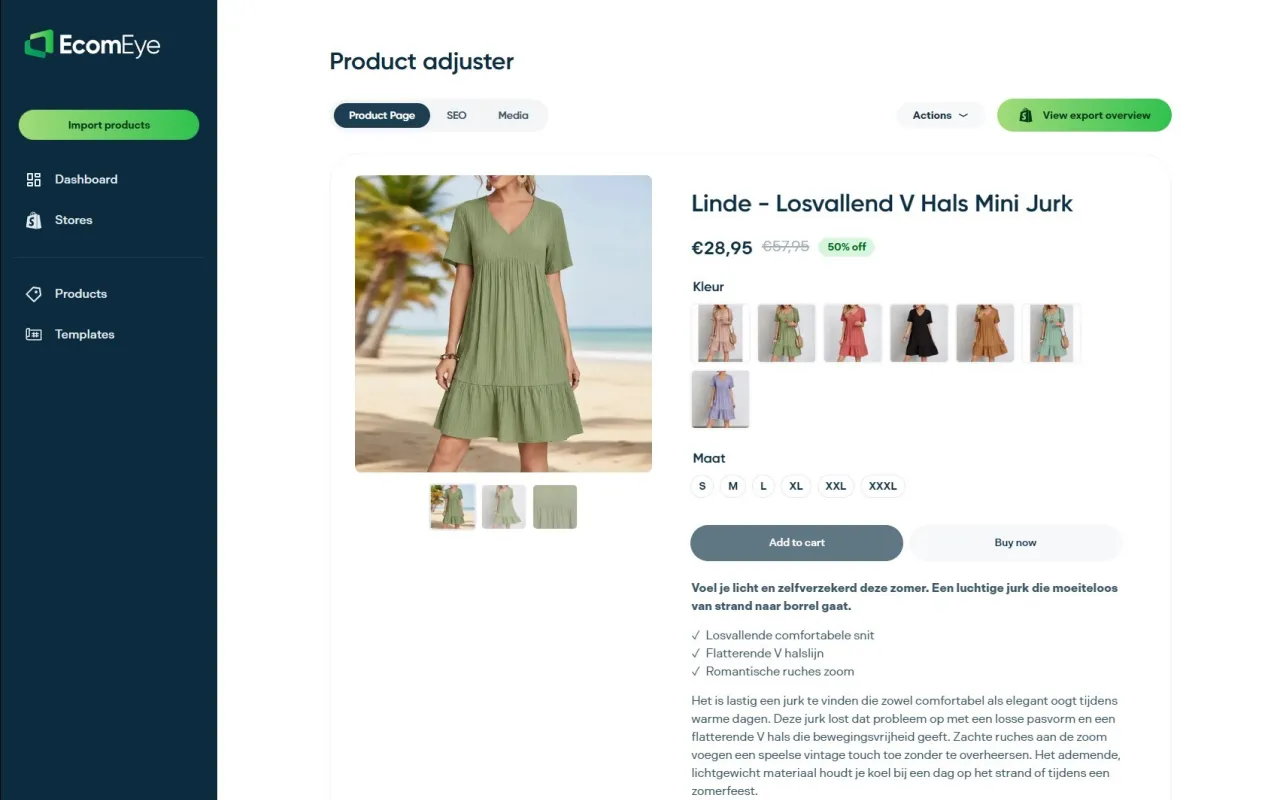
That matters because duplicate content from copied listings is one of the fastest ways to tank your Google rankings or trigger Merchant Center disapprovals, and a bulk unit-price migration is precisely when merchants are tempted to cut corners on unique copy. EcomEye keeps every page SEO-compliant while you handle the operational side. Try the AI product description generator on a sample batch of your catalogue, or check the AI product image generator if your unit-system change also means updated product labelling on photography. Export straight to Shopify once you’re happy with the output.
Where to check the details yourself
For the authoritative version of everything covered here, go to the source. The Shopify Help Center’s unit pricing guide covers the store-wide setting and legal considerations directly. Developers should bookmark the shopify.dev Liquid filter reference and the Storefront API Localization object docs. For a broader localisation strategy beyond units alone, EcomEye’s guide on multi-language Shopify workflows is worth the read.
Sources
FAQ
Can Shopify show different units per market?
No. Shopify’s unit system setting is store-wide, so unit prices display the same unit type to every market regardless of the customer’s location.
Do I need to update my theme to show unit prices?
Online Store 2.0 themes render unit prices automatically across product, collection, cart, and checkout pages. Vintage themes need manual Liquid template edits.
Is displaying unit price legally required?
In some jurisdictions, yes. It’s mandatory rather than optional, so check your target market’s requirements before launch and document your findings.
What Liquid filter formats unit prices correctly?
Use unit_price_with_measurement, combined with a money filter such as money_with_currency, to output a unit price formatted to the store’s language and currency settings.
Can EcomEye help update unit prices across my catalogue?
EcomEye doesn’t set the unit price values themselves, but it automates the bulk generation of translated, SEO-safe product descriptions and images that typically need updating alongside a unit-system change, then exports everything to Shopify in one click.
Ready to boost your product pages?
Generate high-converting, SEO-optimized product pages in bulk using AI automation used by e-commerce experts.
No credit card required