Shopify store URL: find and copy yours fast
Quickly find and copy your Shopify store URL. Ensure you share the right link to attract customers without exposing your admin pages.

Shopify store URL: find and copy yours fast

Your Shopify storefront URL is either your custom domain (for example, www.yourstore.com) or the default address Shopify assigned when you created the store: your-store-name.myshopify.com. To get it instantly, look at your browser’s address bar while logged into the Shopify admin. You will see something like https://your-store-name.myshopify.com/admin. Remove /admin and everything after it. What remains is your Myshopify storefront address.
One caution before you copy anything: never share a URL that contains /admin or /admin/login. Those are admin pages, not your storefront, and sending them to a customer or integration tool will either expose your backend or simply return an error.
Key takeaways
Your Shopify store URL is either your-store-name.myshopify.com or your primary custom domain, and both are visible within seconds from Settings → Domains.
| Point | Details |
|---|---|
| Find it in two places | Check the browser address bar (remove /admin) or go to Settings → Domains. |
| Never share admin links | Any URL with /admin in the path is for store owners only, not customers or integrations. |
| Verify in incognito | Open the storefront URL in a private window to confirm the genuine customer view. |
| Custom domain for public use | Use a branded custom domain for all public links; keep the myshopify address for apps and APIs. |
| DNS checklist for failures | Confirm A/CNAME records, check SSL status, and allow up to 48 hours for propagation. |
Table of Contents
- How do you find your Shopify store URL in two steps?
- What do MyShopify URL finder tools actually do?
- How to copy and share the correct storefront URL
- How do you preview your store as a customer?
- Can you change your .myshopify.com subdomain?
- What should you check when a custom domain doesn’t resolve?
- Why does the correct store URL matter for apps and integrations?
- The part most guides skip
- Sources
- FAQ
How do you find your Shopify store URL in two steps?
There are two reliable methods, and both take under a minute.
Method A: the browser address bar
- Log in to your Shopify admin.
- Look at the address bar. It reads
https://your-store-name.myshopify.com/admin. - Delete
/adminfrom the end. - The remaining URL,
https://your-store-name.myshopify.com, is your live storefront address.
This works even if you have a custom domain connected, because the myshopify address stays active in parallel.
Method B: Settings → Domains
- In your Shopify admin, click Settings in the bottom-left corner.
- Select Domains.
- You will see your
.myshopify.comaddress listed alongside any custom domains you have connected. - The domain marked Primary is what customers see. Secondary domains redirect to it.
According to Shopify Help, every store receives a default myshopify.com address at creation, and you can add or purchase custom domains at any time. Both addresses remain active simultaneously.
Getting URLs for specific pages
Your homepage URL is the base domain. For product and collection pages, navigate to that page inside the admin (for example, open a product), then click View or the eye icon. The address bar now shows the full storefront URL for that specific page, such as https://your-store-name.myshopify.com/products/your-product-handle. Copy it directly from there. For more on how product page URLs fit into your broader SEO structure, the Shopify page layouts guide covers the detail.
Pro Tip: Bookmark https://your-store-name.myshopify.com separately from your admin link. It saves time whenever you need to copy the storefront address for an integration or a support ticket.
What do MyShopify URL finder tools actually do?
Some third-party tools, such as LaunchTip’s MyShopify URL Finder, let you enter a custom domain and retrieve the underlying .myshopify.com handle. They work by reading publicly accessible theme metadata, HTTP response headers, or embedded app scripts that reference the myshopify address. The technique is straightforward: most Shopify themes include the store handle in their source code, and a basic HTTP request can surface it.
These tools are most useful when you only have a competitor’s or partner’s custom domain and need the underlying handle for a specific integration or research purpose. They are less reliable than checking your own admin, for a few reasons. Some stores suppress or obfuscate the metadata. Tool databases can be out of date if a store changed its handle. There are also privacy considerations: scanning another store’s metadata without permission sits in a legal grey area depending on your jurisdiction, so use these tools only for your own store or with explicit consent.
For your own store, the admin address bar or Settings → Domains is always the authoritative source. No third-party tool needed.
How to copy and share the correct storefront URL
Getting the right URL is half the job. Sending the wrong one causes real problems, from broken integrations to customers landing on a login page.
Do:
- Share
https://your-store-name.myshopify.comor your primary custom domain. - Copy the URL from the Settings → Domains page for the most reliable result.
- Verify the link resolves correctly before sending it anywhere.
Don’t:
- Share any URL containing
/admin,/admin/login, or session-specific query strings (strings with?token=or similar parameters). - Assume the URL in your browser tab is the storefront URL without checking for
/adminin the path.
One thing worth knowing about staff accounts: if a recipient is logged into Shopify as a staff member and opens your storefront link, they will see an edit banner at the top of the page. That banner is invisible to customers. As the Shopify Community thread documents, this confuses many store owners into thinking something is wrong with the URL. Nothing is wrong. Open the link in an incognito window to see exactly what a customer sees.
How do you preview your store as a customer?
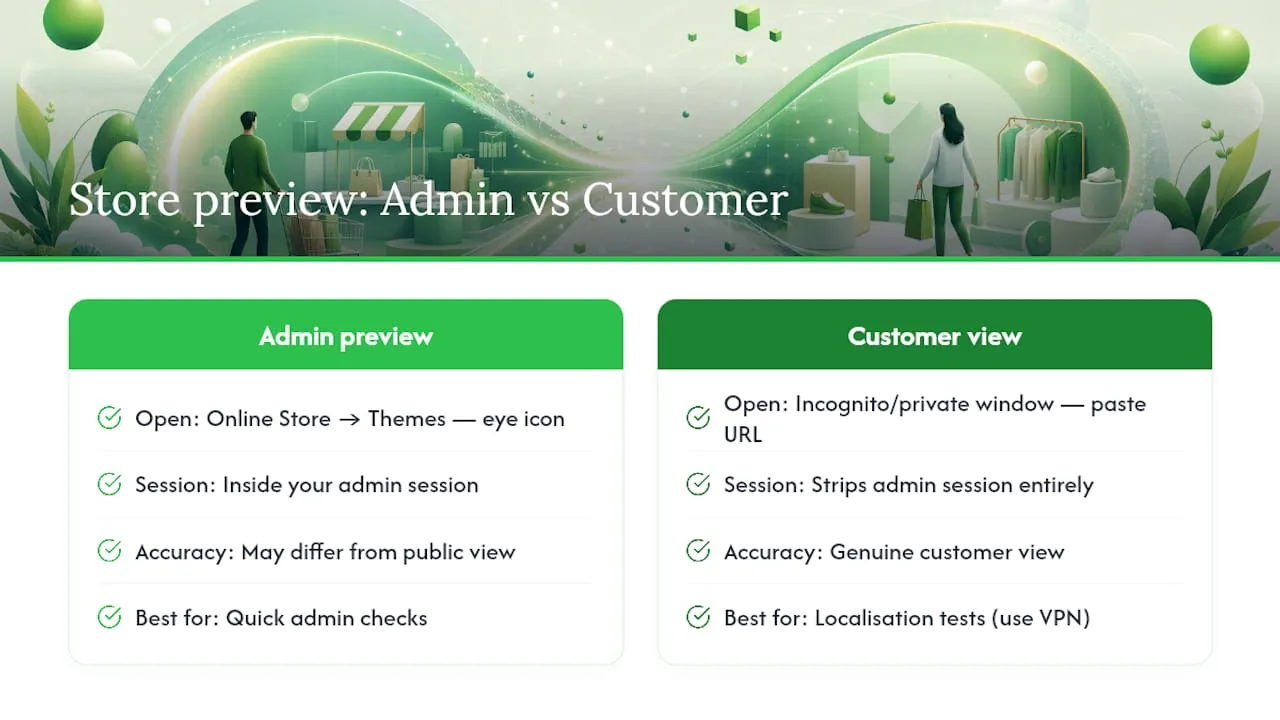
The quickest method is the eye icon. In your Shopify admin, go to Online Store → Themes and click the eye icon next to your active theme. This opens a storefront preview, but it is not identical to a fully public view. The preview runs inside your admin session, so certain personalisation features or geolocation logic may behave differently.
For a genuine customer view, open an incognito or private browsing window and paste your storefront URL. This strips your admin session entirely. If your store has a password page enabled (common during setup), you will land on the password screen rather than the homepage. To remove it, go to Online Store → Preferences and disable the password under the Password protection section.
If you are selling to UK customers and want to confirm that shipping rates, currency, and localised content appear correctly, test from a UK IP address. A VPN set to a UK endpoint works for this. The Shopify localisation guide explains how Shopify Markets and domain-based localisation interact, which is worth reading before you share URLs tied to specific regional storefronts.
Can you change your .myshopify.com subdomain?
The short answer is: rarely, and with consequences. Shopify’s setup documentation confirms that the myshopify domain is the unique store identifier used in admin URLs and by apps. Changes are restricted, and when a change is permitted, it affects your admin URL and can break app integrations that reference the old handle.
Treat the myshopify handle as a permanent backend identifier. For public-facing links, use a custom domain that matches your brand. Shopify Help’s Domains page documents the current rules for domain changes, and it is the right place to check before attempting anything. The practical recommendation from Koala Apps is consistent: keep the myshopify address as the backend identifier and put your branding effort into the custom domain. Good custom domain SEO also compounds over time, which is a separate reason to set it up early. The ecommerce SEO guide covers the SEO case for custom domains in more detail.
What should you check when a custom domain doesn’t resolve?
DNS issues are the most common reason a custom domain fails to point to your Shopify store. Work through this checklist in order.
- Check your A and CNAME records at your domain registrar. Shopify requires specific values: an A record pointing to
23.227.38.65and a CNAME forwwwpointing toshops.myshopify.com. Confirm these match exactly. - Verify Shopify is set as the host. In Settings → Domains, the domain should show as connected. If it shows a warning, Shopify will usually display the specific record that is missing or incorrect.
- Confirm the primary domain. If you have multiple domains, check which one is marked Primary. Shopify redirects all others to it.
- Wait for DNS propagation. Changes to DNS records can take up to 48 hours to propagate globally, though most updates complete within a few hours.
- Check SSL status. In Settings → Domains, each domain shows an SSL certificate status. If it reads “SSL unavailable” or “pending”, the certificate has not yet provisioned. This often resolves automatically once DNS propagates correctly.
If the records look correct but the domain still fails, contact your registrar first. They control the DNS layer. Shopify support handles issues on the Shopify side (connection status, SSL provisioning). When you contact either, have your myshopify address, your registrar account details, and a screenshot of your current DNS records ready.
Pro Tip: Use a free DNS checker such as Shopify Community Dev or a tool like MXToolbox to confirm your records have propagated before contacting support. It saves time and gives support the information they need immediately.
Why does the correct store URL matter for apps and integrations?
Most Shopify apps, API credentials, and webhooks use the .myshopify.com address as the canonical store identifier, not the custom domain. When you install an app, it authenticates against your myshopify handle. Webhooks fire to endpoints that reference it. Fulfilment services, bulk import tools, and third-party platforms all ask for it during setup.
As Craftybase’s practical guide notes, the myshopify address remains active after adding a custom domain and continues to serve as the identifier apps rely on. Koala Apps confirms the address is permanent and used for API authentication. If you give an integration your custom domain instead of the myshopify address, the connection will often fail or require manual correction.
| URL type | Who sees it | Typical use |
|---|---|---|
your-store.myshopify.com/admin |
Store owner / staff only | Admin access, never share |
your-store.myshopify.com |
Anyone (backend identifier) | App setup, API, webhooks, integrations |
www.yourcustomdomain.com |
Customers, public | Storefront, marketing, sharing |
When setting up a bulk product tool or export workflow, always use the myshopify address. Ecom-eye, for instance, connects to your Shopify store via the myshopify handle during setup, then exports generated product pages directly to your store in one click. Getting that address right from the start avoids connection errors.
The part most guides skip
Sources
- Domains
- Where can I find my URL for my online store?
- How to Find Your Shopify Store URL (myshopify.com Address)
- My Shopify URL: What It Is, Why It Matters & How to Find It
These pages are the authoritative starting points for verifying current Shopify policy and step-by-step procedures. Shopify’s own Help documentation takes precedence over any third-party guide when rules conflict.
FAQ
How do I copy my Shopify store URL?
Log in to your Shopify admin, look at the browser address bar, and remove /admin from the end. The remaining address, your-store-name.myshopify.com, is your storefront URL. Alternatively, go to Settings → Domains and copy it directly from there.
Do you get a URL with Shopify?
Yes. Every Shopify store receives a default .myshopify.com address when it is created, as confirmed by Shopify Help. You can also add a custom domain at any time; both addresses remain active.
How do I send my Shopify store URL to someone?
Copy the storefront URL from Settings → Domains or the address bar (with /admin removed), verify it opens correctly in an incognito window, then share that link. Never send a URL containing /admin.
What is the difference between my admin URL and my storefront URL?
Your admin URL ends in /admin and is only for managing the store. Your storefront URL is the public address customers visit, either your-store-name.myshopify.com or your custom domain.
Can I change my .myshopify.com address?
Changes are restricted and can disrupt app integrations and admin access, as Shopify’s setup documentation explains. The recommended approach is to use a custom domain for public branding and leave the myshopify handle unchanged.
Ready to boost your product pages?
Generate high-converting, SEO-optimized product pages in bulk using AI automation used by e-commerce experts.
No credit card required