First Hour Checklist for Google Merchant Suspensions During Cool Down
Merchant focused repair playbook with a first hour checklist, full site and feed audit, identity verification steps, and review templates to speed...

First Hour Checklist for Google Merchant Suspensions During Cool Down

A misrepresentation suspension is reversible in most cases if you complete a full site and feed audit, finish any identity verification and then request a review with documented fixes. Start by checking Merchant Center’s “Needs attention” tab, completing identity verification if prompted, and confirming checkout actually works. Do not delete products or empty your feed to force a faster review.
TL;DR:
- Reinstatement requires a full and documented audit of your site, feed, and business profile, not just isolated fixes or quick rescans.
- Make sure your business name, contact info, and policies are consistent across your website, Merchant Center, and verification documents to avoid common misrepresentation triggers.
- Avoid deleting products or temporarily hiding your feed, as unexplained drops or empty feeds can escalate enforcement rather than help your case.
- During the cool-down period, focus on completing all required fixes carefully and gathering timestamped evidence rather than resubmitting without updates.
- Google typically reviews accounts within seven business days, but multiple failed attempts increase delays, so thorough fixes and clear documentation are essential.
Table of Contents
- Quick action checklist for the first hour after suspension
- Full audit workflow: site, feed and account settings
- Identity verification, review timings and cool-downs
- Common misrepresentation causes with concrete examples
- What not to do during a suspension
- How to submit a review and what to include
- A practical checklist and templates worth keeping on hand
- Perspective: what a realistic recovery actually looks like
- How EcomEye can speed up the content side of recovery
- Official resources and support links
- Sources
- FAQ
Quick action checklist for the first hour after suspension
Before touching anything else, work through the signals Google actually checks. This is not the full fix, but it removes the obvious triggers and buys you clarity on what caused the flag.
- Open the Merchant Center banner and the Diagnostics page to read the exact policy label attached to your suspension.
- Check the “Needs attention” tab for any outstanding identity verification prompts and upload documents that match your account details exactly.
- Place test orders on three or four different products to confirm checkout completes and a confirmation page loads.
- Scroll to your site footer and confirm contact details, returns policy and shipping policy links are present and working.
- Compare live product prices and stock status against your feed values line by line for a sample of products.
Pro Tip: Run the checkout test from an incognito browser window, not while logged into your own store account, so you see exactly what a new customer sees.
Full audit workflow: site, feed and account settings
Google’s misrepresentation policy treats this category as an egregious violation, meaning it can trigger immediate suspension without a warning period, and reviewers look for consistent evidence across the whole business, not one fixed field. Work through the audit in order.
- Site transparency: confirm your legal business name, phone number or email, and physical address appear identically in your footer and in Merchant Center’s business information settings, and that the site runs on HTTPS.
- Checkout integrity: verify every payment method listed on your site is actually available at checkout, that there is no login wall or quote request gating the purchase, and that the confirmation page shows an order summary with an estimated delivery date, matching the checkout requirements Google sets out.
- Feed validation: check that GTINs or product IDs are correct, landing page URLs resolve to the right product, and price and availability fields match what shoppers see on the page.
- Account settings: confirm shipping settings, tax settings and business information are filled in consistently, and that your shop domain is verified and claimed.
- Evidence collection: take dated screenshots of every fix, keep timestamps, and build a simple changelog you can attach to your review request.
A single fix rarely reinstates an account. Industry guides recommend a comprehensive audit across site, feed and business profile because reviewers and automated checks look for aligned changes across all three areas, not an isolated correction.
Identity verification, review timings and cool-downs
Identity verification (IDV) prompts usually sit inside the “Needs attention” tab, and many merchants miss them because they are not labelled as urgent. Google typically completes reviews within seven business days, though manual verifications can take longer, and a failed review triggers a cool-down before you can request another one.
- Use the exact legal business name and address on your submitted documents that you have entered in Merchant Center: mismatches are a common reason for rejection.
- Have the same person who started the verification finish it, since switching users mid-process can restart the check.
- Treat the cool-down period as working time, not dead time: use it to finish fixes rather than resubmitting the same request.
- Expect repeated IDV failures to slow reinstatement further, since each failed attempt adds friction to the next review.
Common misrepresentation causes with concrete examples
Most misrepresentation flags trace back to a handful of recurring patterns. Recognising which one applies to your store speeds up the fix considerably.
- A business name or phone number on your invoice or About page that does not match what is listed in Merchant Center.
- A returns or shipping policy that exists somewhere on the site but is not linked from the footer, so it reads as missing to an automated check.
- A checkout that fails at the payment step or never reaches a confirmation page.
- A checkout form asking for personal data that has no bearing on completing the purchase.
- Product pages copied from a supplier or competitor with little original content, which can read as a deceptive listing.
- A sale price shown on the landing page that is not reflected in the feed, or stock listed as available when the item is actually out of stock.
What not to do during a suspension
A handful of instinctive reactions make reinstatement harder rather than easier, so it is worth naming them directly.
- Do not mass-delete products or empty your feed to hide a problem: unexplained drops in product count can be treated as Abuse of Network, which escalates enforcement rather than resolving it.
- Do not resubmit the same review request without new documented fixes attached: repeated identical appeals rarely change the outcome.
- Do not upload identity documents that are blurry, expired or registered to a different legal name than your account.
- Do not make cosmetic-only changes during the cool-down: fix the underlying data mismatch first.
Pro Tip: If you are tempted to unpublish your whole catalogue “just until this blows over,” don’t: a sudden empty feed is itself a red flag reviewers are trained to notice.
How to submit a review and what to include
Once your audit is complete, trigger the review from Merchant Center rather than waiting for Google to notice the fix.
- In the Diagnostics page, select “I fixed the issue” or “I disagree with the issue” as appropriate, then choose Request review, following the review process Google outlines.
- Attach or describe your evidence: before and after screenshots, timestamps, your changelog, and confirmation that identity verification is complete.
- Structure your message in three parts: a short summary of what was fixed, the root cause you identified, and the steps you have put in place to stop it recurring.
- If the review is denied, use the resulting cool-down to gather further evidence and tighten any remaining inconsistency before contacting support again.
A practical checklist and templates worth keeping on hand
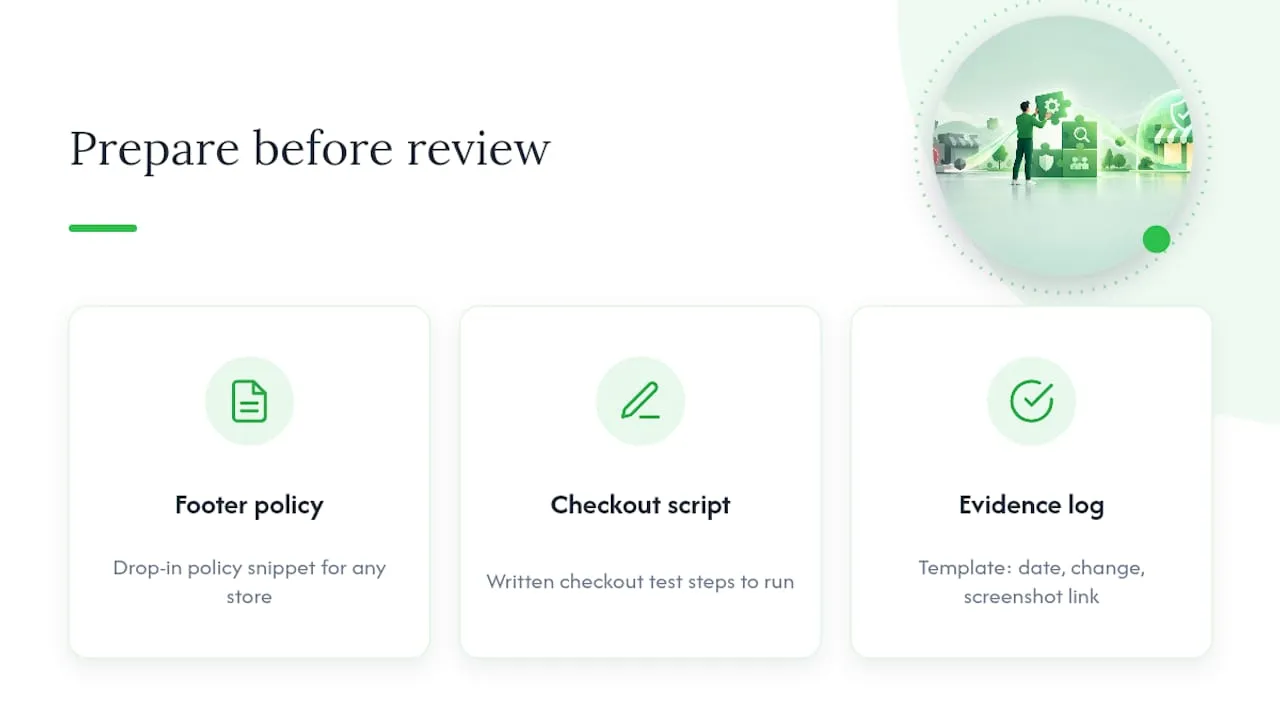
Some Shopify dropshippers hit this exact wall: a single copied product page, imported straight from a supplier, is often the thread that unravels the whole account. Keep three things ready before you request a review: a footer policy snippet you can drop into any store, a written checkout test script, and an evidence log template with columns for date, change and screenshot link. For deeper fixes, our misrepresentation reinstatement checklist and our guide on disapproved product fixes walk through both in more detail.
Perspective: what a realistic recovery actually looks like
Reinstatement tends to succeed when the fixes are thorough and documented, not when the appeal is fast. Skipping steps to save a day risks a longer suspension. Treat the enforced wait as time to fix the systems that caused the flag in the first place, not just the symptom.
— Koen
How EcomEye can speed up the content side of recovery
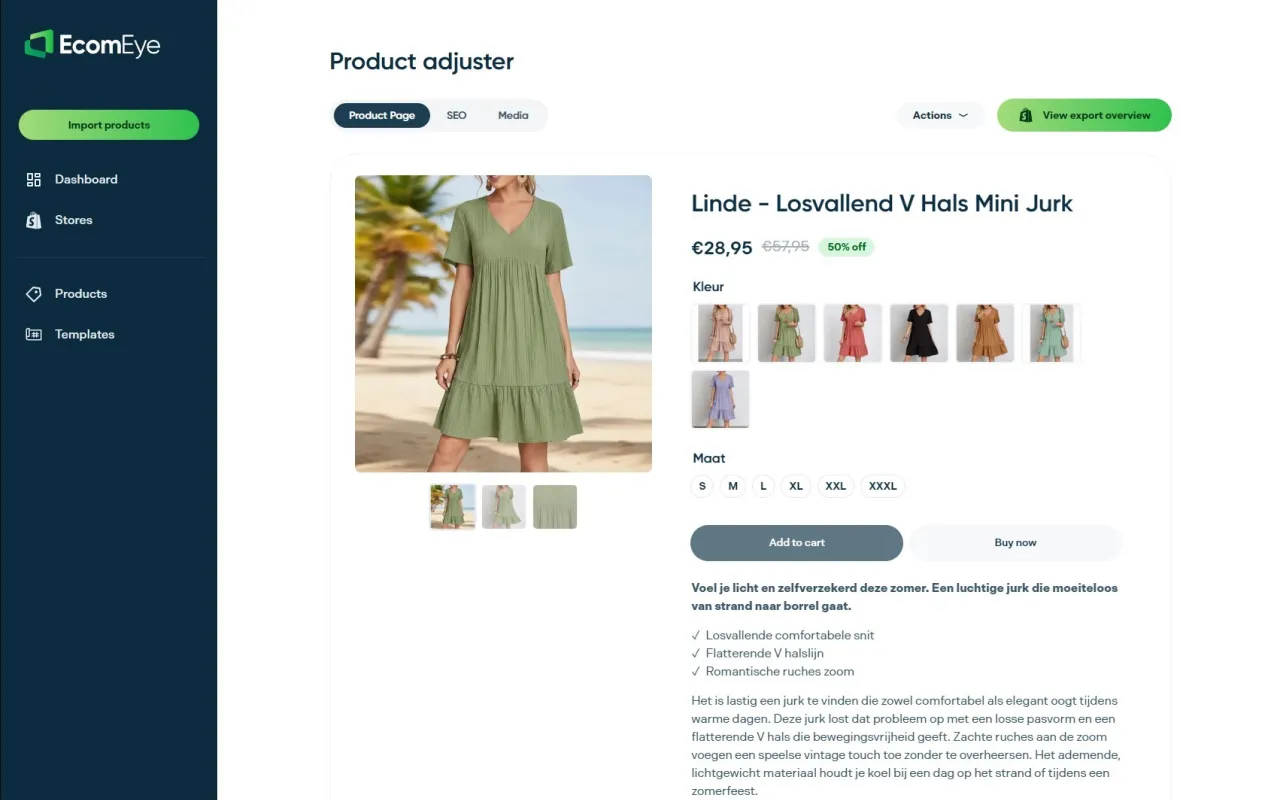
If copied or thin product pages contributed to your flag, fixing that manually across a large catalogue is slow. EcomEye generates bulk, unique, SEO-ready product pages and original AI product images from AliExpress, Amazon, Temu or competitor links, which reduces the duplicate-content signal that often sits behind a misrepresentation flag for dropshippers.
- Choose manual fixes for a small catalogue where you can rewrite each page yourself.
- Choose an automated tool once you are managing dozens or hundreds of listings and need consistent, unique content fast.
- Start with the Try-out plan at €39 per month or the Scaler plan at €99 per month to bulk-generate compliant pages, or explore the AI product image generator if generic supplier photos are part of the problem.
Official resources and support links
For the exact policy language and current review timelines, check Google’s own misrepresentation policy and the request a review help page, both of which are the primary source for the steps above.
Sources
- Misrepresentation - Google Merchant Center Help
- How to fix a suspended Google Merchant Center account - Search Engine Land
FAQ
How do I get my Google Merchant account unsuspended?
Complete a full audit of your site, checkout and product feed, finish any outstanding identity verification, and then request a review from the Diagnostics page with documented evidence of your fixes. Reviews are guided to complete within seven business days, though manual checks can take longer.
How can I unsuspend my Google Merchant account?
The process is the same for most suspension types: fix the underlying policy issue, gather dated evidence, and use the “I fixed the issue” option before requesting a review in Merchant Center. Skipping straight to a review without fixing the misrepresentation triggers rarely works.
Is a Google Merchant suspension permanent?
Most misrepresentation suspensions are reversible once the account passes a review, though repeated failed attempts trigger longer cool-down periods before you can try again. Google’s own guidance treats this as an egregious violation, so a compelling, documented fix matters more than how quickly you appeal.
How do I fix a Google Merchant identity verification issue?
Check the “Needs attention” tab for the specific identity verification prompt, then upload documents that match your Merchant Center business name and address exactly. Mismatched or expired documents are a common reason verification fails and reinstatement stalls.
Ready to boost your product pages?
Generate high-converting, SEO-optimized product pages in bulk using AI automation used by e-commerce experts.
No credit card required