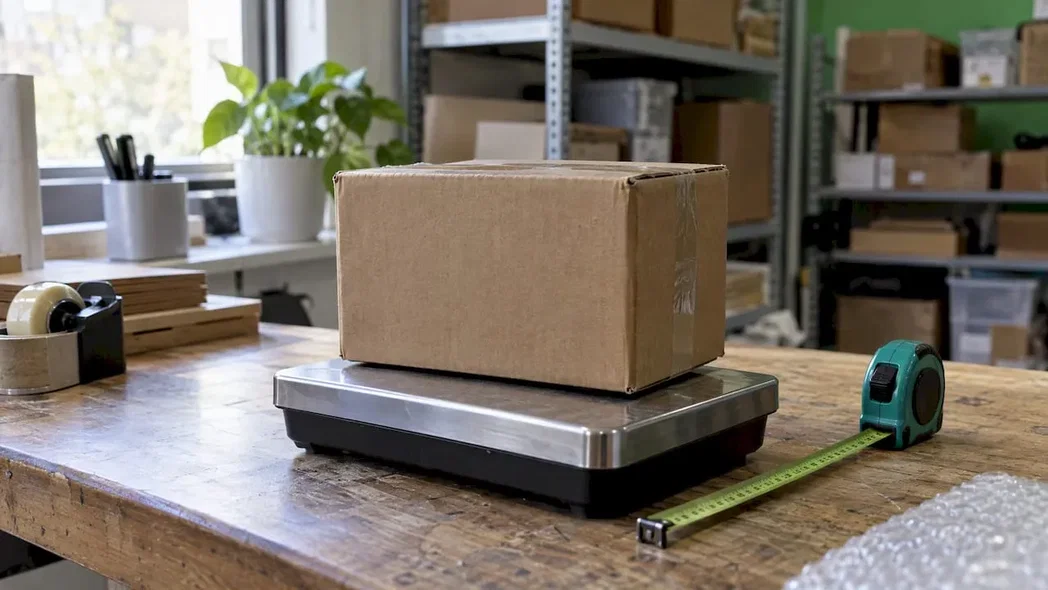
Marketplace Ready: Remove Backgrounds from Product Photos in Seconds
Remove backgrounds for marketplace product photos: shoot for clean AI cutouts, follow a 5 step bulk workflow, and export transparent PNG plus a pure...
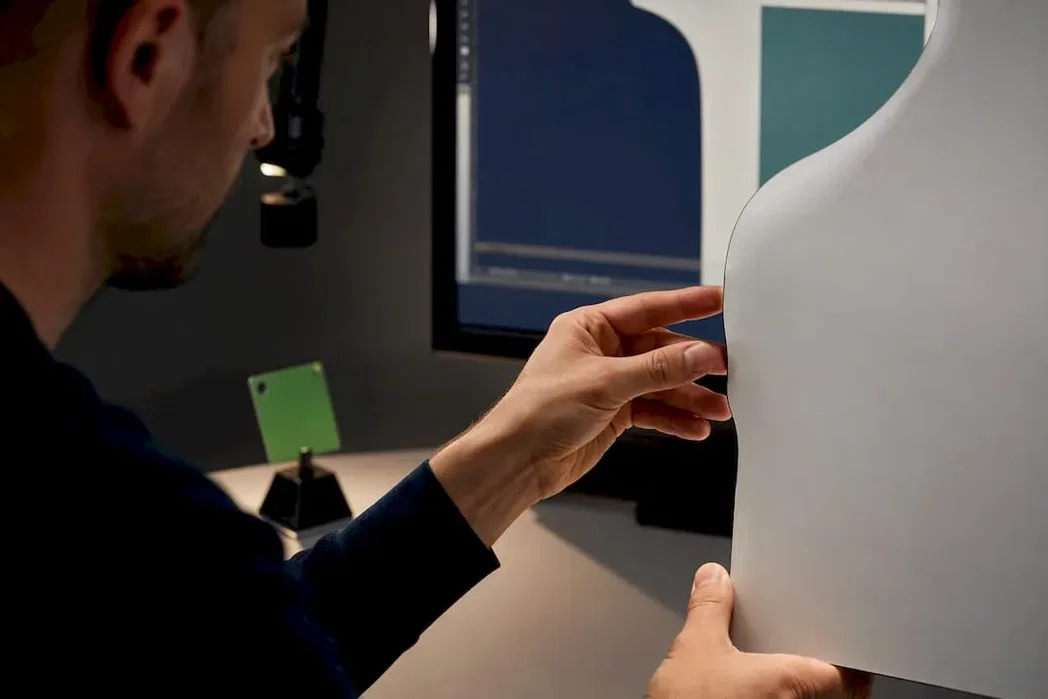
Marketplace Ready: Remove Backgrounds from Product Photos in Seconds
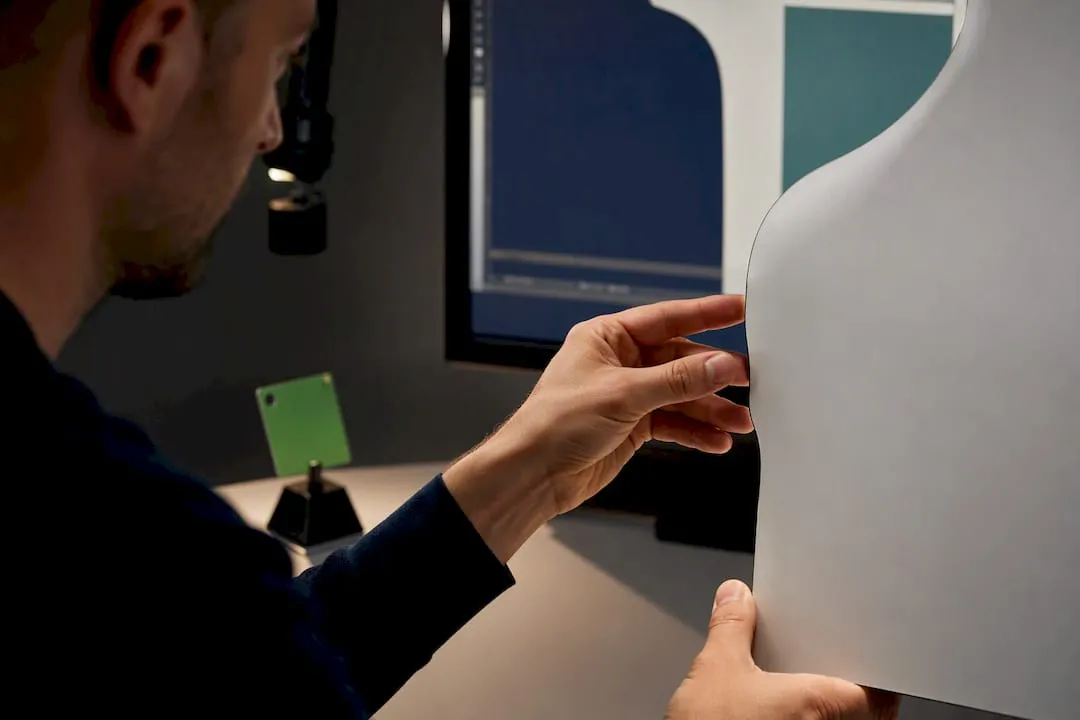
Automated AI removal handles most product photos in seconds, desktop tools like Photoshop step in for tricky edges, and a bulk SaaS or API earns its keep once you’re past a few dozen SKUs a month. Whichever route you pick, aim for two outputs: a transparent PNG for flexible use and a pure white (#FFFFFF) hero shot for marketplace compliance. For sellers publishing at volume, some bulk SaaS platforms fold background removal straight into a bulk Shopify workflow rather than treating it as a separate chore.
TL;DR:
- Automated AI background removal handles most images in seconds, but complex subjects like glass or hair may require manual refinement.
- Shooting high-resolution images with diffuse lighting, contrasting backgrounds, and consistent framing significantly improves AI cutout accuracy.
- Bulk processing options include batch SaaS platforms or API integrations suitable for large catalogues, reducing manual effort and maintaining consistency.
- Amazon mandates pure white backgrounds for main listing images, and correct export settings ensure compliance and avoid rejection.
- Manual editing remains valuable for fine details and finishing, especially for reflections, transparent objects, or hero images that automated tools struggle with.
Table of Contents
- How do you remove the background from product photos?
- How to shoot and prepare photos for clean automatic cutouts
- How do you remove backgrounds in bulk for a whole catalogue?
- What export settings do marketplaces actually require?
- What do you do when the AI cutout fails?
- Why consistent product photography is worth automating
- Scaling background removal without the manual grind
- Sources
- FAQ
How do you remove the background from product photos?
The method depends on volume and how tricky the subject is, not personal preference. Pick the tool that matches the job, not the other way round.
- One-click web tools (Adobe Express and similar browser-based removers) suit single images or the odd new SKU. Upload, wait a few seconds, download a transparent PNG. No learning curve, and most give you the option to drop in a solid colour afterwards.
- Desktop apps like Photoshop earn their price when a product has genuinely difficult edges: jewellery chains, mesh fabric, glassware with internal reflections. You get pixel-level control over the mask, which no automated tool fully replicates yet.
- API access or a bulk SaaS platform makes sense once you’re processing hundreds or thousands of images a month. You feed images in, get processed files out, with no manual clicking per item.
- Manual editing or an agency still has a place for hero campaign shots, lifestyle composites, or anything needing custom shadows and reflections that automated tools can’t fake convincingly.
On cost, expect one of three models: pay-per-image (fine for occasional use, expensive at scale), a flat monthly subscription (better once volume is predictable), or a credit system that scales with catalogue size. Most sellers moving beyond a handful of listings a month outgrow pay-per-image within weeks.
How to shoot and prepare photos for clean automatic cutouts
Most bad cutouts trace back to the shoot, not the software. Fix the input and the AI removal step gets far easier.
- Shoot at a long edge of at least 2000 pixels, in RAW or high-quality JPG. Save PNG only for your final transparent export.
- Light the product with diffuse, even light. A lightbox works well for small items and kills the harsh shadows that confuse segmentation.
- Choose a backdrop that contrasts with the product. A white plate against a white sheet gives an AI tool almost nothing to work with.
- Keep camera distance and framing identical across every SKU in a batch, so cutouts come out at a consistent scale.
- Leave a margin of empty space around the product. AI tools need clean space to find the edge, and cropping too tight cuts into the subject.
- Name files and folders by SKU before you shoot, not after. Retrofitting file names across a batch of 200 images wastes more time than the shoot itself.
Diffuse lighting and a contrasting backdrop aren’t cosmetic preferences. Vendor testing on segmentation accuracy shows they materially cut the number of images needing manual edge correction afterwards.
Pro Tip: Photograph a test SKU, run it through your background remover, and check the edges before you shoot the other 199. A five-minute test shoot beats reprocessing an entire batch.
How do you remove backgrounds in bulk for a whole catalogue?
Bulk work is a five-step loop, and it’s the same loop whether you’re processing 50 images or 5,000: capture, bulk upload, auto-remove, spot-check a sample, then export and resize for import into your store.
Which automation path you choose depends on how the work fits your existing systems.
- A browser-based batch UI suits teams that process a few hundred images a month and don’t want to touch code.
- API access or credits fits developers who want background removal wired directly into an existing pipeline.
- A CSV-driven bulk platform works best when you’re managing product data and images together, not as separate steps.
Quality control doesn’t need to be exhaustive. Some tools cap batch size or resolution, so check limits like Pixlr’s per-run image count and 4K export ceiling before committing a large job.
The bigger time-saver, though, is a repeatable capture setup rather than a marginally smarter algorithm, according to WizStudio’s guidance on catalogue-scale removal. A fixed capture template, meaning the same camera height, lighting position, and product mounting for every shoot, gives you uniform cutouts without per-image adjustment. Some platforms build on this same logic: import product data from AliExpress, Amazon, or competitor links, generate the images and product pages together, then export straight to Shopify without touching each listing by hand.
What export settings do marketplaces actually require?
Export as a transparent PNG when the image still needs editing or will sit on multiple backgrounds. Flatten to JPG only for channels that reject PNG or don’t support transparency.
Amazon’s rule is the one sellers get wrong most often: the main listing image must sit on a pure white background, RGB 255,255,255, with no exceptions for off white or cream tones. Marketplace verifiers check the corner pixels of the image, and a background that’s white to the eye but not white in the file gets suppressed or rejected outright.
For general storefront use, aim for a long edge of 2000 pixels or more, in the sRGB colour profile, with consistent padding around the product so your product grid doesn’t look like a mismatched pile of thumbnails.
Before exporting a batch, run through this:
- Transparent PNG saved for design and multi-background use
- Flattened JPG saved for channels that require it
- Hero image corners confirmed as pure #FFFFFF
- Long edge at 2000px or above, sRGB profile
- Consistent padding applied across the batch
What do you do when the AI cutout fails?
Three subjects break most automated tools: transparent glass, reflective metal, and flyaway hair or fur. The fast diagnostic is simple, zoom to 200% on the edge and look for a soft grey halo or a hard, pixelated line. Either means the cutout needs help.
- If the issue is contrast (a pale product against a pale backdrop), reshoot rather than edit. It’s faster than fixing every image manually.
- If the issue is fine detail, like hair strands or a lace edge, use a refine edge or mask brush tool rather than starting over.
- Rebuild the shadow and add a soft, realistic cast shadow after replacing the background, since a flat cutout with no shadow looks obviously fake on a product page.
- For a batch with a handful of failures, isolate just those SKUs and reprocess them with adjusted settings rather than rerunning the whole batch.
Pro Tip: Even strong AI tools sometimes need one manual pass on reflective or transparent items. Build a five-minute QC check into every batch instead of assuming full automation will catch everything.
Why consistent product photography is worth automating
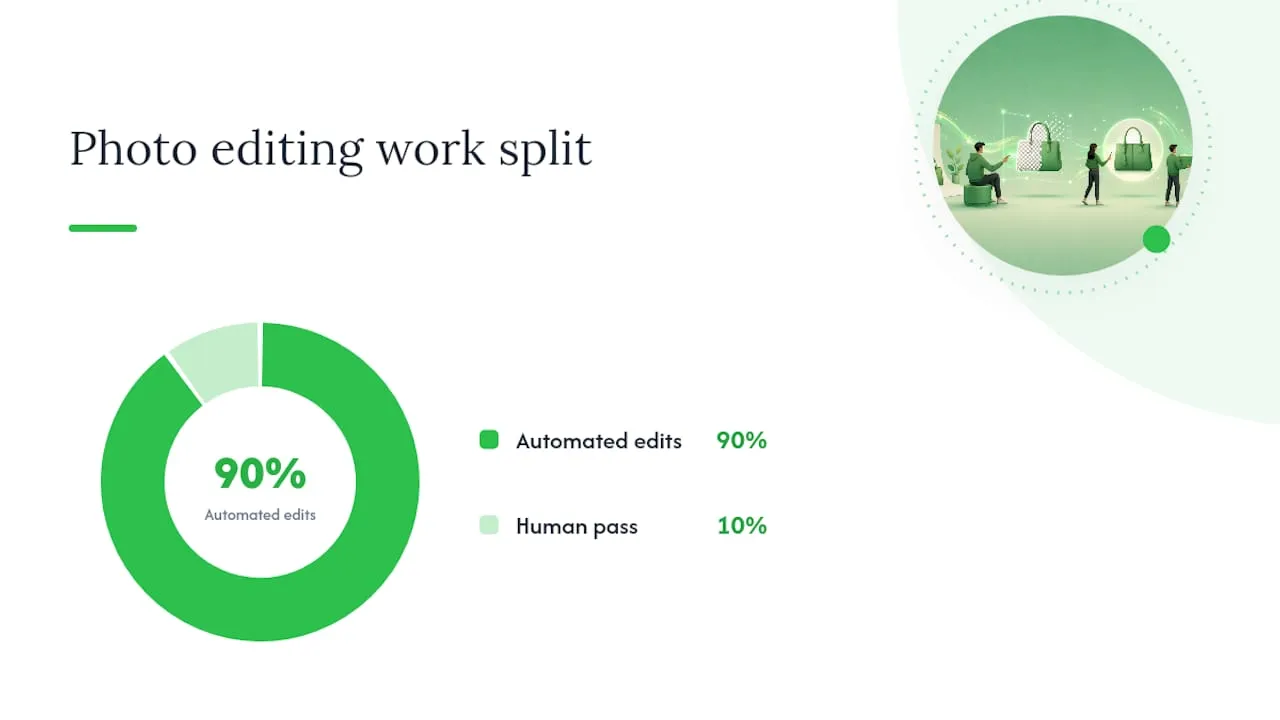
Inconsistent product photography is one of those problems that looks cosmetic until you measure it. A storefront where every third image has a slightly different white balance or a visible drop shadow reads as unpolished, and shoppers notice that faster than they notice good copy.
The operational case is just as strong as the conversion one. A seller manually cutting out backgrounds for 300 SKUs a month is spending hours on work a batch pipeline handles in minutes, hours better spent on sourcing or ad creative. That’s not a reason to abandon manual editing entirely. A reflective product or a hero campaign shot still benefits from a human pass. Automation should handle the repetitive 90%, freeing your attention for the 10% that actually needs a trained eye.
— Koen
Scaling background removal without the manual grind
Some platforms are built for sellers who’ve outgrown one-click tools and don’t want to hire an editor for every new product drop. They import product data straight from AliExpress, Amazon, Temu, or competitor Shopify stores, and generate AI product images, unique titles, and SEO-ready descriptions in bulk, then push the finished pages to Shopify in one click.
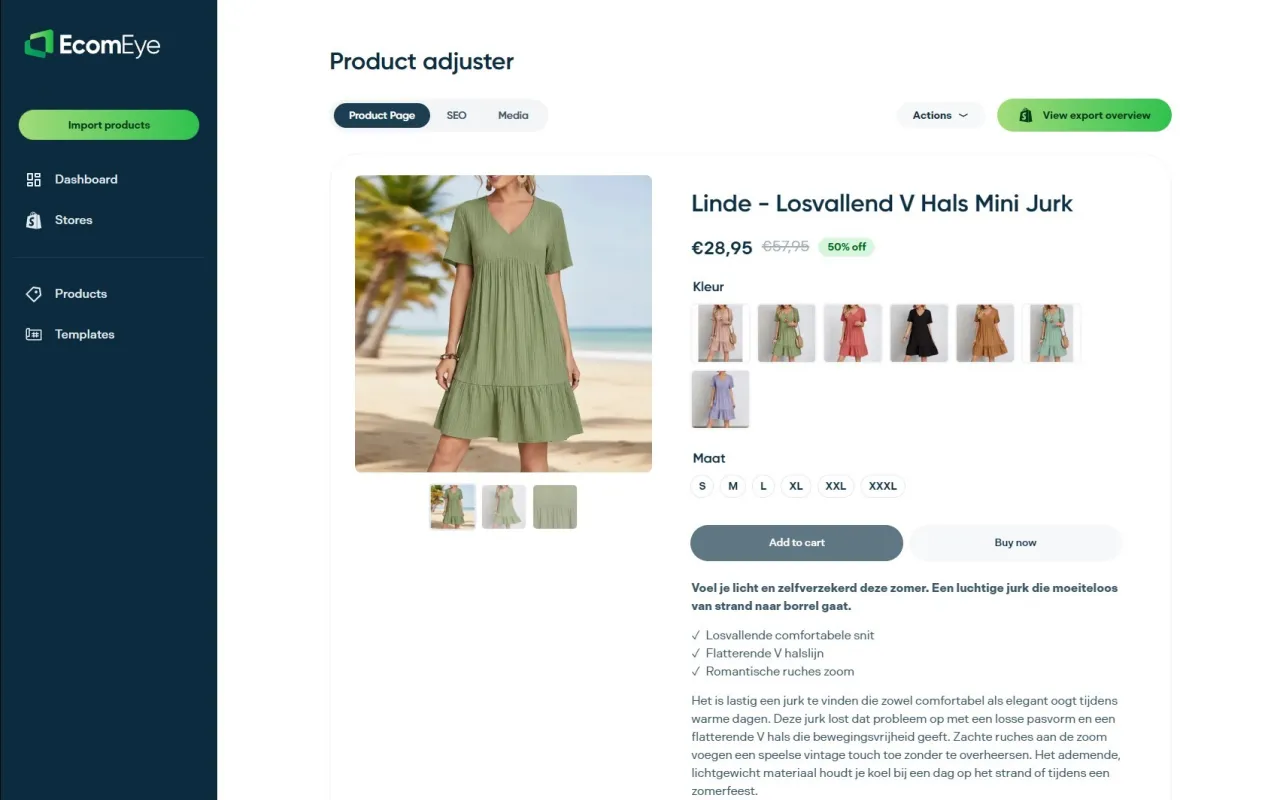
That matters most for dropshippers and store owners publishing dozens of new SKUs a week, where manual background removal and copy-writing simply can’t keep pace without adding headcount. Generated pages can be unique rather than copied from a supplier listing, which helps sidestep duplicate-content problems that may cause Google Merchant account issues. If you’re managing a growing catalogue and want images and product pages generated together instead of as separate jobs, try the AI product image generator or explore the AI product description generator to see how a bulk workflow compares with your current process.
FAQ
Can ChatGPT remove a photo background?
ChatGPT can describe how to remove a background but doesn’t perform pixel-level image editing itself. For actual removal, use a dedicated tool such as Adobe Express, Picsart, or a bulk platform like EcomEye designed for product catalogues.
How do I change the background of a product photo?
Remove the existing background first to get a transparent PNG, then place the product onto a new background, either a solid colour like white for marketplace compliance or a styled scene for lifestyle listings. Most background removal tools include a background replacement step in the same workflow.
Which AI tool is best for removing backgrounds from photos?
It depends on volume: one-click tools like Picsart or Adobe Express suit occasional single images, while a bulk platform such as EcomEye suits sellers processing large catalogues who need images and product pages generated together.
Which photo editor is best for removing background objects?
For complex edges, Photoshop remains the strongest option because of its manual masking and refine-edge controls. For straightforward product shots against a plain backdrop, automated AI removers usually get a clean result without any manual editing.
Does Amazon require a white background for product photos?
Yes. Amazon’s main listing image must sit on a pure white background at RGB 255,255,255, and automated verifiers check the image corners to confirm this before approving the listing.
Ready to boost your product pages?
Generate high-converting, SEO-optimized product pages in bulk using AI automation used by e-commerce experts.
No credit card required