Shopify Measurement Units: Weight, Dimensions and Unit Pricing
Set Shopify measurement units correctly: store weight defaults, product dimensions via metafields, CSV columns and unit pricing, plus fixes for bulk listings.
Shopify Measurement Units: Weight, Dimensions and Unit Pricing
Shopify handles measurement units in three separate places: a store-wide default for weight, metafields for product dimensions, and a unit pricing feature for price per 100 ml or per kilogram. Most mix-ups happen because sellers treat them as one setting. They are not, and each one feeds something different: shipping rates, product page specs, or price comparison.
This guide walks through each one, shows where bulk imports break, and explains how to keep units consistent when you list hundreds of dropshipped products from suppliers who all measure differently.
TL;DR
- Set your default weight unit in Settings > General. Choices are lb, oz, kg and g, and you can override it per product.
- Shopify has no native length, width and height field on the product page. You add dimensions with metafields of type Dimension, or with a shipping app.
- The product CSV uses grams for weight value and only offers packed dimension columns in cm or in.
- Unit pricing (for example $9.99 / 100ml) is its own feature and does not read from product weight.
- Dropshipping feeds mix cm, inches, grams and ounces. Normalise them before you publish, not after Google or a customer flags the mismatch.
Table of Contents
- The three kinds of measurement in Shopify
- Set your default weight unit
- Adding product dimensions: metafields, not a native field
- Bulk imports: what the CSV actually supports
- Unit pricing is a different feature
- Image sizes are measurements too
- The dropshipper’s problem: every supplier measures differently
- Perspective: why units belong in your content workflow
- Where Ecom-eye fits
- A pre-launch checklist for measurement units
- FAQ
- Sources
The three kinds of measurement in Shopify
Before touching a setting, decide which job the measurement does.
| Job | Where it lives | Units | Who reads it |
|---|---|---|---|
| Shipping weight | Product or variant, plus store default | lb, oz, kg, g | Carriers, shipping rates, checkout |
| Dimensions | Metafields, or packed dimension CSV columns | cm, in (CSV) | Shipping apps, product page theme, feeds |
| Unit pricing | Product price section | L, ml, g, mg and imperial equivalents | Shoppers comparing pack sizes |
A US store usually wants pounds and ounces for shipping, inches for dimensions and, if it sells liquids or food, imperial or metric unit pricing depending on the product. A store selling to buyers abroad often needs the same product described in both systems on the page.
Set your default weight unit
Shopify lets you choose a store-wide default weight unit in the General settings of your admin. According to the Shopify Help Center, the options are pounds (lb), ounces (oz), kilograms (kg) and grams (g), and you can override the default on individual products.
Steps:
- In your Shopify admin, go to Settings > General.
- Find the unit system and default weight unit under store defaults.
- Choose the unit you will enter most often. For a US store, that is normally lb or oz.
- Save.
Two habits save trouble:
- Pick one default and stick to it. Overriding the unit product by product is possible, but on a catalogue of 500 items it becomes a source of silent errors. A 0.5 entered as kg on one product and lb on another produces a shipping rate that is wrong by more than double.
- Weigh the packed parcel when you can. Dropshipping supplier pages often list net product weight, not the shipped weight with packaging. Carriers charge on the packed figure.
If you use Google Shopping, weight matters there as well. Google’s shipping weight attribute is what you submit when your Merchant Center shipping settings are based on weight, so the number in your store needs to be right before it reaches the feed. A value outside the accepted range triggers a delivery weight too high issue, which is a common result of grams entered in a pounds field.
Adding product dimensions: metafields, not a native field
This is where most searchers get stuck. Shopify’s standard product admin has no user-facing input for length, width and height. As Intuitive Shipping’s documentation explains, you create metafield definitions of type Dimension and populate them yourself, or use third-party apps that sync the data for shipping calculations.
How to set up a dimension metafield
- Go to Settings > Custom data > Products.
- Add a definition, for example “Length”, and choose the type Dimension.
- Repeat for width and height. Create variant metafields too if sizes differ by variant.
- Open a product and fill in the new fields, choosing the unit (in, cm, mm, ft and so on) from the dropdown.
- Add the metafield to your theme, so shoppers see it, through the theme editor’s dynamic sources.
A setup guide from ReadyToShip makes the same point: you create product metafields first, and variant metafields where dimensions differ, before any import can fill them.
Metafields do not automatically reach your shipping rates
Having the data in Shopify does not mean Shopify’s shipping engine uses it. The Intuitive Shipping guide notes that you often need to map the metafields to your shipping app or export them for Google Merchant Center. Some apps also require you to switch on a setting first. For example, Kivaro’s documentation says its app reads product and variant dimension metafields only after that setting is enabled.

The lesson: after creating dimension fields, test one product end to end. Check the checkout rate, the feed value and the product page display before you fill in the rest.
Bulk imports: what the CSV actually supports
If you list in bulk, the CSV format decides what you can do. The Shopify product CSV guide shows two relevant points.
Weight. The “Weight value (grams)” column takes a whole number in grams, with no decimals and no unit written in the cell. A 5.125 kg item becomes 5125. A separate “Weight unit for display” column (g, kg, lb or oz) controls how the weight is shown. So an item that weighs 2 lb is stored as roughly 907 in the grams column, and you can still display it in lb.
Dimensions. The CSV offers dedicated columns for packed product length, width and height, plus a packed product dimension unit, which accepts cm or in. There are no standard CSV columns for raw product dimensions, such as the size of a jacket or a lamp. Those only import if you have mapped columns to custom metafields.
That gives you a common failure pattern:
- Supplier data lists “Size: 30x20x10cm” in a description string.
- Nothing in the CSV maps it to a field.
- The dimension never reaches a structured field, so your shipping app, your theme and your feed all miss it.
Fix it in the spreadsheet before import: split the string into three numeric columns, convert to one unit, and map each to the right packed or metafield column.
Unit pricing is a different feature
Unit pricing shows the cost per unit of measure, so shoppers can compare a 250 ml bottle with a 1 L bottle. Shopify’s unit pricing page describes it as separate from physical product weight, with examples like $9.99 / 100ml and units such as L, ml, g and mg.
Two details matter:
- The units offered when you add a unit price depend on the unit system chosen in General settings. To use both metric and imperial units for different products, change the default unit system before adding unit prices in the other system.
- Displaying a price per unit is a legal requirement in some regions, and Shopify tells merchants to check whether their business is subject to it. If you sell into the EU or the UK, check the rules for your product categories.
If unit pricing display is wrong across a large catalogue, editing product by product is painful. Our write-up on Liquid fixes for Shopify unit pricing covers how to avoid thousands of SKU edits.
Image sizes are measurements too
Sellers searching for measurement units sometimes mean pixels. Shopify’s product media guidance recommends a consistent aspect ratio, with 2048 x 2048 px square images, a maximum file size of 20 MB and resolution up to 5000 x 5000 px. If you resize in bulk, our guide to Shopify image dimensions shows how to scale without manual edits, and the product image best practices page covers the rest of the checklist.
The dropshipper’s problem: every supplier measures differently
A store sourcing from AliExpress, Temu and other marketplaces usually sees this in one import:
- Clothing sizes in Asian sizing, with chest widths in cm.
- Weights in grams for one supplier and kg for another.
- Packed dimensions in mm.
- Descriptions that mention “3.5 oz” next to a metric figure copied from another listing.
US shoppers expect inches, pounds and ounces, and a size chart in cm creates returns and questions. A practical routine:
- Choose a master system per field. For a US store: weight in grams for the CSV (required), displayed in lb or oz; dimensions in inches.
- Convert before upload. Use one formula per column, not hand edits. Inches = cm / 2.54. Pounds = grams / 453.592.
- Round sensibly. One decimal for inches on small items, whole numbers on large ones. Do not publish 11.811 in.
- Keep size charts as structured tables, with the unit named in the column header.
- Spot-check ten products against a real tape measure or the supplier’s packed data.
Our guide on Shopify size conversion for dropshippers goes through five measurement steps in more detail, and the scalable product uploads guide covers how to structure a large import.
Perspective: why units belong in your content workflow
We build Ecom-eye for people who list products in bulk, and units are one of the quiet reasons bulk listings go wrong. Nobody plans a store around them. They surface when a Merchant Center warning appears, a customer asks whether a 40 cm shelf is wider than a 15 inch laptop, or a carrier invoice comes back higher than the rate you charged.
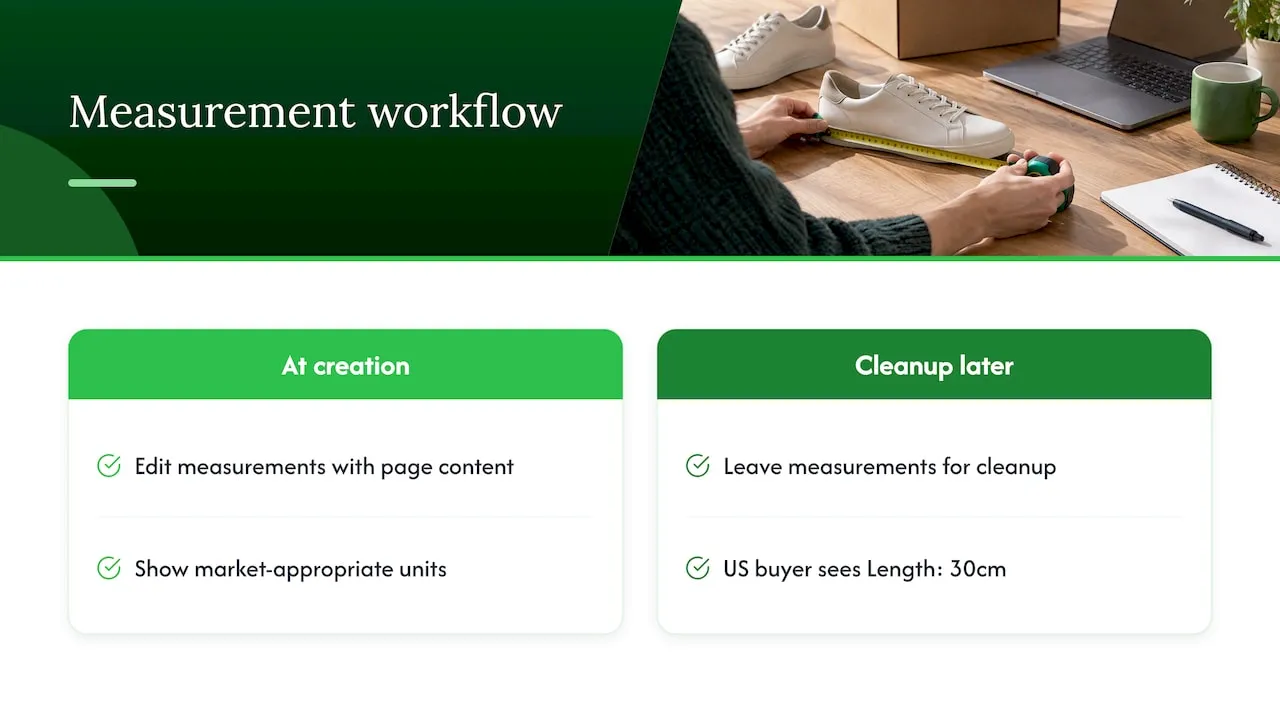
Our view is that measurements should be handled at the same moment as the title and the description, not as a clean-up job afterwards. When you import a product from AliExpress, Amazon, Temu or a competitor Shopify link, the raw data arrives in whatever system the original seller used. If you rewrite the page and leave “Length: 30cm” in place for a US buyer, you have solved the copyright problem and left a conversion problem. That is why the platform includes size system conversion, template and bulk editing alongside generation, and multi-language pages, so a store can show the right units to the right market.
The second point is uniqueness. Copied pages carry the supplier’s measurement quirks with them, and they also carry duplicate content that hurts rankings and can lead to Merchant Center disapprovals. A generated page that is unique per user, with units you have chosen on purpose, fixes both in one pass.
— Koen
Where Ecom-eye fits
If you are preparing a few products, the settings above are enough. If you are importing dozens or hundreds, the work is converting, rewriting and formatting each page consistently. Ecom-eye imports product data in bulk, generates unique titles, descriptions and AI product images, converts size systems, and exports to Shopify in one click. You can compare the Try-out plan at €39 per month and the Scaler plan at €99 per month on the pricing page, or see how the AI product description generator handles specs and sizing text.
A pre-launch checklist for measurement units
- Default weight unit chosen in General settings and noted in your team’s process.
- Weight stored as whole grams in the CSV, with a display unit set.
- Dimension metafield definitions created (product and variant) and mapped in your shipping app.
- Packed dimension columns filled in cm or in for every SKU.
- Unit pricing added only where it helps comparison, in the right unit system.
- Size charts converted to the unit your buyers use, with units in the headers.
- One test product checked through checkout, feed and product page.
- Google Merchant Center diagnostics reviewed for weight errors after the first sync.
FAQ
How do I change the weight unit in Shopify?
Go to Settings > General in your admin and choose the default weight unit under store defaults. The options are lb, oz, kg and g. Existing products can keep a per-product override, so check a few after changing the default.
How do I add product dimensions in Shopify?
Shopify has no standard dimensions field on the product page. Create metafield definitions of type Dimension for length, width and height under Settings > Custom data, then fill them in on each product. If you need them for shipping rates, map them in your shipping app too.
Can I use grams with decimals in a product CSV?
No. The weight value column expects a whole number in grams, such as 5125 for 5.125 kg, with no units typed in the cell. Use the weight unit for display column if you want shoppers to see kg, lb or oz.
Is unit pricing the same as product weight?
No. Unit pricing shows a price per measure, such as $9.99 / 100ml, so shoppers can compare pack sizes. It is a separate feature from the weight used for shipping, and its available units depend on your store’s unit system setting.
Sources
- Shopify Help Center: Adding business settings for your store
- Shopify Help Center: Using CSV files to import and export products
- Shopify Help Center: Displaying unit prices for products
- Shopify Help Center: Product media types
- Intuitive Shipping: How to use metafields for product dimensions
- Kivaro: Product and variant dimensions
- ReadyToShip: How to add metafields to your Shopify store
- Google Merchant Center Help: Shipping weight
- Google Merchant Center Help: Delivery weight value too high
Ready to boost your product pages?
Generate high-converting, SEO-optimized product pages in bulk using AI automation used by e-commerce experts.
No credit card required