Google Product Category Mapping for Shopify Stores
How to map every product to the right Google product category in Shopify and Merchant Center: IDs, leaf categories, bulk fixes and the errors to avoid.

Google Product Category Mapping for Shopify Stores

Google product category mapping means assigning each product in your catalogue to one value from Google’s official taxonomy, using the [google_product_category] attribute in your Merchant Center data. Get it right and Google knows what you sell, shows it to the right shoppers and keeps your listings approved. Get it wrong, or leave it to Google’s guesswork, and you risk disapprovals and sloppy ad targeting. This guide shows how the mapping works, how to do it in Shopify, how to do it in bulk, and where dropshippers go wrong.
TL;DR
- Every product needs one Google product category, submitted as either the full path or the numeric ID, never both.
- Choose the most specific (leaf) category that fits. Broad choices such as ‘Electronics’ weaken targeting.
- An invalid value disapproves the product, so copy values from Google’s current taxonomy file instead of typing them from memory.
- Google product category is not the same as product type, and it is not the same as Shopify’s own category field or a Google Business Profile category.
- For catalogues of hundreds of products, map by rule (supplier category to Google ID), then spot-check, rather than product by product.
Table of Contents
- What Google product category mapping actually is
- Path or ID: which to submit
- Always map to the leaf category
- Google product category vs product type vs Shopify category
- How to map categories in Shopify, step by step
- Mapping in bulk: rules beat clicking
- The mistakes that cause disapprovals
- Category, structured data and the rest of the page
- Our perspective: mapping is a content problem, not just a data problem
- Where EcomEye fits in
- A short checklist before you submit your feed
- FAQ
- Sources
What Google product category mapping actually is
Google keeps a fixed, hierarchical list of product categories, the Google product taxonomy. Each entry has a path, such as Apparel & Accessories > Clothing > Outerwear > Coats & Jackets, and a numeric ID, which for that example is 371. Google’s Merchant Center Help describes the attribute as the way to tell Google which category your product belongs to, and as a way to override Google’s own automatic categorisation.
That last point matters. If you leave the attribute empty, Google tries to assign a category itself. Sometimes it lands correctly. Often it doesn’t, and Google’s own guidance lists an incorrect or missing category among the common causes of disapprovals and limited eligibility. Mapping is how you take that decision back.
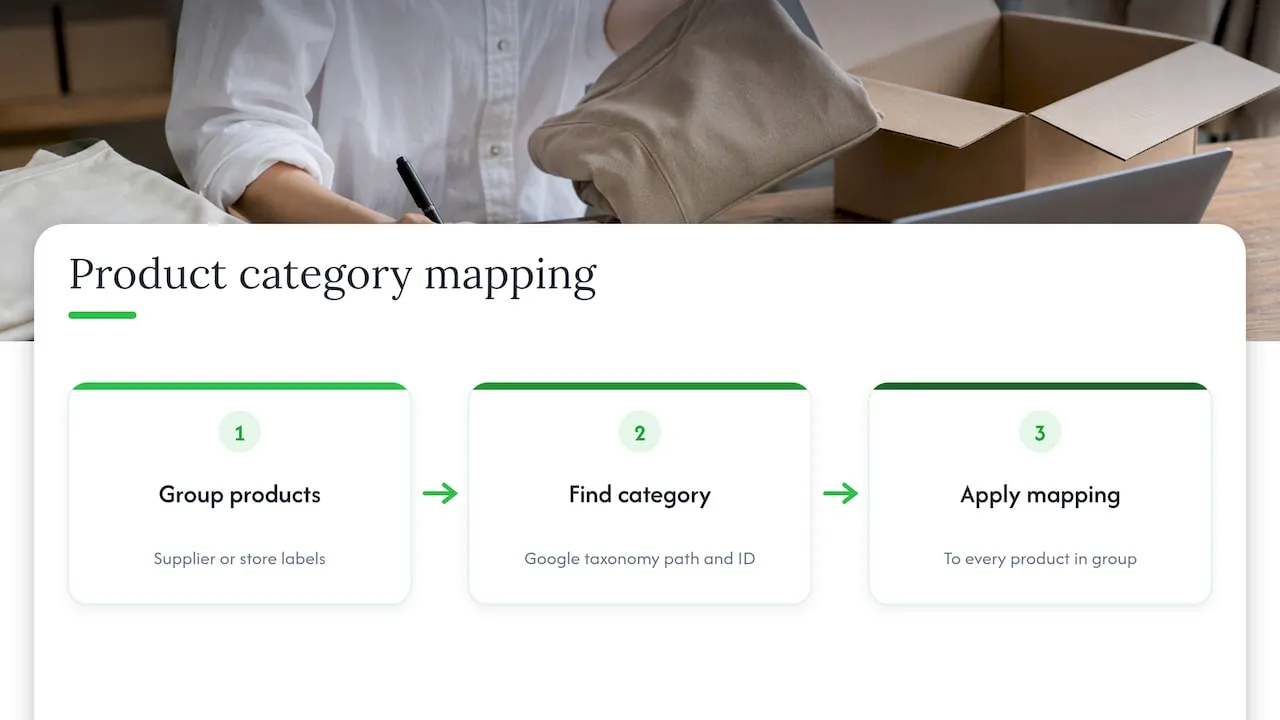
In practice, mapping is a lookup table. On one side you have your products, usually grouped by how your supplier or your store labels them. On the other side you have Google’s taxonomy. Your job is to decide which Google category each group belongs to, then apply it to every product in the group.
Path or ID: which to submit
You can submit either format. Google accepts the full path or the numeric ID, but not both in the same field. Both options are described in the Merchant Center attribute documentation.
| Format | Example | Best for |
|---|---|---|
| Numeric ID | 371 | Bulk spreadsheets and CSV imports, where a short number is harder to mistype |
| Full path | Apparel & Accessories > Clothing > Outerwear > Coats & Jackets | Manual review, where you want to read what you chose |
Our advice: keep both in your working spreadsheet, one column for the path so a human can sanity-check it and one column for the ID. Then submit only the ID. If you ever see a feed error about formatting, check that nobody pasted the path and the ID together into one cell.
If a value does not match anything in the taxonomy, Google flags an invalid product category issue. The fix is to enter a correct ID or path from the current taxonomy, not a near-miss you typed from memory.
Always map to the leaf category
The taxonomy is a tree. Electronics is a branch, and an MP3 player is a leaf further down. Practitioners consistently advise choosing the deepest category that honestly describes the product, because a broad top-level choice blurs how Google understands and groups the item.
A few examples of what ‘deepest honest category’ looks like:
- A women’s puffer jacket belongs in Apparel & Accessories > Clothing > Outerwear > Coats & Jackets, not in Clothing.
- A phone stand is not a phone. Map it to an accessory category, not to Mobile Phones.
- A bundle of two unrelated items is a problem. Either split it or map it to the category of the main item and describe the rest in the title.
The word ‘honestly’ matters. Mapping a product into a category you think performs better is a data quality problem, because Google asks that the category matches your offers. If it does not match, you are the one who has to correct it.
Google product category vs product type vs Shopify category
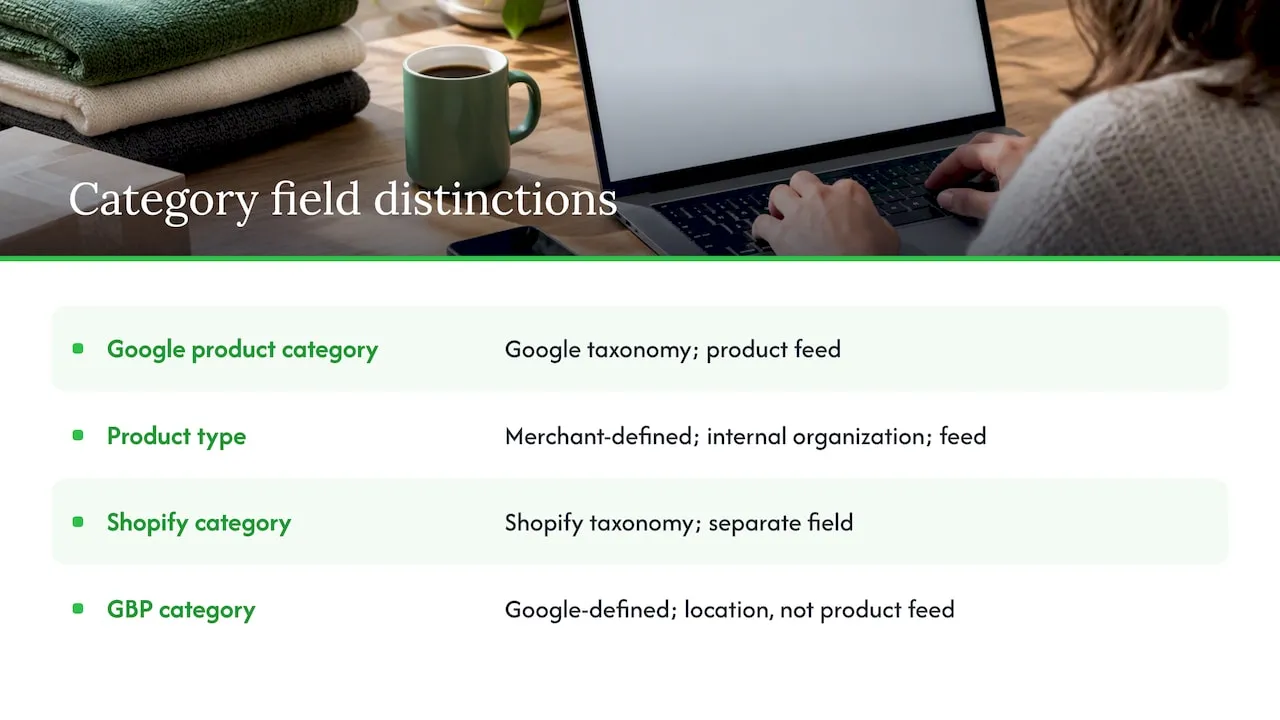
Three fields get confused constantly, and mixing them up is the most common reason a mapping effort goes nowhere.
Google product category is the standardised attribute. Values must come from Google’s list.
Product type [product_type] is your own classification. Google describes it as a place for your internal categorisation, useful for organising inventory, bidding and reporting. You write it yourself, and it can run to 750 characters. A value like Home > Kitchen > Coffee Gear is perfectly fine here, and it helps you split campaigns without affecting the taxonomy.
Shopify’s Product category is a separate field built on Shopify’s own taxonomy. One integration vendor notes that Shopify keeps two separate category fields, its own and the Google one, as separate columns in the product CSV, and filling in one does not fill in the other. Treat that as a reason to verify rather than assume.
There is a fourth category worth naming only to dismiss it: the business category in Google Business Profile. Those categories describe a business location, you cannot invent your own, and they have nothing to do with the product feed. If you came here searching for how to change your business category on Google, that is a different help page and a different task.
How to map categories in Shopify, step by step
Shopify merchants often ask where the Google category is actually set. A long Shopify community thread shows merchants disagreeing about whether the Google & YouTube channel reads the built-in Product category field or the metafield mm-google-shopping.google_product_category. That disagreement is a good reason to test with a few products before you touch the whole catalogue.
- Download the current taxonomy. Google updates it regularly, so take the text or spreadsheet version from the Merchant Center help page and use that, not an old copy saved on a drive.
- Export your products. Use Shopify’s CSV export. Keep the handle and any column you plan to change.
- Group products by supplier or store category. Ten product types are much easier to map than 800 products.
- Assign one Google ID per group. Write the path next to it so a colleague can check it.
- Apply it to the product rows. Use a lookup formula in your spreadsheet to fill the ID column from the group.
- Test on 5 to 10 products. Import them, then check in Merchant Center that the category shows as you expect.
- Roll out the rest. Only after the test products look right.
- Review diagnostics. Check Merchant Center for category-related issues after the next sync.
Avoid the re-import trap
A Shopify CSV import can overwrite existing values with blanks if your file contains empty columns for fields you did not mean to touch. Practitioners handle this by keeping the import file lean: product identifier plus the category column you want to update, nothing else. Do a backup export first, so you can reverse a bad import.
Mapping in bulk: rules beat clicking
A store with 40 products can map by hand. A dropshipping store importing hundreds of items from marketplaces cannot. The scalable approach is rule-based.
Suppose your supplier labels products with its own categories. Build a small mapping table:
| Supplier category | Google category path | Google ID |
|---|---|---|
| Women’s Hoodies | Apparel & Accessories > Clothing > Activewear > Sweatshirts | look up in current file |
| Phone Cases | Electronics > Electronics Accessories > Mobile Phone Accessories > Mobile Phone Cases | look up in current file |
| Pet Beds | Animals & Pet Supplies > Pet Supplies > Pet Beds | look up in current file |
We have left the ID column as a lookup on purpose. IDs change when Google revises the taxonomy, and a number copied from a blog post can go stale. Fill it from the file you downloaded today.
Once the table exists, every new product from the same supplier category inherits the right value automatically. When a product doesn’t fit any row, that is your cue to add a row, not to force it into the nearest one.
The same logic applies to product categorisation in your store: a consistent internal structure makes the Google mapping a one-time job rather than a recurring chore.
The mistakes that cause disapprovals
Most category problems we see fall into a short list.
- Invented categories. Typing something that sounds right, such as ‘Women’s Fashion > Tops’, gives an invalid value and the product can be disapproved.
- Both path and ID. Pick one.
- Top-level shortcuts. Putting everything under one broad category to save time.
- Mismatch with the page. The category says Coffee Makers, but the title and page talk about a milk frother. Google compares your feed with your landing page, so consistency counts.
- Stale taxonomy values. A category that used to exist and has since been renamed or moved.
- Blank-cell imports. The re-import trap described above.
Category errors rarely come alone. If your products are also being flagged for other reasons, our guides on fixing four common Merchant Center disapprovals and five product data checks that catch errors cover the neighbouring causes.
Category, structured data and the rest of the page
The category in your feed is one signal. Google also reads your product pages. Google’s Search Central documentation explains that Product structured data makes pages eligible for rich product experiences such as merchant listings, and Google’s announcement of the Merchant Listings report described how that eligibility expanded for sites that implement it. A feed that says one thing and a page that says another leaves Google to decide which to trust.
So the sensible set-up is a feed with accurate categories and a page with matching, valid markup. If you need a primer on the markup side, this overview of which ecommerce schema markup types to add first is a practical starting point, and our own piece on the role of schema markup for ecommerce goes deeper.
Our perspective: mapping is a content problem, not just a data problem
We build for Shopify dropshippers, and we see the same pattern. A store imports hundreds of products, the titles and descriptions are copied from a supplier listing, and the category is whatever the import tool guessed. Then the disapprovals arrive and the owner starts hunting for a setting to blame.
The category is rarely the only fault. It is one field in a feed where the title, description, images and category all need to describe the same product in the same way. If the title says ‘Pet Bed’, the description talks about a travel blanket and the category says Furniture, Google has every reason to doubt the listing.
Our view is that category mapping should happen at the moment you create the product page, not as a clean-up job months later. When content is unique and consistent from the start, with a title that names the product plainly and a description that matches it, picking the right leaf category takes seconds because the product is clearly defined. When content is copied and vague, the category is a coin toss.
If you remember one rule from us: map by group, verify by sample, and never let a bulk import decide your categories silently.
— Koen
Where EcomEye fits in
If you list products in bulk, the slow part is rarely the category lookup. It is producing unique, clean product pages that Google will accept in the first place. EcomEye imports products from AliExpress, Amazon, Temu or competitor Shopify links and generates unique titles, descriptions and AI product images, with built-in tools for Google Merchant Center and variant management, before exporting to Shopify in one click. Plans start with Try-out at €39 per month and Scaler at €99 per month, both on the pricing page. You can also try the AI product description generator on its own to see how a single product page comes out.
A short checklist before you submit your feed
- Taxonomy file downloaded recently, not reused from last year.
- One category per product, as ID or path, never both.
- Every product mapped to a leaf category.
- Title, description and category describe the same item.
- Product type filled in separately if you want to segment campaigns.
- A test batch checked in Merchant Center before the full import.
- A backup export saved before any bulk CSV update.
Once your categories are clean, the next gains usually come from the feed itself. Our guides to Shopify feed optimisation for Performance Max and product feed checks are the logical next reads. If you are new to the platform, start with what Google Merchant Center is.
FAQ
Is the Google product category required?
Google assigns a category automatically if you leave it out, but it can get that wrong. Setting it yourself overrides Google’s guess, and an accurate value avoids the disapprovals that come with mismatches. For many product types it is worth treating as required in practice.
Can I use my own category names?
Not in the Google product category field. Values must come from Google’s taxonomy, and an invalid value leads to disapproval. Your own names belong in the product type attribute, which is built for your internal structure.
How specific should the category be?
As specific as the taxonomy allows while still being accurate. Choose the deepest category that truly matches the product, because broad categories reduce the precision of how Google groups and targets it.
Should I submit the ID or the path?
Either works, but never both in the same field. For spreadsheets and bulk imports we prefer the numeric ID, since it is shorter and harder to mistype, with the path kept in a separate column for human review.
Sources
- Google product category [google_product_category], Google Merchant Center Help
- Product data specification, Google Merchant Center Help
- Product type [product_type], Google Merchant Center Help
- How to fix: Invalid product category, Google Merchant Center Help
- Manage your business category, Google Business Profile Help
- Product structured data, Google Search Central
- New Search Console Merchant Listings report, Google Search Central Blog
- Google product category on Shopify, SellerSort
- How do you set the Google Product Category for a Shopify product, Shopify Community
Ready to boost your product pages?
Generate high-converting, SEO-optimized product pages in bulk using AI automation used by e-commerce experts.
No credit card required