Shopify image alt text: fast fixes for SEO and access
Enhance your Shopify store's SEO and accessibility by adding effective image alt text. Discover fast fixes and best practices here!

Shopify image alt text: fast fixes for SEO and access

Add concise, descriptive alt text to every meaningful product and theme image in your Shopify store; leave decorative images with an empty alt attribute (alt=""). That single habit fixes most of the accessibility gaps and missed image-search traffic that quietly drag on Shopify stores.
The fastest routes into Shopify right now:
- Single product edit — Admin → Products → click the image → Edit alt text.
- Theme images — Online Store → Themes → Customise → click the image block.
- Bulk edit — export a product CSV, fill the Image Alt Text column, re-import.
One-line rule set to apply as you go: keep alt text under 125 characters, work in real product attributes (colour, material, angle) naturally, and never start a description with “image of” or “picture of” — screen readers already announce it’s an image.
Key Takeaways
Descriptive alt text on meaningful images and empty alt attributes on decorative ones is the single fix that improves both accessibility and image-search performance on Shopify.
| Point | Details |
|---|---|
| Act on sentence one | Add descriptive alt text to product and theme images now; leave decorative images empty (alt=""). |
| Respect the length ceiling | Shopify allows up to 512 characters, but keep alt text under 125 for screen-reader usability. |
| Edit in the right place | Product images live in Products → Media; theme images live in the Theme Editor. |
| Avoid the common traps | Never reuse one description across every variant, and skip keyword stuffing entirely. |
| Scale it when needed | Ecom-eye generates consistent alt text and product metadata in bulk, then exports straight to Shopify. |
Table of Contents
- What is image alt text in Shopify?
- Why alt text matters for accessibility, SEO, and risk
- Where to add or edit alt text in Shopify
- How to write alt text that actually earns its place
- Scaling alt text across a large catalogue
- Common alt text mistakes and how to fix them
- A checklist and templates you can use today
- Scale alt text without touching every image by hand
- Sources
- FAQ
What is image alt text in Shopify?
Alt text is the value stored in an image’s HTML alt attribute. Screen readers speak it aloud instead of the image, browsers display it if the file fails to load, and Google’s image crawler uses it to understand and index the picture, as MDN’s documentation on the img element explains. On a Shopify product page, that means every photo, swatch, and banner can carry a short line of text doing real work behind the scenes.
You’ll write it for:
- Product shots — the main and variant images buyers actually browse.
- Lifestyle photos — a bag on a shoulder, a lamp on a desk, context shots.
- Infographics and size charts — anything conveying information visually.
- Logos — usually the brand name plus “logo”.
Compare “bag” with “Tan leather crossbody bag with brass buckle, front view.” One tells a screen reader almost nothing; the other describes what a sighted shopper would actually see.
Why alt text matters for accessibility, SEO, and risk
Accessibility comes first. The W3C’s image decision tree sets out exactly when an image needs descriptive alt text and when it should be left empty, and it’s the closest thing the web has to a settled standard on the question. US-based Ada treats alt text as a primary attribute for screen-reader users, and web accessibility expectations for public-facing sites have tightened, not loosened, in recent years.
Then there’s the traffic you’re leaving on the table. Google’s image search still sends meaningful volume to product pages that describe their pictures properly, and Shopify’s own guidance on writing and adding image alt text frames it as a straightforward SEO lever, not an afterthought.
Missing or low-value alt text remains one of the most common accessibility gaps found across live websites, according to large-scale audits like the WebAIM Million report — which makes it one of the cheapest fixes with an outsized payoff.
For a Shopify store, the business case is blunt: better image search visibility, and lower exposure to accessibility complaints.
Where to add or edit alt text in Shopify
Shopify splits alt text across two admin areas, and knowing which one you need saves a lot of wasted clicking.
Editing product image alt text (desktop):
- Go to Products in your Shopify admin and open the product.
- Click the image you want to edit in the Media section.
- Select Edit alt text, type your description, and save.
- Repeat for each variant image, since Shopify doesn’t copy alt text across variants automatically.
Editing theme and collection images:
- Go to Online Store → Themes → Customise.
- Click the image block you want to change (banners, collection headers, featured sections).
- Look for the alt text field in the block settings, per Shopify’s guide to theme image alt text.
- On the Shopify mobile app, tap the image within a product or theme section to reach the same field.
One nuance catches people out: images uploaded directly to Settings → Files don’t get an alt field until they’re actually placed into a template or product. And on length, Shopify technically accepts up to 512 characters per its own help documentation, but the practical, screen-reader-friendly ceiling is closer to 125.
How to write alt text that actually earns its place
Good alt text does three things: describes what’s genuinely in the frame, works in the product attributes a shopper would care about, and stops there. No keyword padding, no “image of,” no restating the entire product title verbatim.

Main product shot (bad): “Sneakers” Main product shot (good): “White leather sneakers with red laces, side profile”
Variant detail (bad): “Product image 2” Variant detail (good): “Navy wool jumper, close-up of ribbed cuff”
Lifestyle image (bad): “Woman outside” Lifestyle image (good): “Woman wearing tan trench coat walking through autumn park”
Infographic (bad): “Size chart” Infographic (good): “Size chart showing UK sizes 6 to 18 with waist and hip measurements in centimetres”
Logo (bad): “Logo1” Logo (good): “[Store name] logo”
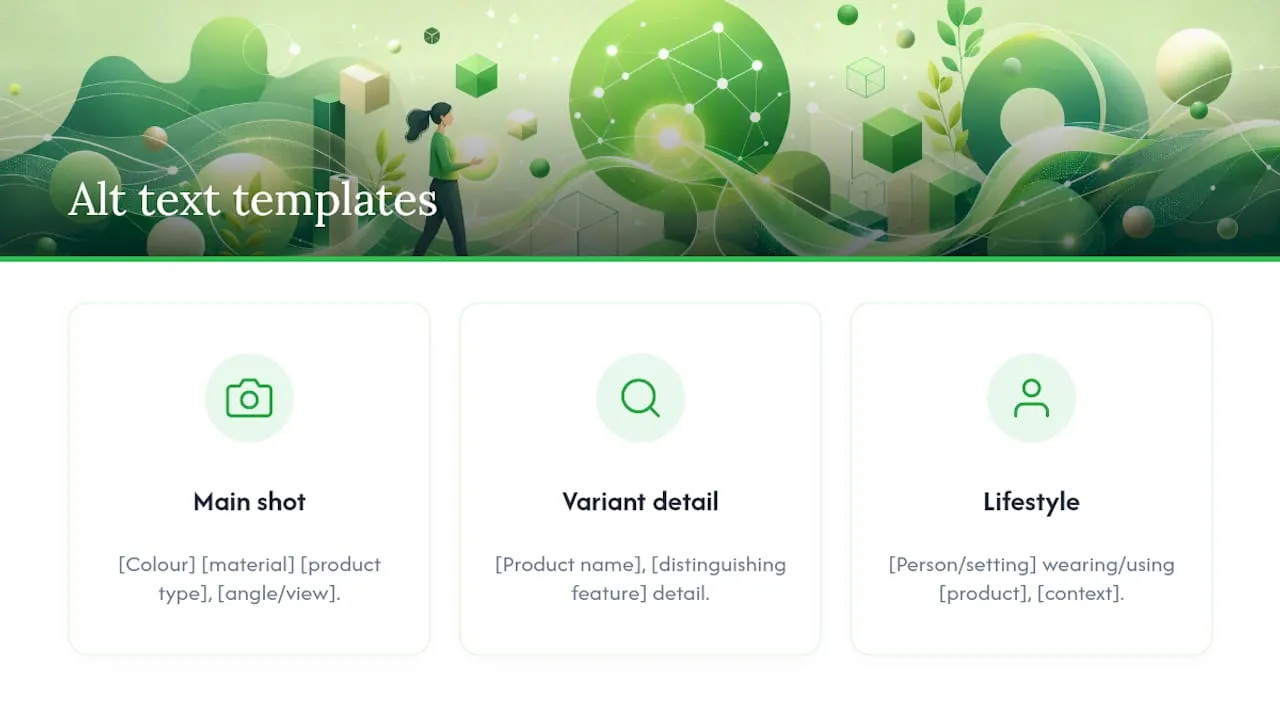
Templates worth copying directly into your workflow: for a main product image, “[Colour] [material] [product type], [angle/view].” For a variant, “[Product name], [distinguishing feature] detail.” For lifestyle shots, “[Person/setting] wearing/using [product], [context].” Adjust the order to suit how your customers actually search.
Pro Tip: Only include a SKU or internal variant code in alt text if customers or support staff genuinely search by it. For most stores, a colour or size descriptor does far more useful work than a code buried in the text, and keeps the description readable for a screen reader.
Keeping alt text distinct from your visible product descriptions also avoids the duplicate-content wobble that comes from repeating the same sentence twice on one page.
Scaling alt text across a large catalogue
Writing alt text one image at a time works fine for 20 products. It falls apart at 2,000. Pick your method by catalogue size and how comfortable you are in a spreadsheet.
- CSV export/import — best for stores under a few hundred SKUs. Export your product CSV, fill the Image Alt Text column, re-import. Watch the overwrite behaviour closely: a badly mapped CSV can blank out alt text you’ve already written.
- Matrixify (formerly Excelify) — export current alt text, edit non-destructively in a spreadsheet with a full audit trail, then re-import, according to guidance on Shopify alt text workflows. Sensible once you’re past a few hundred products and need version control.
- AI apps or the Admin API — worth the setup cost once you’re generating hundreds of new listings a month, particularly if you’re already importing product data in bulk from suppliers.
Before you push any bulk update live: audit a sample first, test on one collection, and export a backup of your current alt text. A 2026 guide to Shopify alt text methods also flags one shortcut worth avoiding: injecting alt text via theme code rather than the proper fields. It’s fragile, breaks on theme updates, and often produces the exact duplicate-text problem you’re trying to fix.
Common alt text mistakes and how to fix them
Most alt text problems fall into a handful of repeat offenders:
- Keyword stuffing — cramming five search terms into one description. Fix: describe the image in one plain sentence, nothing more.
- Using the product title for every image — the main shot and all four variant shots get identical alt text. Fix: add the distinguishing detail (colour, angle, close-up) to each one.
- Repeating the visible product copy word for word. Fix: alt text should describe the image, not duplicate the product description beneath it.
- Theme code injection producing identical alt text across dozens of images. Fix: move the text into Shopify’s proper alt fields.
To find where you’re missing alt text entirely, check Google Search Console’s image impressions data for pages that aren’t earning image-search clicks, or install a Shopify app built to flag missing alt attributes across your catalogue.
A checklist and templates you can use today
Work through your catalogue in this order, not alphabetically:
- Homepage and hero banners.
- Best-selling product images.
- Category and collection header images.
- New listings as they’re added.
- Everything else, on a rolling basis.
Copy-ready templates: “[Colour] [material] [item], [view]” for main shots; “[Item name], [feature] detail” for variants; “[Setting/action] wearing/using [item]” for lifestyle images; “[Chart type] showing [what it measures]” for infographics.
To QA the work, load a handful of pages, right-click each image, and check “Inspect” to confirm the alt attribute matches what you intended. Then scan for any two images sharing identical alt text. This also matters for apparel and accessories, where good product image practice and precise, non-repetitive descriptions go hand in hand.
Author perspective: where to spend your time first
If you’re doing this solo, don’t start alphabetically through your catalogue. Fix your homepage banners and best sellers first; they carry the most search traffic and the most accessibility exposure. Hero images, then best sellers, then new listings, then everything else. Perfect alt text on a product nobody visits is wasted effort.
Scale alt text without touching every image by hand
Writing alt text for twenty products is a Tuesday afternoon. Writing it for two thousand, alongside titles, descriptions, and translated pages, is a different job entirely, and it’s exactly where manual CSV editing starts to break down. Ecom-eye is built for that gap: it generates Shopify-ready product pages in bulk, including image metadata, so alt text stays consistent across every SKU instead of drifting product by product.
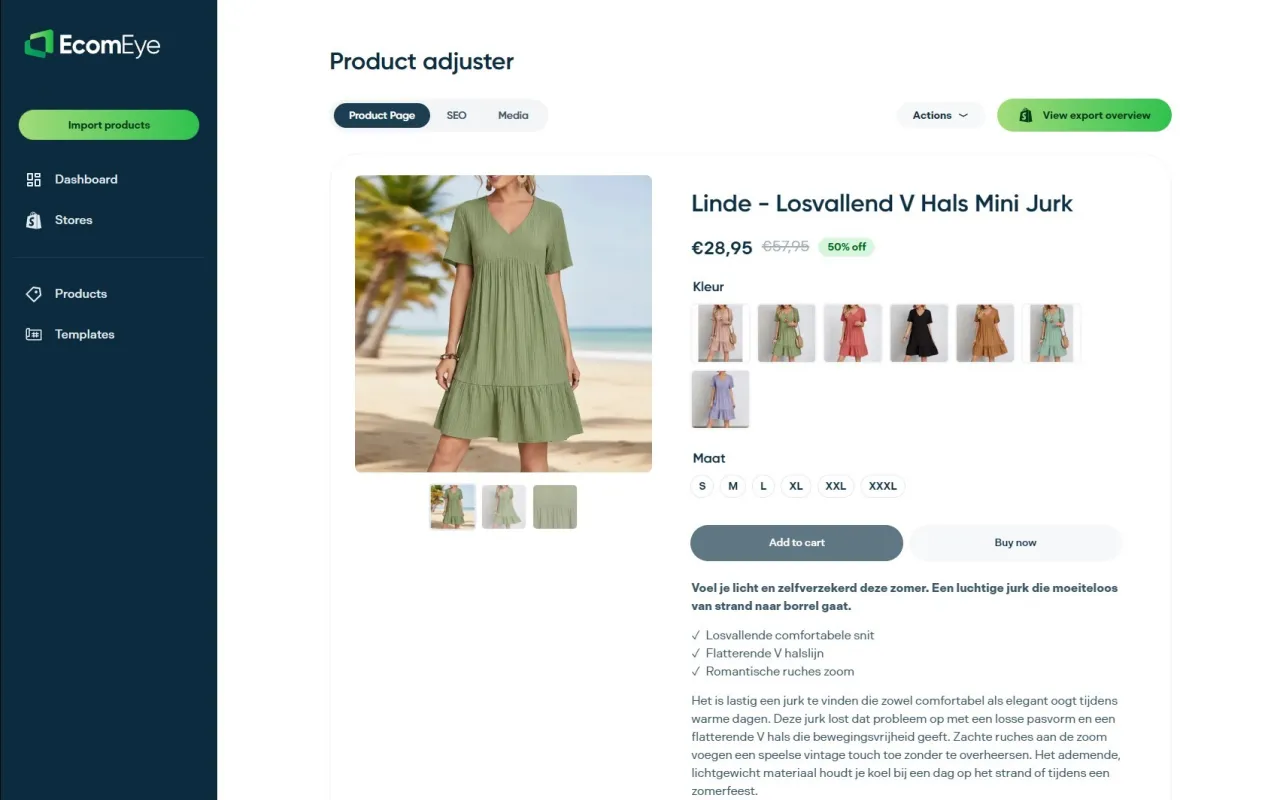
The practical wins: hours saved on repetitive copy work, alt text that follows the same descriptive pattern across your whole catalogue instead of the patchwork most stores end up with, and a one-click export straight into Shopify once pages are generated. It pairs naturally with Ecom-eye’s AI product image generator and product description generator, so imagery, copy, and metadata come out aligned rather than bolted together after the fact.
If your catalogue runs into the hundreds, test the workflow on one collection first, check how the generated alt text reads against your own products, then roll it out wider. Start with a free trial at Ecom-eye and see how it handles your next product import.
Sources
- Image Alt Text Guide: How To Write and Add Image Alt Text (2025) - Shopify
- W3C WAI — Images tutorial: decision tree
- Ada
FAQ
Can you add alt text to an image in Shopify?
Yes. Open the product in your Shopify admin, click the image in the Media section, and select Edit alt text; theme images are edited separately through the Theme Editor.
How do you generate alt text for a large number of images?
Use a CSV export and re-import for smaller catalogues, a tool like Matrixify for spreadsheet-based non-destructive edits, or a bulk AI tool such as Ecom-eye once you’re generating or updating hundreds of product pages at once.
How do you find the alt text already set on an image?
Right-click the image on your live store, choose “Inspect,” and look for the alt="" attribute in the highlighted HTML, or check the alt text field directly in your Shopify admin.
What is alt text used for on ecommerce images?
Alt text describes an image for screen readers, displays as a fallback if the image fails to load, and helps search engines index the picture for image search, as outlined in MDN’s img element documentation.
Ready to boost your product pages?
Generate high-converting, SEO-optimized product pages in bulk using AI automation used by e-commerce experts.
No credit card required