Amazon Bullets to Shopify: How to Move Them in Bulk
Learn where Amazon bullet points go in Shopify, how to bring them in bulk via CSV, and how to rewrite them so your product pages stay unique and rank.

Amazon Bullets to Shopify: How to Move Them in Bulk

Amazon bullet points can be moved to Shopify, but they should not arrive as they are. Shopify has no bullet field, Amazon’s format is built for Amazon’s search, and pasted copy leaves you with product pages that look like everyone else’s. The fast route is to pull the product data in bulk, turn the bullets into a clean HTML list, and rewrite the wording so each page is yours. EcomEye does that import, rewrite and export in one workflow for dropshippers, so you are not editing hundreds of listings by hand.
TL;DR
- Shopify has no native bullet-point field. Bullets live inside the product description as an HTML list, or in metafields if your theme reads them.
- Bulk transfer runs through a CSV: Amazon’s five bullet fields have to be merged into the single Body (HTML) column of Shopify’s product template.
- Amazon bullet rules (feature-first, no punctuation, keyword-heavy) do not suit a Shopify page. Rewrite for the shopper, not for Amazon’s search.
- Reusing someone else’s listing copy and images creates duplicate content and ownership problems. Unique text per product is the safer base for Google.
- EcomEye imports from Amazon, AliExpress, Temu or competitor links, generates unique pages, and exports to Shopify in one click.
Table of Contents
- Why you should not paste Amazon bullets straight into Shopify
- Where bullet points go in Shopify
- Moving Amazon bullets in bulk: the CSV route
- Rewriting bullets for Shopify SEO and readability
- Doing it for hundreds of products
- Start with a batch of listings
- Our view
- FAQ
- Sources
Why you should not paste Amazon bullets straight into Shopify
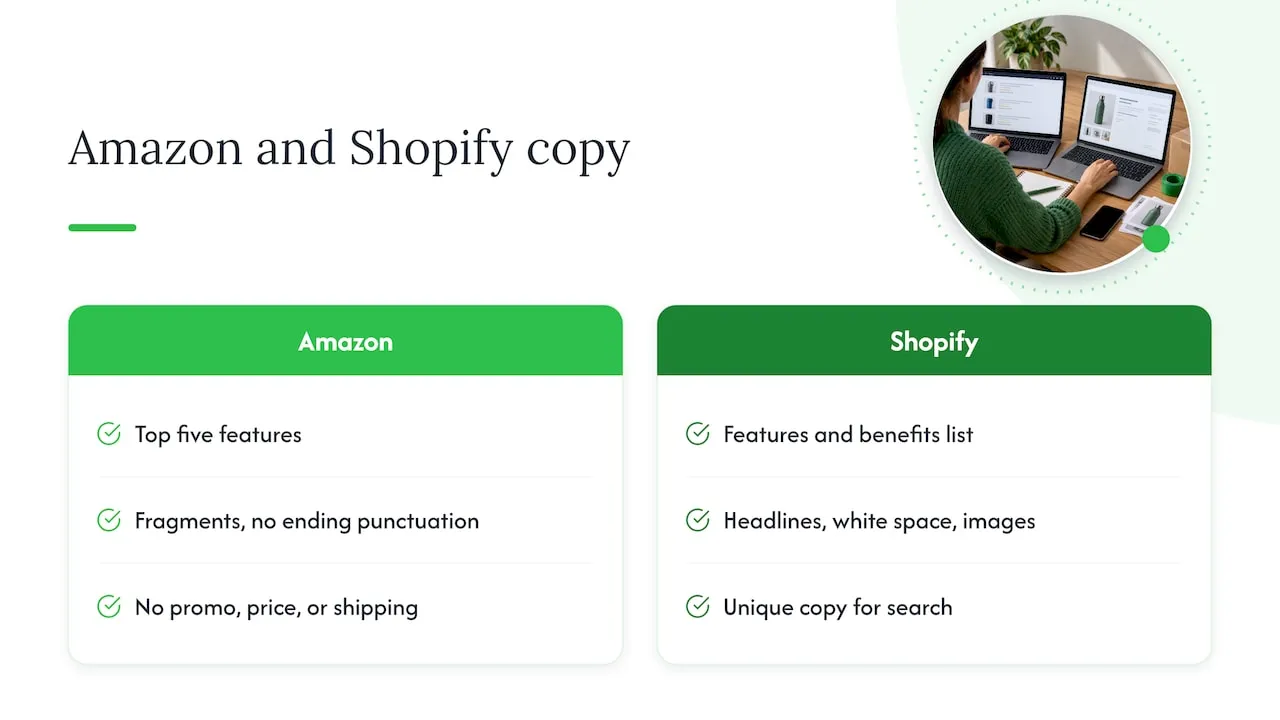
Amazon bullets are written to a strict house format. Amazon’s own detail-page guidance asks for the top five features, each starting with a capital letter, written as fragments without ending punctuation, with no promotional, pricing or shipping information (Amazon detail page guide). That is a spec-sheet style tuned to a marketplace where shoppers compare dozens of near-identical offers.
Your Shopify store has a different job. Shopify’s Help Center tells merchants to organise features and benefits in a bulleted list inside the description, and to keep copy scannable with headlines, white space and strong images. It also warns resellers not to reuse the manufacturer’s exact description, so that the page stays unique for search engines (Shopify: writing product descriptions).
There is a second, quieter problem. Google says duplicate content is not a spam violation and will not trigger a manual action, but it does pick one version of near-identical pages to show. If your Shopify copy matches the Amazon listing word for word, there is little to separate the two, and the marketplace usually wins (SEO for Ecommerce). For a dropshipper, where hundreds of stores sell the same item from the same supplier, unique copy is the only thing that gives a product page a chance.
So the real task is not moving bullets. It is converting them into something Shopify can display, and rewriting them so they earn their place.
Where bullet points go in Shopify
Shopify’s product form has a Title, a Description and a few other standard fields. Bullets are not one of them. You have two places to put them.
Inside the description
The Description field is a rich text editor. Open the product, click into the description, and use the bullet-list button in the toolbar. For bulk work, the editor’s HTML view is quicker: a list is a <ul> wrapper with one <li> per bullet. This is what the CSV import also expects, because everything in the description column is stored as HTML.
In metafields
If your theme has a dedicated “key features” block, bullets can be stored as a metafield (a custom data field attached to the product) and displayed by the theme. This keeps the description clean and lets you place the list wherever the template puts it. It needs a theme that reads the metafield, so check your product template first. Our guide to product template SEO checks covers what to confirm before you scale a template across a catalogue.
Formatting that works on a store page
Keep three to six bullets per product. Lead each with the benefit, put the feature second, and bold the opening words so a mobile shopper can scan. Shopify’s enterprise SEO team cites DHL’s 2025 E-Commerce Trend Report finding that 91% of online shoppers name the smartphone as their preferred shopping device, which is the reason scannable structure matters (Shopify Enterprise). Unlike Amazon, you can use full sentences, normal punctuation and a short intro paragraph above the list.
Moving Amazon bullets in bulk: the CSV route
For your own Amazon catalogue, Shopify documents the manual path. You export your listings from Seller Central as an Active Listings Report, rename the columns to match Shopify’s product CSV template (for example item-name becomes Title, item-description becomes Description, seller-sku becomes SKU, price becomes Price), delete the columns that do not map, and import through Products, then Import, in the Shopify admin. Shopify advises deselecting the option to publish new products to all sales channels before you upload (Shopify: migrating from Amazon).
The bullets need extra handling. Amazon’s Category Listings Report is the more detailed export and carries the five bullet fields separately, plus the description and main image URL, but it leaves out A+ content (Hopted report directory). Shopify wants one Body (HTML) cell per product, so the steps are:
- Export the report and open it in a spreadsheet.
- For each row, join the description paragraph and the five bullets into one cell: the paragraph first, then a
<ul>with each bullet wrapped in<li>. - Strip Amazon-specific phrases such as “As Seen On Amazon” or “Ships and Sold by” a brand.
- Build a handle (the URL slug), an SEO title and a meta description for each row. Amazon’s keyword-stuffed titles do not belong in Shopify.
- Import a five-product test file first, check how the list renders in your theme, then run the full file.
Where it goes wrong: a stray comma or quote inside a bullet breaks a CSV row, a missing closing </ul> bleeds the list formatting into the next block, and one unmapped column can stop the import. Fixing this on 300 rows is a long afternoon.
When the products are not yours
Most dropshippers are not importing their own Seller Central data. They are working from a product link on Amazon, AliExpress, Temu or a competitor store. The same rule applies with higher stakes: listing text and photos belong to whoever made them, and copying them verbatim is what produces duplicate content and Google Merchant Center disapprovals. The practical answer is to treat the source link as product information (what it is, its materials, sizes, variants) and generate fresh copy and images from it. This is exactly how EcomEye works: you import by link in bulk, and every listing is uniquely generated, even when two stores start from the same product link.
Rewriting bullets for Shopify SEO and readability
Whatever route brings the data in, the wording needs a second pass. These are the changes that matter most.
Drop the keyword stacking. Amazon titles and bullets are loaded with search terms because the marketplace indexes them. On Shopify, clean descriptive titles work better, and the target keyword should appear naturally in the title, the first sentence, the image alt text and the meta fields (Shopify Enterprise). We cover this in more depth in our guides to unique product titles at scale and the product title formula.
Lead with the benefit. “Keeps drinks cold for 24 hours” sells better than “Double-wall vacuum insulation, 18/8 stainless steel”. Put the spec in the second half of the bullet.
Add a short intro above the list. One or two sentences that say who the product is for and what problem it solves. Bullets alone read like a data feed.
Respect search display limits. Shopify’s admin warns that SEO titles beyond about 70 characters and meta descriptions beyond about 320 may be cut off in results. In practice, titles of 50 to 60 characters and descriptions of 120 to 160 characters fit most results (SEO Fire).
Remove marketplace-only content. Delete shipping and guarantee wording, references to Amazon, and any claim you cannot back up. In regulated categories such as supplements and food, claims need to be verifiable on the packaging, whichever channel you sell on.
Keep it different per channel. If you also sell on Amazon, send Amazon the short, format-compliant bullets and keep longer, more persuasive copy on Shopify. Treat them as two separate pieces of writing, because sync apps that mirror the same text everywhere create the duplicate-content problem above (SEO for Ecommerce).
For description structure beyond bullets, see our product description ideas for Shopify SEO.
Doing it for hundreds of products
The workflow above is manageable for ten products and punishing for five hundred. The cost is not the CSV itself but the rewriting: every bullet, title and description needs unique wording, and every image needs checking. That is where bulk generation changes the maths.
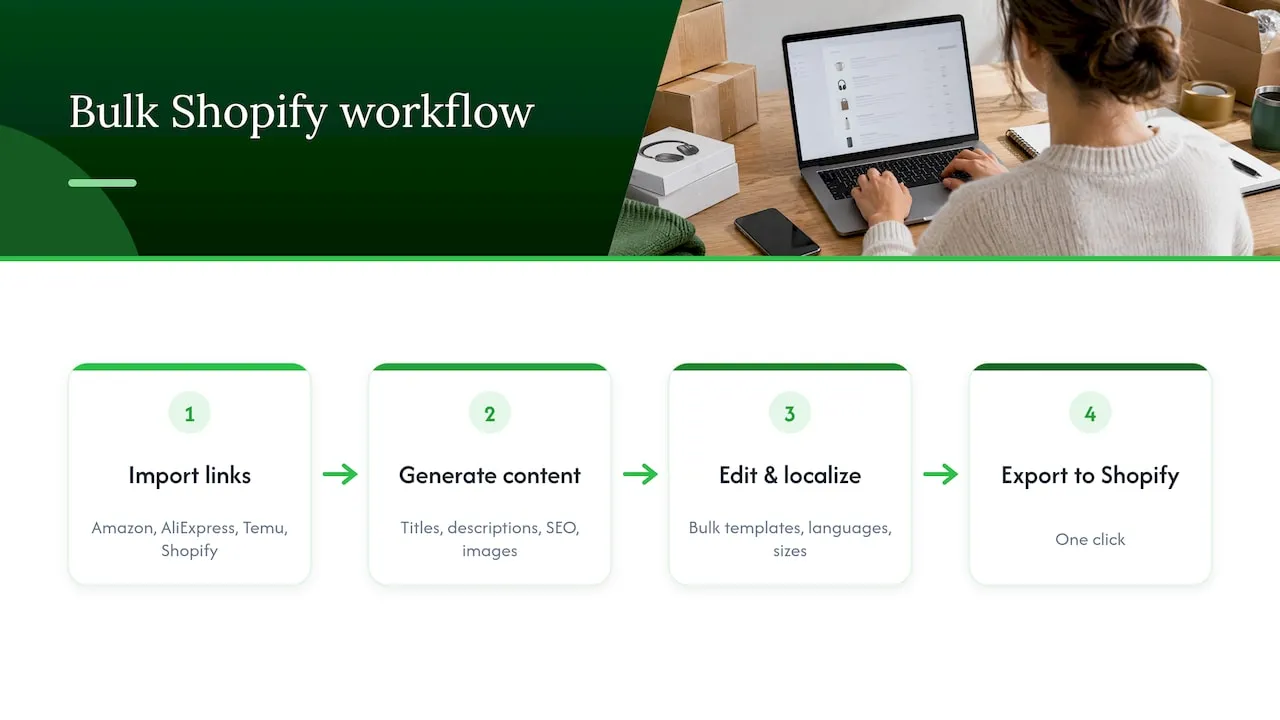
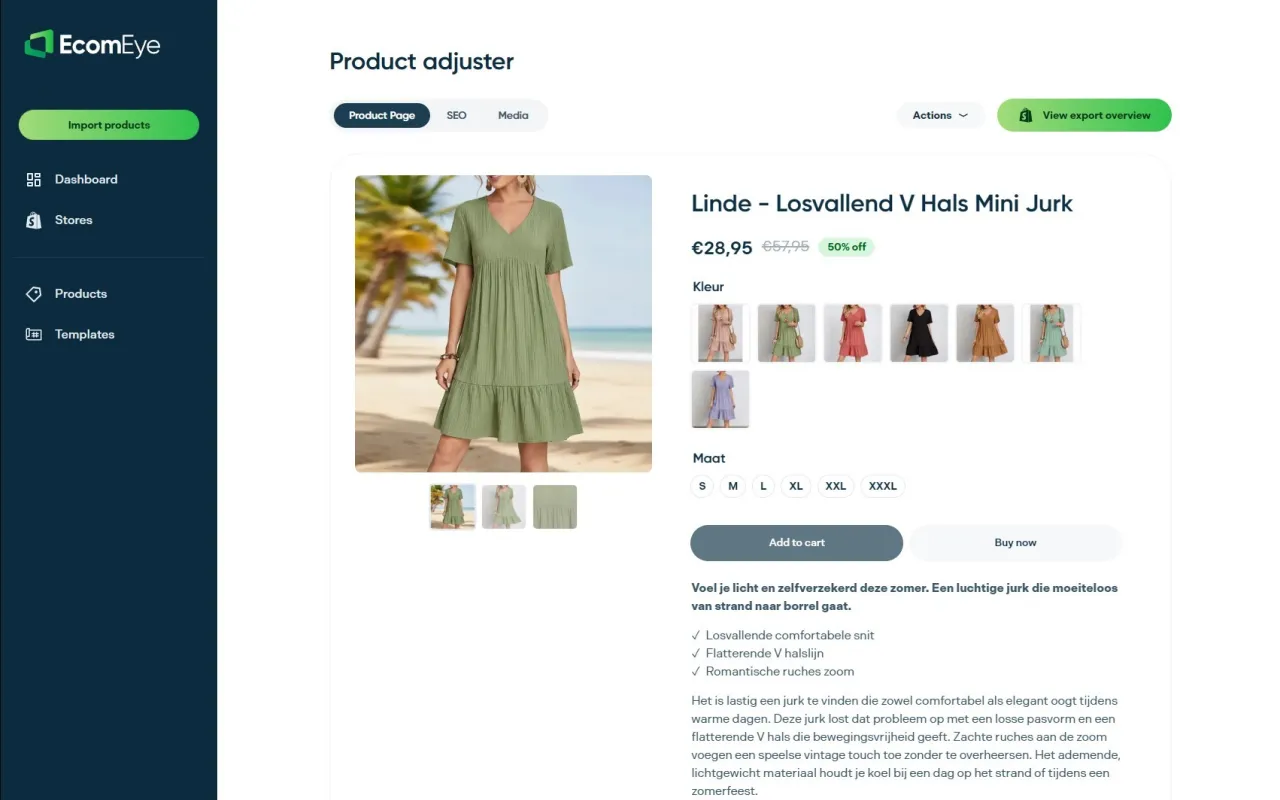
With EcomEye you import products in bulk from Amazon, AliExpress, Temu or competitor Shopify links, and it generates optimised titles, clean descriptions and SEO-ready content, plus AI product images. You can edit in bulk with built-in templates, create pages in several languages, convert size systems, and export straight to Shopify in one click. There is no CSV mapping and no HTML list to hand-build. The platform also includes tools for Google Merchant Center and product variant management, which helps keep listings clear of disapprovals.
Start with a batch of listings
EcomEye has two plans: Try-out at €39 per month and Scaler at €99 per month. Pick a batch of products you are about to list, import their links, and review the generated pages in Shopify. See plans and pricing, or look at the AI product description generator and AI product image generator to see what each part produces.
Our view
Most dropshipping stores that struggle on Google have the same root cause: the product pages are somebody else’s. The text came from a supplier or a competitor, the images too, and Google has no reason to rank the fifth copy of anything.
That is why we built EcomEye around unique generation rather than conversion. Moving bullets from one format to another is a formatting job. Making a page that is genuinely yours, in bulk, with copy and images nobody else has, is what lifts a catalogue.
Our approach is simple: take the product facts from a link, generate original titles, descriptions and images for each user, and push the result to Shopify in one click. Every listing is unique even when two merchants start from the same link, and that is the point.
Koen
FAQ
Does Shopify have a bullet point field like Amazon?
No. Bullets are not a native Shopify field. You add them as a bulleted list in the product description, using the rich text editor’s list button or HTML list markup, or store them in a metafield if your theme displays one.
Can I import Amazon bullets into Shopify with a CSV?
Yes. Shopify’s product CSV template has a single Body (HTML) column, so the five Amazon bullet fields must be merged with the description into one HTML cell before you import through Products, then Import. Test with a few rows first to check the formatting.
Is it safe to copy Amazon bullets word for word?
Copying produces duplicate content, and Google tends to show one version rather than both. Text and images also belong to their creators, so only reuse data you own or are authorised to use. Rewritten, original copy is the better base for ranking and for Merchant Center approval.
How many bullets should a Shopify product page have?
Three to six short bullets work well, placed beneath a one or two sentence intro. Lead with the benefit, then the feature, and keep each one scannable on a phone. Amazon asks for five, but your store has no fixed limit.