Merchant Center Image Quality: Requirements and Fixes
What Google Merchant Center expects from product images in 2026 and 2027: size, background, text, AI metadata and how to clear image errors on Shopify.

Merchant Center Image Quality: Requirements and Fixes

Google Merchant Center judges image quality on a short list of checks: pixel size, a clear view of the product, no promotional overlays, a crawlable URL and, for AI images, intact metadata. Fail one and the product won’t appear on Google surfaces. For a dropshipper importing hundreds of supplier photos, the quickest way to clear this is to replace supplier images with unique, clean, correctly sized ones at scale, which is what our AI product image generator is built for.
TL;DR
- From 31 January 2027, every
image_linkandadditional_image_linkimage must be at least 500 × 500 pixels. Google recommends 1500 × 1500 or more. - Text, logos, watermarks, borders, placeholders and price or shipping details on the image cause disapprovals.
- AI-generated images must keep their embedded IPTC metadata. Never strip it.
- Most Shopify errors come from small originals, supplier overlays, blocked crawling or variants with no image.
- Fixed images usually refresh within 24 to 72 hours. Rename the file to speed up a recrawl.
Table of Contents
- What Google actually checks
- The 500 × 500 change: what applies and when
- Problems that trigger low-quality notices
- How to find the exact issue in Merchant Center
- Fixing images on a Shopify store, step by step
- Passing the validator is not the same as selling
- Google’s automatic image improvements
- AI-generated images and metadata
- Fix the catalogue in bulk
- FAQ
- Sources
What Google actually checks
Google’s image_link specification sets the rules for the main image:
- At least 500 × 500 pixels from 31 January 2027, with 1500 × 1500 or more recommended.
- No larger than 64 megapixels or 16 MB.
- A supported format whose file extension matches the real file type.
- A public, stable URL that Google can crawl.
- A clear view of the product, without promotional text, watermarks, borders or placeholders.
That is the technical floor. Google’s image best practices describe what a good image looks like: a sharp hero shot on a solid white or light neutral background, a recognisable main angle, and the product filling 75% to 90% of the frame. It also recommends at least five extra images: alternate angles, a solid-background shot, a lifestyle shot and detail shots.
Note that additional images behave differently. You can submit up to 10, and an undersized one does not disapprove the product. It simply isn’t shown. The main image is where listings are lost.
The 500 × 500 change: what applies and when
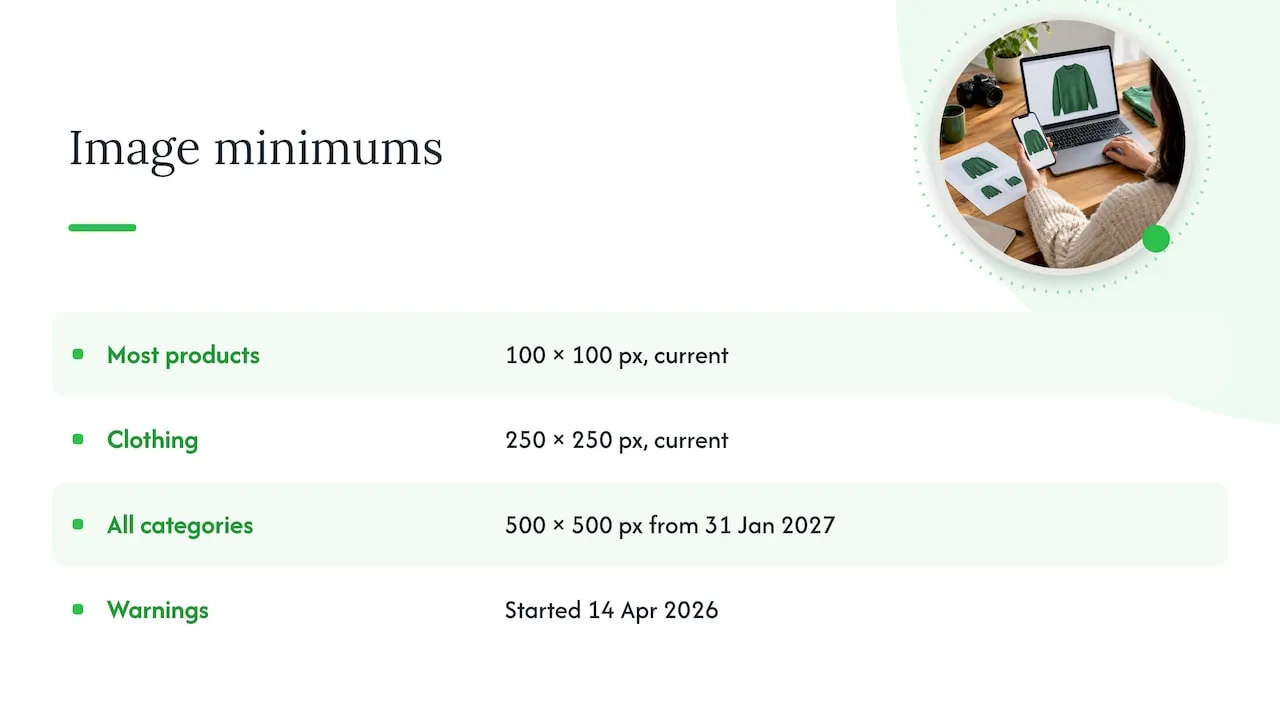
Until the new rule bites, Google’s “Image too small” page still states minimums of 100 × 100 pixels for most products and 250 × 250 for clothing. Google’s April 2026 specification update raises this to 500 × 500 across all categories from 31 January 2027, and warnings in Merchant Center started on 14 April 2026. Google may also optimise some images below 500 × 500 and mark them with a warning. You can replace an optimised image by uploading a larger one.
So a catalogue that passes today can still hold hundreds of warnings. Treat every warning as a future disapproval. Our guide to preparing catalogues for the 500×500 rule walks through a bulk audit.
Why supplier images are the usual culprit
Supplier thumbnails, cropped fabric close-ups and screenshots often come in under 500 pixels. They also tend to carry supplier logos, sale badges or Chinese-language text. And because every other store importing the same product uses the same files, you get duplicate imagery on top of the size problem. Our piece on unique AI images per SKU covers that side.
Problems that trigger low-quality notices
Google’s image status guide lists the usual causes. In Merchant Center they show up under these issue types, which the Content API issue list also documents:
| Issue code | Plain meaning | Typical fix |
|---|---|---|
| image_link_unwanted_overlays | Text, logo or watermark on the image | Upload a clean hero shot |
| image_link_too_small | Below the minimum size | Upload the original at 500 × 500 or larger |
| image_link_generic | Placeholder or generic graphic | Use a real product photo |
| image_link_single_color | Plain colour square | Use a real product image |
| image_link_broken | URL returns an error | Fix the URL so it returns 200 OK |
| image_link_roboted | robots.txt blocks Google | Allow Googlebot and Googlebot-Image |
| image_link_too_big | File exceeds size limits | Compress or resize |
| image_link_pending_crawl | Not yet crawled | Wait, then rename the file if it stalls |
What counts as a promotional overlay
Per Google’s spec, these are not allowed on the image: calls to action such as “Buy” or “Shop now”, prices or shipping details, warranty claims, promotional adjectives like “Best” or “Cheap”, condition labels like “New”, barcodes or QR codes, and watermarks or added brand and retailer logos that are not physically part of the product. Borders are out too. See our walkthrough on fixing image overlay disapprovals for examples.
How to find the exact issue in Merchant Center
Google points to three places:
- Products > Needs attention. Critical errors appear here. Switch off “Priority Fixes” to see everything.
- Needs attention > View History. Warnings such as “Image too small for upcoming enforcement” sit here.
- The product details page. It shows the crawled thumbnail, the last crawl time and any policy banner.
Google’s product data specification adds that the Issue Details page holds all diagnostics, and that low-quality images can lead to disapproval, limited eligibility or wrong displays.
Our checklist of five product data checks helps you catch image and non-image errors in one pass.
Fixing images on a Shopify store, step by step
1. Separate warnings from disapprovals. A warning for the 2027 deadline does not stop sales today, but a disapproval does. Fix disapprovals first. Download the affected list from Needs attention, as Google’s fix page describes.
2. Check the originals, not thumbnails. Shopify documents a maximum image size of 5000 × 5000 pixels, with 2048 × 2048 recommended, but no minimum, so it will happily submit tiny photos. A URL parameter such as ?width=500 only caps size. An image can never be enlarged beyond its original, so the fix is a larger source file.
3. Replace, don’t pad. Re-upload bigger originals. Adding white padding to reach a size makes the product smaller in frame and breaks the 75% to 90% guidance. Check that your feed writes the original image URL, without size suffixes such as _400x. Our guide to 2048 × 2048 Shopify images explains how to standardise sizes.
4. Give every variant an image. A “Missing value” error often means a variant has no image of its own and nothing to fall back on. Assign one to every variant in the feed.
5. Keep both platforms’ limits in mind. The same source notes Shopify’s 25 MP ceiling and Google’s 16 MB ceiling bind at different points, and a 2048 × 2048 JPEG sits comfortably inside both.
6. Force a recrawl. New images are typically approved within 3 days. Google serves the previously approved image for up to 30 days while a new URL processes, and an unchanged URL can take up to six weeks to be recrawled. Rename the file (item_v2.jpg) and resubmit, and a refresh usually lands in 24 to 72 hours.
7. Check crawl access. If processing runs past three days, confirm robots.txt allows Googlebot and Googlebot-Image and that the image URL returns 200 OK, not 403 or 500 from a firewall.
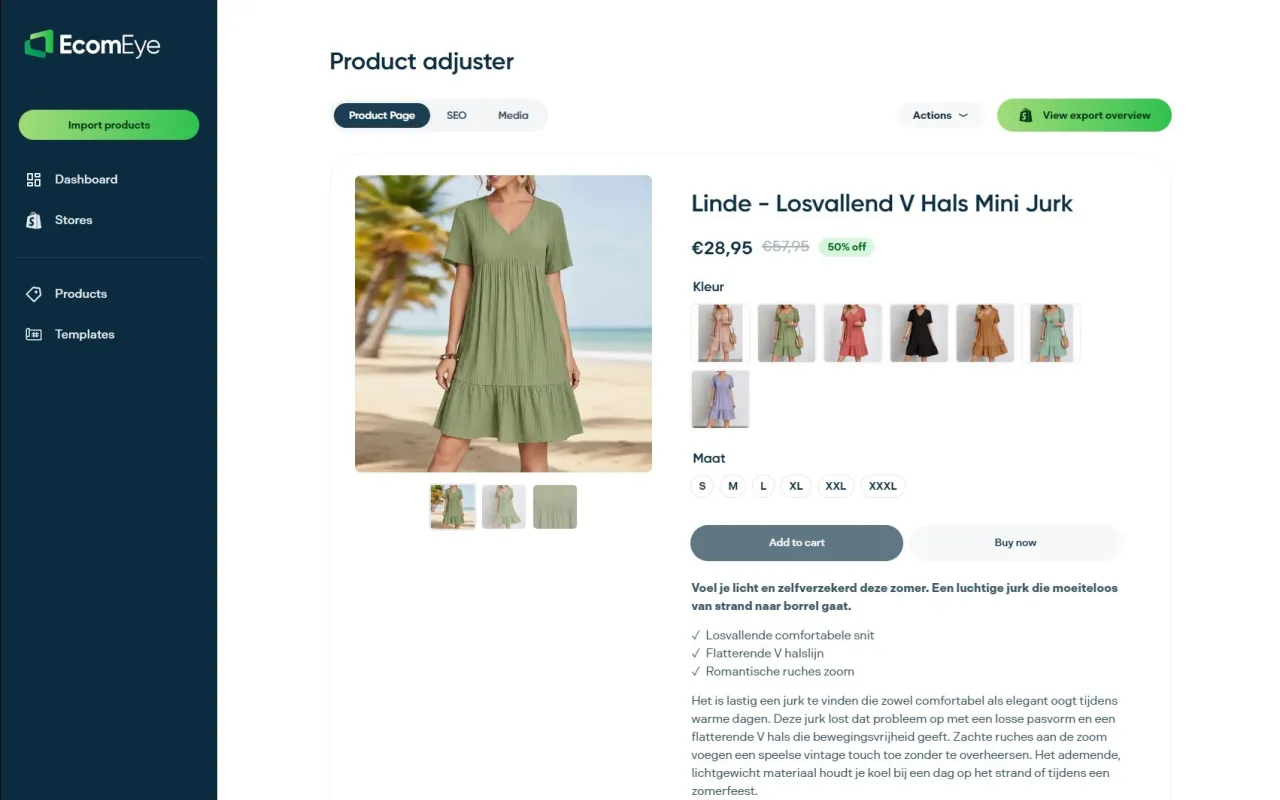
Doing steps 2 to 4 by hand on 500 SKUs is where dropshippers lose weeks. With our platform you import products from AliExpress, Amazon, Temu or competitor Shopify links, generate unique images and pages in bulk, and export to Shopify in one click, so the replacement files are new rather than patched supplier photos.
Passing the validator is not the same as selling
A 250-pixel fabric crop can pass an old check and tell the shopper nothing. One practitioner write-up makes the point well: clearing the error is the minimum, not the goal. Build a gallery that follows the structure Google recommends: a clean hero, angles, a lifestyle image and detail shots. Our research on the ideal product gallery for Google Shopping shows the pattern, and our Shopify image best practices and aspect ratio guide cover framing. For search benefits, see Shopify product image SEO.
Google’s automatic image improvements
In Products > Automations you can switch on automatic image improvements. They are off by default. When enabled, Merchant Center tries to remove detected text, watermarks, overlays or logos and swaps in the result if it succeeds. If it cannot fix the image without lowering quality, your original stays and you must upload a compliant one. You can download the list of improved products from the history graph.
That is a safety net for a few images. For a whole catalogue, starting from clean images is more predictable than relying on removal after the fact.
AI-generated images and metadata
Google requires that images made with generative AI keep their embedded metadata. Do not remove the IPTC tags: TrainedAlgorithmicMedia (derived from a model trained on sampled content), CompositeSynthetic (a composite with synthetic elements) or AlgorithmicMedia (created purely by an algorithm), as applicable. Google first set this rule in February 2024.
In practice, check that your image compression app or theme does not strip metadata on upload. Google also notes that AI regulations in the EU, India, New York, California, South Korea and Vietnam require AI labels on certain assets, and the AI label setting in Merchant Center lets you add one without breaking the overlay rules.
Our view
Most image rejections we see discussed come from one habit: reusing the supplier’s files. Those files are small, branded and identical across every store selling the product. Our approach is to generate every image and page uniquely for each user, so the same product link never produces the same listing twice, and to keep Merchant Center in mind from the start, with tools for variants and Google Merchant Center built in. Fix the source of the problem, not each error one at a time.
Koen
Fix the catalogue in bulk
Our Try-out plan is €39 per month and Scaler is €99 per month. Both let you generate unique product images and SEO-ready pages in bulk, with multi-language pages and one-click export to Shopify. If descriptions need the same cleanup, our AI product description generator handles that in the same workflow.
If you want to see how disapproved listings are usually cleared, read our guide to four Merchant Center disapprovals that restore Shopping clicks.
FAQ
Will a low-quality image stop my product showing on Google?
If an image does not meet the requirements, the product won’t appear on Google surfaces and a notice shows in Merchant Center Diagnostics. Warnings for the 2027 minimum do not block it yet, but they become disapprovals once the rule applies.
What size should my Shopify product images be?
Aim for 2048 × 2048 pixels, Shopify’s recommended size. That clears Google’s 500 × 500 minimum and its 1500 × 1500 recommendation, and stays inside the 16 MB file limit when exported as an optimised JPEG.
How long until Google shows my corrected image?
Changes usually reflect within 24 to 72 hours. If the URL is unchanged, a recrawl can take up to six weeks, so upload the fixed image under a new file name.
Can I use AI-generated images in Merchant Center?
Yes, as long as the embedded metadata stays intact. Preserve the IPTC tags and do not strip them with compression or editing tools.
Sources
- Image link [image_link] - Google Merchant Center Help
- Additional image link - Google Merchant Center Help
- Image best practices - Google Merchant Center Help
- How to fix: Image too small - Google Merchant Center Help
- Merchant Center product data specification update 2026
- How to check and manage your product image status
- Product issues, Content API for Shopping
- Product data specification - Google Merchant Center Help
- Allow Merchant Center to improve your product images
- Merchant Center announcements change log
- How to fix: Text on image - Google Merchant Center Help
- Image too small in Merchant Center: the Shopify fix
- Fix “Image too small” in Google Merchant Center
- Shopify Google Merchant Center image errors